
1. Introducere
Thank you for choosing the Gembird MUS-6B-01 Optical USB Mouse. This manual provides essential information for setting up, operating, maintaining, and troubleshooting your new mouse. Please read these instructions carefully to ensure optimal performance and longevity of your device.

Image: The official Gembird brand logo, featuring the company name in a stylized font with a geometric design.
2. Produs terminatview
The Gembird MUS-6B-01 is a reliable 6-button optical USB mouse designed for comfortable and precise navigation. Its ambidextrous design makes it suitable for both left and right-handed users.
Caracteristici cheie:
- Urmărire optică: Provides smooth and accurate cursor control.
- 6 Butoane: Includes standard left/right click, scroll wheel, DPI adjustment, and two side buttons for enhanced functionality.
- Conectivitate USB: Simple plug-and-play connection to your computer.
- Design ambidextru: Confortabil atât pentru utilizatorii stângaci, cât și pentru cei dreptaci.
Componente:
- Faceți clic stânga pe butonul
- Faceți clic dreapta pe butonul
- Rotiță de derulare (funcționează și ca buton de clic din mijloc)
- Buton de ajustare DPI
- Buton Înainte (lateral)
- Buton Înapoi (Lateral)
- Optical Sensor (underside)
- USB Connector (at the end of the cable)
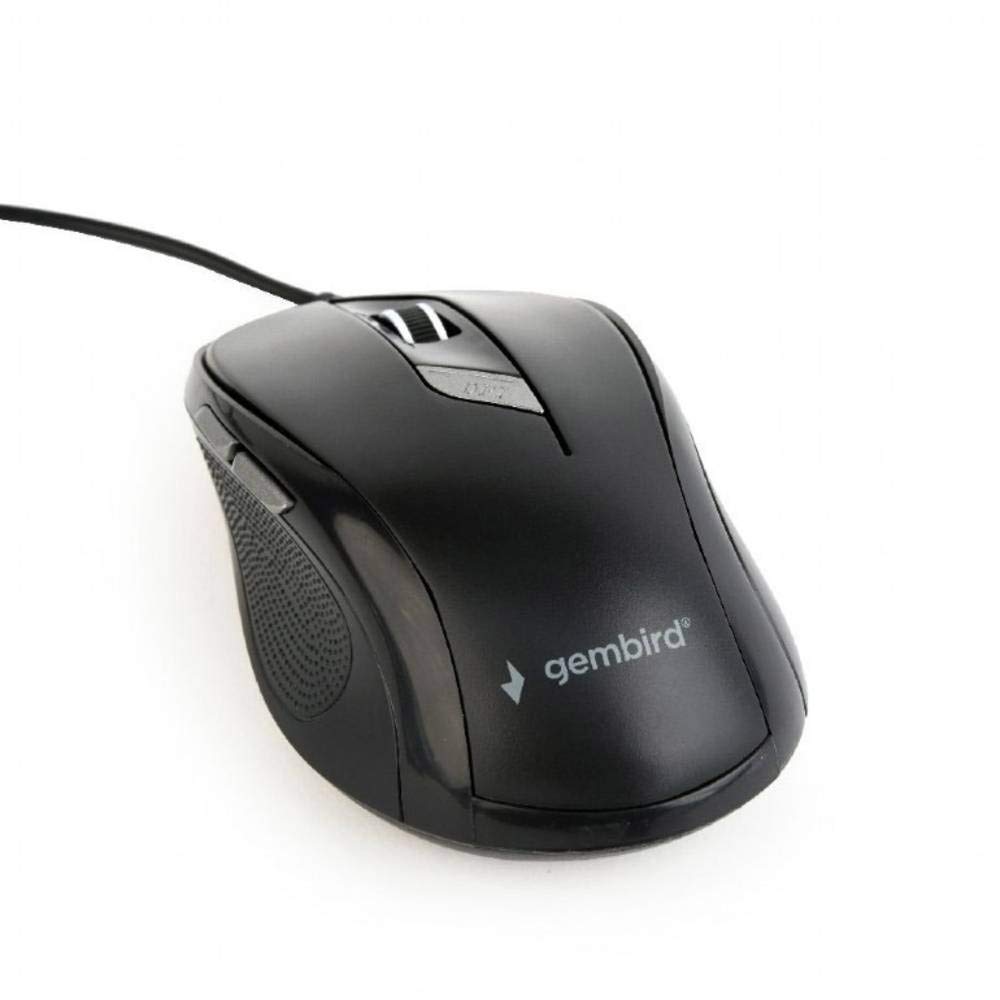
Imagine: O imagine de sus în jos view of the Gembird MUS-6B-01 optical USB mouse. The mouse is black with a matte finish, featuring a scroll wheel, left and right click buttons, a DPI button, and two side buttons. A black USB cable extends from the front of the mouse.
3. Configurare
Setting up your Gembird MUS-6B-01 mouse is a simple plug-and-play process.
Pașii de instalare:
- Găsiți un port USB disponibil pe computer.
- Plug the USB connector of the Gembird MUS-6B-01 mouse firmly into the USB port.
- Your operating system (Windows, Linux) will automatically detect and install the necessary drivers. This process may take a few moments.
- Odată ce driverele sunt instalate, mouse-ul este gata de utilizare.
No additional software installation is typically required for basic functionality.
4. Instrucțiuni de utilizare
Familiarize yourself with the functions of each button on your Gembird MUS-6B-01 mouse.
Funcții de bază:
- Click stânga: Primary action, selecting items, opening files.
- Click dreapta: Opens context menus, provides additional options.
- Rotiță de defilare: Derulați în sus sau în jos prin documente și web pagini.
- Clic pe mijloc (apăsarea rotiței de derulare): Often used to open links in new tabs or for specific application functions.
Funcții avansate:
- Buton de ajustare DPI: Located behind the scroll wheel, this button allows you to cycle through different sensitivity (DPI) settings. Press it to change the cursor speed to suit your preference.
- Buton Înainte (lateral): Typically navigates forward in web browsere sau file exploratori.
- Buton Înapoi (Lateral): Typically navigates backward in web browsere sau file exploratori.
The functionality of the side buttons may vary depending on the application or operating system settings. Some operating systems allow customization of these buttons.
5. Întreținere
Proper care will help extend the life of your Gembird MUS-6B-01 mouse.
curatenie:
- Deconectați mouse-ul de la computer înainte de curățare.
- Folosiți un moale, ușor damp, lint-free cloth to wipe the surface of the mouse.
- For stubborn dirt, a small amount of mild soap solution can be applied to the cloth (not directly to the mouse).
- Use a cotton swab or compressed air to clean around the scroll wheel and between buttons.
- Ensure the optical sensor on the underside is clean and free of dust or debris.
- Nu utilizați substanțe chimice dure, produse de curățare abrazive și nu scufundați mouse-ul în apă.
Depozitare:
When not in use for extended periods, store the mouse in a clean, dry environment away from extreme temperatures and direct sunlight.
6. Depanare
If you encounter issues with your Gembird MUS-6B-01 mouse, try the following troubleshooting steps:
| Problemă | Soluție posibilă |
|---|---|
| Șoarecele nu răspunde |
|
| Erratic or jumpy cursor movement |
|
| Butoanele nu funcționează |
|
7. Specificații
Detailed technical specifications for the Gembird MUS-6B-01 Optical USB Mouse:
| Caracteristică | Caietul de sarcini |
|---|---|
| Marca | Gembird |
| Numele modelului | MUS-6B-01 |
| Tehnologia de conectivitate | Cu fir (USB) |
| Tehnologia de detectare a mișcării | Optic |
| Cantitate de butoane | 6 |
| Orientarea mâinii | Ambidextru |
| Sisteme de operare compatibile | Linux, Windows 7, Windows XP (și versiuni mai noi) |
| Platformă hardware | Computer personal |
| Lungimea cablului | 5.0 metri |
| Greutatea articolului | 74 grame |
| Material | Plastic |
| Culoare | Negru |
| Bateriile necesare | Nu |
8. Informații de siguranță
Vă rugăm să respectați următoarele instrucțiuni de siguranță:
- Nu expuneți mouse-ul la apă sau umiditate excesivă.
- Evitați să scăpați sau să expuneți mouse-ul la impacturi puternice.
- Nu încercați să dezasamblați sau să reparați mouse-ul singur. Adresați-vă personalului de service calificat.
- Țineți dispozitivul departe de temperaturi extreme și lumina directă a soarelui.
- Eliminați deșeurile electronice în mod responsabil, conform reglementărilor locale.
9. Garanție și asistență
Gembird products are designed for reliability and performance. For specific warranty terms and conditions, please refer to the warranty card included with your product or visit the official Gembird website. For technical support or further assistance, please contact your retailer or the Gembird customer service department.