
BEVA M2
BEVA M2 2.4GHz Wireless 1D USB Barcode Scanner User Manual
Model: M2 | Marcă: BEVA
1. Produs terminatview
The BEVA M2 Barcode Scanner is a versatile and robust device designed for efficient 1D barcode scanning. It offers both 2.4GHz wireless and USB wired connectivity options, ensuring flexibility across various operating environments. With its ergonomic design, durable construction, and long-lasting battery, it is suitable for applications in retail, warehousing, and inventory management.

Figura 1: Key components of the BEVA M2 Barcode Scanner. This diagram highlights the scan window, battery display, durable TPU casing, and USB ports for connectivity and charging.
2. Instrucțiuni de configurare
The BEVA M2 Barcode Scanner supports both wireless and wired connections, offering a plug-and-play experience without the need for driver installation.
2.1 Conexiune wireless (2.4 GHz)
- Locate the 2.4GHz USB adapter included with your scanner.
- Insert the USB adapter into an available USB port on your computer (Windows, Mac OS, or Linux).
- Turn on the barcode scanner. The scanner will automatically pair with the adapter. A successful connection is typically indicated by an audible beep or LED indicator.
- Scanerul este acum gata de utilizare.
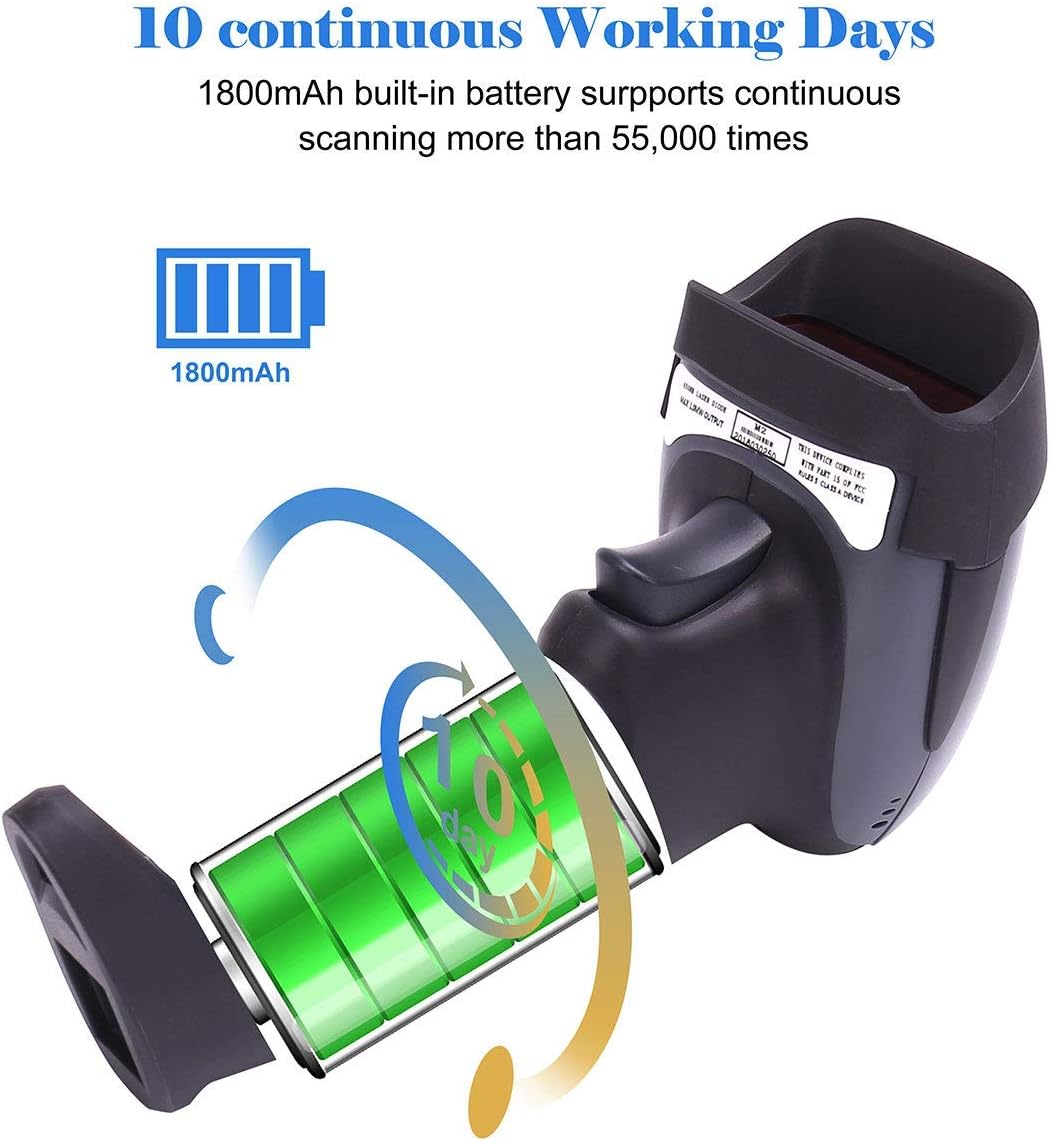
Figura 2: Wireless connection setup, demonstrating the 100m effective transmission range between the scanner and the USB adapter plugged into a laptop.
2.2 Wired Connection (USB 2.0)
- Connect the provided USB cable to the scanner's USB port.
- Conectați celălalt capăt al cablului USB într-un port USB disponibil de pe computer.
- The scanner will be recognized by your operating system (Windows, Mac OS, or Linux) and will function as a wired device.

Figura 3: The BEVA M2 scanner offers both USB wired and 2.4G wireless connectivity for flexible use.
3. Instrucțiuni de utilizare
Once connected, the BEVA M2 scanner is ready to read 1D barcodes quickly and accurately.
3.1 Scanare de bază
- Point the scanner's laser beam at the center of the barcode you wish to scan.
- Press the trigger button. A successful scan will typically be indicated by a beep and the data appearing in your active application (e.g., text editor, POS software).
- The scanner can achieve speeds of up to 200 scans per second.
3.2 Tipuri de coduri de bare acceptate
The BEVA M2 scanner supports a wide range of 1D barcode symbologies, including:
- UPC / EAN
- Cod 128
- Cod 39
- Cod 39 ASCII complet
- Codabar
- Industrial/Intercalat 2 din 5
- Cod 93
- MSI/Plessey
- Cod 11
- ISBT128
- USD-8
- Marea Britanie/Plessey
It is capable of reading fuzzy, damaged, and dirty barcodes.
3.3 Setări avansate
The scanner offers customizable functions to meet various operational needs. These include:
- Scanare automată: Configure for continuous scanning without pressing the trigger.
- Character Masking: Hide specific characters from scanned data.
- Prefix/Suffix Addition: Adăugați caractere personalizate înainte sau după datele scanate.
- Reglarea volumului: Control the scanner's beep volume.
- Keyboard Language Support: Supports multiple keyboard languages including English, German, Spanish, and Italian.
Refer to the supplementary programming guide (if provided) for detailed instructions on configuring these advanced settings by scanning specific setup barcodes.

Figura 4: The BEVA M2 scanner in use within a warehouse environment, demonstrating its portability and suitability for inventory tasks.
4. Întreținere
Proper maintenance ensures the longevity and optimal performance of your BEVA M2 Barcode Scanner.
4.1 Managementul bateriei
The scanner is equipped with an 1800mAh built-in Lithium-ion battery, providing extended operational time.
- A full charge supports over 10 days of continuous use or more than 55,000 scans.
- Charge the scanner using the provided USB cable connected to a computer or a compatible USB power adapter.
- Monitor the battery display indicator on the scanner for current charge level.

Figura 5: Battery performance details, highlighting the 1800mAh capacity and extended operational duration.
4.2 Durability and Cleaning
The BEVA M2 scanner is designed for durability in demanding environments.
- It features 360° shock protection with a TPU rubber casing, making it resistant to drops from up to 3 meters.
- The device has an IP54 rating, indicating protection against dust ingress and splashing water.
- Pentru a curăța scanerul, folosiți o lavetă moale,amp cloth. Avoid abrasive cleaners or solvents that could damage the casing or scan window.

Figura 6: The robust design of the scanner, featuring a TPU shield for enhanced shock resistance.
5. Depanare
This section addresses common issues you might encounter with your BEVA M2 Barcode Scanner.
5.1 Scanerul nu citește codurile de bare
- Verificați conexiunea: Ensure the USB adapter is securely plugged in for wireless mode, or the USB cable is firmly connected for wired mode.
- Nivel baterie: Verify that the scanner has sufficient battery charge. Recharge if necessary.
- Tip cod de bare: Confirm that the barcode you are trying to scan is a supported 1D symbology.
- Barcode Condition: While the scanner can read fuzzy or damaged barcodes, extremely poor quality barcodes may be unreadable. Try scanning a different, clear barcode.
- Screen Scanning Limitation: This scanner is designed for scanning physical barcodes. It cannot scan barcodes displayed on screens (e.g., mobile phones, computer monitors).
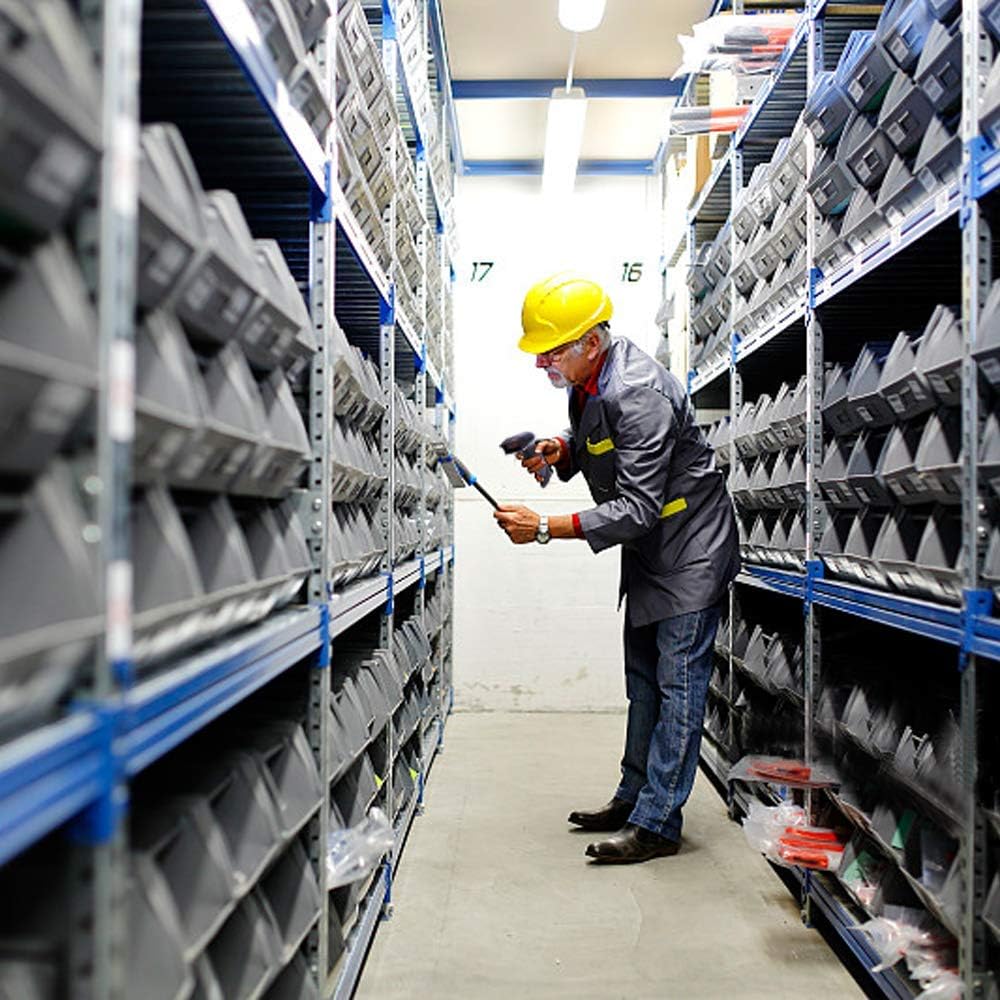
Figura 7: Important operational note: The BEVA M2 scanner is designed for scanning physical barcodes and cannot read barcodes displayed on digital screens.
5.2 No Data Transmission
- Focus pe aplicație: Ensure the target application (e.g., text editor, spreadsheet, POS software) is active and has input focus.
- Compatibilitate cu sistemul de operare: Verify your operating system (Windows, Mac OS, Linux) is compatible.
- Raza wireless: For wireless mode, ensure the scanner is within the 100m transmission range of the USB adapter. Obstructions can reduce this range.
5.3 Scanerul nu pornește
- Încărcați bateria: Connect the scanner to a power source using the USB cable and allow it to charge for at least 30 minutes before attempting to power it on again.
6. Specificații
| Caracteristică | Detaliu |
|---|---|
| Marca | BEVA |
| Numărul de model | M2 |
| Tehnologia de conectivitate | Wireless 2.4 GHz, USB cu fir |
| Capacitatea bateriei | Litiu-ion de 1800 mAh (inclus) |
| Viteza de scanare | Până la 200 scanări/secundă |
| Raza de transmisie wireless | Până la 100 metri |
| Durabilitate | 3m Drop Resistance, IP54 Rating, TPU Shield |
| Sisteme de operare acceptate | Windows, Mac OS, Linux |
| Supported Barcode Symbologies | UPC/EAN, Code 128, Code 39, Code 39 Full ASCII, Codabar, Industrial/Interleaved 2 of 5, Code 93, MSI/Plessey, Code 11, ISBT128, USD-8, UK/Plessey |
| Culoare | Negru/Albastru |
| UPC | 753936050280 |
7. Garanție și asistență
For warranty information, technical support, or service inquiries, please refer to the documentation included with your purchase or contact BEVA customer support directly through their official website-ul sau distribuitorul de unde a fost achiziționat produsul.
Ask a question about this manual
Ask about setup, troubleshooting, compatibility, parts, safety, or missing instructions. Manuals+ will review the question and use this page’s manual context to help answer it.