
1. Introducere
The Comfast CF-WU720N is a compact 150Mbps Wireless USB Adapter designed to provide high-speed wireless connectivity for your desktop or notebook computer. It allows you to connect to a wireless network and access the internet, share files, and enjoy online gaming at speeds up to 150Mbps. This adapter is compliant with IEEE 802.11b/g/n standards and supports USB 2.0 for efficient data transfer.
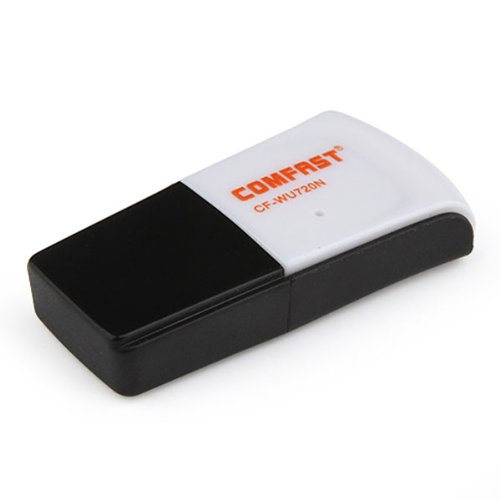
Image 1.1: The Comfast CF-WU720N Wireless USB Adapter, a compact device for wireless connectivity.
2. Caracteristicile produsului
- Meets IEEE 802.11b/g/n wireless standards.
- Supports USB 2.0 interface for broad compatibility.
- Utilizes Realtek 8191 SU chipset for reliable performance.
- Achieves wireless connection rates up to 150Mbps.
- Supports wireless roaming technology for seamless connectivity.
- Strong compatibility with various popular operating systems.
- Compact size: approximately 39 x 12 x 7mm (1.5 x 0.7 x 0.3 inches).
- Lightweight design: approximately 5g.
3. Conținutul pachetului
Vă rugăm să verificați dacă toate articolele sunt prezente în colet:
- 1 x Comfast CF-WU720N Wireless USB Adapter
- 1 x Ghid de instalare rapidă
- 1 x CD-ROM Driver
- 1 x card de garanție

Image 3.1: The retail packaging for the Comfast CF-WU720N, showing the adapter inside.
4. Configurare și instalare
4.1. Instalarea driverului
Before connecting the USB adapter, it is recommended to install the necessary drivers from the provided CD-ROM. This ensures proper functionality and compatibility with your operating system.
- Insert the driver CD-ROM into your computer's optical drive.
- If the installer does not launch automatically, navigate to "My Computer" or "This PC," open the CD-ROM drive, and run the setup executable (e.g., "setup.exe" or "autorun.exe").
- Follow the on-screen instructions to complete the driver installation. You may be prompted to restart your computer after installation.
- Nota: If your computer does not have an optical drive, you may need to download the latest drivers from the manufacturer's official website-ul.
4.2. Conectarea adaptorului USB
Once the drivers are installed, you can connect the Comfast CF-WU720N Wireless USB Adapter to your computer.
- Locate an available USB 2.0 or 3.0 port on your desktop or laptop computer.
- Carefully insert the Comfast CF-WU720N adapter into the USB port. Ensure it is fully seated.
- The operating system should automatically detect the adapter and configure it using the installed drivers. A small LED indicator on the adapter may light up or blink, indicating activity.
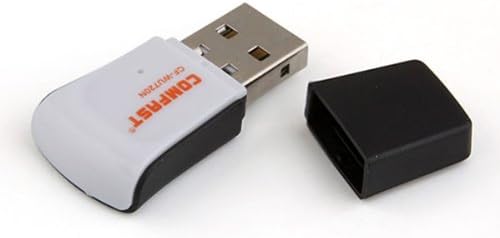
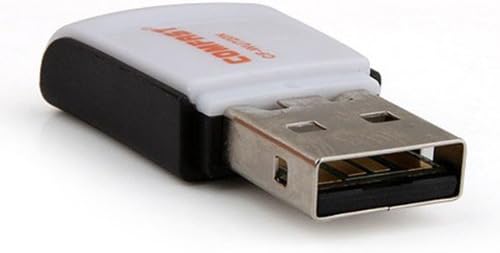
Image 4.1: The Comfast CF-WU720N adapter with its protective cap removed, revealing the USB connector. Image 4.2: A side view of the adapter, highlighting its compact design and USB interface.
5. Instrucțiuni de utilizare
After successful driver installation and adapter connection, you can now connect to a wireless network.
- Accesați setările de rețea:
- Windows: Faceți clic pe pictograma rețelei wireless din bara de sistem (de obicei, în colțul din dreapta jos).
- MacOS: Faceți clic pe pictograma Wi-Fi din bara de meniu (de obicei, în colțul din dreapta sus).
- Linux: Access network settings through your desktop environment's network manager.
- Selectați rețeaua dvs.: A list of available wireless networks (SSIDs) will appear. Select the name of your desired network.
- Conectare: Click "Connect" or "Join." If the network is secured, you will be prompted to enter the network security key (password).
- Confirmați conexiunea: Once connected, the network icon will typically change to indicate a successful connection, and you should be able to access the internet.
6. Întreținere
To ensure optimal performance and longevity of your Comfast CF-WU720N Wireless USB Adapter, follow these simple maintenance guidelines:
- Păstra curat: Gently wipe the adapter with a soft, dry cloth to remove dust. Avoid using liquid cleaners or solvents.
- Protejați conectorul USB: When not in use, keep the protective cap on the USB connector to prevent dust and damage.
- Evitați condițiile extreme: Nu expuneți adaptorul la temperaturi extreme, umiditate sau lumina directă a soarelui.
- Manipulați cu atenție: Evitați să scăpați adaptorul sau să îl supuneți la impacturi puternice.
- Actualizări ale driverului: Verificați periodic producătorul website for updated drivers to ensure the best performance and compatibility.
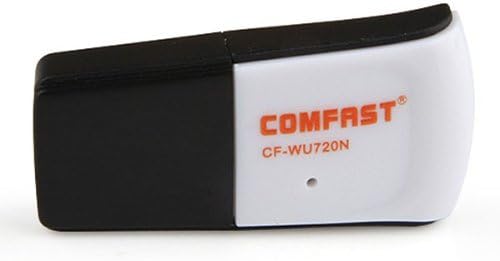
Image 6.1: The Comfast CF-WU720N adapter with its protective cap in place, ready for storage or transport.
7. Depanare
If you encounter issues with your Comfast CF-WU720N Wireless USB Adapter, refer to the following common solutions:
| Problemă | Soluție posibilă |
|---|---|
| Adapter not detected / No Wi-Fi networks visible. |
|
| Nu se poate conecta la o anumită rețea Wi-Fi. |
|
| Viteză mică de conectare sau deconectări frecvente. |
|
8. Specificații
| Caracteristică | Detaliu |
|---|---|
| Model | CF-WU720N |
| Standarde wireless | IEEE 802.11b/g/n |
| Interfață | USB 2.0 |
| Chipset | Realtek 8191 SU |
| Viteza wireless | Până la 150 Mbps |
| Gama de frecvente | 2.4 GHz |
| Caracteristici de securitate | WPA/WPA2, WPA-PSK/WPA2-PSK, 64/128-bit WEP |
| Sisteme de operare | Windows XP/Vista/7/8/10, macOS, Linux (driver dependent) |
| Dimensiuni (L x l x H) | Aprox. 39 x 12 x 7 mm (1.5 x 0.7 x 0.3 inci) |
| Greutate | Aproximativ. 5 g |
9. Garanție și asistență
This product comes with a warranty as specified on the included Warranty Card. Please refer to the card for details regarding warranty period, terms, and conditions.
For technical support, driver updates, or further assistance, please visit the official Comfast website-ul web sau contactați departamentul de asistență pentru clienți. Informațiile de contact se găsesc de obicei pe ambalajul produsului sau pe fișa producătorului. website-ul.
Vă rugăm să păstrați bonul fiscal pentru garanție.