Manuals+
Remote codesPhilips
Philips Universal Remote Codes
Find CL3, CL4, CL5 and CL6 codes for Jasco-made Philips universal remotes and follow the matching setup and search instructions.

Find your remote code
Choose your remote or code-list version, then the device you want it to control.
Match the label on your remote
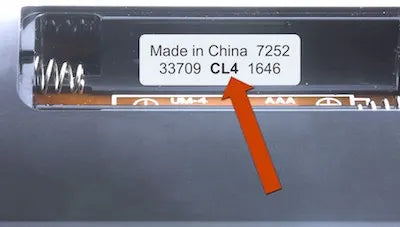
Check the back and inside the battery compartment. Compare the setup button and the digits your manual asks for.
- Check the labelModel and version
- Choose the deviceType and brand
- Enter and testPower, volume and input
Programming instructions
Philips · CL3–CL6Four-digit entry and automatic search
Match the CL number inside the battery compartment to the code list.
Direct code entry
- Switch on the TV, soundbar or other device you want to control.
- Hold SETUP until the red light stays on. Release SETUP, then press the matching device key, such as TV.
- Enter the four-digit code from the matching CL list. The red light goes out after the last digit of a valid code.
- Test power, volume, input and any other keys you need. Repeat with the next code if some functions are missing.
Automatic code search
SETUPDevice keyPOWERVOL+Device key
- Turn on the device, hold SETUP until the light stays on, then press the appropriate device key.
- Aim at the device and press POWER. The remote sends a batch of ten codes. Repeat with the next batch if the device stays on.
- When the device switches off, turn it back on manually. Press VOL+ one time and wait about three seconds. Repeat until the device switches off again. Use VOL− to step backward in the batch.
- Press the same device key to save. Turn the device on and test the other controls.
Further reading
Device code lists
Online tools and references
Frequently asked questions
Where do I find the Philips remote code list version?
Open the battery cover and look for CL3, CL4, CL5 or CL6. Use the number printed on your handset to select the matching list.