 User Manual Q&A
Answer

Dec 07, 2025 - 08:17 PM
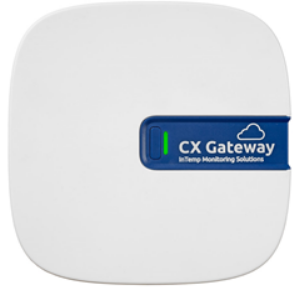
To set up your InTemp CX5000 Data Logger Internet Gateway for monitoring temperature and humidity, follow these steps:


1. **Create an InTempConnect Account:**

   - Go to www.intempconnect.com to set up an account or log into your existing account.


2. **Configure User Roles and Privileges:**

   - In InTempConnect, click Settings and then Roles. Create a role for the person setting up the gateway with necessary privileges.

   - Add users and assign roles with gateway privileges.


3. **Power Up the Gateway:**

   - Insert the appropriate plug into the AC adapter and connect it to the gateway. Wait for the LED to turn deep green.


4. **Create Gateway Profile:**

   - Click Gateways and then Gateway Profiles. Add a profile, select logger type, and configure settings for connecting to loggers.


5. **Connect to Wi-Fi Network:**

   - Ensure the device with the InTemp app can connect to the Wi-Fi network. Open the app, log in, and tap the gateway in the list under Devices to connect.


6. **Configure Network Settings:**

   - Select the gateway profile created in InTempConnect, type a name for the gateway, and start the configuration process.


7. **Deploy the Gateway:**

   - Choose a suitable location for the gateway with optimal transmission range for monitoring temperature and humidity.


8. **Start Monitoring:**

   - Once the gateway is deployed, it is ready for use with loggers. Refer to www.intempconnect.com/help for details on configuring loggers, setting up shipments, and more.


For more detailed configuration settings and instructions, refer to the full product manual available at www.onsetcomp.com/intemp/resources/cx5000-manual.


Add New Comment