 User Manual Q&A
Answer

Aug 22, 2025 - 09:21 PM
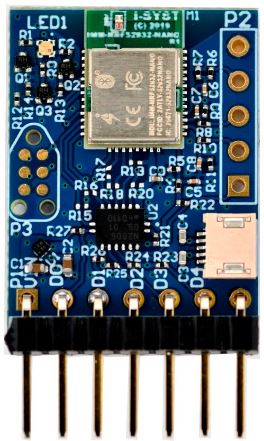
To configure BlueIO832-Mini to communicate with a target device using the BlueIOTerm mobile app over the UART interface, follow these steps:


1. **Connect BlueIO832-Mini to the USB-UART adapter:**

   - Identify the UART pins on the USB-UART adapter (e.g., Green cable for UART_TX, White cable for UART_RX, Red for 5V, Black for GND).

   - Plug the USB-UART adapter into your computer.


2. **Connect BlueIO832-Mini to the target device's UART pins:**

   - Refer to the pin assignment table in the manual (Fig. 2) and connect BlueIO832-Mini [D1-D4] pins to the target device's UART pins.


3. **Identify target device's UART parameters:**

   - Determine the baud rate, flow control, and bit parity of the target device's UART interface.


4. **Set up the USB-UART adapter on your computer:**

   - Install and open the CoolTerm serial port app.

   - In CoolTerm Options → Serial Port Options, select the COM port for the USB-UART adapter, apply UART parameters, and click OK.


5. **Pair BlueIO832-Mini with BlueIOTerm on your mobile device:**

   - Install BlueIOTerm from the App Store.

   - Turn on Bluetooth on your mobile device.

   - Open BlueIOTerm, tap "SCAN" to find BlueIO832-Mini, and connect to it.


6. **Configure UART settings on BlueIOTerm:**

   - Open BlueIOTerm, tap "Connect" to pair with BlueIO832-Mini.

   - Verify the UART parameters displayed on the app.

   - You can now send/receive messages via the UART interface connected to BlueIO832-Mini.


7. **Adjust UART parameters if needed:**

   - Tap "Setting" in BlueIOTerm to access the UART configuration menu.

   - Modify the UART parameters as required.


By following these steps, you can successfully configure BlueIO832-Mini to communicate with a target device over the UART interface using the BlueIOTerm mobile app. For additional details or troubleshooting, refer to the BlueIO832-Mini User Guide provided by I-SYST.


Add New Comment