
1. Introdução
The Huawei OptiXstar K251a-21 is a sub-FTTR (Fiber to the Room) unit designed to extend the high-speed network provided by the Huawei FTTR OptiXstar F50 Plus main unit. This device supports ultra-Gigabit high-speed access via upstream fiber optic lines and delivers Ultra Gigabit dual-band Wi-Fi and ultra-Gigabit network ports to users. It integrates next-generation Wi-Fi 7 technology for higher speeds and lower latency, ensuring a superior home network experience.
2. Informações de segurança
Please read and understand all safety instructions before using this device. Failure to follow these instructions may result in injury, damage to the device, or property damage.
- Use apenas o adaptador de energia fornecido com o dispositivo.
- Não exponha o dispositivo à água, umidade ou temperaturas extremas.
- Evite colocar o dispositivo perto de fontes de calor ou sob luz solar direta.
- Garanta ventilação adequada para evitar superaquecimento.
- Não tente abrir ou reparar o dispositivo por conta própria. Contate pessoal de serviço qualificado para obter assistência.
- Mantenha o dispositivo longe de crianças e animais de estimação.
3. Conteúdo da embalagem
Verifique se todos os itens estão presentes no seu pacote:
- Huawei OptiXstar K251a-21 Sub FTTR Device
- Cabo de energia
- Guia de Início Rápido (se incluído)
4. Produto acabadoview
Familiarize-se com os componentes e indicadores do dispositivo.
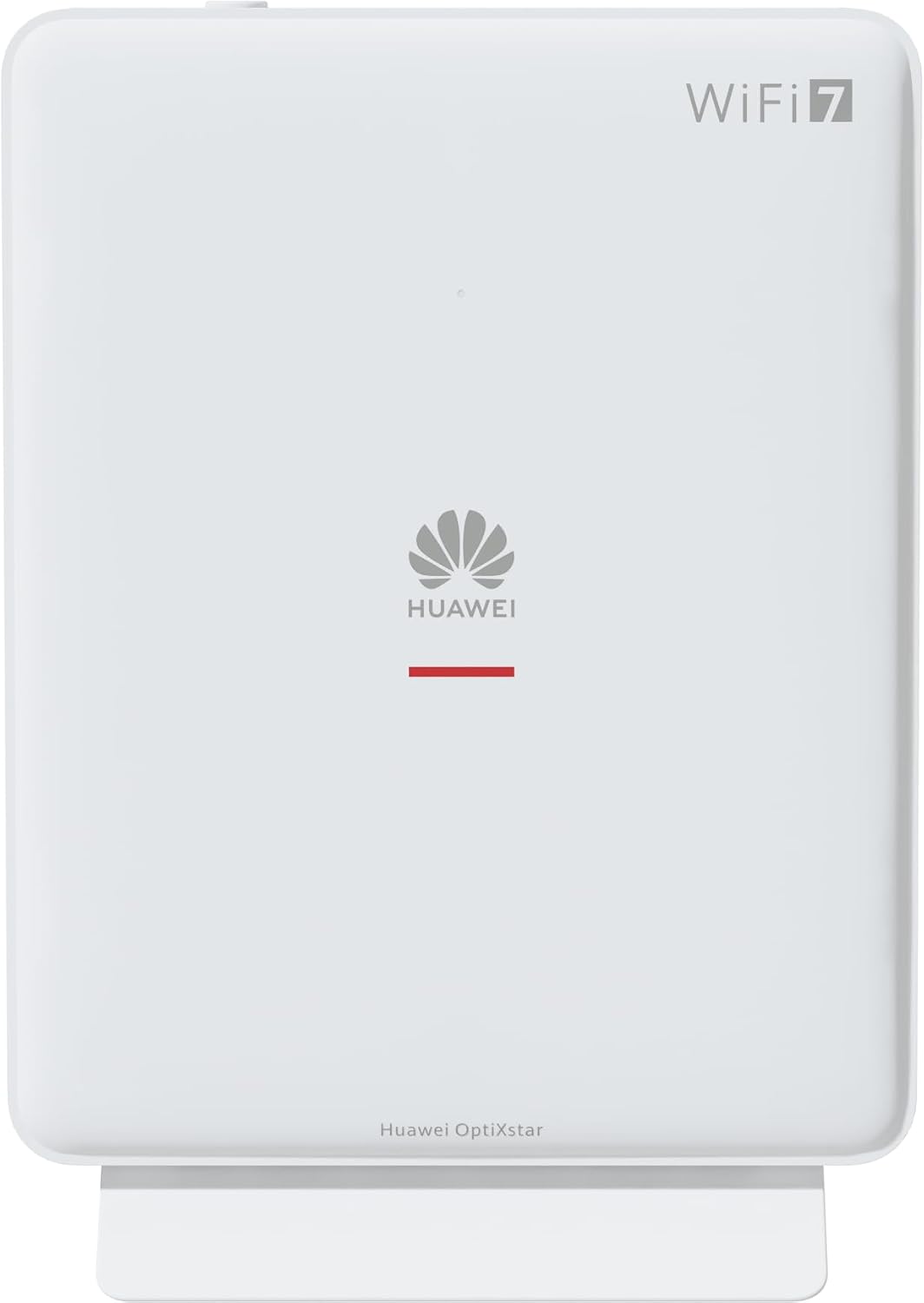
Figura 1: Frente view of the Huawei OptiXstar K251a-21 Sub FTTR device, showing the Huawei logo and "WiFi 7" branding.

Figura 2: Frente angulada view of the Huawei OptiXstar K251a-21 Sub FTTR, highlighting its sleek design and ventilation.

Figura 3: Traseira view of the Huawei OptiXstar K251a-21 Sub FTTR, displaying the ports (Reset, 2-GE, 1-2.5GE, Power, FTTR) and mounting options.

Figura 4: Lado profile of the Huawei OptiXstar K251a-21 Sub FTTR, showing its slim form factor and ventilation grilles.

Figura 5: Traseira angulada view of the Huawei OptiXstar K251a-21 Sub FTTR, providing a clear look at the port labels and layout.

Figura 6: parte superior view of the Huawei OptiXstar K251a-21 Sub FTTR, featuring the WPS/LED button.
Portas e botões:
- FTTR Port: Connects to the main FTTR unit via a fiber optic cable.
- 1-2.5GE Port: Gigabit Ethernet port for high-speed wired connections.
- 2-GE Port: Gigabit Ethernet port for wired connections.
- Porta de alimentação: Conecta-se ao adaptador de energia.
- Botão de reinicialização: Used to restore factory settings (press and hold for 5-10 seconds).
- WPS/LED Button: Initiates Wi-Fi Protected Setup (WPS) for easy device connection and controls LED indicators.
5. Configuração
Follow these steps to set up your Huawei OptiXstar K251a-21 Sub FTTR device:
- Colocação: Choose a central location in your home for optimal Wi-Fi coverage. The device is suitable for various installation scenarios, including vertical placement on a desk, wall-mounting, plugging into a power strip, or mounting in an 86mm junction box with a bracket.
- Conecte o cabo de fibra óptica: Connect one end of the fiber optic cable to the FTTR port on the Sub FTTR unit and the other end to the corresponding FTTR port on your Huawei FTTR OptiXstar F50 Plus main unit or wall outlet. Ensure the connection is secure.
- Conecte a energia: Plug the power adapter into the Power port on the Sub FTTR unit, then plug the other end into a power outlet.
- Ligar: The device will automatically power on. Wait for the indicator lights to stabilize, typically indicating a successful connection to the main FTTR unit and active Wi-Fi.
- Wired Connections (Optional): For wired devices, connect an Ethernet cable from the 1-2.5GE or 2-GE ports on the Sub FTTR to your computer, gaming console, or other network devices.
6. Operação
Once set up, your OptiXstar K251a-21 provides seamless Wi-Fi 7 connectivity.
- Conexão Wi-Fi: Procurar the Wi-Fi network name (SSID) broadcast by your FTTR system on your devices (smartphones, laptops, etc.). Enter the Wi-Fi password. The system's unique SRCN (Seamless Roaming Coordinate Network) technology ensures seamless roaming throughout your home.
- C-WAN Architecture: The C-WAN architecture centrally controls and coordinates network-wide Wi-Fi resources via the Main FTTR, providing an ultra-Gigabit high-speed experience.
- IoT Casing: The device features an IoT casing designed to protect home network security and privacy.
- Função WPS: Press the WPS/LED button briefly to use Wi-Fi Protected Setup (WPS) for quick connection of compatible devices without entering the password.
- Indicadores LED: The LED indicators provide status information. Refer to the main FTTR unit's manual or the device's specific documentation for detailed LED status meanings.
7. Manutenção
Regular maintenance helps ensure optimal performance and longevity of your device.
- Limpeza: Limpe o dispositivo delicadamente com um pano macio e seco. Não utilize produtos de limpeza líquidos ou materiais abrasivos.
- Atualizações de firmware: Huawei periodically releases firmware updates to improve performance and security. These updates are typically managed through the main FTTR unit or a dedicated mobile application. Ensure your system is always running the latest firmware.
- Ventilação: Certifique-se de que as aberturas de ventilação não estejam bloqueadas para evitar superaquecimento.
- Gerenciamento de cabos: Keep fiber optic and power cables neatly organized and free from kinks or excessive bending.
8. Solução De Problemas
Se você encontrar problemas, tente as seguintes etapas de solução de problemas:
- Sem energia: Check if the power cable is securely connected to both the device and the power outlet. Try a different outlet.
- Sem conexão com a Internet:
- Verify that the fiber optic cable is correctly connected to the FTTR port.
- Check the status indicators on both the Sub FTTR and the main FTTR unit.
- Restart both the Sub FTTR and the main FTTR unit by unplugging them from power for 30 seconds and then plugging them back in.
- Ensure your main FTTR unit has an active internet connection.
- Velocidade lenta do Wi-Fi:
- Ensure the device is placed optimally, away from obstructions and interference sources.
- Check if too many devices are connected to the network.
- Update the firmware of your FTTR system.
- Consider using a wired connection for bandwidth-intensive tasks.
- Não é possível conectar-se ao Wi-Fi:
- Verifique se você está digitando a senha correta da rede Wi-Fi.
- Try using the WPS button to connect.
- Restart your device and the Sub FTTR unit.
- Restauração de fábrica: If issues persist, you may need to perform a factory reset. With the device powered on, use a pointed object (like a paperclip) to press and hold the Reset button for 5-10 seconds until the indicators change. Note that this will erase all custom settings.
9. Especificações
| Recurso | Especificação |
|---|---|
| Marca | HUAWEI |
| Número do modelo | K8M251a-21G02 |
| Dimensões (Pacote) | 24.5 x 23.7 x 7.4 cm |
| Peso (Pacote) | 300 gramas |
| Recurso especial | Segurança na Internet |
| Classe de Banda de Frequência | Banda dupla |
| Padrão de comunicação sem fio | 802.11ax (Wi-Fi 7 Generation) |
| Dispositivos compatíveis | Computador pessoal |
| Usos recomendados | Lar |
| Componentes incluídos | Cabo de energia |
| Tecnologia de Conectividade | Ethernet, FTTR, Wi-Fi, Fiberglass |
| Cor | Branco |
| Número de portas | 4 (FTTR, 1-2.5GE, 2-GE, Power) |
| Taxa de transferência de dados | 1 gigabits por segundo |
| Compatibilidade com Smart Home | Compatible with smart home systems |
| Conectividade com a Internet | Sim |
| Protocolo de conectividade | Wi-fi |
10. Garantia e Suporte
Para informações sobre garantia e suporte técnico, consulte o site oficial da Huawei. website or contact your local Huawei customer service. Keep your purchase receipt for warranty claims.
Recursos on-line: Visite o suporte oficial da Huawei. webSite com perguntas frequentes, manuais atualizados e downloads de software.
Atendimento ao Cliente: Contact details for customer support can typically be found on the Huawei website or in the documentation provided with your main FTTR unit.