
1. Introdução
Obrigado pela compra.asing the AGIMA X3 Projector. This manual provides essential information for setting up, operating, and maintaining your projector. Please read it thoroughly before use to ensure optimal performance and safety.
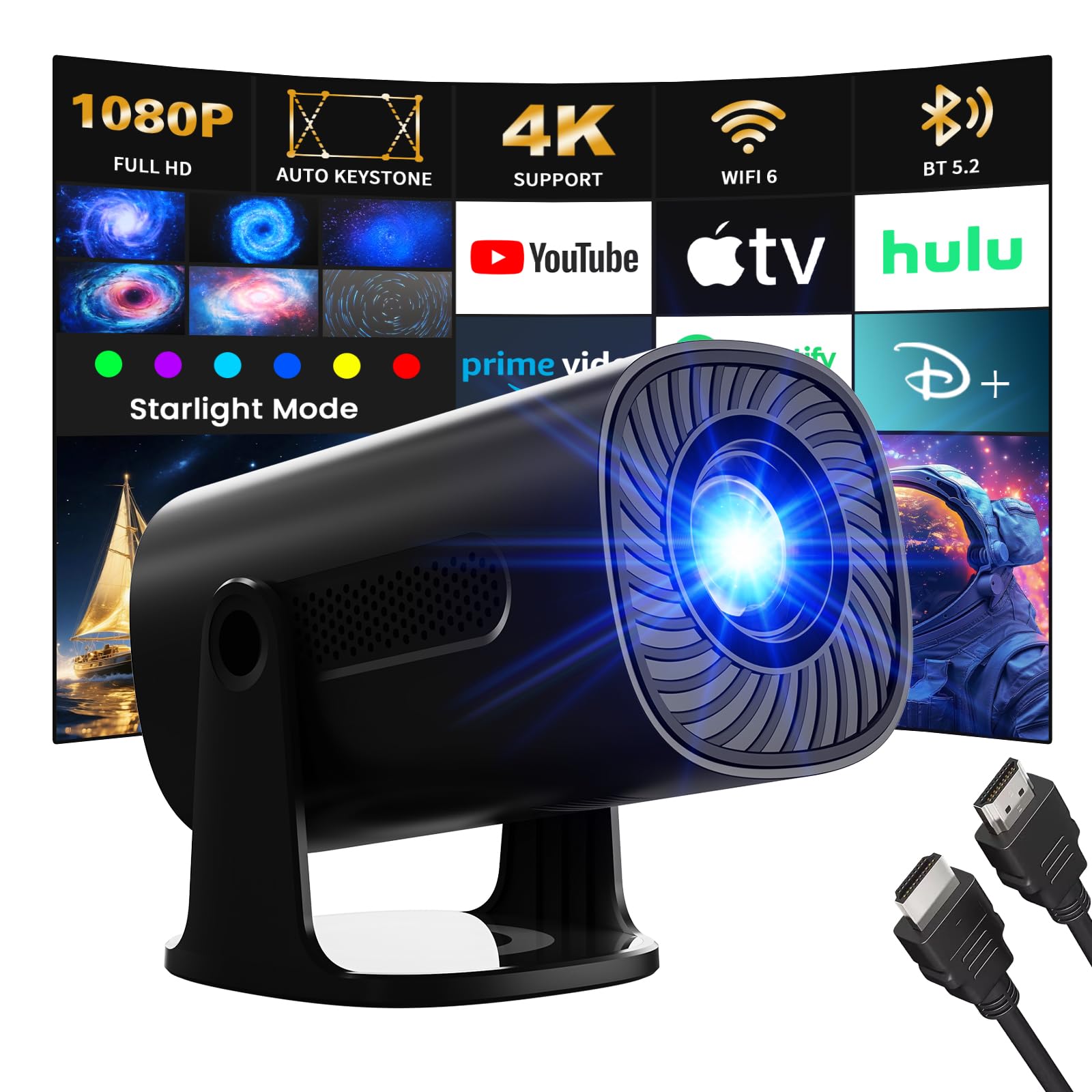
The AGIMA X3 Projector offers a versatile entertainment experience with features such as 4K 1080P support, integrated Android TV OS, WiFi6, Bluetooth 5.2, and automatic keystone correction. It also includes unique star projection modes and ambient lighting options to enhance your viewambiente de trabalho.
The AGIMA X3 Projector in a modern living room, showcasing its projection capabilities.
2. Informações de segurança
Para evitar incêndios, choques elétricos ou ferimentos, observe as seguintes precauções de segurança:
- Não obstrua as aberturas de ventilação. Certifique-se de que haja espaço suficiente ao redor do projetor para uma circulação de ar adequada.
- Não exponha o projetor à chuva ou umidade para evitar choque elétrico.
- Evite olhar diretamente para a lente do projetor quando o lamp está acesa, pois a luz forte pode causar danos aos olhos.
- Utilize apenas o adaptador de energia fornecido com o projetor.
- Não tente desmontar ou reparar o projetor por conta própria. Encaminhe todos os serviços de manutenção a pessoal qualificado.
- Mantenha o projetor longe de fontes de calor e da luz solar direta.
- Ensure the projector is placed on a stable, level surface to prevent it from falling.
- The projector features intelligent eye protection, utilizing diffuse reflection imaging to filter blue light and protect your eyes during viewindo.

Intelligent eye protection technology helps reduce eye strain during extended viewindo.
3. Conteúdo da embalagem
Verifique se todos os itens estão presentes na embalagem:
- 1 x Projetor AGIMA X3
- 1 x adaptador de energia com cabo
- 1 x Controle Remoto
- 1 x Manual do Usuário (este documento)
4. Produto acabadoview
Familiarize-se com os componentes do projetor:

Frente e lateral view of the AGIMA X3 Projector, highlighting its compact design and connectivity options.
Portas e conexões:
- Porta HDMI: Connect to laptops, game consoles, TV sticks, etc.
- Porta USB: Conecte dispositivos USB para reprodução de mídia.
- Conector de áudio de 3.5 mm: Conecte fones de ouvido ou alto-falantes externos.
- Entrada de energia: Conecte o adaptador de energia.
5. Configuração
5.1 Conexão de Energia
- Conecte o adaptador de energia à porta de entrada de energia do projetor.
- Conecte o adaptador de energia a uma tomada de parede.
- Pressione o botão liga/desliga no projetor ou no controle remoto para ligá-lo.
5.2 Posicionamento e Projeção
Position the projector on a stable surface. The AGIMA X3 is portable and can be mounted on a table. Adjust the projector's angle to achieve the desired screen position.
- Tamanho da projeção: The projector offers projection sizes from 39 inches to 200 inches.
- Distância de projeção: Ótimo viewing distances range from 4 feet to 25 feet.

Illustration of projection sizes (50", 100", 200") at different distances (1.5m, 3m, 6m).
5.3 Ajuste de Foco
Use the manual focus ring (if available) or the remote control to sharpen the projected image until it is clear.
5.4 Correção automática de distorção trapezoidal
The AGIMA X3 features automatic keystone correction. This function automatically adjusts the image to be rectangular, even if the projector is placed at an angle. This eliminates the need for manual adjustments.

The automatic keystone correction feature ensures a perfectly rectangular image from various angles.
6. Instruções de operação
6.1 Smart OS Navigation (Android TV)
The projector comes with an integrated Android TV OS, providing access to various applications directly. Use the remote control to navigate the interface.
- Tela inicial: Access pre-installed apps like YouTube, Spotify, and Video.
- Loja de aplicativos: Baixe aplicativos adicionais.
- Configurações: Configure network, display, audio, and system preferences.

The built-in Android TV OS allows direct access to popular streaming and entertainment applications.
6.2 Conectando-se ao Wi-Fi
To access online content and applications, connect your projector to a Wi-Fi network:
- Vá para Configurações na tela inicial.
- Selecione Rede e Internet.
- Choose your desired Wi-Fi network and enter the password.
The projector supports the latest WiFi6 technology for faster and more stable content transfer.

Enjoy a high-speed and smooth projection experience with WiFi 6 connectivity.
6.3 Emparelhamento Bluetooth
Connect external Bluetooth devices like speakers or headphones:
- Vá para Configurações.
- Selecione Dispositivos conectados or Bluetooth.
- Turn on Bluetooth and select your device from the list to pair.
The projector features Bluetooth 5.2 for easy and stable connections to audio devices, enhancing your sound experience.

Connect external Bluetooth speakers for an enhanced audio experience.
6.4 Conectando dispositivos externos (HDMI, USB)
- HDMI: Connect your laptop, game console, or TV stick to the HDMI port. The projector will automatically detect the input or you may need to select the HDMI source from the input menu.
- USB: Insira um pen drive na porta USB para reproduzir conteúdo multimídia. files diretamente.
6.5 Star Mode and Ambient Light
The AGIMA X3 offers unique visual modes:
- Star Mode: Choose from 6 dynamic galactic projection modes to create a romantic or meditative ambiance.
- Luz ambiente: Select from 7 adjustable ambient light colors to transform your space and create a cinematic atmosphere.

Experience immersive star projection modes for a unique ambiance.

Personalize o seu viewing environment with 7 built-in ambient light colors.
6.6 Screen Mirroring (IOS/Android)
The projector supports wireless screen mirroring for both iOS and Android devices. Refer to the on-screen instructions or the projector's settings for specific steps to connect your smartphone or tablet.
6.7 Função Zoom
Adjust the projection size from 50% to 100% without moving the projector. This digital zoom feature allows for flexible installation and fine-tuning of the image size.

The digital zoom function allows you to adjust the screen size from 50% to 100% without repositioning the projector.
7. Manutenção
7.1 Limpeza
- Lente: Use um pano macio e sem fiapos, próprio para lentes oftálmicas. Não utilize produtos de limpeza abrasivos ou solventes.
- Casing: Limpe a parte externa do projetor com um pano macio e seco. Para sujeira mais resistente, use um pano levemente umedecido.amp pano e depois seque bem.
- Aberturas de ventilação: Limpe periodicamente as aberturas de ventilação com uma escova macia ou ar comprimido para evitar o acúmulo de poeira, que pode afetar o desempenho e a vida útil.
7.2 Armazenamento
When not in use for an extended period, store the projector in a cool, dry place. Use the lens cap to protect the lens from dust and scratches.
8. Solução De Problemas
If you encounter issues with your AGIMA X3 Projector, refer to the following common problems and solutions:
| Problema | Possível causa | Solução |
|---|---|---|
| Nenhuma imagem projetada | Cabo de alimentação desconectado, fonte de entrada incorreta, tampa da lente colocada. | Check power connection, select correct input source (HDMI/USB), remove lens cap. |
| Imagem desfocada | Foco incorreto, pedra angular inadequada. | Adjust focus manually, ensure automatic keystone correction is active or adjust manually if needed. |
| Sem som | Volume muito baixo, dispositivo de áudio externo não conectado, saída de áudio incorreta. | Increase volume, check Bluetooth connection, ensure internal speakers are selected or external audio is properly connected. |
| Problemas de conexão Wi-Fi | Senha incorreta, fora do alcance, problemas com o roteador. | Verify password, move projector closer to router, restart router. |
| Controle remoto não funciona | Baterias descarregadas, obstrução, fora do alcance. | Replace batteries, remove obstructions, ensure line of sight to projector's IR receiver. |
9. Especificações
Technical specifications for the AGIMA X3 Projector:
| Recurso | Detalhe |
|---|---|
| Marca | AGIMA |
| Número do modelo | X3 |
| Sistema operacional | Andróide |
| Tipo de exibição | LCD |
| Resolução Nativa | 1920 x 1080 (Full HD) |
| Resolução Suportada | 4K |
| Tecnologia de Conectividade | HDMI, USB, WiFi6, Bluetooth 5.2 |
| interface de hardware | HDMI |
| Compatibilidade do dispositivo | Game console, Laptop, Smartphone, TV Stick |
| Dimensões (C x L x A) | 19.5 x 9.5 x 9.5 cm |
| Fator de forma | Portátil |
| Características especiais | Built-in Speaker, Lightweight, Digital Keystone Correction, Star Modes, Ambient Light |
| Usos recomendados | Cinema em casa |
10. Garantia e Suporte
For warranty information and customer support, please refer to the documentation provided with your purchase or contact AGIMA customer service directly. Specific details regarding warranty periods and support channels are typically included with the product packaging or available on the manufacturer's official website.