
1. Introdução
Thank you for choosing the WONLINK USB WiFi Adapter WL-NA1501. This manual provides detailed instructions for the proper installation, operation, and maintenance of your new wireless network adapter. Please read this manual thoroughly before use to ensure optimal performance and to prevent any issues.
The WONLINK WL-NA1501 is a dual-band 802.11AC USB WiFi adapter designed to provide high-speed wireless connectivity for your desktop or laptop computer. It supports both 5GHz and 2.4GHz bands, offering speeds up to 1300Mbps for seamless streaming, gaming, and browsing.
2. Conteúdo da embalagem
- WONLINK USB WiFi Adapter (Model: WL-NA1501)
- Manual do usuário
Please check the package contents carefully. If any items are missing or damaged, contact your retailer or WONLINK customer support.
3. Produto acabadoview
The WONLINK WL-NA1501 features a compact design with rotatable high-gain antennas for enhanced signal reception and transmission. It connects to your computer via a USB port and is compatible with various operating systems.

Image 3.1: WONLINK USB WiFi Adapter WL-NA1501. This image shows the adapter with its two rotatable antennas extended, highlighting its compact form factor and USB connector.

Image 3.2: Key Features. This graphic illustrates the main features of the adapter, including its 1300Mbps speed, advanced chip, USB connectivity, dual-band support (5G & 2.4G), WPA3/WPA2 security, and multi-system compatibility.
4. Instruções de configuração
Follow these steps to install and set up your WONLINK USB WiFi Adapter:
- Conecte o adaptador: Switch on your computer (desktop or laptop) and plug the USB WiFi adapter into an available USB port. For optimal performance, use a USB 3.0 port if available.
- Instalação do driver: The adapter features built-in drivers. In most cases, the operating system will automatically detect the device and install the necessary drivers. If automatic installation does not occur, navigate to 'This PC' or 'My Computer', locate the virtual CD-ROM drive for the adapter, and run the installer.
- Conectar a uma rede: Once the drivers are installed, open your computer's network settings. Select the desired wireless network (either 2.4 GHz or 5 GHz band), enter the WiFi password, and connect.
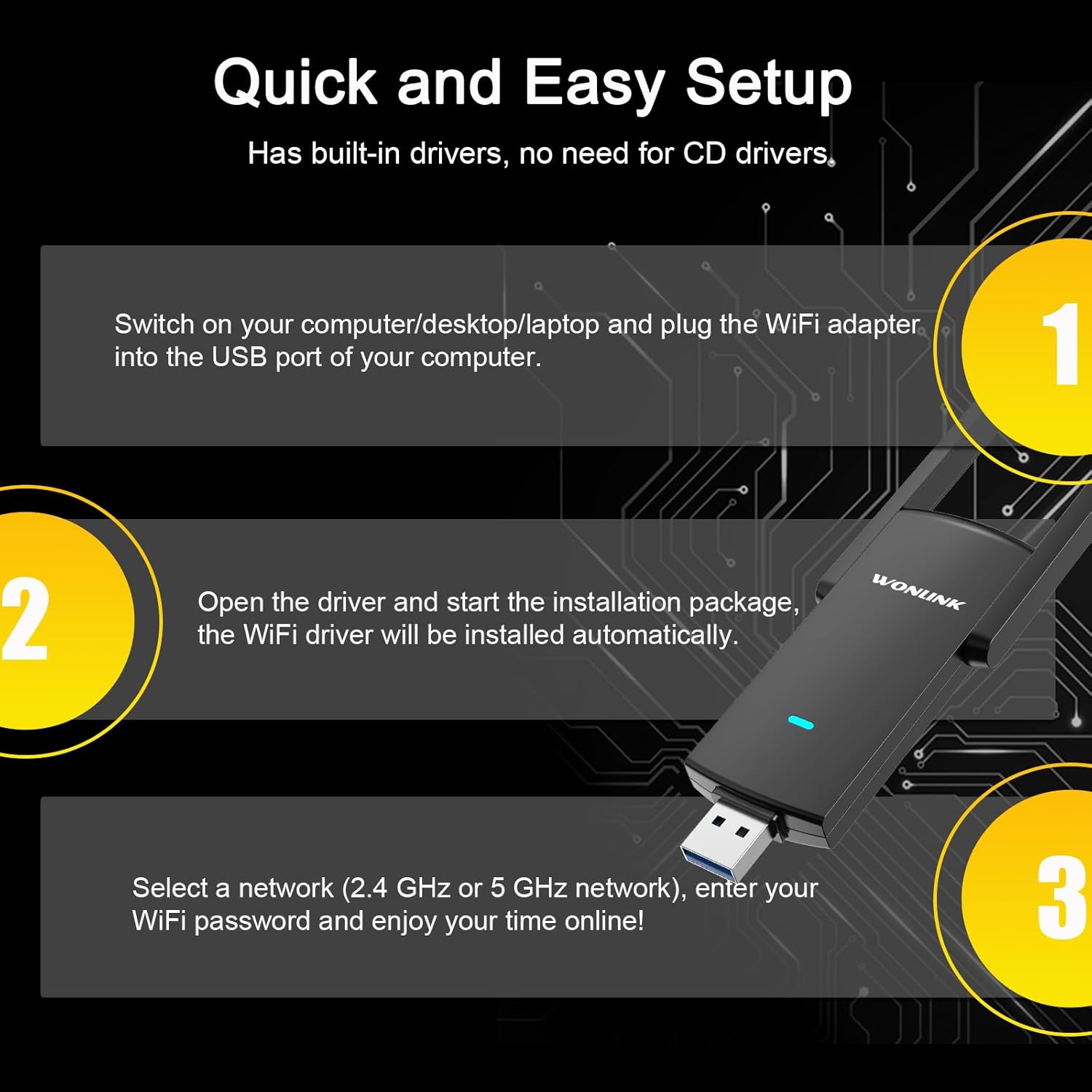
Image 4.1: Quick Setup Guide. This image visually outlines the three main steps for setting up the adapter: plugging it into a USB port, installing the driver, and connecting to a WiFi network.

Image 4.2: Desktop PC Setup. This image depicts the USB WiFi adapter connected to a desktop computer, illustrating its use for stable network connectivity.
5. Instruções de operação
The WONLINK WL-NA1501 adapter supports two primary operating modes:
- Conventional Mode (Station Mode): In this mode, the adapter functions as a client device, connecting your computer to an existing wireless network provided by a router. This is the standard mode for accessing the internet wirelessly.
- Modo AP (Modo de Ponto de Acesso): This mode allows the adapter to act as a wireless access point. If your computer is connected to the internet via a wired connection, the adapter can share this internet connection wirelessly with other devices (e.g., smartphones, tablets) by creating a WiFi hotspot.
To switch between modes or configure AP mode, refer to the network settings in your operating system or the utility provided with the driver software.

Image 5.1: Multiple Operating Modes. This diagram illustrates the two main operating modes: Conventional Mode, where the adapter connects to a router, and AP Mode, where it creates a WiFi hotspot from a wired internet connection.
6. Manutenção
To ensure the longevity and optimal performance of your WONLINK USB WiFi Adapter, consider the following maintenance tips:
- Mantenha limpo: Gently wipe the adapter with a dry, soft cloth to remove dust. Avoid using liquid cleaners or solvents.
- Armazenamento adequado: Quando não estiver em uso, guarde o adaptador em local fresco e seco, longe da luz solar direta e de temperaturas extremas.
- Manuseie com cuidado: Avoid dropping the adapter or subjecting it to strong impacts. Do not force the adapter into a USB port.
- Atualizações de software: Periodically check the WONLINK webSite para drivers atualizados, garantindo compatibilidade e melhorias de desempenho.
7. Solução De Problemas
If you encounter issues with your WONLINK USB WiFi Adapter, refer to the following common problems and solutions:
| Problema | Solução |
|---|---|
| O adaptador não foi detectado pelo computador. |
|
| Não consigo conectar à rede Wi-Fi. |
|
| Velocidade de conexão lenta. |
|
| Desconexões frequentes. |
|
If the problem persists after trying these solutions, please contact WONLINK customer support for further assistance.
8. Especificações
| Recurso | Detalhe |
|---|---|
| Número do modelo | WL-NA1501 |
| interface de hardware | USB |
| Protocolo de Link de Dados | USB, IEEE 802.11ac |
| Taxa de transferência de dados | Até 867 Mbps (5 GHz), até 400 Mbps (2.4 GHz) |
| Bandas de frequência | 2.4 GHz, 5 GHz |
| Sistemas operacionais compatíveis | Windows 8/8.1/10/11, Mac OS 10.9-10.15 |
| Dispositivos compatíveis | Computador de mesa, laptop |
| Peso do item | 1.76 onças |
| Dimensões da embalagem | 5.83 x 3.62 x 0.87 polegadas |
9. Garantia e Suporte
WONLINK products are designed for reliability and performance. This product is covered by a limited warranty against defects in materials and workmanship. For specific warranty terms and conditions, please refer to the warranty card included with your product or visit the official WONLINK website.
For technical support, troubleshooting assistance, or warranty claims, please contact WONLINK customer support through the contact information provided on the official WONLINK website or your purchase platform. Please have your product model number (WL-NA1501) and purchase details ready when contacting support.