
1. Introdução
The Ameta Morpho Drone (Model DR-ATM10B) is a compact and user-friendly quadcopter designed for beginners and young pilots. It features a 1080P HD camera for capturing aerial photos and videos, real-time First Person View (FPV) transmission, and 32 vibrant RGB lights with multiple effects. Built with durability in mind, it includes propeller guards and a loss prevention buzzer for enhanced safety and ease of use. This manual provides comprehensive instructions for safe operation, setup, and maintenance of your Ameta Morpho Drone.

Image 1.1: Ameta Morpho Drone with its main accessories.
2. Diretrizes de segurança
- Opere o drone sempre em áreas abertas e desimpedidas, longe de pessoas, animais e obstáculos.
- Certifique-se de que o drone esteja totalmente carregado antes de cada voo.
- Não pilote o drone em condições de vento forte ou clima adverso.
- Mantenha os dedos e o cabelo longe das hélices giratórias.
- Recomenda-se a supervisão de um adulto para usuários menores de 14 anos.
- Avoid flying near airports, restricted airspace, or private property.
- If the drone flies out of range, use the built-in buzzer to locate it.
3. Conteúdo da embalagem
Verifique se todos os componentes estão presentes no seu pacote:
- Drone Ameta Morpho
- Controle remoto
- Baterias modulares (x2)
- Hélices sobressalentes
- Cabo de carregamento USB
- Ferramenta de remoção de hélice
- Manual do usuário

Image 3.1: Complete package contents of the Ameta Morpho Drone.
4. Configuração
4.1. Instalação e carregamento da bateria
- Insert the modular batteries into the drone's battery compartment until they click securely into place.
- Use the provided USB charging cable to charge the batteries. The indicator light on the cable will show charging status (e.g., red for charging, green for fully charged).
- For the remote controller, install 3 AAA batteries (not included) into its battery compartment.
4.2. Drone and Controller Pairing
- Coloque o drone em uma superfície plana e horizontal.
- Press and hold the power button on the drone until its indicator lights begin to flash.
- Turn on the remote controller. The controller will automatically pair with the drone. A solid light on both the drone and controller indicates successful pairing.
5. Instruções de operação
5.1. Controles básicos de voo
- One-Click Takeoff/Landing: Press the dedicated button on the controller for automatic takeoff or landing.
- Manter altitude: The drone maintains a stable altitude, allowing for easier control and smoother footage.
- Modo sem cabeça: Nesse modo, a orientação do drone é relativa ao piloto, simplificando o controle de voo independentemente da direção frontal do drone.
- Ajuste de velocidade: The drone offers multiple speed settings (e.g., low, medium, high) to suit different skill levels and environments.

Image 5.1: Beginner-friendly features like one-key takeoff, altitude hold, and headless mode.
5.2. Recursos avançados de voo
- Viradas em 3D: Execute impressive 360-degree flips with a press of a button and a joystick movement.
- Mosca Círculo: The drone can perform circular flight patterns, adding dynamic movement to your aerial displays.

Image 5.2: The drone executing 3D flips and circular flight patterns.
5.3. Posicionamento por Fluxo Óptico
The drone utilizes optical flow positioning for enhanced stability, especially during indoor flights. This technology helps the drone maintain its position accurately, contributing to smoother control and clearer video capture.

Image 5.3: Optical flow positioning ensures stable hovering.
5.4. Loss Prevention Buzzer
Should the drone fly out of sight or range, a built-in buzzer can be activated via the controller to help locate it, minimizing the risk of loss.
Image 5.4: The remote controller features a button to activate the drone's loss prevention buzzer.
6. Operação da câmera
The Ameta Morpho Drone is equipped with an 80° 1080P HD camera, allowing you to capture clear photos and videos from an aerial perspective. Utilize the companion app for real-time FPV (First Person View) transmission directly to your smartphone, enabling you to see what the drone sees as it flies.
- Captura de foto: Use the app or a designated button on the controller to take still images.
- Gravação de vídeo: Start and stop video recording via the app or controller.
- Transmissão FPV: Conecte seu smartphone à rede Wi-Fi do drone para view foo vivotage.
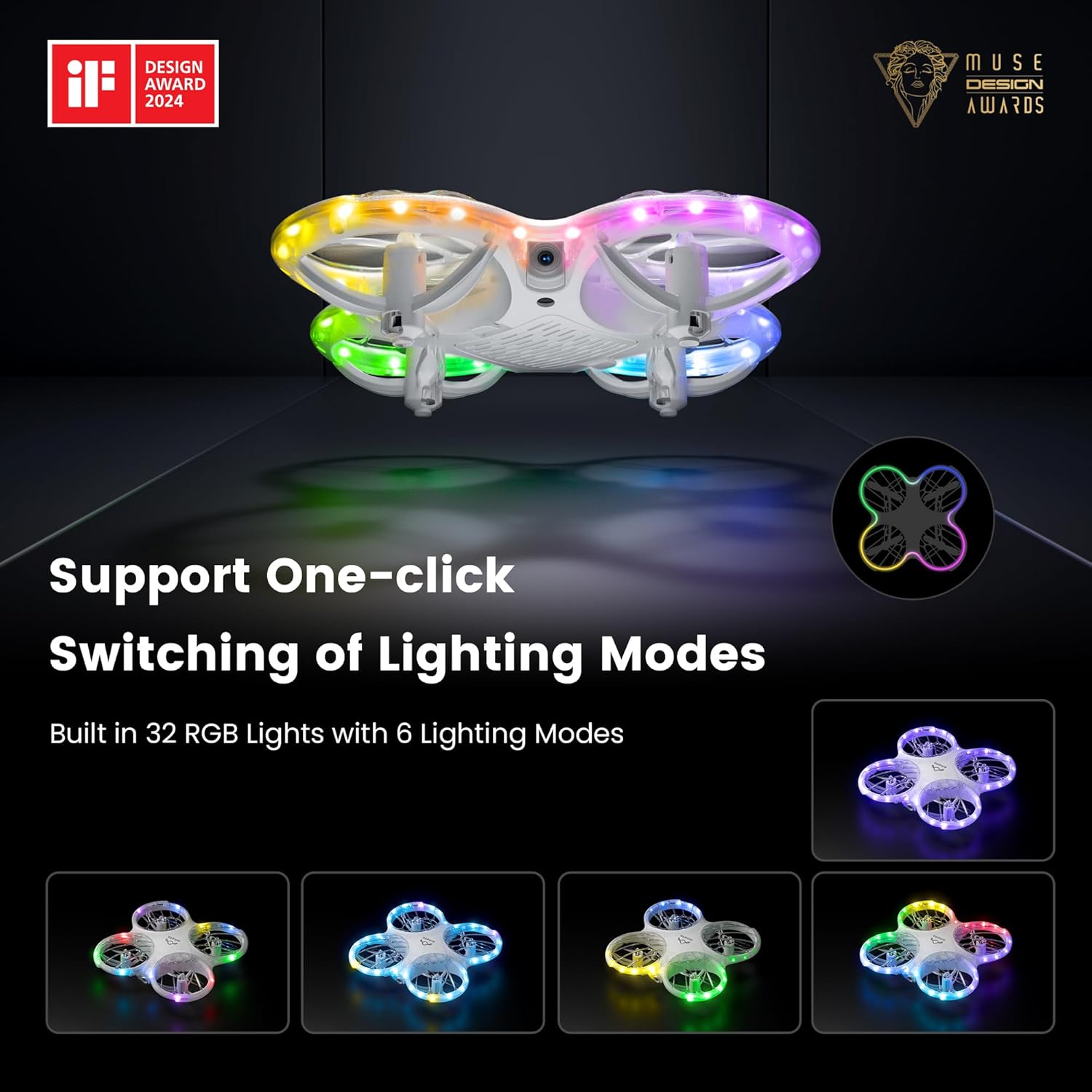
Image 6.1: The drone's 1080P HD camera for capturing high-definition media.
7. STEM Learning Module
The Ameta companion app integrates a simple STEM (Science, Technology, Engineering, and Mathematics) module. This feature allows users, particularly children, to engage in basic coding by combining flying modules, offering an educational approach to understanding drone technology and programming principles.

Image 7.1: The Ameta app's STEM module for programming flight paths.
8. Luzes RGB
The drone features 32 RGB lights with 6 dazzling effects, creating a visually engaging experience during flight. These lights enhance visibility and add an element of fun, especially when flying in low-light conditions.

Image 8.1: The drone showcasing its multiple RGB lighting modes.
9. Manutenção
9.1. Substituição da Hélice
In case of damage, replace propellers using the provided tool and spare parts. Ensure correct orientation (A and B markings) for optimal flight performance.
9.2. Cuidados com a bateria
To prolong battery life, avoid overcharging or fully discharging the batteries. Store them in a cool, dry place when not in use.
9.3. Limpeza
Gently wipe the drone with a soft, dry cloth to remove dust and debris. Avoid using liquids or harsh chemicals.
10. Solução De Problemas
- Drone Drifts: Calibrate the gyroscope as per the instructions in the app or manual. Check for damaged propellers.
- Sem energia: Certifique-se de que as baterias estejam totalmente carregadas e instaladas corretamente tanto no drone quanto no controle remoto.
- Perda de conexão: Re-pair the drone and controller. Ensure no strong interference sources are nearby.
- A campainha não está funcionando: Check battery levels. Ensure the drone is within operational range for the buzzer to function effectively.
11. Especificações
| Recurso | Detalhe |
|---|---|
| Marca | Ameta |
| Nome do modelo | Morfo |
| Número do modelo do item | DR-ATM10B |
| Dimensões do produto | 13.8 x 13.4 x 3.4 cm |
| Peso do item | 72 g |
| Baterias | 2 baterias de íon de lítio (incluídas) |
| Câmera | 1080P HD, 80° FOV |
| Características especiais | Speed Adjustment, FPV, 32 RGB Lights, Optical Flow Positioning, Loss Buzzer, STEM Learning Module |
| Tempo de voo | Até 18 minutos (com 2 pilhas) |
| Faixa etária (Descrição) | 14 years and above (with parental supervision for younger users) |
| País de origem | China |
12. Garantia e Suporte
For warranty information or technical support, please refer to the contact details provided on the product packaging or visit the official Ameta webGuarde o comprovante de compra como prova de aquisição.