
Introdução
Thank you for choosing the AULA F2066-II USB Wired Keyboard. This manual provides essential information for setting up, operating, and maintaining your keyboard. Please read it carefully to ensure optimal performance and longevity of your device.
Instruções de configuração
- Desembale o teclado: Carefully remove the AULA F2066-II keyboard from its packaging. Ensure all components are present.
- Conectar ao computador: Locate an available USB port on your computer or laptop. Insert the USB connector of the keyboard firmly into the USB port.
- Instalação do driver: O teclado é plug-and-play. Seu sistema operacional (Windows, macOS, Linux) deve detectar e instalar automaticamente os drivers necessários. Normalmente, não é necessária a instalação de nenhum software adicional.
- Funcionalidade de teste: Open a text editor or any application that accepts text input and test typing to ensure all keys are functioning correctly.

Image: The AULA F2066-II USB Wired Keyboard, showcasing its full layout and RGB backlighting. This image illustrates the keyboard's design and key arrangement.
Instruções de operação
The AULA F2066-II keyboard features a standard layout with additional multimedia functions. It supports both English and Arabic languages.
Uso básico:
- Digitando: Use the alphanumeric keys for standard text input.
- Teclas de função (F1-F12): Essas teclas executam suas funções padrão.
- Teclado numérico: O teclado numérico dedicado à direita permite a entrada rápida de números e cálculos.
Multimedia Key Combinations:
This keyboard includes various multimedia functions accessible via the FN key combined with other keys. Refer to the table below for specific combinations.
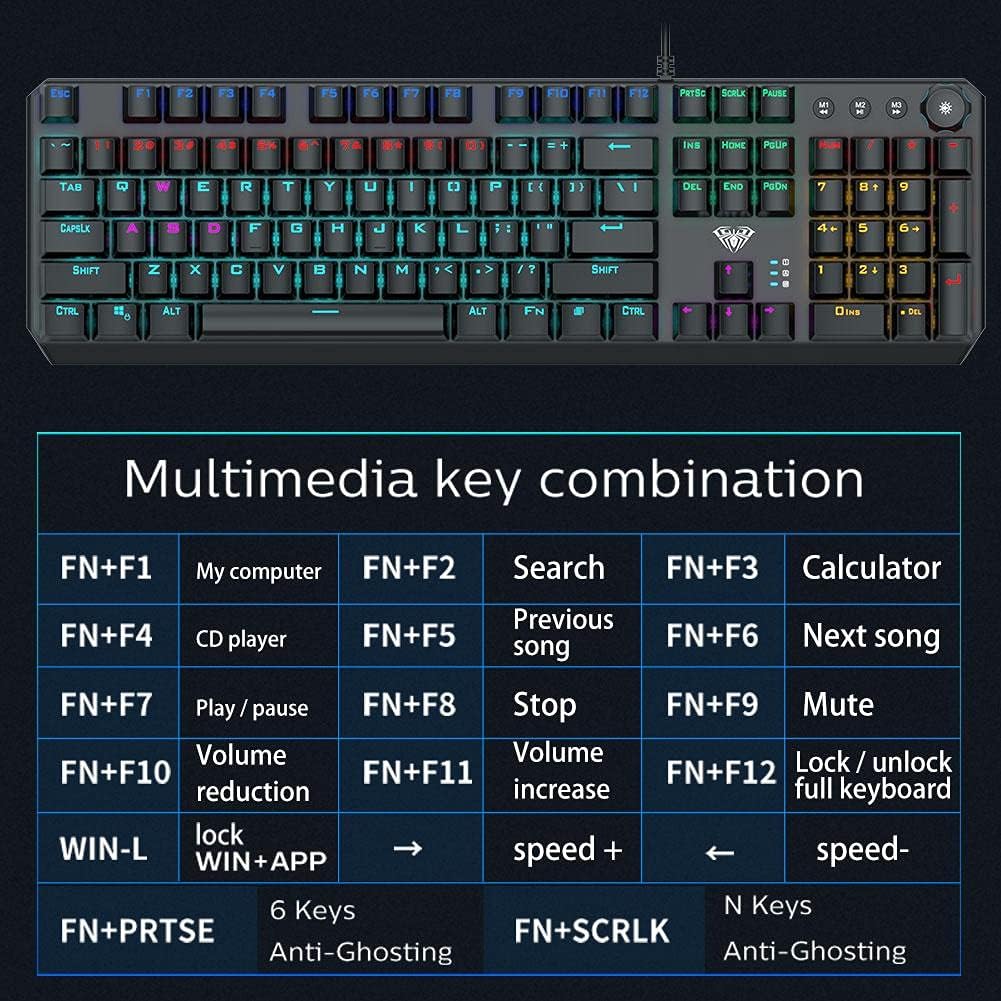
Image: A detailed table illustrating the multimedia key combinations available on the AULA F2066-II keyboard. This includes functions like volume control, media playback, and application shortcuts activated by pressing the FN key with specific function keys.
| Combinação | Função |
|---|---|
| FN + F1 | Meu Computador |
| FN + F2 | Pesquisar |
| FN + F3 | Calculadora |
| FN + F4 | Leitor de CD |
| FN + F5 | Música Anterior |
| FN + F6 | Próxima música |
| FN + F7 | Reproduzir / Pausar |
| FN + F8 | Parar |
| FN + F9 | Mudo |
| FN + F10 | Redução de volume |
| FN + F11 | Aumento de volume |
| FN + F12 | Bloquear/Desbloquear Teclado Completo |
| WIN + L | Lock WIN + APP |
| FN + PRT SC | 6 teclas anti-fantasma |
| FN + SCRLK | N Keys Anti-Ghosting |
Manutenção
Proper maintenance ensures the longevity and optimal performance of your AULA F2066-II keyboard.
- Limpeza: Regularly clean the keyboard with a soft, dry cloth. For deeper cleaning, use compressed air to remove dust and debris from between the keys. Avoid using harsh chemicals or abrasive materials.
- Derramamentos: Em caso de derramamento de líquidos, desconecte imediatamente o teclado do computador. Vire-o de cabeça para baixo para escorrer o líquido e deixe-o secar completamente antes de reconectá-lo. Não tente usar o teclado enquanto estiver molhado.
- Armazenar: Quando não estiver em uso por longos períodos, guarde o teclado em um local limpo e seco, longe da luz solar direta e de temperaturas extremas.
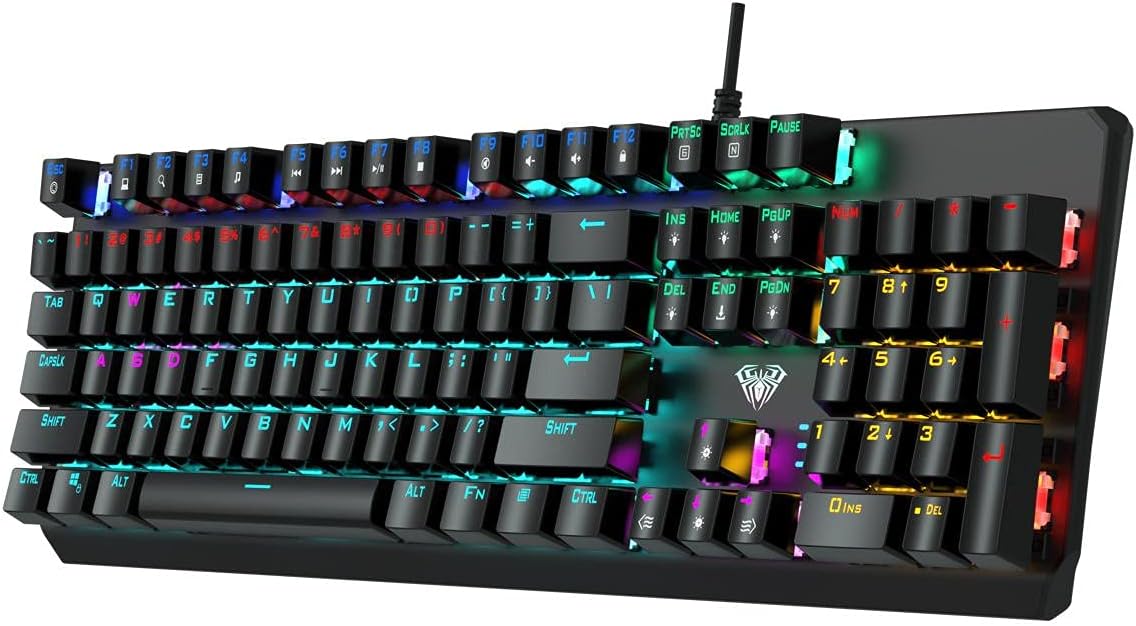
Imagem: Uma visão de cima para baixo view of the AULA F2066-II keyboard, highlighting the keycaps and their spacing. This perspective is useful for understanding how to clean between the keys.
Solução de problemas
If you encounter issues with your AULA F2066-II keyboard, refer to the following common solutions:
| Problema | Solução |
|---|---|
| O teclado não responde. |
|
| Algumas teclas não estão funcionando. |
|
| Backlighting is not working. |
|
Especificações
| Recurso | Detalhe |
|---|---|
| Marca | AULA |
| Número do modelo | F2066-II-Black-Panel |
| Tecnologia de Conectividade | Com fio USB |
| Idioma do teclado | Inglês e árabe |
| Dispositivos compatíveis | computador, notebook |
| Cor | Preto |
| Cor da luz de fundo | Single Color (RGB effects are typically pre-set patterns, not customizable per key color) |
| Material | Plástico |
| Dimensões (C x L x A) | 49.7 x 40.7 x 5.3 cm |
| Peso | 960 gramas |
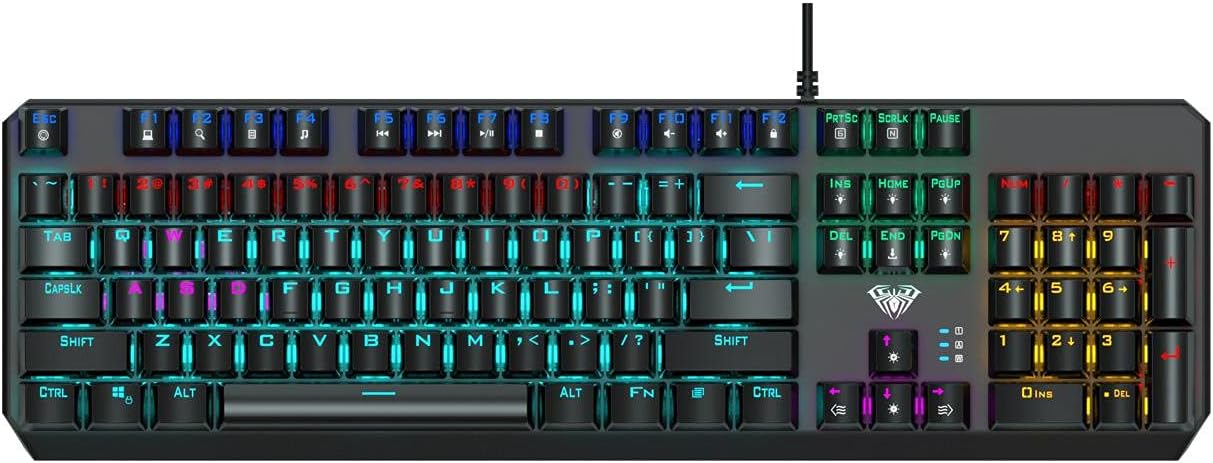
Image: The AULA F2066-II keyboard displayed alongside its retail packaging. This image provides a visual reference for the product and its box.
Garantia e Suporte
For warranty information and technical support, please refer to the documentation included with your purchase or visit the official AULA website. Guarde o comprovante de compra para solicitações de garantia.
Recursos on-line:
- AULA Oficial Website: www.aulagaming.com (Nota: Este é um espaço reservado genérico. URL as no specific support link was provided in the product data. Please verify the correct URL.)
- Product Support Page: Check the AULA website for a dedicated support page for model F2066-II.