
Dell Inspiron 14 5000 2 in 1 5406
Dell Inspiron 14 5000 2-in-1 Business Laptop User Manual
Model: Inspiron 14 5000 2 in 1 5406
Introdução
This manual provides essential information for setting up, operating, maintaining, and troubleshooting your Dell Inspiron 14 5000 2-in-1 Business Laptop. Designed for versatility, this device combines the power of a laptop with the flexibility of a tablet, featuring an 11th Gen Intel Core i7-1165G7 processor, 16GB DDR4 RAM, and a 512GB NVMe SSD.
Leia este manual atentamente para garantir o uso correto e maximizar a vida útil do seu dispositivo.

Figure 1: Dell Inspiron 14 5000 2-in-1 Laptop in tent mode, showcasing its flexible display.
Configurar
1. Desembalagem e inspeção inicial
Carefully remove all components from the packaging. Verify that all items listed in the "What's in the Box" section are present. Inspect the laptop for any physical damage.
- Computador portátil
- Adaptador CA
- Documentação
2. Conectando o adaptador de energia
Connect the AC adapter to the power jack on the side of your laptop and then plug the power cable into a wall outlet. The battery will begin charging automatically.

Figura 2: lado direito view of the laptop, highlighting the power jack, HDMI port, USB 3.2 Gen 1 Type-A port, and USB 3.2 Gen 1 Type-C port.
3. Inicialização do sistema e configuração do Windows
Press the power button to turn on your laptop. Follow the on-screen instructions to complete the Windows 10 Pro setup process. This includes selecting your region, language, connecting to a Wi-Fi network, and creating a user account.
Operando seu laptop
1. Laptop Modes
Your Inspiron 14 5000 is a 2-in-1 device, offering multiple modes for various uses:
- Modo laptop: Uso tradicional de laptop com teclado e touchpad.
- Modo Tenda: Ideal para assistir a vídeos ou apresentações em espaços confinados.
- Modo de espera: Perfect for touch-based applications and media consumption.
- Modo Tablet: Fully folded back for a tablet experience, utilizing the touchscreen.

Figure 3: The laptop in its standard laptop configuration.

Figure 4: The laptop fully folded back into tablet mode, emphasizing its touchscreen functionality.
2. Teclado e touchpad
The laptop features a backlit keyboard for comfortable typing in various lighting conditions and a precision touchpad for navigation. The fingerprint reader is integrated for secure login.

Figura 5: Close view of the backlit keyboard and large touchpad.
3. Portas de Conectividade
Seu laptop está equipado com diversas portas para conectar dispositivos externos:
- Leitor de cartão SD
- USB 3.2 Gen 1 Type-A (x2)
- Conector combinado para fone de ouvido/microfone
- Ranhura para fechadura em forma de cunha
- Tomada de força
- HDMI 1.4b
- USB 3.2 Gen 1 Type-C (DP/Data Transfer/PowerDelivery)
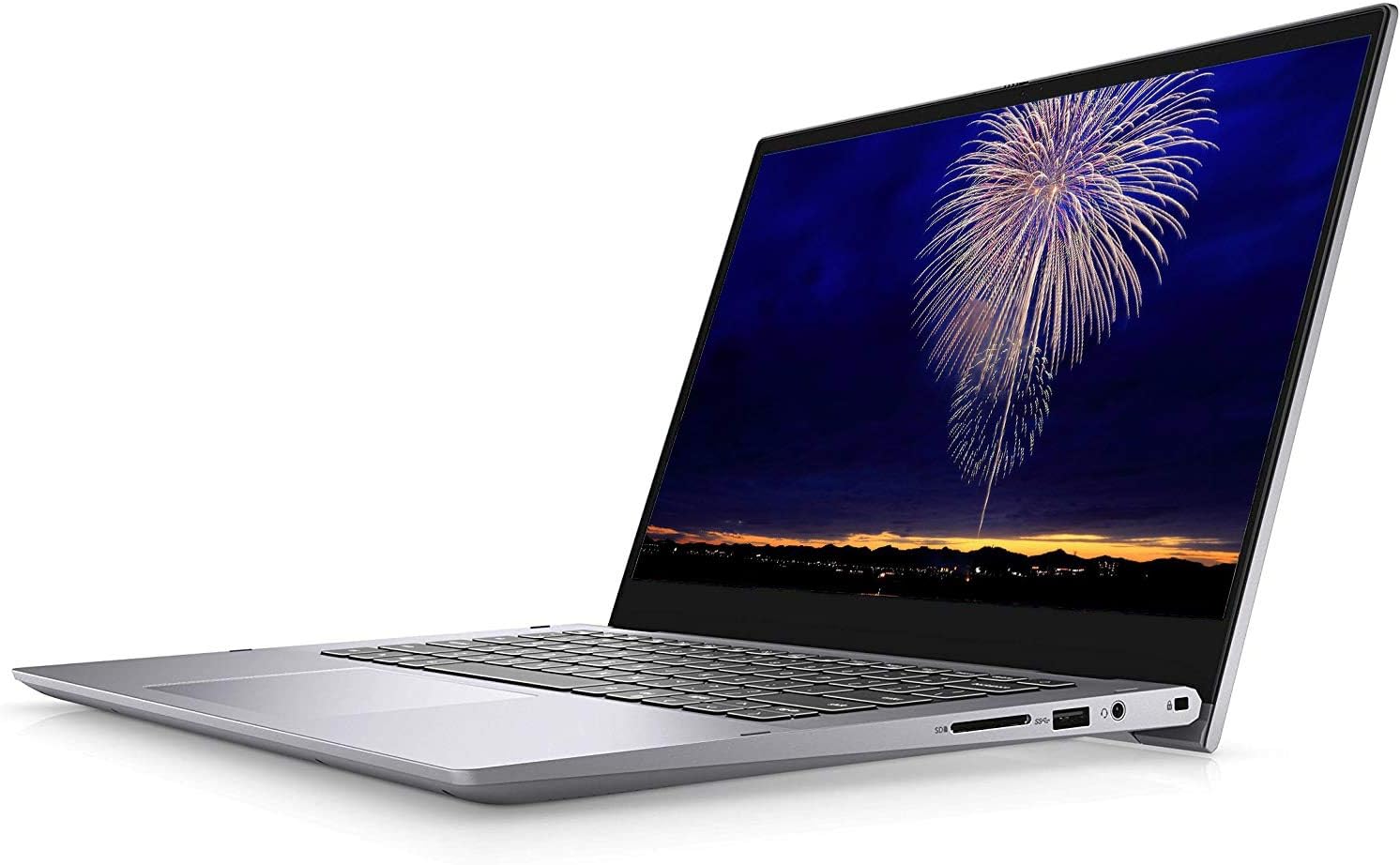
Figura 6: Lado esquerdo view of the laptop, showing the SD card reader, USB 3.2 Gen 1 Type-A port, headphone/microphone combo jack, and wedge-shaped lock slot.

Figura 7: lado direito view of the laptop, showing the power jack, HDMI 1.4b port, USB 3.2 Gen 1 Type-A port, and USB 3.2 Gen 1 Type-C port.
Manutenção
1. Limpando seu laptop
Regular cleaning helps maintain your laptop's performance and appearance. Use a soft, lint-free cloth for the screen and exterior. For stubborn smudges, dampLimpe o pano com água ou um produto de limpeza para telas. Evite produtos químicos agressivos.
2. Atualizações de software
Keep your Windows operating system and Dell drivers updated to ensure optimal performance, security, and compatibility. Check for updates regularly through Windows Update and Dell SupportAssist.
3. Cuidados com a bateria
To prolong battery life, avoid extreme temperatures and fully discharging the battery frequently. For long-term storage, charge the battery to about 50% and store the laptop in a cool, dry place.
Solução de problemas
Problemas e soluções comuns
| Emitir | Possível causa | Solução |
|---|---|---|
| Meu laptop não liga. | Sem energia, bateria descarregada, problema de hardware | Ensure AC adapter is connected and outlet is working. Charge battery for at least 30 minutes. |
| A tela está em branco | Sleep mode, display settings, hardware issue | Press any key or move mouse. Check display cable if external monitor. Restart laptop. |
| Wi-Fi não conecta | Incorrect password, router issue, driver issue | Verifique a senha do Wi-Fi. Reinicie o roteador. Atualize os drivers do Wi-Fi. |
| Superaquecimento | Blocked vents, heavy workload | Ensure vents are clear. Use on a hard, flat surface. Close unnecessary applications. |
For more complex issues, refer to the Dell support webou entre em contato com o suporte técnico da Dell.
Especificações
| Recurso | Detalhe |
|---|---|
| Modelo | Inspiron 14 5000 2 in 1 5406 |
| Processador | 11th Generation Intel Core i7-1165G7 (up to 4.7 GHz) |
| Gráficos | Intel Iris Xe Graphics with shared memory |
| Sistema operacional | Windows 10 Pro 64 bits, inglês |
| Mostrar | 14.0-inch FHD (1920 x 1080) WVA LED-Backlit Touch Display |
| BATER | 16 GB DDR4 |
| Armazenar | 512GB M.2 PCIe NVMe Solid State Drive |
| Conectividade sem fio | Intel Wi-Fi 6 2x2 (Gig+) and Bluetooth 5.1 |
| Webcâmera | Yes (720 Pixels Rear Webcam Resolution) |
| Teclado | Teclado retroiluminado |
| Leitor de impressão digital | Sim |
| Cor | Cinza Titã |
| Dimensões (A x L x P) | 0.71" (17.94 mm) x 12.70" (322.50 mm) x 8.74"(221.90 mm) |
| Peso | 3.42 libras (1.55 kg) |
Garantia e Suporte
Your Dell Inspiron 14 5000 2-in-1 Business Laptop comes with a standard manufacturer's warranty. For detailed warranty terms and conditions, please refer to the documentation included with your product or visit the official Dell support website.
For technical assistance, driver downloads, and service requests, please visit Suporte Dell ou entre em contato diretamente com o serviço de atendimento ao cliente da Dell.
Planos de proteção também estão disponíveis para cobertura estendida:
- Plano de proteção de 4 anos
- Plano de proteção de 2 anos
- Proteção Completa (assinatura mensal)