
Introdução
This manual provides instructions for the MARVO GT-80 Wireless Gamepad. It covers setup, operation, maintenance, and troubleshooting for optimal use with compatible devices including PlayStation 4, PC, Android, and iOS.
Conteúdo da embalagem
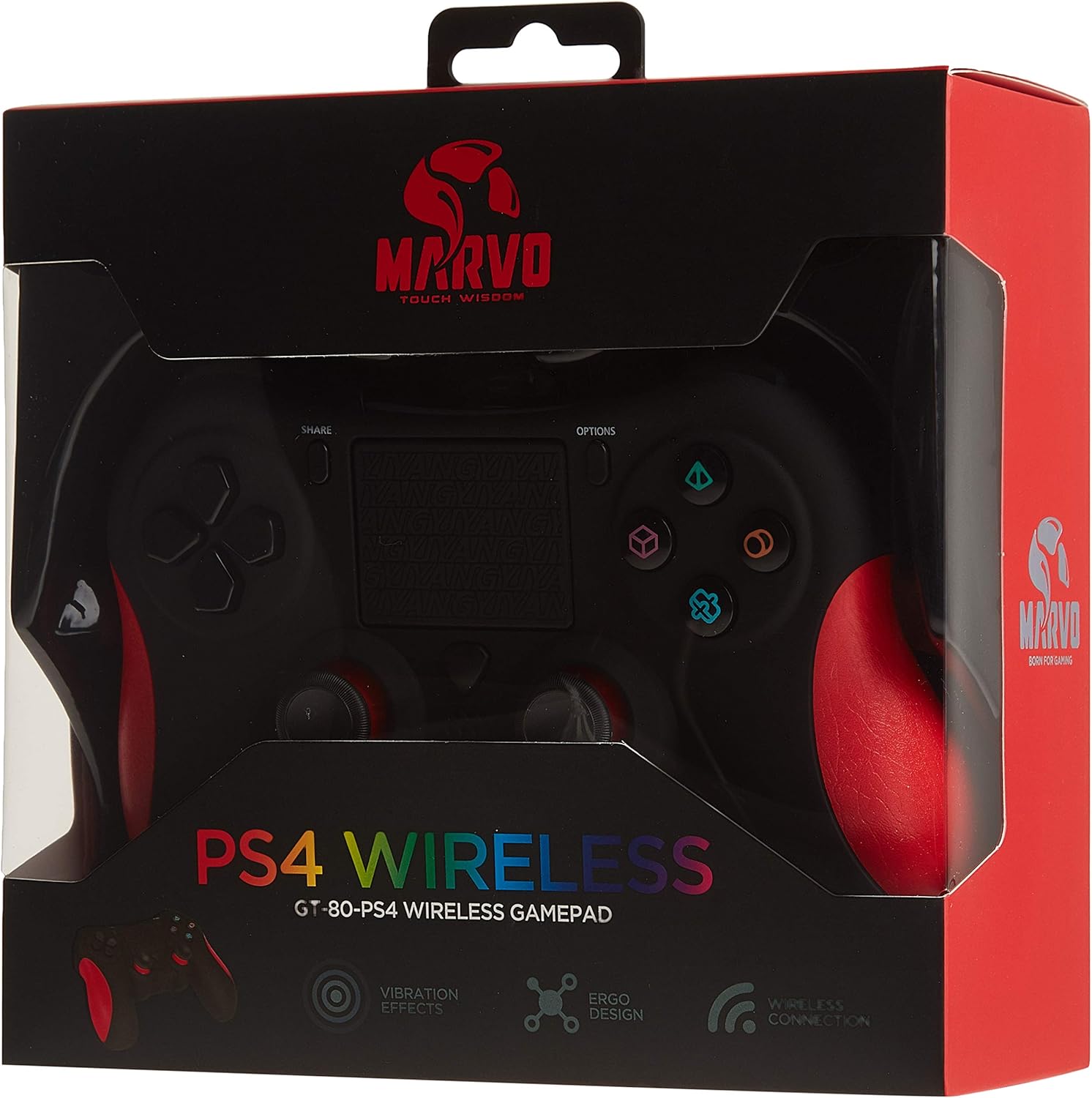
Image: The MARVO GT-80 Wireless Gamepad in its retail packaging.
- Gamepad sem fio MARVO GT-80
- Cabo de carregamento USB (80 cm)
- Manual do usuário (este documento)
Características do produto
- Wireless connectivity via Bluetooth V4.2
- Wired connectivity via USB cable
- Built-in rechargeable battery (600 mAh capacity)
- Double vibration feedback for immersive gaming
- Integrated 6-axis sensor (3D-Sensor + G-Sensor)
- Large LED light bar
- Built-in loudspeaker function
- Suporte para fone de ouvido estéreo de 3.5 mm
- Controle do touchpad
- 19 botões programáveis
Configurar
1. Carregando o Gamepad
Before first use, fully charge the gamepad. Connect the supplied USB cable to the Micro USB port on the gamepad and the other end to a USB power source (e.g., console, PC, USB wall adapter).

Image: The MARVO GT-80 Gamepad connected to its USB charging cable.
The LED light bar will indicate charging status. A full charge typically takes approximately 2-3 hours.
2. Connecting to PlayStation 4 (PS4)
- Ligue seu console PS4.
- Connect the gamepad to the PS4 console using the USB cable.
- Press the "PS" button on the gamepad. The gamepad will pair with the console.
- Após o emparelhamento, você pode desconectar o cabo USB para jogar sem fio.
3. Connecting to PC (Windows)
The gamepad supports both D-input and X-input modes for PC.
Conexão com fio:
Connect the gamepad to your PC using the USB cable. The PC should automatically detect and install the necessary drivers. The gamepad will operate in D-input mode by default. Some games may require X-input mode, which can often be toggled via specific button combinations or software.
Conexão Bluetooth:
- Certifique-se de que o Bluetooth esteja ativado no seu computador.
- Put the gamepad into pairing mode (specific button combination, usually "SHARE" + "PS" button until LED flashes rapidly).
- On your PC, go to Bluetooth settings and search for new devices.
- Select "Wireless Controller" or "GT-80" from the list of available devices to pair.
4. Connecting to Android/iOS Devices
- Certifique-se de que o Bluetooth esteja ativado no seu dispositivo Android ou iOS.
- Put the gamepad into pairing mode (specific button combination, usually "SHARE" + "PS" button until LED flashes rapidly).
- On your mobile device, go to Bluetooth settings and search for new devices.
- Select "Wireless Controller" or "GT-80" from the list of available devices to pair.
Instruções de operação
Layout e funções do botão

Imagem: Frente view of the MARVO GT-80 Wireless Gamepad.

Imagem: Traseira view of the MARVO GT-80 Wireless Gamepad, highlighting the M-buttons.
- Direction Buttons (D-Pad): Used for directional input.
- Controles analógicos: Two analog sticks for precise 3D movement and camera control.
- Botões de ação (Triângulo, Círculo, Cruz, Quadrado): Botões de ação principais.
- Botão COMPARTILHAR: Used for sharing gameplay content (PS4).
- Botão OPÇÕES: Aceda aos menus do jogo ou às opções do sistema.
- Botão PS: Power on/off the gamepad, access PS4 system menu.
- Botões L1/R1: Botões nos ombros.
- Gatilhos L2/R2: Gatilhos analógicos.
- Painel tátil: Multi-touch input surface.
- Botões M1, M2, M3, M4: Programmable back buttons (refer to device-specific instructions for programming).
Funções especiais
- Double Vibration: Fornece feedback tátil durante o jogo.
- Sensor de 6 eixos: Includes a 3D-Sensor and G-Sensor for motion-controlled gameplay.
- Alto-falante: Integrated speaker for enhanced audio effects (PS4).
- Função de fone de ouvido: Connect a 3.5mm stereo headset for audio output and microphone input (PS4).
Manutenção
Limpeza
Wipe the gamepad with a soft, dry cloth. Do not use harsh chemicals or abrasive cleaners. Avoid getting moisture into openings.
Armazenar
Store the gamepad in a cool, dry place away from direct sunlight and extreme temperatures. Avoid placing heavy objects on the gamepad.
Solução de problemas
Gamepad Does Not Power On
- Ensure the gamepad is fully charged. Connect it to a power source using the USB cable.
- Press the PS button to attempt to power it on.
Problemas de conexão
- Sem fio: Ensure Bluetooth is enabled on your device and the gamepad is in pairing mode. Try re-pairing the device.
- wired: Ensure the USB cable is securely connected to both the gamepad and the device. Try a different USB port or cable.
- PS4: If issues persist, try resetting the gamepad (a small reset button is usually located on the back, requiring a pin to press).
Botões ou joysticks não respondem
- Ensure the gamepad is properly connected and powered on.
- Test the gamepad with another game or application to rule out software issues.
- If possible, try resetting the gamepad.
Vibração não funciona
- Verifique as configurações do jogo para garantir que a vibração esteja ativada.
- Certifique-se de que o gamepad esteja totalmente carregado.
Especificações

Image: Technical specifications as printed on the product packaging.
| Recurso | Detalhe |
|---|---|
| Modelo | GT-80 |
| Conectividade | Wireless (Bluetooth V4.2), Wired (USB cable) |
| Botões | 19 |
| Capacidade da bateria | 600 mA |
| Palestrante | 6/8Ω-1W |
| Interface | Suporte EXT, conector de 3.5 mm |
| Compatibilidade | PS4, PC (D-input & X-input), Android, iOS |
| Sensor de movimento | 3D-Sensor + G-Sensor |
| Comprimento do cabo micro USB | 80 centímetros |
| Dimensões | 40.49 x 9.5 x 9.5 cm |
| Peso | 310 g |
Garantia e Suporte
For warranty information and technical support, please refer to the documentation provided with your purchase or contact MARVO customer service directly. Keep your proof of purchase for warranty claims.