
Aluratek AWC2KF
Aluratek 2K HD Webcam Manual de Instruções
Model: AWC2KF | Brand: Aluratek
Introdução
The Aluratek 2K HD Webcam (Model AWC2KF) is designed to provide high-quality video and audio for your communication needs. Featuring 2K HD resolution, dual stereo noise-cancelling microphones, auto-focus, and automatic low-light correction, this webcam ensures clear visuals and crisp audio for video calls, recordings, and live streaming. Its plug-and-play design offers universal compatibility with various operating systems and popular video conferencing applications.
Principais características
- Full HD 2K Video: Delivers high-resolution video for clear and detailed visuals during calls, webinars, and recordings.
- Dual Stereo Noise-Cancelling Microphones: Captures clear audio while reducing background noise, ensuring your voice is heard distinctly.
- Correção automática em condições de baixa luminosidade: Adjusts color and brightness automatically to maintain natural lighting conditions, even in dimly lit environments.
- Auto-foco: Ensures a sharp and clear image by automatically adjusting the focus.
- Wide 80-Degree Angle: Abrange um amplo campo de view without distortion, suitable for individual or group presentations.
- Built-in Tripod Mount: Offers versatile mounting options for stability and optimal positioning.
- Plug-n-Play Ready: Requires no driver installation for quick and easy setup.
Conteúdo da embalagem
- Aluratek 2K HD Webcam (AWC2KF)
- Cabo USB (em conjunto)
- Guia de Início Rápido (não incluído neste manual)
Configurar
The Aluratek 2K HD Webcam is designed for simple plug-and-play installation, requiring no additional drivers for most operating systems.
Montando o Webcâmera
O webcam features a versatile mounting clip that allows it to be securely placed on various surfaces:
- On a Laptop or Monitor: Gently open the universal mounting clip and place the webcam on top of your laptop screen or desktop monitor. Ensure the front lip of the clip rests securely on the top edge of the screen, and the rear part of the clip is pressed against the back of the screen for stability.
- On a Table Surface: Fold the universal mounting clip to create a stable stand, allowing the webcam to sit upright on any flat surface.
- Em um tripé: O webcam includes a built-in tripod mount (6 mm / .25 in. screw) on the bottom of the clip, enabling attachment to standard tripods for more flexible positioning.

Figura 1: Detalhado view do webcam's components and mounting features.

Figura 2: Webcam securely mounted on a laptop.
Conectando ao seu computador
Conecte o cabo USB integrado do webcam to an available USB port on your computer. The webcam is plug-and-play, meaning your operating system (Windows or macOS) should automatically detect and install the necessary drivers. No manual driver installation is typically required.
Uma vez conectado, o webcam is ready for use with your preferred video conferencing or recording software.
Instruções de operação
The Aluratek 2K HD Webcam is designed for seamless integration with various applications for video communication and content creation.
Using with Video Conferencing Software
O webcam is compatible with popular video calling clients such as Skype, Zoom, WeChat, Google Hangouts, Microsoft Teams, GoToMeeting, and more. To use the webcâmera:
- Launch your desired video conferencing application (e.g., Zoom, Skype).
- Navigate to the application's settings or preferences, usually found under "Audio & Video" or "Camera/Microphone" settings.
- Select "Aluratek 2K HD Web"câmera" como seu dispositivo de entrada de vídeo.
- Select "Aluratek 2K HD Webcam" or a similar entry as your microphone input device.
- Adjust any additional settings within the application, such as video resolution or mirror effects, as desired.

Figura 3: Webcam in use for video conferencing.
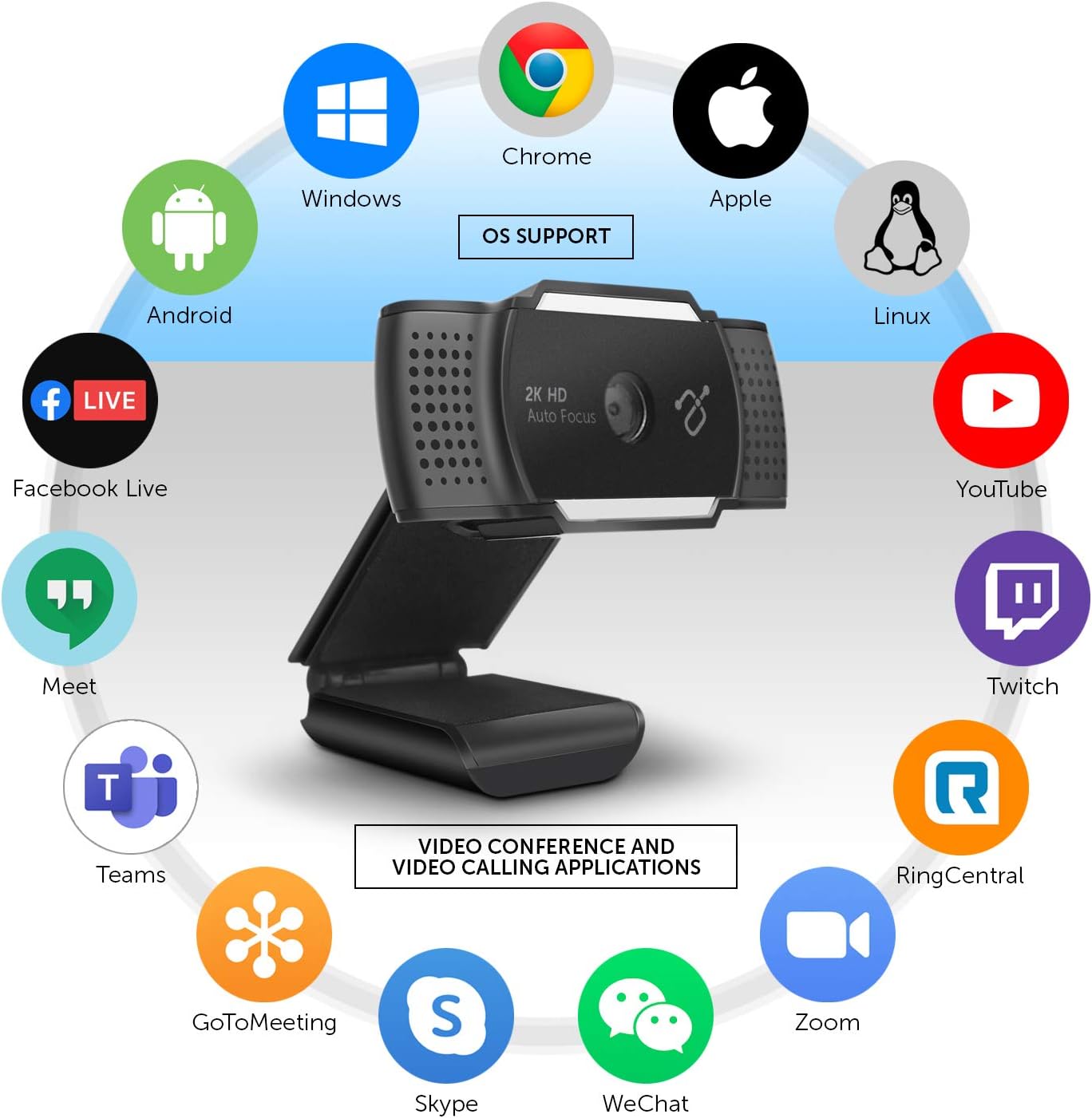
Figure 4: Operating System and Application Compatibility.
Adjusting the Integrated Light
The Aluratek 2K HD Webcam features an integrated light with three adjustable brightness levels to enhance your visibility in various lighting conditions. To cycle through the brightness settings:
- Primeira Imprensa: Activates the lowest brightness setting.
- Segunda Imprensa: Increases to medium brightness.
- Terceira Imprensa: Activates the highest brightness setting.
- Quarta Imprensa: Apaga a luz.
This feature is particularly useful for improving image quality in low-light environments or for adding fill light to your face.

Figura 5: Frente view do webcam, highlighting the integrated light.
The camera eye can also be adjusted up to 30 degrees to perfectly frame your face or desired area.
Manutenção
To ensure the longevity and optimal performance of your Aluratek 2K HD WebPara realizar a manutenção da câmera, siga estas diretrizes simples:
- Limpeza da lente: Use a soft, lint-free cloth specifically designed for optics to gently wipe the camera lens. Avoid abrasive materials or harsh cleaning chemicals, which can scratch or damage the lens.
- Limpando o Corpo: Limpe o exterior do webcâmera com um suave, damp cloth. Do not use excessive moisture or allow water to enter any openings.
- Armazenar: Quando não estiver em uso, armazene o webGuarde a câmera em um local limpo e seco, longe de temperaturas extremas e da luz solar direta.
- Cuidados com os cabos: Avoid bending or crimping the USB cable excessively, as this can damage the internal wires.
- Cobertura de privacidade: Utilize the integrated privacy lens cover when the webcam is not in use to protect the lens from dust and ensure privacy.
Solução de problemas
If you encounter issues with your Aluratek 2K HD Webcam, refer to the following common troubleshooting steps:
No Image or Video
- Verifique a conexão USB: Garantir o webcam's USB cable is securely plugged into a working USB port on your computer. Try a different USB port.
- Restart Application/Computer: Close and reopen your video conferencing application. If the issue persists, restart your computer.
- Verify Camera Selection: In your application's video settings, confirm that "Aluratek 2K HD Webcam" is selected as the active camera device.
- Check Privacy Settings: On Windows, go to Configurações > Privacidade > Câmera and ensure "Allow apps to access your camera" is enabled. On macOS, go to System Preferences > Security & Privacy > Camera and ensure your application has camera access.
- Cobertura de privacidade: Ensure the physical privacy lens cover is open and not obstructing the lens.
Poor Image Quality (Blurry, Dark, Grainy)
- Iluminação: Ensure adequate lighting in your environment. Utilize the webcam's integrated light by pressing the button on top of the webcam to cycle through brightness levels.
- Lente limpa: Limpe suavemente o webLimpe a lente da câmera com um pano macio e sem fiapos.
- Auto-foco: O webcam features auto-focus. Ensure there are no obstructions in front of the lens that might interfere with focusing.
- Configurações do aplicativo: Check if your application's video settings allow for resolution adjustments. Higher resolutions require more bandwidth.
No Audio or Poor Audio Quality
- Verify Microphone Selection: In your application's audio settings, confirm that "Aluratek 2K HD Webcam" or a similar entry is selected as the active microphone device.
- Check Microphone Levels: Adjust the microphone input level in your computer's sound settings (Windows: Sound Settings > Sound Control Panel > Recording; macOS: Preferências do Sistema > Som > Entrada).
- Configurações de privacidade: On Windows, go to Settings > Privacy > Microphone and ensure "Allow apps to access your microphone" is enabled. On macOS, go to System Preferences > Security & Privacy > Microphone and ensure your application has microphone access.
- Ruído Ambiental: Enquanto o webcam has noise-cancelling microphones, excessive background noise can still affect audio quality. Try to minimize ambient sounds.
Especificações
| Modelo | AWC2KF |
| Resolução de captura de vídeo | 2592x1944 (2K HD) |
| Tecnologia de sensor fotográfico | CMOS |
| Campo de View | 80 graus |
| Microfones | Dual Stereo Noise Cancelling |
| Características especiais | Auto Focus, Low Light Correction, Built-in Tripod Mount |
| Tecnologia de Conectividade | USB |
| Plataforma de Hardware | Mac, PC, Laptop |
| Dimensões (CxLxA) | 1.25 x 1.25 x 1.25 polegadas |
| Peso do item | 1 onça |
Garantia e Suporte
For warranty information and technical support, please refer to the official Aluratek webou entre em contato diretamente com o serviço de atendimento ao cliente. Guarde o comprovante de compra como prova para eventuais solicitações de garantia.
Aluratek Support: www.aluratek.com/support