
EDUP EP-8568-WG
EDUP USB 3.0 WiFi 6 AX1800Mbps Wireless Network Adapter User Manual
1. Produto acabadoview
The EDUP USB 3.0 WiFi 6 AX1800Mbps Wireless Network Adapter is designed to provide high-speed wireless connectivity for desktop PCs and laptops. Utilizing the latest Wi-Fi 6 (IEEE 802.11ax) technology, it offers enhanced performance, lower latency, and improved network efficiency. This adapter supports dual-band operation (2.4GHz and 5GHz) and features a USB 3.0 interface for fast data transfer.
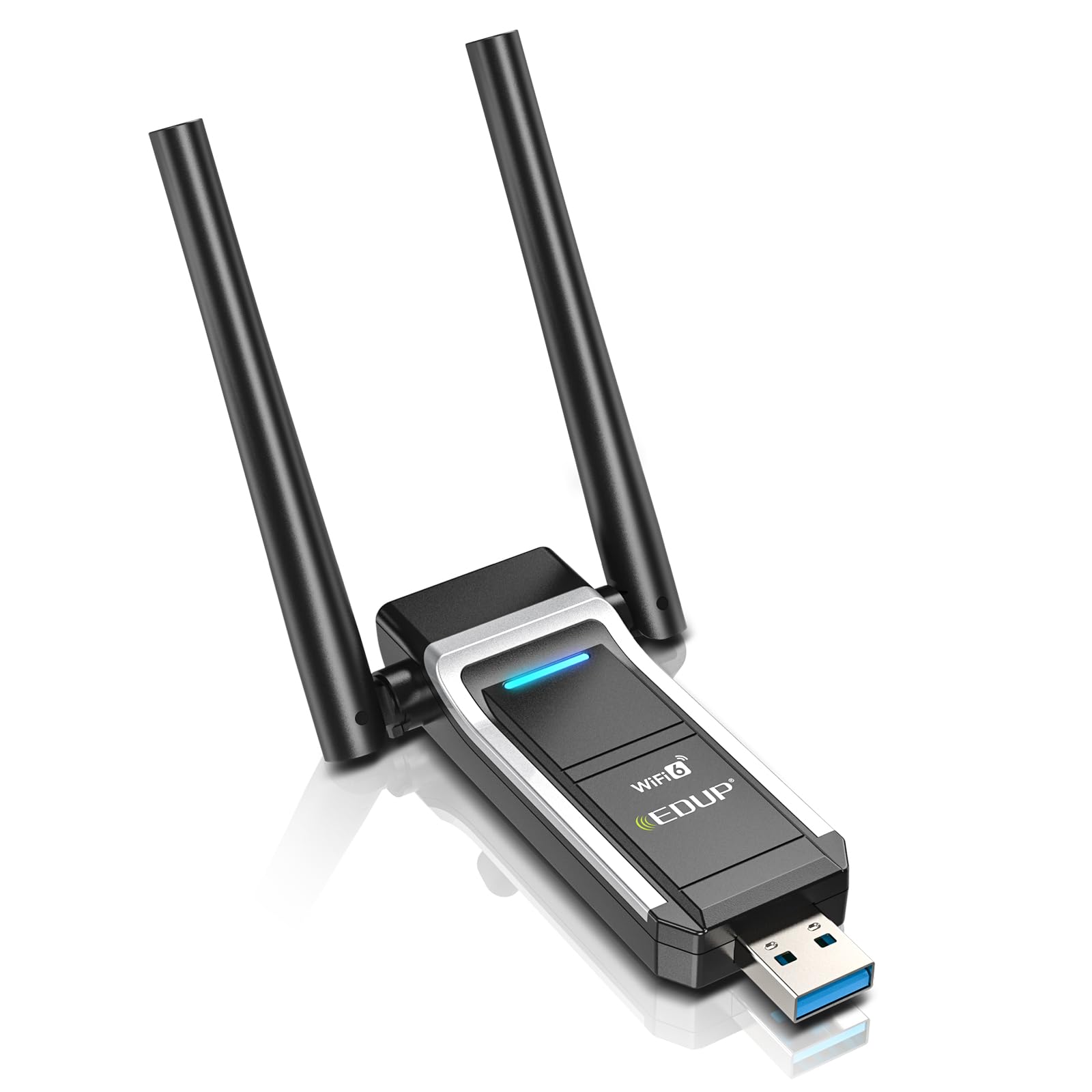
Image 1.1: The EDUP USB 3.0 WiFi 6 AX1800Mbps Wireless Network Adapter, illustrating its compact design and highlighting the speed advantages of WiFi 6 over WiFi 5 on both 5GHz and 2.4GHz bands.
2. Principais características
- AX1800 WiFi 6 High-Speed Performance: Delivers up to 1800Mbps wireless speed (574Mbps on 2.4GHz + 1201Mbps on 5GHz) for faster throughput and lower latency.
- Dual-Band 2.4GHz & 5GHz: Supports both frequency bands to reduce interference and provide stable connections.
- Interface USB 3.0: Ensures high-speed data transmission and is backward compatible with USB 2.0.
- Enhanced Signal Strength: Integrated FEM (PA + LNA) and high-gain antennas improve signal reception and RF performance.
- Plug & Play: Built-in driver for Windows 11/10, eliminating the need for manual driver installation.
- Segurança avançada: Supports WPA/WPA2 and WPA-PSK/WPA2-PSK (AES) for secure network connections.
- Tecnologia MU-MIMO: Efficiently manages bandwidth for multiple devices simultaneously.
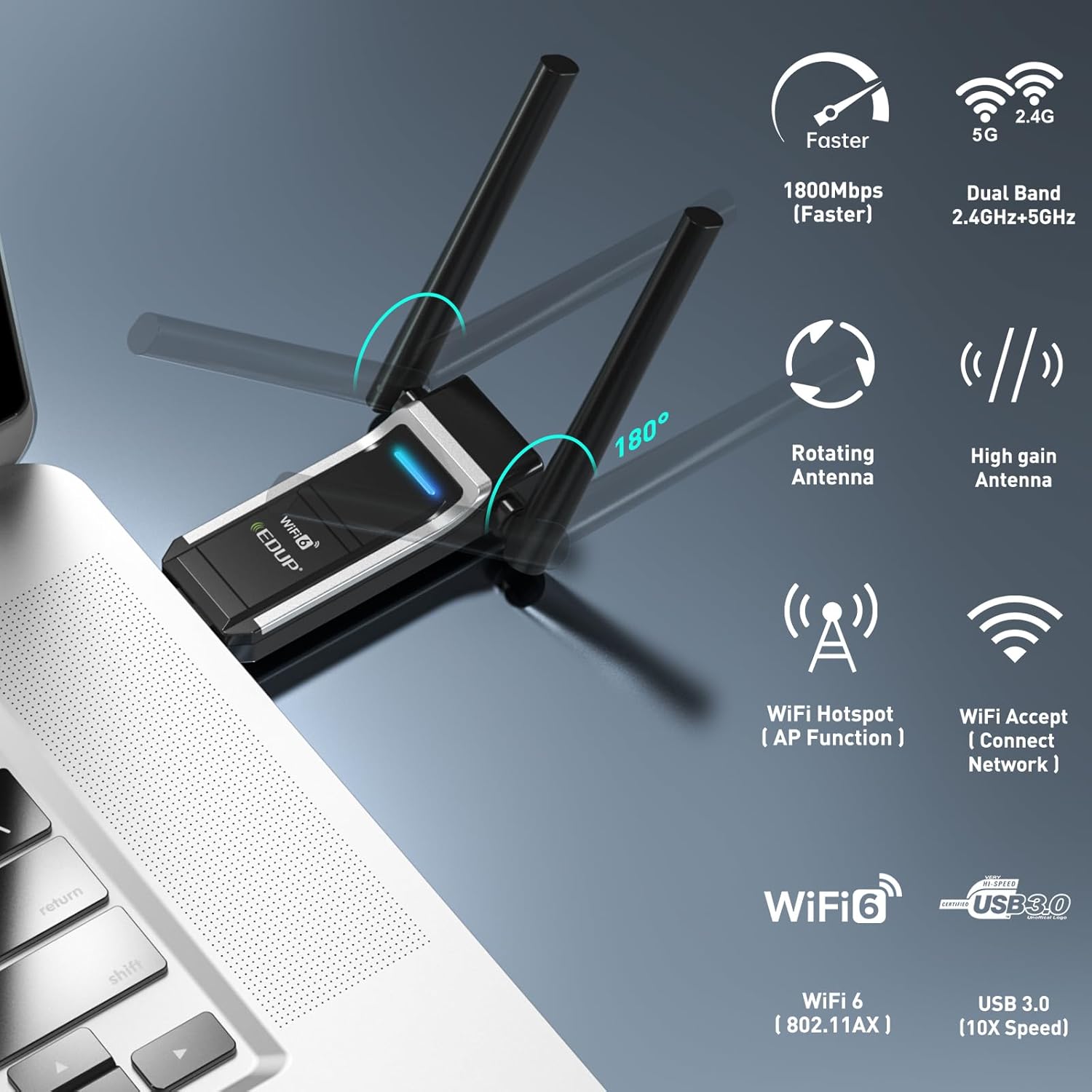
Image 2.1: Visual representation of the adapter's key features, including 1800Mbps speed, dual-band capability, rotating antennas, Wi-Fi hotspot function, and USB 3.0 interface.

Image 2.2: An infographic detailing the AX1800 speeds, MU-MIMO technology, USB 3.0, WPA3 security, and range booster capabilities of the adapter.
3. Conteúdo da embalagem
Verifique se todos os itens estão presentes no seu pacote:
- 1x EDUP USB 3.0 WiFi 6 AX1800Mbps Wireless Network Adapter (Model: EP-8568-WG)
4. Especificações
| Recurso | Descrição |
|---|---|
| Marca | EDUP |
| Número do modelo | EP-8568-WG |
| interface de hardware | USB 3.0 |
| padrão sem fio | IEEE 802.11ax (Wi-Fi 6) |
| Taxa de transferência de dados | Até 1800 Mbps (574 Mbps em 2.4 GHz, 1201 Mbps em 5 GHz) |
| Bandas de frequência | 2.4 GHz, 5 GHz |
| Dispositivos compatíveis | Computador de mesa, laptop |
| Compatibilidade do sistema operacional | Windows 11/10 (32/64 bits) |
| Protocolos de Segurança | WPA/WPA2, WPA-PSK/WPA2-PSK (AES) |
| Cor | Preto |

Image 4.1: The physical dimensions of the EDUP USB WiFi 6 Adapter, showing its length, width, and height for reference.
5. Guia de configuração
5.1 Requisitos do sistema
- Operating System: Windows 11 or Windows 10 (32-bit or 64-bit).
- Available USB 3.0 port (compatible with USB 2.0, but performance may be limited).

Image 5.1: The adapter's compatibility with Windows 11, Windows 10, and Windows 7. Note that Hotspot/AP mode is not supported on Windows 7, and the device is recognized as USB 2.0 on Windows 7.
5.2 Installation Steps (Plug & Play)
The EDUP USB WiFi 6 Adapter features a built-in driver for Windows 11 and Windows 10, allowing for a simple plug-and-play installation.
- Insira o adaptador: Plug the EDUP USB WiFi 6 Adapter into an available USB 3.0 port on your desktop PC or laptop.
- Instalação automática de drivers: For Windows 11/10, the operating system will automatically detect the device and install the necessary driver from the adapter's built-in memory. A notification may appear indicating the driver installation progress.
- Verificar instalação: Once the driver is installed, the adapter will be ready for use. You can verify its status in your computer's Device Manager under "Network adapters."

Image 5.2: A three-step visual guide demonstrating how to install the adapter: 1. Insert into USB port, 2. Wait for driver recognition and auto-load, 3. Scan and connect to networks.

Image 5.3: Illustrates the plug-and-play nature of the adapter, emphasizing that it is driver-free, requires no download, and is easy to install.
6. Instruções de operação
6.1 Conectando a uma rede Wi-Fi
- After successful driver installation, click on the Wi-Fi icon in your computer's system tray (usually in the bottom-right corner of the screen).
- Uma lista de redes sem fio disponíveis será exibida. Selecione a rede desejada.
- If prompted, enter the network security key (password) and click "Connect."
- Após a conexão, o ícone do Wi-Fi indicará que a conexão foi bem-sucedida e você poderá acessar a internet.
6.2 Using as a Wi-Fi Hotspot (AP Mode)
The adapter supports Access Point (AP) mode, allowing your computer to act as a Wi-Fi hotspot to share its internet connection with other devices. This feature is available on Windows 10 and Windows 11. For Windows 7, Hotspot/AP mode is not supported.
- Certifique-se de que seu computador tenha uma conexão ativa com a internet (por exemplo, via Ethernet).
- Vá para Settings > Network & Internet > Mobile hotspot on Windows 10/11.
- Toggle the "Share my Internet connection with other devices" switch to On.
- You can customize the network name (SSID) and password in the Mobile hotspot settings.
7. Manutenção
- Mantenha limpo: Periodically clean the adapter with a soft, dry cloth to prevent dust accumulation, especially around the USB connector.
- Armazenamento adequado: Quando não estiver em uso, guarde o adaptador em local fresco e seco, longe da luz solar direta e de temperaturas extremas.
- Evite danos físicos: Do not bend, drop, or expose the adapter to excessive force. Ensure the antennas are not subjected to undue stress.
- Atualizações de Driver: While the adapter is plug-and-play, occasionally check the EDUP official website for potential driver updates that may offer performance improvements or bug fixes.
8. Solução De Problemas
- Nenhuma rede Wi-Fi detectada:
- Certifique-se de que o adaptador esteja firmemente conectado a uma porta USB.
- Verify that Wi-Fi is enabled on your computer.
- Check Device Manager to confirm the adapter driver is installed correctly and the device is recognized without errors.
- Tente conectar o adaptador a uma porta USB diferente.
- Velocidade de conexão lenta:
- Ensure you are connected to a Wi-Fi 6 compatible router for optimal performance.
- Check if you are connected to the 5GHz band for higher speeds, if available.
- Reduce the distance between your computer and the wireless router.
- Minimize a interferência de outros dispositivos eletrônicos.
- Ensure your USB port is USB 3.0 for maximum data transfer rates.
- Conexão intermitente:
- Atualize o firmware do seu roteador para a versão mais recente.
- Adjust the position of the adapter's antennas for better signal reception.
- Disable any power-saving features for the USB port or network adapter in your computer's settings.
- Driver Installation Failure (Windows 7/Older OS):
- For operating systems other than Windows 11/10, manual driver installation may be required. Visit the EDUP support website to download the appropriate driver.
9. Advanced Security
The EDUP USB WiFi 6 Adapter supports advanced wireless security standards to protect your network from unauthorized access. It is compatible with WPA3, the latest and most robust security protocol, offering enhanced encryption and protection against brute-force attacks.
- WPA3: Provides stronger encryption and improved privacy compared to older protocols like WPA2, WPA, and WEP.
- WPA2: Still widely used, offering strong encryption for most home and office networks.
Always use the strongest available security protocol (WPA3 recommended) on your wireless router to ensure the highest level of network security.

Image 9.1: A timeline illustrating the progression of Wi-Fi security standards from WEP to WPA3, highlighting the enhanced protection offered by WPA3.
10. Garantia e Suporte
10.1 Informações de garantia
This EDUP product comes with a one-year manufacturer replacement warranty. Additionally, a 45-day no-questions-asked return policy is provided. Please retain your proof of purchase for warranty claims.
10.2 Suporte Técnico
For technical assistance, troubleshooting, or further inquiries, please visit the official EDUP support website or contact their customer service. Refer to the product packaging or the EDUP website para obter as informações de contato mais atualizadas.