
Iproda T1045A
iProda T1045A 10.1 inch Android Tablet User Manual
Comprehensive instructions for your iProda T1045A Android Tablet.
1. Introdução
This manual provides detailed instructions for the setup, operation, maintenance, and troubleshooting of your iProda T1045A 10.1 inch Android Tablet. Please read this manual thoroughly before using your device to ensure proper functionality and to maximize your user experience.
The iProda T1045A is a 10.1-inch tablet featuring an HD IPS display with 1280x800 resolution, powered by a 64-bit Quad-core processor running Android 9 Pie. It includes 3GB RAM, 64GB internal storage expandable up to 128GB via TF card, dual-band Wi-Fi, HDMI output, and a 5000mAh battery for extended use.
2. Produto acabadoview
2.1 Conteúdo da embalagem
Ao abrir a embalagem, verifique se todos os itens estão presentes:
- iProda T1045A 10.1 inch Android Tablet
- Cabo USB
- Adaptador de energia
- Manual do usuário (este documento)

Image: Contents of the iProda T1045A tablet package.
2.2 Layout do dispositivo
Familiarize yourself with the physical components and ports of your tablet:
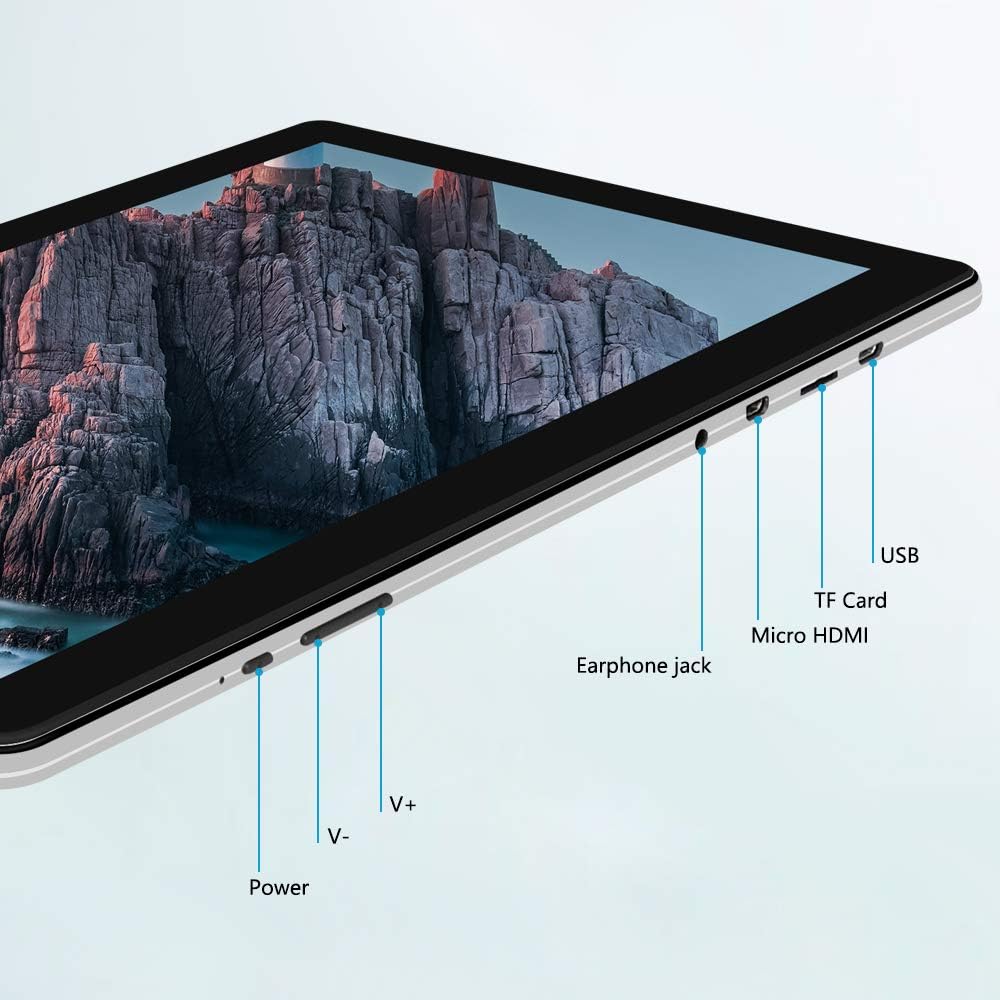
Imagem: Lado view of the iProda T1045A tablet highlighting port locations.
- Botão de energia: Press and hold to power on/off or restart the tablet. Short press to turn the screen on/off.
- Volume Buttons (V+, V-): Ajuste o volume do áudio.
- Entrada para fone de ouvido: Conecte fones de ouvido de 3.5 mm.
- Slot para cartão TF: Insert a microSD card for expandable storage (up to 128GB).
- Porta Micro HDMI: Connect to an external display using a Micro HDMI to HDMI cable.
- Porta USB: Connect to a computer for data transfer or for charging the device.
3. Configuração
3.1 Carregamento Inicial
Before first use, fully charge the tablet. Connect the provided USB cable to the tablet's USB port and the power adapter, then plug the adapter into a wall outlet. The charging indicator will typically illuminate. A full charge may take several hours.
3.2 Ligar/Desligar
- Para ligar: Pressione e segure o botão Liga / Desliga até que a tela acenda.
- Para desligar: Press and hold the Power button until a power menu appears on the screen. Select "Power off" and confirm.
- Reiniciar: No menu de energia, selecione "Reiniciar".
- Tela ligada/desligada: Briefly press the Power button to turn the screen off (sleep mode) or wake it up.
3.3 Assistente de Configuração Inicial
The first time you power on the tablet, you will be guided through an initial setup process. Follow the on-screen prompts to:
- Selecione seu idioma preferido.
- Conecte-se a uma rede Wi-Fi.
- Configure sua conta do Google (opcional, mas recomendado para baixar aplicativos).
- Defina as configurações de data e hora.
3.4 Inserindo um cartão TF (MicroSD)
To expand the tablet's storage:
- Locate the TF card slot on the side of the tablet.
- Carefully insert a microSD card (up to 128GB) into the slot with the gold contacts facing down until it clicks into place.
- Para remover, empurre o cartão delicadamente para dentro até que ele se solte.
4. Instruções de operação
4.1 Navegação básica
The iProda T1045A uses a touch-sensitive screen for navigation:
- Tocar: Selecione um item ou abra um aplicativo.
- Toque e segure: Aceda aos menus contextuais ou mova os ícones.
- Deslize: Navegue pelas listas ou alterne entre as telas iniciais.
- Pitada: Aumente ou diminua o zoom nas imagens e web páginas.
4.2 Conexão Wi-Fi
Para se conectar a uma rede sem fio:
- Vá para Configurações > Rede e Internet > Wi-fi.
- Ativar/desativar Wi-Fi On.
- Selecione a rede desejada na lista.
- Digite a senha, se solicitado, e toque em Conectar.
The tablet supports both 2.4G and 5G dual-band Wi-Fi for faster and more stable connections.
4.3 Emparelhamento Bluetooth
Para emparelhar com dispositivos Bluetooth (ex.: fones de ouvido, alto-falantes):
- Vá para Configurações > Dispositivos conectados > Bluetooth.
- Alternar Bluetooth On.
- Certifique-se de que seu dispositivo Bluetooth esteja no modo de emparelhamento.
- Selecione seu dispositivo na lista de dispositivos disponíveis e siga as instruções na tela para concluir o emparelhamento.
4.4 Usando as câmeras
The tablet is equipped with a 2MP front camera and a 5MP rear camera.
- Abra o Câmera application from the app drawer.
- Toque no ícone da câmera para alternar entre as câmeras frontal e traseira.
- Toque no botão do obturador para tirar fotos ou iniciar/parar a gravação de vídeo.

Image: Tablet in use, showcasing its camera capabilities.
4.5 Connecting to an External Display (HDMI)
To display your tablet's screen on a larger monitor or TV:
- Connect one end of a Micro HDMI cable to the tablet's Micro HDMI port.
- Connect the other end of the cable to an HDMI input on your external display.
- Select the correct HDMI input source on your external display.
- The tablet's screen content should now be mirrored on the external display.
4.6 Gerenciamento de aplicativos
The tablet runs Android 9 Pie and supports applications from the Google Play Store.
- Instalando aplicativos: Abra o Loja de jogos app, search for your desired application, and tap Instalar.
- Desinstalando aplicativos: Tap and hold an app icon on the home screen or in the app drawer, then drag it to "Uninstall" or select "App info" and choose "Uninstall". Alternatively, go to Configurações > Aplicativos e notificaçõesSelecione o aplicativo e toque em Desinstalar.
5. Manutenção
5.1 Limpando o Dispositivo
Para limpar seu tablet:
- Power off the tablet before cleaning.
- Use um pano macio e sem fiapos, levemente umedecido.ampFinalize com água ou um produto de limpeza para telas, para limpar a tela e a carcaça.
- Evite usar produtos químicos agressivos, produtos de limpeza abrasivos ou umidade excessiva.
5.2 Atualizações de Software
Periodically check for software updates to ensure optimal performance and security:
- Vá para Configurações > Sistema > Avançado > Atualização do sistema.
- Follow the on-screen instructions to download and install any available updates. Ensure your tablet is sufficiently charged or connected to power during updates.
5.3 Gerenciamento de armazenamento
To manage internal storage and the TF card:
- Vá para Configurações > Armazenar.
- Aqui você pode view storage usage, free up space, and manage files on both internal storage and the inserted TF card.
6. Solução De Problemas
This section addresses common issues you might encounter with your iProda T1045A tablet.
6.1 O dispositivo não liga
- Ensure the tablet is sufficiently charged. Connect it to the power adapter and allow it to charge for at least 30 minutes before attempting to power on again.
- Tente manter o botão Liga/Desliga pressionado por 10 a 15 segundos para forçar a reinicialização.
6.2 Problemas de conexão Wi-Fi
- Verify that Wi-Fi is enabled in Configurações.
- Certifique-se de digitar a senha correta do Wi-Fi.
- Reinicie o roteador Wi-Fi e o tablet.
- Try connecting to a different Wi-Fi network to determine if the issue is with the tablet or the network.
6.3 Desempenho Lento
- Feche aplicativos desnecessários em segundo plano.
- Clear cached data for apps in Configurações > Aplicativos e notificações > [Nome do aplicativo] > Armazenamento e cache > Limpar cache.
- Ensure sufficient free storage space. Uninstall unused apps or move large filepara um cartão TF.
- Reinicie o tablet.
6.4 Bateria descarregando rapidamente
- Reduza o brilho da tela.
- Desative o Wi-Fi, o Bluetooth e o GPS quando não estiverem em uso.
- Close background apps that consume significant power.
- Verifique o consumo da bateria em Configurações > Bateria Identificar aplicativos que consomem muita energia.
- Ensure the tablet is not allowed to run below 15% charge frequently, as this can impact battery longevity.
6.5 Redefinição de fábrica
Se os problemas persistirem, uma restauração de fábrica pode resolvê-los. Aviso: Isso apagará todos os dados do seu tablet. Faça backup dos seus dados importantes antes de prosseguir.
- Vá para Configurações > Sistema > Avançado > Redefinir opções.
- Selecione Apagar todos os dados (redefinição de fábrica).
- Confirme sua decisão e siga as instruções na tela.
7. Especificações
Below are the technical specifications for the iProda T1045A tablet:
| Nome do modelo | T1045A |
| Sistema operacional | Android 9 Torta |
| Tamanho da tela | 10.1 polegadas |
| Resolução de exibição | 1280 x 800 pixels (HD IPS) |
| Processador | MediaTek Quad-core 1.5Ghz |
| BATER | 3 GB |
| Armazenamento interno | SSD de 64 GB |
| Armazenamento expansível | Up to 128 GB via TF Card (MicroSD) |
| Coprocessador gráfico | ARM Mali-T720 MP2 |
| Câmera Traseira | 5 MP |
| Câmera Frontal | 2 MP |
| Capacidade da bateria | Polímero de lítio 5000 mAh |
| Duração média da bateria | Até 8 horas |
| Conectividade sem fio | Dual-Band Wi-Fi (802.11a/b/g/n), Bluetooth 4.0 |
| Portos | 1x USB 2.0, 1x Micro HDMI, 3.5mm Earphone Jack, TF Card Slot |
| Dimensões | 34.5 x 19.7 x 5.5 cm |
| Peso | 550 g |

Image: Key performance specifications of the tablet.

Image: Tablet portability and battery details.
8. Garantia e Suporte
8.1 Garantia do Produto
The iProda T1045A tablet comes with a Garantia de 12 meses A garantia é válida a partir da data da compra. Esta garantia cobre defeitos de fabricação e mau funcionamento em condições normais de uso. Não cobre danos causados por uso indevido, acidentes, reparos não autorizados ou desgaste normal.
8.2 Suporte ao cliente
If you encounter any issues not covered in the troubleshooting section or require further assistance, please contact iProda customer support. Refer to your purchase documentation or the iProda official website para informações de contato.
When contacting support, please have your tablet's model number (T1045A) and purchase details readily available.
Ask a question about this manual
Ask about setup, troubleshooting, compatibility, parts, safety, or missing instructions. Manuals+ will review the question and use this page’s manual context to help answer it.