
1. Introdução
This manual provides comprehensive instructions for the Huawei P Smart Plus 2019 smartphone. It covers essential information regarding product features, setup, operation, maintenance, and troubleshooting to ensure optimal use of your device. Please read this manual thoroughly before using your smartphone.
2. Produto acabadoview
Familiarize yourself with the physical components of your Huawei P Smart Plus 2019 smartphone.
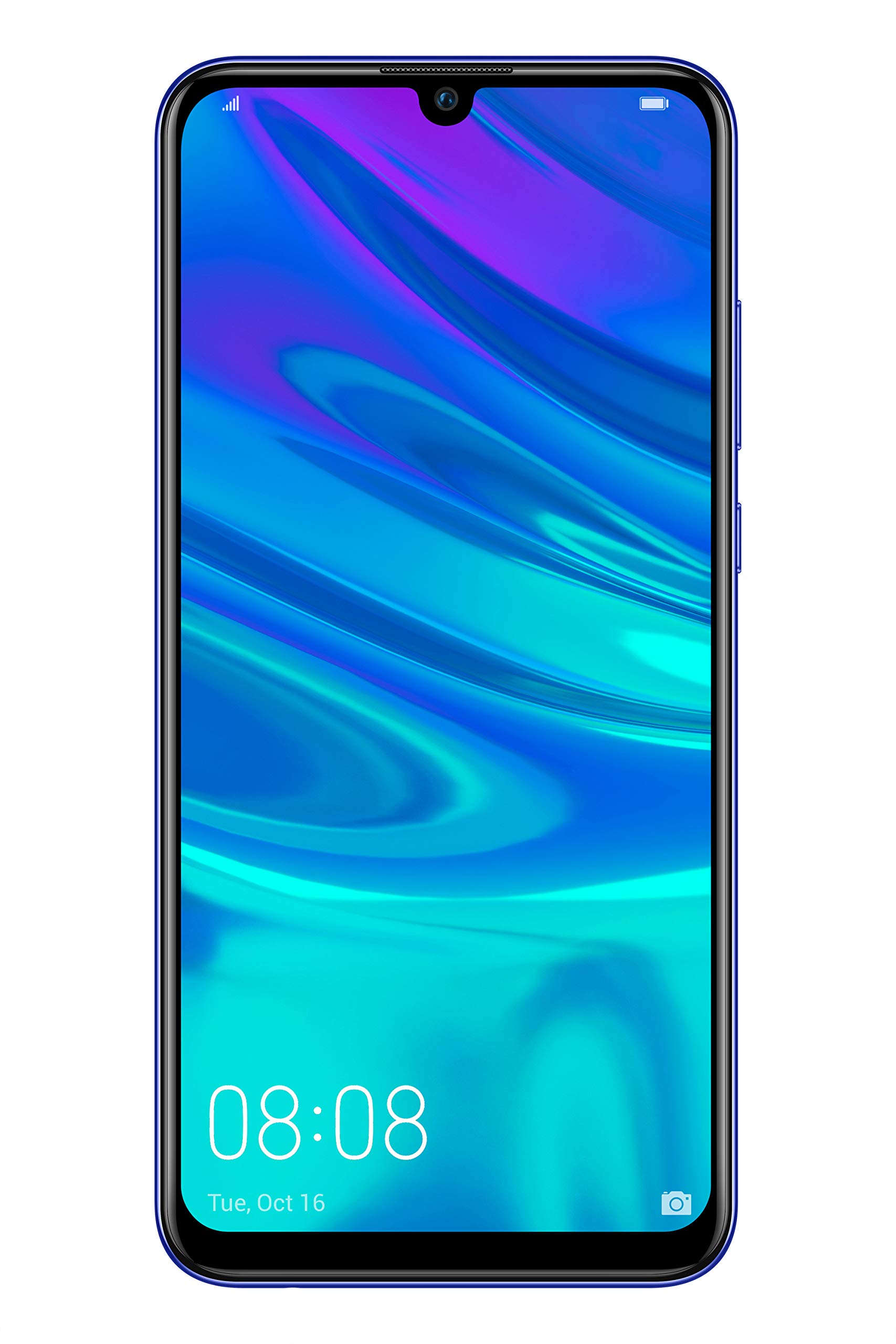
Figura 2.1: Traseira view of the Huawei P Smart Plus 2019 smartphone, showing the triple camera module, fingerprint sensor, and HUAWEI branding.
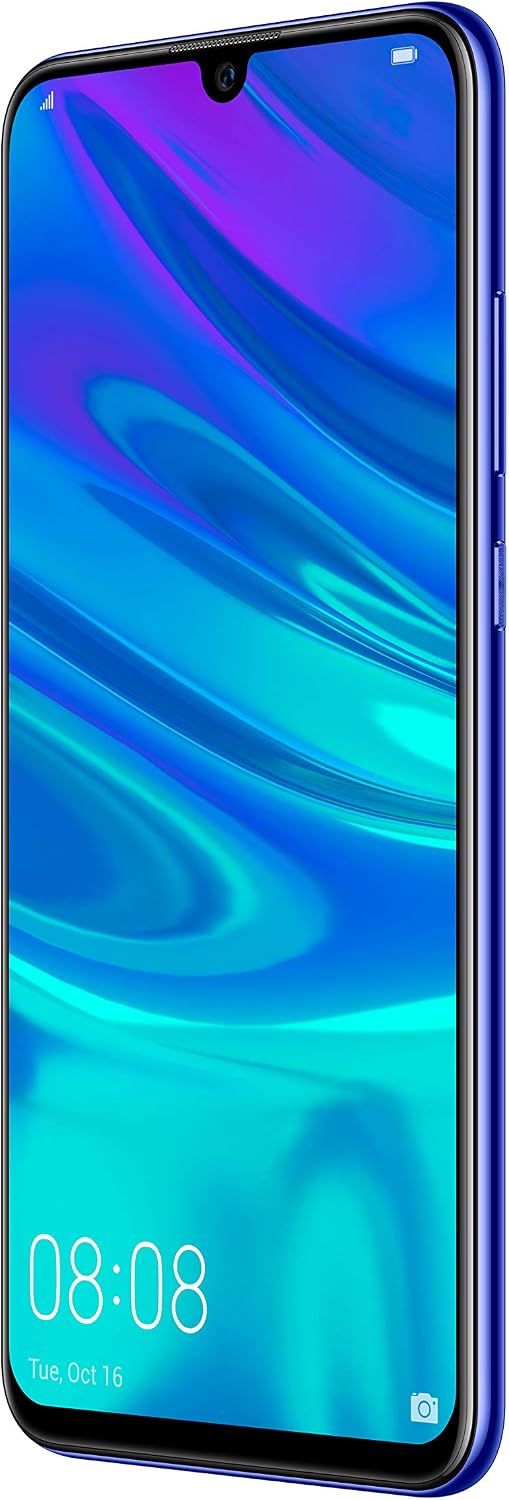
Figura 2.2: Frente view of the Huawei P Smart Plus 2019 smartphone, displaying the 6.21-inch screen with a small notch for the front camera.

Figura 2.3: Lado view of the Huawei P Smart Plus 2019 smartphone, highlighting the power and volume buttons.
Componentes principais:
- Mostrar: 6.21-inch FHD+ LCD screen.
- Câmera frontal: Located in the display notch.
- Câmeras traseiras: Triple camera module on the back.
- Sensor de impressão digital: Circular sensor on the rear panel.
- Botão de energia: No lado direito do dispositivo.
- Botões de volume: Acima do botão liga/desliga, no lado direito.
- Slot para cartão SIM/MicroSD: Typically on the left side or top edge.
- Porta de carregamento: USB Type-C, usually at the bottom.
- Alto-falante/microfone: Localizado na parte inferior.
3. Configuração
3.1 Inserindo os cartões SIM e MicroSD
- Localize a bandeja do cartão SIM na lateral do seu dispositivo.
- Insira a ferramenta de ejeção do SIM no pequeno orifício ao lado da bandeja para abri-la.
- Place your Nano-SIM card(s) and/or microSD card into the tray, ensuring correct orientation as indicated on the tray. This device supports Dual SIM functionality and expandable storage up to 512GB.
- Com cuidado, empurre a bandeja de volta para o compartimento até que fique nivelada com o dispositivo.
3.2 Inicialização da alimentação e carregamento
- To power on, press and hold the Power button until the HUAWEI logo appears.
- Siga as instruções na tela para concluir a configuração inicial, incluindo a seleção do idioma, a conexão Wi-Fi e a configuração da conta do Google.
- Before first use, it is recommended to fully charge the device. Connect the provided USB Type-C cable to the phone's charging port and the other end to a power adapter.
4. Instruções de operação
4.1 Funções Básicas
- Power On/Off/Restart: Press and hold the Power button. Select the desired option from the menu.
- Bloqueio/desbloqueio de tela: Press the Power button to lock/unlock the screen. Use Face Recognition or the Fingerprint Sensor for secure unlocking.
- Chamadas e mensagens: Use the Phone and Messaging applications for communication.
- Conectividade de rede: Access Wi-Fi settings from the Quick Settings panel or Settings app. Enable mobile data for internet access via your SIM card.
4.2 Utilização da câmera
The Huawei P Smart Plus 2019 features a versatile camera system.
- Câmera traseira: The triple camera setup includes a 24MP main sensor, a 16MP ultra-wide sensor, and a 2MP bokeh sensor. Open the Camera app and select modes like Automatic, Portrait, or Sport.
- Câmera frontal: An 8MP front camera is available for selfies and video calls. Switch to the front camera within the Camera app.
- Recursos de IA: The camera utilizes AI to optimize scene recognition and enhance photo quality.
4.3 Armazenamento e memória
Your device comes with 64GB of internal storage, which can be expanded up to 512GB using a microSD card. It has 3GB of RAM for smooth multitasking.
4.4 Gerenciamento de bateria
The device is equipped with a 3400 mAh Lithium-Polymer battery. To optimize battery life, manage background apps, adjust screen brightness, and utilize power-saving modes available in the Settings app.
4.5 Sistema Operacional
The smartphone runs on Android 9 (Pie) with Huawei's EMUI 9 interface, offering a range of features and customization options.
5. Manutenção
5.1 Limpando seu dispositivo
Use a soft, lint-free cloth to gently wipe the screen and body of your phone. Avoid using harsh chemicals or abrasive materials, which can damage the device's finish or screen coating.
5.2 Atualizações de Software
Regularly check for and install software updates to ensure your device has the latest features, security patches, and performance improvements. You can usually find this option in Settings > System > Software update.
5.3 Cuidados com a bateria
To prolong battery lifespan, avoid extreme temperatures. Do not leave the phone fully charged or fully discharged for extended periods. Use only approved chargers and cables.
5.4 Backup de dados
Faça backups regulares de seus dados importantes (fotos, contatos, documentos) em um serviço de nuvem ou em um computador para evitar a perda de dados.
6. Solução De Problemas
This section addresses common issues you might encounter with your Huawei P Smart Plus 2019.
6.1 Dispositivo não liga
- Certifique-se de que a bateria esteja carregada. Conecte o carregador e aguarde alguns minutos antes de tentar ligar o aparelho.
- Pressione e mantenha pressionado o botão Liga/Desliga por pelo menos 10 a 15 segundos para forçar a reinicialização.
6.2 Má duração da bateria
- Feche os aplicativos não utilizados que estiverem sendo executados em segundo plano.
- Reduza o brilho da tela e defina um tempo limite de tela mais curto.
- Desative o Wi-Fi, o Bluetooth e o GPS quando não estiverem em uso.
- Verifique o uso da bateria nas Configurações para identificar os aplicativos que consomem muita energia.
6.3 Network Issues (No Signal/Wi-Fi Disconnection)
- Reinicie seu dispositivo.
- Ensure your SIM card is correctly inserted and your mobile data plan is active.
- For Wi-Fi, try restarting your router. Forget the network on your phone and reconnect.
6.4 Aplicativos travando ou congelando
- Force o fechamento do aplicativo e reabra-o.
- Limpe o cache e os dados do aplicativo em Configurações > Aplicativos.
- Certifique-se de que o aplicativo esteja atualizado para a versão mais recente.
- Se o problema persistir, considere desinstalar e reinstalar o aplicativo.
6.5 Restauração de fábrica (Último recurso)
If other troubleshooting steps fail, a factory reset may resolve persistent issues. Aviso: This will erase all data on your device. Back up your data before proceeding. Go to Settings > System > Reset > Factory data reset.
7. Especificações
| Recurso | Detalhe |
|---|---|
| Número do modelo | POT-LX1T, 51093RVX |
| Mostrar | 6.21 inches, LCD, FHD+ (2340 x 1080 pixels), 415 PPI |
| Processador | Kirin 710 Octa-core (4 x 2.2 GHz, 4 x 1.7 GHz) |
| BATER | 3 GB |
| Armazenamento interno | 64 GB |
| Armazenamento expansível | MicroSD até 512 GB |
| Câmera Traseira | Triple: 24 MP (main) + 16 MP (ultra-wide) + 2 MP (bokeh) |
| Câmera Frontal | 8 MP |
| Bateria | Polímero de lítio 3400 mAh |
| Sistema operacional | Android 9 (Pie) with EMUI 9 |
| Tipo de cartão SIM | Nano-SIM (compatível com Dual SIM) |
| Conectividade | LTE, GSM, Wi-Fi, Bluetooth, USB Type-C |
| Segurança Biométrica | Fingerprint Sensor, Face Recognition |
| Dimensões | 8 x 155 x 73 mm |
| Peso | 160 gramas |
| Duração média da bateria | 25 horas |
8. Informações de segurança
Please observe the following safety guidelines to prevent injury or damage to your device:
- Não exponha o dispositivo a temperaturas extremas, luz solar direta ou umidade.
- Utilize somente carregadores e acessórios aprovados.
- Evite deixar o dispositivo cair ou submetê-lo a impactos fortes.
- Não tente desmontar ou reparar o dispositivo por conta própria. Consulte um técnico autorizado.
- Mantenha o dispositivo afastado de equipamentos médicos para evitar interferências.
- Descarte o dispositivo e sua bateria de forma responsável, de acordo com as normas locais.
9. Garantia e Suporte
Your Huawei P Smart Plus 2019 smartphone is covered by a limited warranty. For detailed warranty terms and conditions, please refer to the warranty card included in the product packaging or visit the official HUAWEI website.
For technical support, service, or further assistance, please contact HUAWEI customer service or visit an authorized service center. Contact information can typically be found on the official HUAWEI support website.


