
1. Introdução
This manual provides essential information for the proper installation, operation, and maintenance of your IBM 20GB IDE 2.5 Hard Drive, model IC25N020ATCS04-0. This internal hard drive is designed for use in compatible laptop systems and other devices requiring a 2.5-inch IDE storage solution. Please read this manual thoroughly before proceeding with installation or use.
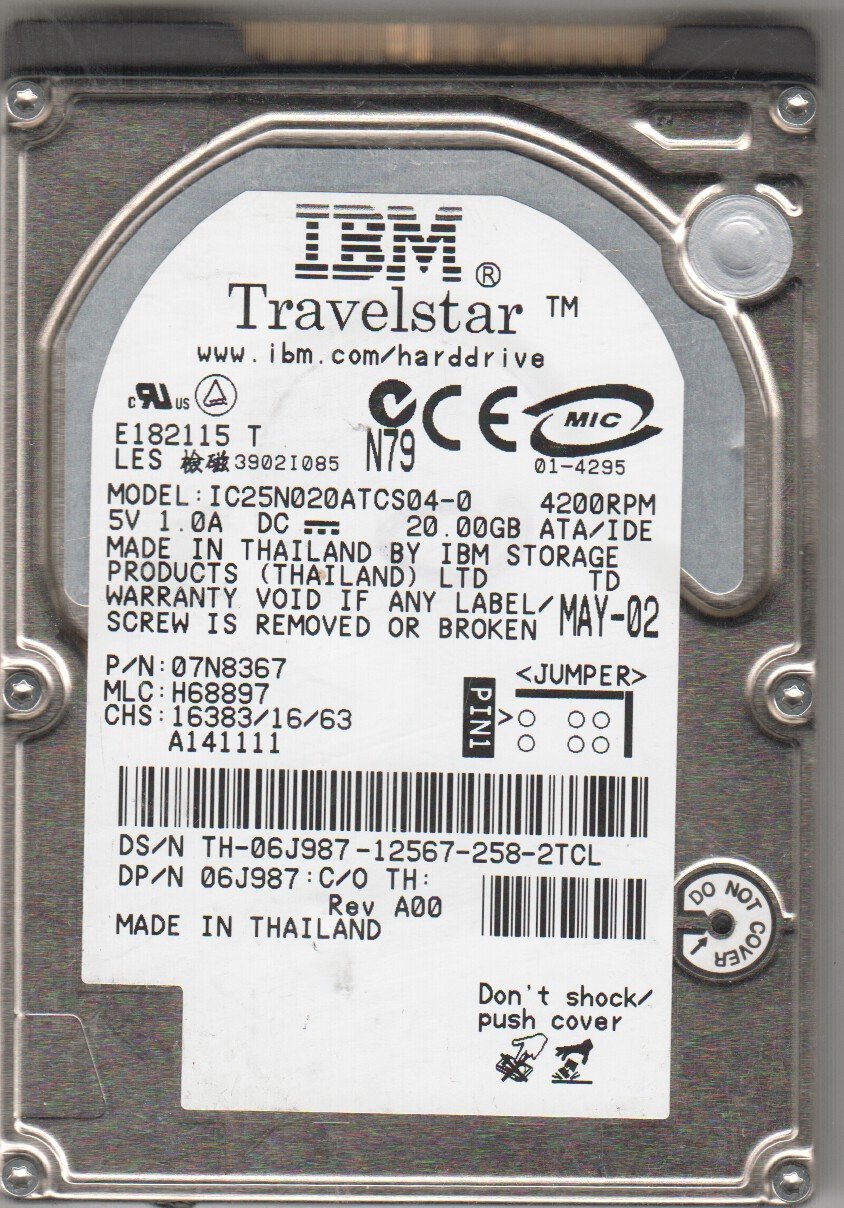
Figure 1: IBM 20GB IDE 2.5 Hard Drive (Model IC25N020ATCS04-0). This image displays the physical appearance of the hard drive, including its label with model and serial numbers, and the IDE connector interface.
2. Configuração e instalação
Before beginning installation, ensure your computer is powered off and disconnected from all power sources. It is recommended to wear an anti-static wrist strap to prevent electrostatic discharge (ESD) damage to the drive or other components.
2.1 Instalação Física
- Prepare o dispositivo: Open your laptop or compatible device's hard drive bay. Refer to your device's specific service manual for instructions on accessing the hard drive bay.
- Remove Old Drive (if applicable): Carefully disconnect the existing hard drive from its IDE connector and power cable. Remove any mounting screws or brackets.
- Set Jumper (if necessary): For IDE drives, jumpers may need to be set for Master, Slave, or Cable Select. Consult your system's motherboard manual or the drive's label for the correct setting. For a single drive, "Master" or "Cable Select" is typically used.
- Install New Drive: Gently slide the IBM 20GB IDE 2.5 Hard Drive into the drive bay. Ensure the IDE connector pins align correctly with the receptacle. Do not force the connection.
- Proteja a unidade: Secure the drive with any mounting screws or brackets removed earlier.
- Fechar dispositivo: Reassemble your laptop or device, ensuring all covers are properly secured.
2.2 Initial System Recognition
- Ligar: Connect your device to power and turn it on.
- Verificação de BIOS/UEFI: Access your system's BIOS/UEFI settings (usually by pressing F2, Del, or F10 during startup) to confirm the hard drive is detected.
- Instalação/Configuração do Sistema Operacional: If installing a new operating system, follow the OS installation instructions. If replacing a drive, you may need to restore from a backup or reinstall your operating system.
- Particionar e formatar: For a new drive, you will need to partition and format it before it can be used for data storage. This can be done through your operating system's disk management tools.
3. Operando o disco rígido
Once installed and configured, the IBM 20GB IDE 2.5 Hard Drive functions as a primary or secondary storage device for your computer.
- Armazenamento de dados: Store operating system files, applications, documents, and other digital data.
- Desempenho: The drive operates at standard IDE speeds. Actual performance may vary based on system configuration and workload.
- Gerenciamento de energia: The drive's power consumption is managed by the host system. Ensure your system's power settings are configured for optimal performance and longevity.
4. Manutenção e Cuidados
Proper maintenance can extend the lifespan and reliability of your hard drive.
- Backup de dados: Regularly back up important data to an external storage device or cloud service. Hard drives can fail, and backups are crucial for data recovery.
- Evite choque físico: Hard drives are sensitive to physical impact. Avoid dropping or jarring the device in which the drive is installed, especially when it is operating.
- Controle de temperatura: Ensure your device has adequate ventilation to prevent overheating, which can degrade drive performance and lifespan.
- Desligamento adequado: Always shut down your computer properly. Avoid sudden power loss, which can lead to data corruption or drive damage.
- Disk Defragmentation (for older OS): If using an older operating system (e.g., Windows XP/Vista) that benefits from defragmentation, perform it periodically. Modern operating systems often manage this automatically.
- Disk Error Checking: Periodically run disk error checking utilities provided by your operating system to identify and repair minor file erros do sistema.
5. Solução De Problemas
If you encounter issues with your hard drive, consider the following common troubleshooting steps:
- Unidade não detectada:
- Verify physical connections (IDE cable, power cable) are secure.
- Check BIOS/UEFI settings to ensure the drive is recognized.
- Confirm jumper settings (Master/Slave/Cable Select) are correct.
- Test the drive in another compatible system or with a different IDE cable if possible.
- Desempenho lento:
- Verifique se há espaço livre suficiente na unidade.
- Run disk defragmentation (if applicable for your OS).
- Faça uma busca por malware ou vírus.
- Ensure the system's cooling is adequate to prevent thermal throttling.
- Ruídos incomuns:
- Clicking, grinding, or repetitive beeping sounds often indicate a failing drive. Back up data immediately and consider replacing the drive.
- Corrupção/Erros de Dados:
- Run your operating system's disk error checking utility (e.g.,
chkdskon Windows). - Ensure proper system shutdowns.
- Run your operating system's disk error checking utility (e.g.,
Se essas medidas não resolverem o problema, pode ser necessário recorrer a um profissional.
6. Especificações
Key technical specifications for the IBM 20GB IDE 2.5 Hard Drive (Model IC25N020ATCS04-0):
| Recurso | Detalhe |
|---|---|
| Número do modelo | IC25N020ATCS04-0 |
| Número da peça (PN) | 07N8367 |
| MLC | H68997 |
| Capacidade de armazenamento digital | 20 GB |
| Interface de disco rígido | IDE (Integrated Drive Electronics) |
| Fator de forma do disco rígido | 2.5 polegadas |
| Dispositivos compatíveis | Computador portátil |
| Tipo de instalação | Disco Rígido Interno |
| Peso do item | 3.19 onças |
| Dimensões da embalagem | 3.8 x 3.6 x 1.7 polegadas |
| Fabricante | IBM |
Nota: as especificações estão sujeitas a alterações sem aviso prévio.
7. Garantia e Suporte
For information regarding the warranty period and terms for your IBM 20GB IDE 2.5 Hard Drive, please refer to the documentation provided at the time of purchase or contact the seller directly.
For technical support, it is recommended to consult the support resources available from IBM or the vendor from whom the product was acquired.