
Introdução
This manual provides essential instructions and information for users of the Apple iPhone XS and iPhone XS Max. It covers initial setup, basic operation, key features of iOS 12, and tips for maximizing your device's potential. Please read this guide thoroughly to ensure proper use and understanding of your new iPhone.
Produto acimaview
The iPhone XS and iPhone XS Max represent a significant advancement in smartphone technology, featuring a powerful A12 Bionic chip, advanced camera systems, and an all-screen design. This manual serves as your guide to exploring these capabilities.
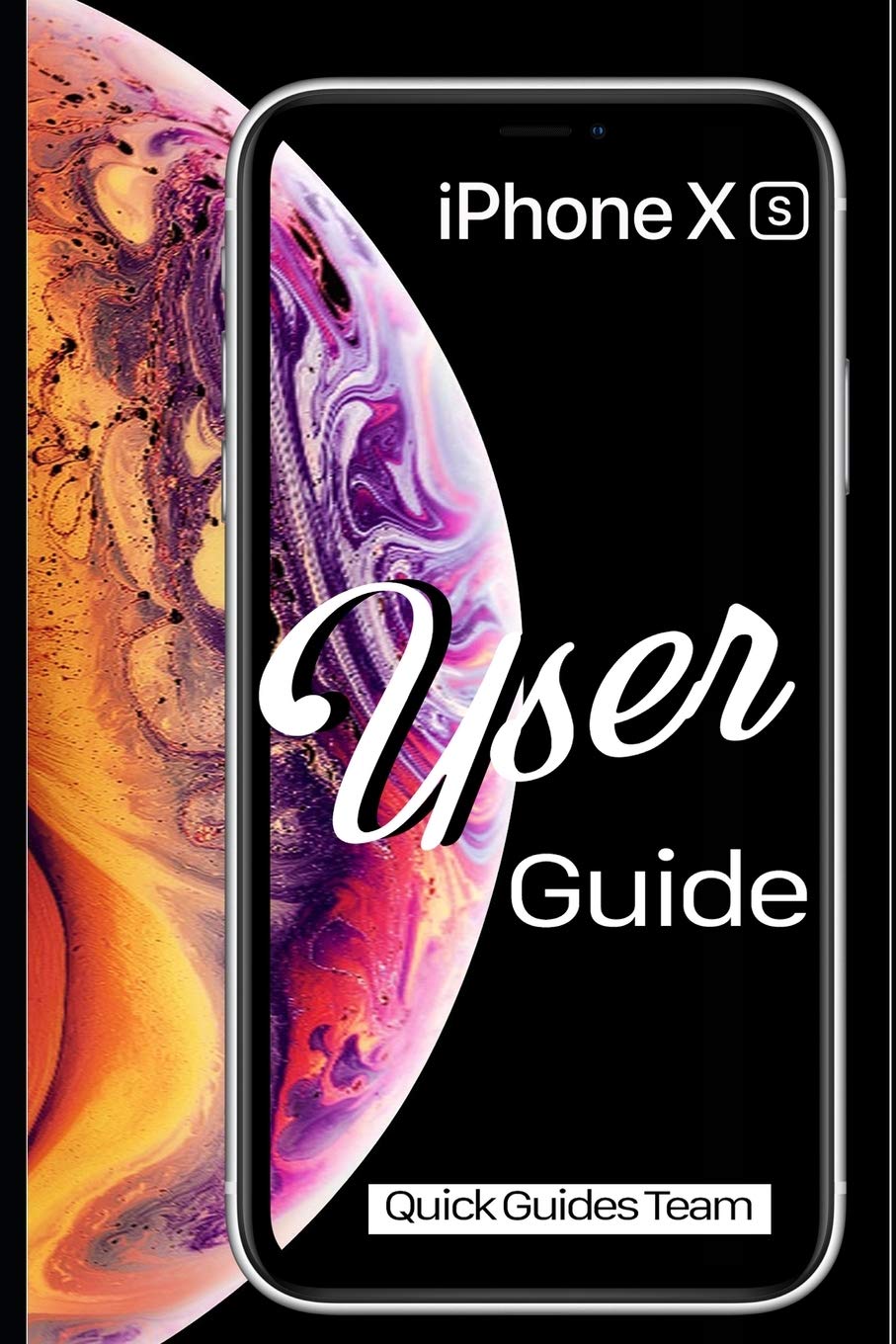
Image 1: Front cover of the Apple iPhone XS User Manual. This image displays the iPhone XS with its vibrant display and the manual's title.

Image 2: Back cover of the Apple iPhone XS User Manual. The back cover is plain black and includes the ISBN-13 barcode: 978-1091970465.
Configurar
- Ligar: Pressione e segure o botão lateral até que o logotipo da Apple apareça.
- Configuração inicial: Siga as instruções na tela para selecionar seu idioma, região e conectar-se a uma rede Wi-Fi.
- Configuração do Face ID: Configure Face ID for secure authentication and Apple Pay.
- Transferência de dados: Choose to restore from an iCloud or iTunes backup, or set up as a new iPhone.
- ID da Apple: Sign in with your existing Apple ID or create a new one. This is essential for accessing the App Store, iCloud, and other Apple services.
Operating Your iPhone XS
Basic Gestures and Navigation
- Tocar: Select an item or activate a button.
- Swipe Up (from bottom edge): Vá para a tela inicial.
- Swipe Up and Pause (from bottom edge): View all open apps (App Switcher).
- Swipe Down (from top-right corner): Abra o Centro de Controle.
- Swipe Down (from top-center): Abra a Central de Notificações.
- Pitada: Aumente ou diminua o zoom nas fotos e web páginas.
Home Screen and Apps
The Home screen is where you access all your applications. You can organize apps into folders, search for apps using Spotlight Search (swipe down from the middle of the Home screen), and customize your app layout.
- Abrindo aplicativos: Tap an app icon.
- Encerrando aplicativos: From the App Switcher, swipe an app card upwards.
- Loja de aplicativos: Download new applications and games.
Configurações
The Settings app allows you to customize your iPhone's behavior, connectivity, and privacy. Key settings include:
- Wi-Fi e Bluetooth: Manage wireless connections.
- Notificações: Control how apps alert you.
- Exibição e brilho: Adjust screen appearance.
- Bateria: Monitor battery usage and health.
- Face ID & Passcode: Manage security settings.
Recursos da câmera
The iPhone XS camera system offers advanced photography capabilities. New photo modes and features in iOS 12 enhance your ability to capture stunning images and videos.
- Modo retrato: Create professional-looking photos with a depth-of-field effect.
- Smart HDR: Automatically capture more detail in highlights and shadows.
- Gravação de vídeo: Record 4K video at up to 60 fps.
Aplicações Essenciais
- Safári: Browse the internet securely.
- Correspondência: Manage your email accounts.
- Mensagens: Send and receive text messages and iMessages.
- FaceTime: Make video and audio calls to other Apple users.
- Files: Access and organize documents across various cloud services.
- Encontre meu: Locate your devices or share your location with friends.
Manutenção
- Limpeza: Use um pano macio e sem fiapos para limpar seu iPhone. Evite materiais abrasivos ou produtos químicos agressivos.
- Atualizações de software: Regularly update iOS to the latest version for security enhancements and new features. Go to Configurações > Geral > Atualização de software.
- Cuidados com a bateria: Optimize battery life by managing background app refresh, reducing screen brightness, and enabling Low Power Mode when needed.
- Backup de dados: Regularly back up your iPhone to iCloud or a computer using iTunes to prevent data loss.
Solução de problemas
- Dispositivo não responde: If your iPhone is unresponsive, perform a force restart: Press and quickly release the Volume Up button, then press and quickly release the Volume Down button, then press and hold the Side button until you see the Apple logo.
- O aplicativo não está respondendo: Close the app from the App Switcher and reopen it. If the issue persists, restart your iPhone.
- Problemas de conectividade: For Wi-Fi or Bluetooth problems, try toggling the respective setting off and on, or restart your iPhone. You can also reset network settings via Settings > General > Transfer or Reset iPhone > Reset > Reset Network Settings.
- Falhas de software: Ensure your iOS is up to date. If problems persist, consider restoring your iPhone from a backup or performing a factory reset (Settings > General > Transfer or Reset iPhone > Erase All Content and Settings) after backing up your data.
Especificações
| Recurso | Detalhe |
|---|---|
| Modelo | iPhone XS, iPhone XS Max |
| Sistema operacional | iOS 12 (at time of manual publication) |
| Dimensions (iPhone XS) | 143.6 x 70.9 x 7.7 mm (5.65 x 2.79 x 0.30 polegadas) (Approximate, based on general knowledge) |
| Weight (iPhone XS) | 177 gramas (6.24 onças) (Approximate, based on general knowledge) |
| ISBN-10 (Manual) | 1091970467 |
| ISBN-13 (Manual) | 978-1091970465 |
| Data de publicação (manual) | 29 de março de 2019 |
Note: Device specifications are approximate and may vary. Refer to Apple's official website for the most accurate and up-to-date product details.
Garantia e Suporte
For detailed warranty information, please refer to the official Apple warranty documentation included with your device or visit the official Apple website. Apple provides comprehensive support resources, including online knowledge bases, community forums, and direct customer service.
- Suporte online: Visita suporte.apple.com for troubleshooting guides, FAQs, and service options.
- Serviço Autorizado: For hardware issues, contact an authorized Apple service provider.