
1. محصول ختم شوview
The ADAM elements iKlips S is a compact and secure USB-C Solid State Drive (SSD) designed for portable data storage and transfer. It features fingerprint encryption for enhanced data protection and offers high-speed performance. This manual provides instructions for its setup, operation, and maintenance.
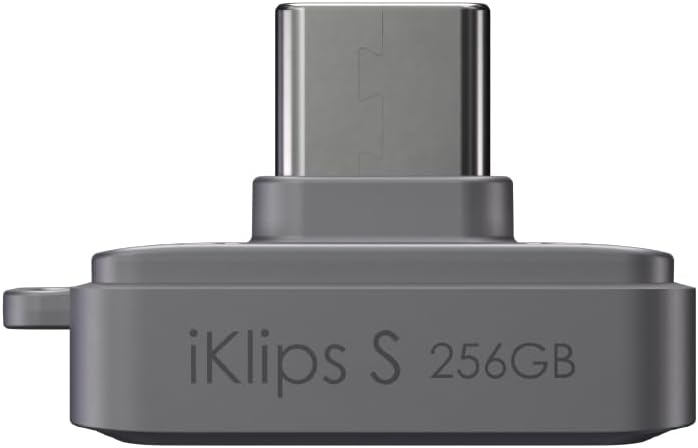
انځور 1.1: مخکی view of the iKlips S SSD with USB-C connector.
کلیدي ځانګړتیاوې:
- تړون ډیزاین: Measuring 14.2 x 26 x 17.1 mm, it is designed for portability.
- د لوړ سرعت فعالیت: Offers up to 450 MB/s read speed and 400 MB/s write speed.
- Fingerprint Encryption: Advanced biometric security for data protection, supporting up to 20 fingerprints.
- پراخه مطابقت: Compatible with iPhone 15/16/17 (USB-C), USB-C iPads, MacBooks, Android phones, and Windows devices.
- Ex-FAT Format Support: Allows transfer of single files larger than 4GB, suitable for high-resolution video formats like ProRes.

انځور 1.2: اوورview of the iKlips S core features: Small size, high Speed, Solid State Drive (SSD), and Secure fingerprint encryption.
۱. تنظیم او لومړنی کارول
2.1 د بسته محتويات
- ADAM elements iKlips S USB-C Nano Touch Fingerprint SSD
- Anti-Lost Finger Ring
- دوړو کیپ
2.2 د آلې سره نښلول
- Locate the USB-C port on your compatible device (e.g., iPhone, iPad, MacBook, Android phone, Windows PC).
- Carefully insert the iKlips S USB-C connector into the device's USB-C port. Ensure it is fully seated.
- The device should be recognized automatically by your operating system.

Image 2.1: Connecting the iKlips S to a laptop via its USB-C port.
۵.۲ د ګوتو نښې ثبتول
To utilize the fingerprint encryption feature, you must register your fingerprints. Refer to the specific software application provided by ADAM elements for your operating system (e.g., iKlips app for iOS/Android, desktop software for Windows/macOS) for detailed instructions on fingerprint setup. Generally, the process involves:
- Install the official ADAM elements iKlips management software on your host device.
- Connect the iKlips S to your device.
- Open the iKlips management software.
- Navigate to the 'Security' or 'Fingerprint Management' section.
- Follow the on-screen prompts to register your fingerprint(s). This typically involves repeatedly placing and lifting your finger on the sensor until the registration is complete. The sensor light may change color (e.g., from red to blue or green) to indicate successful registration.
- You can register up to 20 fingerprints for multiple users or different fingers.
یادونه: If you experience difficulty registering a fingerprint, ensure your finger is clean and dry, and apply consistent pressure across the sensor. If the sensor does not respond, try reconnecting the device or restarting the management software.

Image 2.2: User scanning a fingerprint on the iKlips S for secure access.
3. عملیات
3.1 Accessing Data
Once connected and authenticated (if fingerprint encryption is enabled), the iKlips S will appear as an external storage device on your computer or mobile device. You can access its contents through your device's file manager (e.g., Finder on macOS, File Explorer on Windows, Files app on iOS/iPadOS, or a file په Android کې د مدیر ایپ).
۳.۱ لیږدول Files
د لیږد لپاره files, simply drag and drop them to and from the iKlips S icon in your file manager. For mobile devices, use the 'Share' or 'Save to' options within applications to move files to the iKlips S, or use the dedicated iKlips app if available.
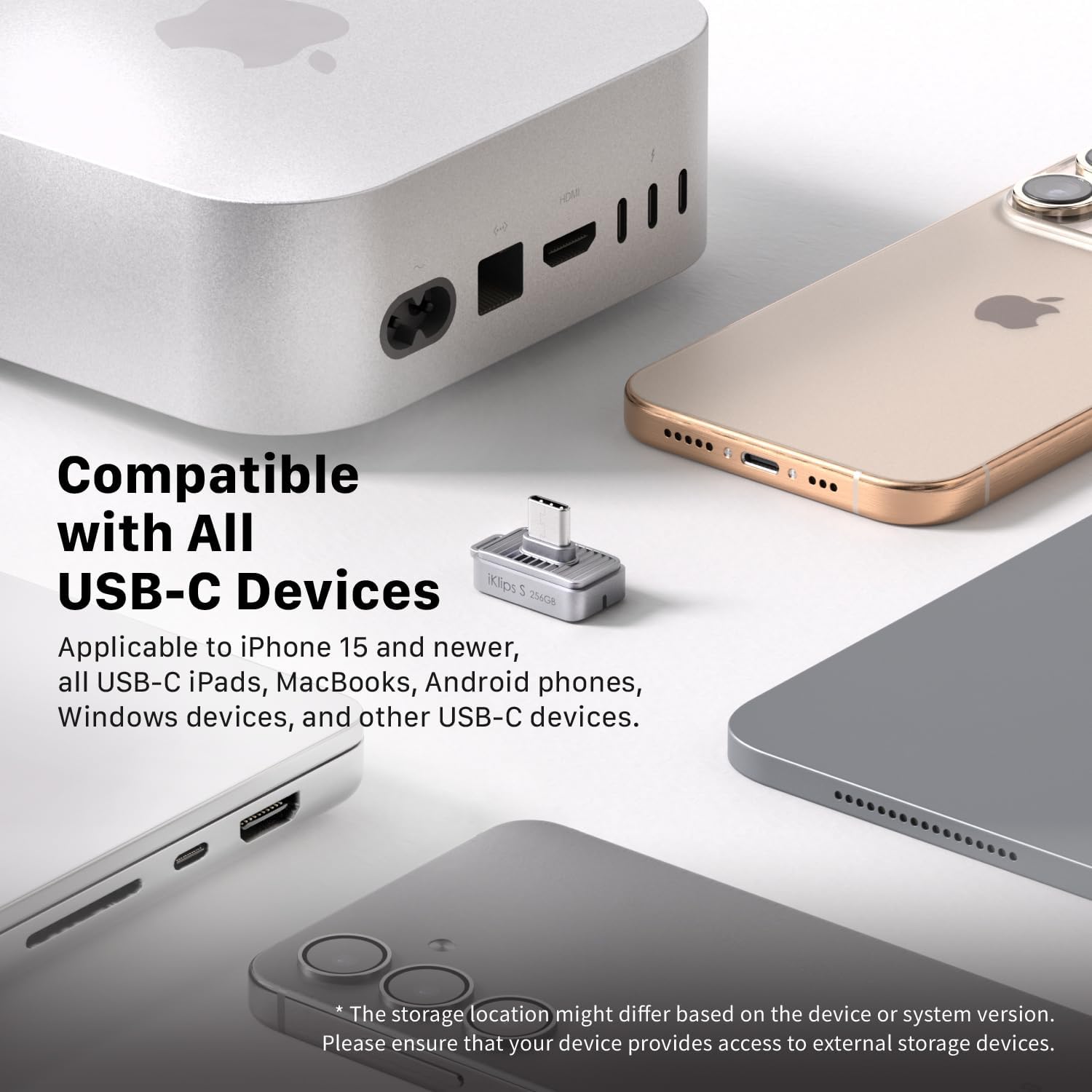
Image 3.1: The iKlips S enables quick connection and backup for mobile devices.
3.3 Using Fingerprint Security
If you have registered fingerprints, the iKlips S will require biometric authentication to unlock its contents. Simply place your registered finger on the fingerprint sensor when prompted by the device or software. The LED indicator on the iKlips S will confirm successful authentication.
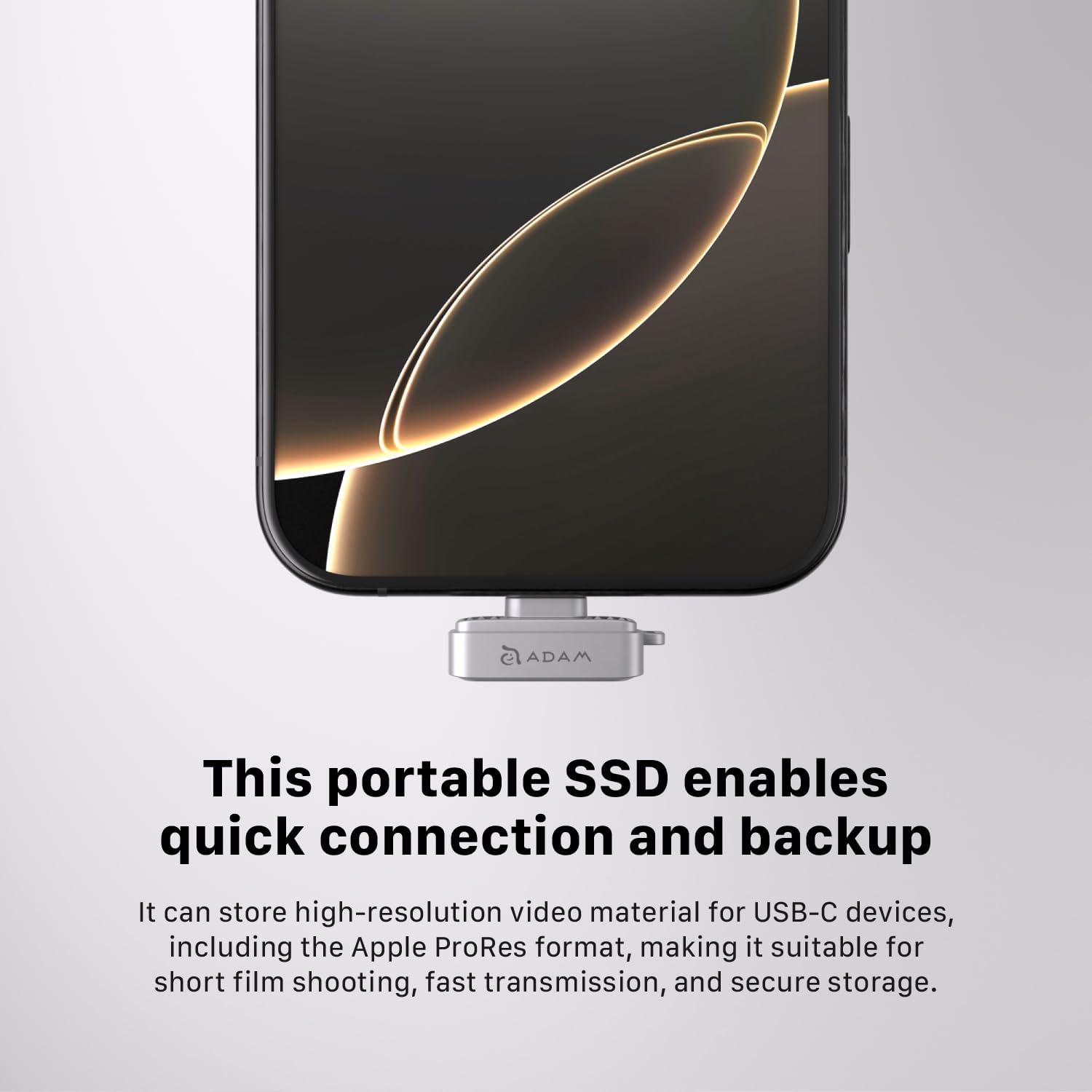
Image 3.2: The iKlips S offers both portability and secure data access through fingerprint recognition.
3.4 Compatibility and File شکلونه
The iKlips S supports the ex-FAT file system, which allows for the storage and transfer of individual files larger than 4GB. This is particularly useful for high-resolution video content, such as Apple ProRes format, commonly used by professional creators.

Image 3.3: The iKlips S is compatible with a wide range of USB-C devices.
4. ساتنه
4.1 پاکول
To clean the iKlips S, gently wipe the exterior with a soft, dry, lint-free cloth. Avoid using liquid cleaners, solvents, or abrasive materials, as these can damage the device or its fingerprint sensor.
4.2 ذخیره کول
When not in use, store the iKlips S in a cool, dry place away from direct sunlight and extreme temperatures. Use the provided dust cap to protect the USB-C connector from dust and debris. Attaching the anti-lost finger ring can help prevent misplacement.
4.3 د معلوماتو بیک اپ
While the iKlips S provides secure storage, it is always recommended to maintain regular backups of critical data to multiple locations to prevent data loss from unforeseen circumstances.
5. ستونزه حل کول
۹.۱ وسیله نه ده پیژندل شوې
- پیوستون چیک کړئ: Ensure the iKlips S is fully and correctly inserted into the USB-C port.
- بل پورټ/وسیله هڅه وکړئ: Test the iKlips S with a different USB-C port or another compatible device to rule out port or device-specific issues.
- وسیله بیا پیل کړئ: Sometimes, restarting your computer or mobile device can resolve connectivity issues.
- ډرایور/سافټویر: Ensure you have the latest drivers or the official iKlips management software installed for your operating system.
5.2 Fingerprint Registration/Recognition Issues
- پاک سینسر: Ensure the fingerprint sensor and your finger are clean and dry.
- دوامداره ځای پر ځای کول: During registration and recognition, place your finger firmly and consistently on the sensor.
- Re-register Fingerprint: If recognition consistently fails, try deleting and re-registering your fingerprint through the iKlips management software.
- د سافټویر تازه کول: Check for updates to the iKlips management software.
۶.۱ د وسیلې ډیر ګرمیدل
It is normal for storage devices to generate some heat during intensive data transfer operations. If the device feels excessively hot even when idle or performing light tasks, try the following:
- Reduce Workload: Avoid continuous heavy data transfers for extended periods.
- د هوا جریان ډاډمن کړئ: Do not obstruct the device or its surroundings, allowing for proper heat dissipation.
- د ملاتړ سره اړیکه: If overheating persists and affects functionality, contact ADAM elements customer support.
6. مشخصات
| فیچر | تفصیل |
|---|---|
| د ماډل نوم | iKlips S |
| د توکي ماډل شمیره | ADRAD256KLSGY |
| برانډ | ADAM ELEMENTS |
| د حافظې د ذخیره کولو ظرفیت | 256 جي بي |
| د هارډ ډرایو ډول | Solid State Drive (NAND Flash Memory) |
| د ارتباط ټیکنالوژي | USB-C |
| هډوتري برسیر | USB |
| د لوستلو سرعت | په ثانیه کې تر ۱۲۰۰ میګابایټ پورې |
| د لیکلو سرعت | په ثانیه کې تر ۱۲۰۰ میګابایټ پورې |
| ځانګړی ځانګړنه | Fingerprint Encryption, Password Protection |
| رنګ | خړ |
| د توکي وزن | 0.16 اونس |
| د کڅوړې ابعاد | 5.1 x 3.5 x 0.7 انچه |
7. تضمین او ملاتړ
For warranty information and technical support, please refer to the official ADAM elements webسایټ ته مراجعه وکړئ یا مستقیم د دوی د پیرودونکو خدماتو سره اړیکه ونیسئ. د تضمین ادعاوو لپاره د پیرود ثبوت وساتئ.
ADAM elements Official Webسایټ: www.adamelements.com