
1. Introduction
The JOMAA K1005 is a versatile 2-in-1 device functioning as both a wireless numeric keypad and a standalone calculator. It offers dual wireless connectivity options (Bluetooth 5.0 and 2.4G wireless) for broad compatibility with various operating systems and devices. This manual provides instructions for setup, operation, and maintenance to ensure optimal performance.
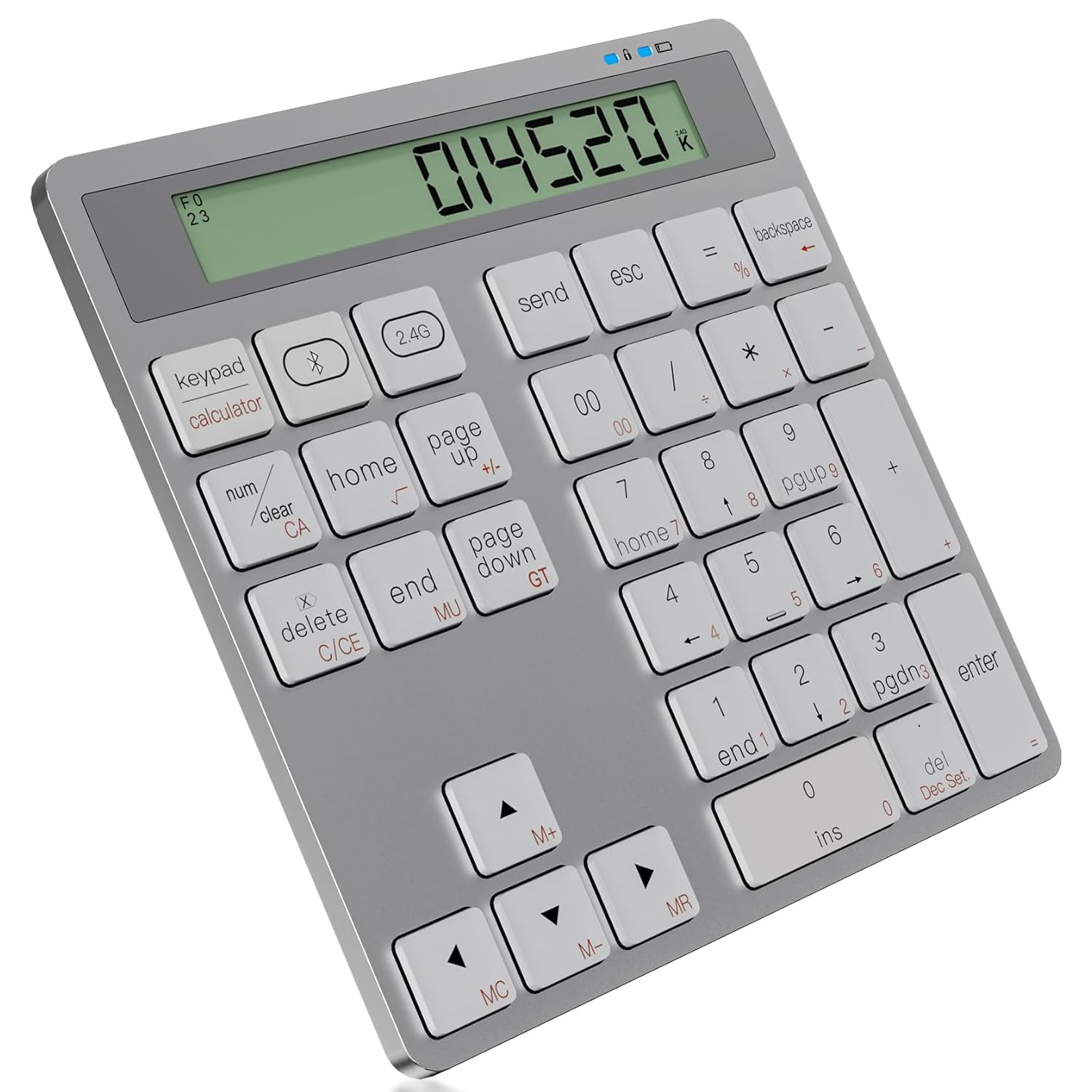
Image: The JOMAA K1005 keypad and calculator connected to a laptop and two external monitors, illustrating its dual-mode connection capabilities.
2. Package Contents
Verify that all items are present in the package:
- 1x Wireless Keypad & Calculator (K1005)
- 1x USB 2.4G Receiver
- 1x User Manual (this document)
3. Product Features
- 2-in-1 Functionality: Seamlessly switch between numeric keypad and desktop calculator modes.
- Dual Wireless Modes: Supports both Bluetooth 5.0 and 2.4GHz USB receiver connections.
- Multi-Device Support: Connect to two devices simultaneously (one via Bluetooth, one via 2.4G).
- Wide Compatibility: Compatible with Windows, Mac, iOS, and Android operating systems.
- Energy Efficient Design: Features an auto-sleep mode after 20 minutes of inactivity to conserve battery life.
- Adjustable Decimal Settings: Offers F, 0, 2, or 3 decimal places for calculator precision.
- Silent Operation: Utilizes scissor-foot key construction for quiet typing.
- Ergonomic Design: Features a 15-degree tilt for comfortable use.
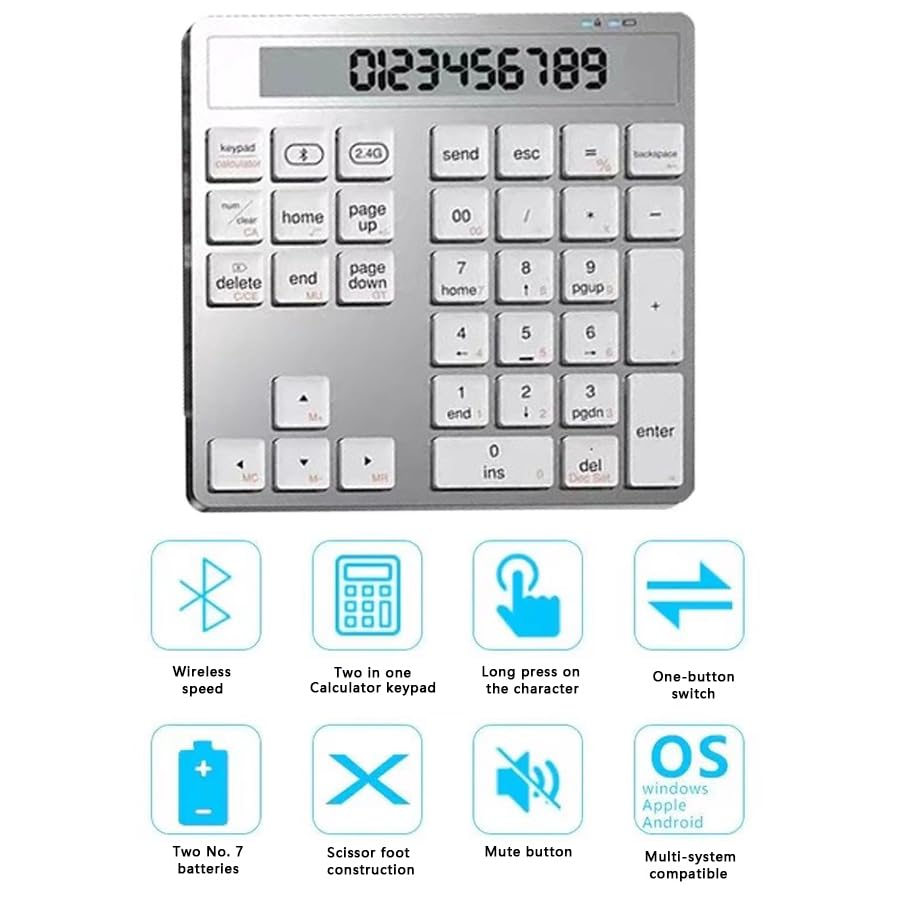
Image: The JOMAA K1005 keypad displaying icons that highlight its key features, including dual wireless modes, 2-in-1 functionality, and multi-system compatibility.
4. Setup
4.1 Battery Installation
- Locate the battery compartment on the back of the keypad.
- Slide open the battery cover.
- Insert two AAA batteries (not included), ensuring correct polarity (+/-).
- Close the battery cover securely.
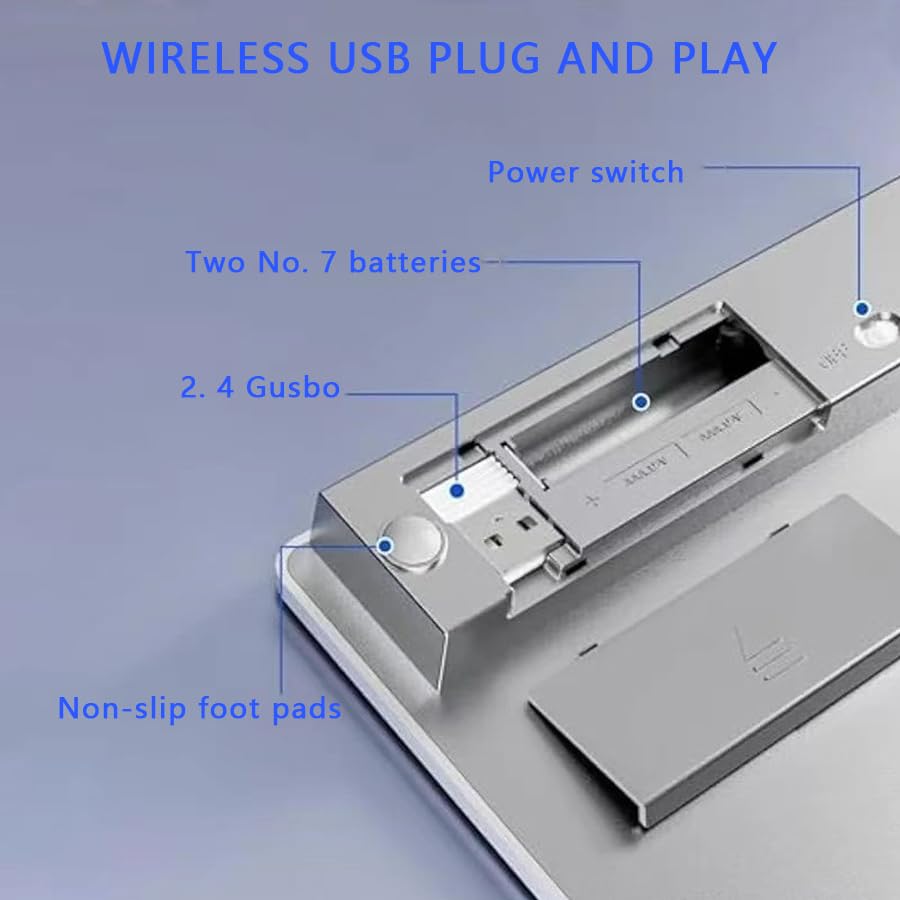
Image: The back of the keypad, illustrating the battery compartment for two AAA batteries and the integrated storage for the 2.4G USB receiver.
4.2 Power On/Off
Locate the power switch on the top edge of the keypad. Slide it to the 'ON' position to power on the device, and to 'OFF' to power it down.
4.3 Connecting via 2.4G Wireless
- Remove the USB 2.4G receiver from its storage slot in the battery compartment.
- Plug the USB receiver into an available USB port on your computer.
- The keypad should automatically connect. The 2.4G indicator light on the keypad will illuminate briefly.
4.4 Connecting via Bluetooth
- Ensure the keypad is powered on.
- Press and hold the Bluetooth button (often labeled with a Bluetooth icon) on the keypad until the Bluetooth indicator light starts flashing, indicating pairing mode.
- On your device (PC, Mac, tablet, smartphone), go to Bluetooth settings.
- Search for new devices and select "K1005" or a similar name from the list.
- Once paired, the Bluetooth indicator light on the keypad will stop flashing and remain solid.
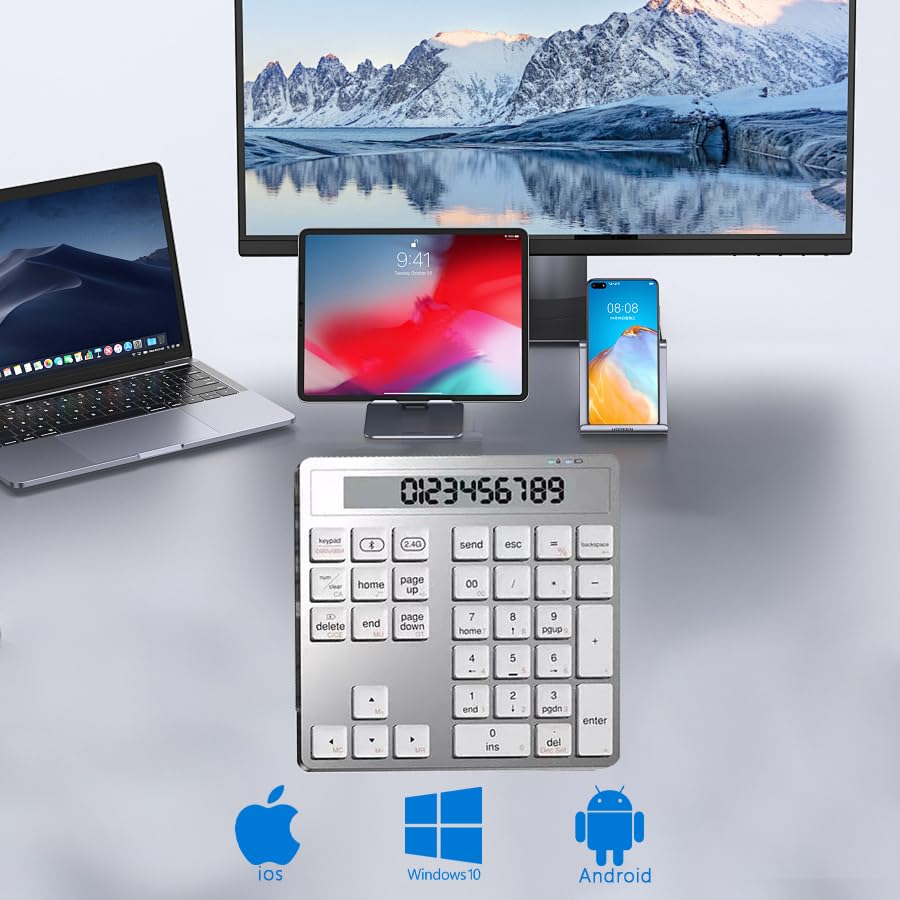
Image: The keypad connected to multiple devices, including a laptop, tablet, and smartphone, highlighting its compatibility with iOS, Windows, and Android operating systems.
5. Operating Instructions
5.1 Switching Between Keypad and Calculator Modes
Press the "Keypad/Calculator" button (often labeled with a keypad icon and a calculator icon) to toggle between the two modes. The display will indicate the current mode.
5.2 Keypad Mode
In keypad mode, the device functions as a standard numeric keypad for data entry into your connected computer or device. Keys such as numbers, arithmetic operators, Num Lock, Home, End, Page Up, Page Down, Delete, and Enter will send their respective inputs to the connected device.
5.3 Calculator Mode
In calculator mode, the device operates as a standalone calculator. Input numbers and perform calculations directly on the keypad's display. The results will be shown on the integrated LCD screen.
5.4 Decimal Settings (Calculator Mode)
The calculator supports adjustable decimal settings. Use the dedicated decimal setting button (refer to keypad layout) to cycle through options: F (floating decimal), 0 (no decimal places), 2 (two decimal places), and 3 (three decimal places).
5.5 Auto Sleep Function
To conserve battery, the keypad will enter auto-sleep mode after 20 minutes of inactivity in both keypad and calculator modes. To wake the device, press any key.

Image: The 34-key layout of the JOMAA K1005, highlighting its dual functionality as both a numeric keypad and a calculator.
6. Maintenance
- Cleaning: Use a soft, dry cloth to clean the keypad surface. Avoid using harsh chemicals or abrasive materials.
- Battery Replacement: Replace batteries when the low battery indicator appears or when performance degrades. Always use new, quality AAA batteries.
- Storage: When not in use for extended periods, remove the batteries to prevent leakage. Store the keypad in a cool, dry place.
7. Troubleshooting
- Keypad not responding:
- Ensure the keypad is powered on.
- Check battery levels and replace if necessary.
- For 2.4G connection, ensure the USB receiver is securely plugged in. Try a different USB port.
- For Bluetooth connection, ensure Bluetooth is enabled on your device and the keypad is paired. Try re-pairing.
- Ensure the keypad is within the 10-meter operating range of your device.
- Calculator display is blank:
- Ensure the keypad is powered on and in calculator mode.
- Check battery levels.
- Keys are sticky or unresponsive:
- Clean the keypad surface.
- Avoid using the keypad in dusty or humid environments.
8. Specifications
| Model | K1005 |
| Dimensions | 149mm × 148mm × 21mm |
| Connectivity | Bluetooth 5.0, 2.4G Wireless |
| Operating Range | Up to 10 meters |
| Battery Type | 2x AAA batteries (not included) |
| Operating Voltage | 2V – 3.2V |
| Standby Current | <6mA |
| Sleep Current | ~50μA |
| Sleep Time | 20 minutes (both modes) |
| Wake Method | Press any key |
| Compatibility | Windows, macOS, iOS, Android |
9. Safety Information
- Keep the keypad away from liquids to prevent damage.
- Avoid exposure to extreme temperatures and direct sunlight.
- Do not attempt to disassemble or modify the device. This will void the warranty.
- Use only specified battery types (AAA).
- Dispose of batteries according to local regulations.
10. Warranty and Support
For warranty information or technical support, please refer to the contact details provided with your purchase documentation or visit the official JOMAA website. Keep your proof of purchase for warranty claims.


