
1. پیژندنه
Welcome to the user manual for your new HP 15.6 Touchscreen Laptop, Model 15-fc0047wm. This guide provides essential information to help you set up, operate, maintain, and troubleshoot your device. Your laptop is equipped with an AMD Ryzen 7 7730U processor, a vibrant 15.6-inch Full HD IPS Touch Display, AMD Radeon Graphics, and runs on Windows 11 Pro, offering a powerful and intuitive computing experience.
په بکس کې څه دي
- HP 15.6 inch Laptop (Model 15-fc0047wm)
- د بریښنا اډاپټر او کیبل
- د لوازمو کټ

شکل 1.1: پایview of HP 15.6 Laptop features and specifications.
2. ترتیب کول
2.1 ابتدايي پاور آن
- Unpack your laptop and all accessories from the box.
- Connect the power adapter to the laptop's power port and then plug it into a wall outlet. Ensure the battery is sufficiently charged before first use.
- Open the laptop lid and press the power button, typically located on the keyboard deck, to turn on the device.
2.2 First-Time Windows 11 Pro Setup
Upon initial startup, you will be guided through the Windows 11 Pro setup process. Follow the on-screen prompts to:
- خپله سیمه او د کیبورډ ترتیب غوره کړئ.
- د Wi-Fi شبکې سره وصل شئ.
- د خپل مایکروسافټ حساب سره لاسلیک وکړئ یا یو نوی جوړ کړئ.
- Set up security features like a PIN or password.
2.3 د پردیو سره نښلول
Your HP laptop offers various ports for connecting external devices:

Figure 2.1: Left side ports (USB-A, HDMI, USB-C)

Figure 2.2: Right side ports (USB-A, Power Input)
- د USB ډول-A پورټونه: Connect USB devices such as mice, keyboards, and external storage drives.
- د USB ډول-C پورټ: For data transfer and connecting compatible USB-C accessories.
- د HDMI ۱.۴b پورټ: د پراخ شوي نندارې لپاره بهرنۍ مانیټر یا تلویزیون وصل کړئ.
- د هیډفون/مایکروفون کومبو جیک: هیډفونونه یا هیډسیټ د مایکروفون سره وصل کړئ.
۳. ستاسو د لپ ټاپ چلول
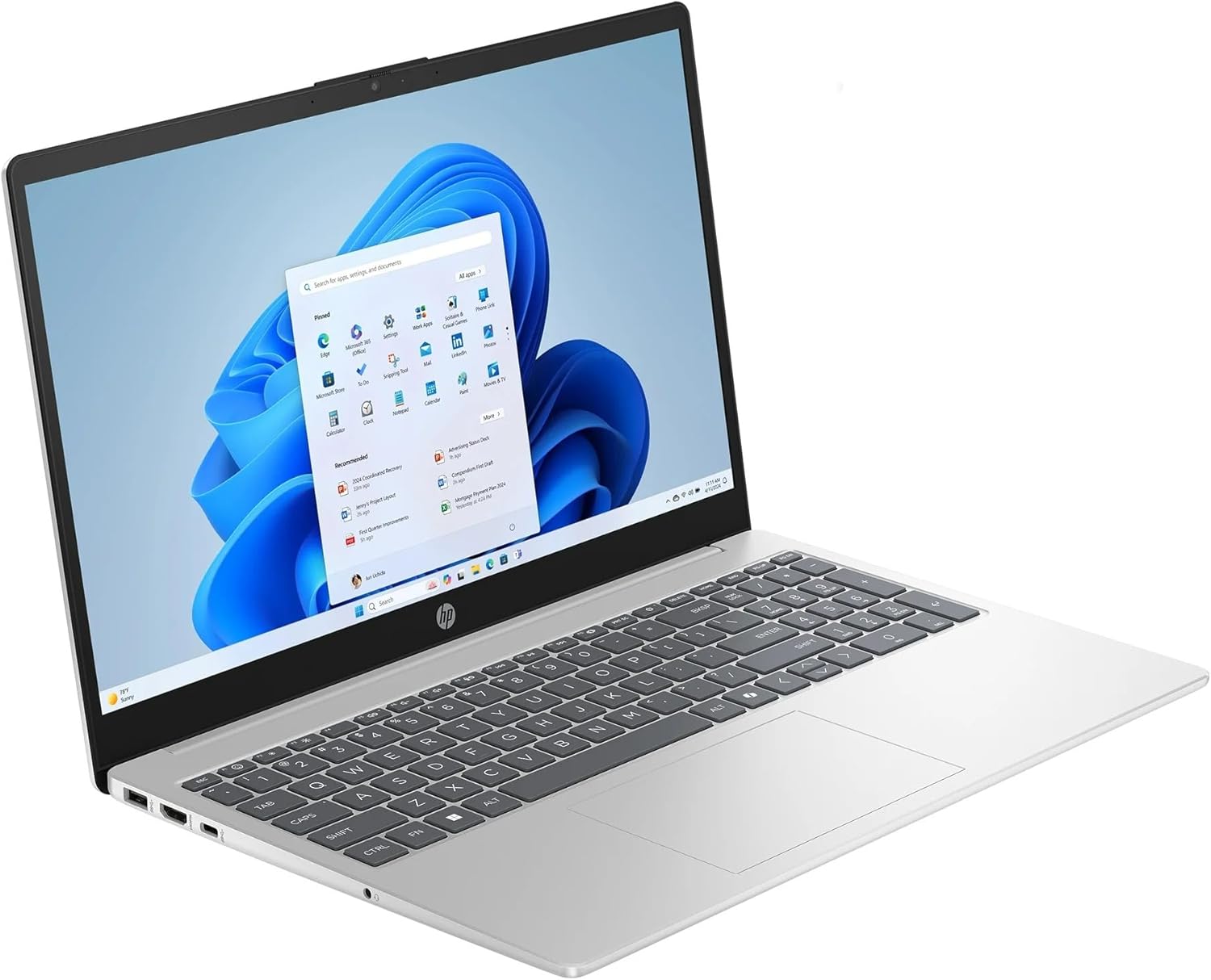
Figure 3.1: HP 15.6 Touchscreen Laptop in use.
3.1 Touchscreen Functions
Your laptop features a 15.6" FHD IPS touchscreen. You can interact with Windows 11 Pro directly on the screen using gestures:
- ټایپ: د موږک کلیک سره برابر.
- ټپ او ونیسئ: د ښي کلیک سره برابر.
- چنګک/ غځول: په محتوا کې زوم ان یا آوټ کړئ.
- سوائپ: Navigate through pages or scroll.
3.2 Keyboard and Numeric Keypad
The full-size keyboard includes a dedicated numeric keypad for efficient data entry. Function keys (F1-F12) provide quick access to system controls when pressed in combination with the Fn کلید
3.3 Microsoft Copilot
Your laptop comes with Microsoft Copilot, an AI assistant integrated into Windows 11 Pro. Access Copilot by pressing the dedicated کاپيلوټ کیلي on your keyboard or clicking its icon on the taskbar. Copilot can assist with tasks, answer questions, and generate content.
3.4 بې سیم اتصال
- Wi-Fi 6: Connect to wireless networks for internet access. To connect, click the Wi-Fi icon in the taskbar, select your network, and enter the password.
- بلوتوث: Pair with Bluetooth-enabled devices such as headphones, speakers, or mice. Enable Bluetooth from the Windows Settings menu.
3.5 د بیټرۍ مدیریت
The laptop's battery provides up to 10 hours and 45 minutes of video playback. To optimize battery life:
- د سکرین روښانتیا تنظیم کړئ.
- نه کارول شوي غوښتنلیکونه بند کړئ.
- د وینډوز د بریښنا سپمولو طریقو څخه کار واخلئ.
4. ساتنه
۶.۱ د لپ ټاپ پاکول
- د نرم، لینټ پاک ټوکر څخه لږ څه کار واخلئampد اوبو یا سکرین پاکونکي سره مینځل ترڅو سکرین پاک کړي.
- د کیبورډ او چیسس لپاره، نرم ټوکر وکاروئ. د سختو کیمیاوي موادو یا کثافاتو موادو څخه ډډه وکړئ.
- په دوره یي ډول د هوا فشار څخه کار واخلئ ترڅو د وینټونو او بندرونو څخه دوړې پاکې کړئ.
4.2 د سافټویر تازه معلومات
Regularly check for and install Windows updates and HP driver updates to ensure optimal performance and security. Access Windows updates via ترتیبات> د وینډوز تازه معلومات.
4.3 د ذخیرې مدیریت
Your laptop includes a 1TB SSD. To maintain performance:
- په منظم ډول غیر ضروري حذف کړئ files او غوښتنلیکونه.
- د لویو لپاره د کلاوډ ذخیره وکاروئ files.
- Empty the Recycle Bin periodically.
5. ستونزه حل کول
دا برخه هغه عامې ستونزې په ګوته کوي چې تاسو یې د خپل HP لیپ ټاپ سره مخ کیدی شئ.
۵.۱ لیپ ټاپ نه چالانېږي
- ډاډ ترلاسه کړئ چې د بریښنا اډاپټر په خوندي ډول د لیپ ټاپ او د کار کولو بریښنا سایټ دواړو سره وصل دی.
- د بل وسیلې په لګولو سره د بریښنا آوټ لیټ فعال دی تصدیق کړئ.
- که چیرې بیټرۍ په بشپړه توګه وچه شوې وي، نو د بریښنا د فعالولو هڅه کولو دمخه یې لږ تر لږه د 30 دقیقو لپاره چارج کولو ته اجازه ورکړئ.
5.2 د ښودلو مسلې
- په سکرین کې هیڅ انځور نشته: یو بهرنی مانیټر د HDMI پورټ سره وصل کړئ ترڅو وګورئ چې ایا ستونزه د لیپ ټاپ داخلي ښودنې سره ده.
- د سکرین کموالی: د فعالیت کیلي (معمولا F2/F3 یا ورته عکسونو) په کارولو سره د سکرین روښانتیا تنظیم کړئ.
- د ټچ سکرین بې ځوابه: Restart the laptop. If the issue persists, check for driver updates in Device Manager.
۴.۲ د اتصال ستونزې (وای فای/بلوتوث)
- وای فای نه وصل کیږي: Ensure Wi-Fi is enabled in Windows settings. Restart your router and modem.
- د بلوتوث وسیله نه جوړه کیږي: Ensure Bluetooth is enabled on both the laptop and the device. Place devices close to each other and ensure they are in pairing mode.
۵.۳ ورو فعالیت
- هغه غیر ضروري غوښتنلیکونه بند کړئ چې په شاليد کې روان دي.
- د وینډوز کوم پاتې تازه معلومات وګورئ او نصب یې کړئ.
- د ذخیره کولو ځای خالي کولو لپاره د ډیسک پاکول ترسره کړئ.
- د مالویر یا ویروسونو لپاره سکین وکړئ.
6. مشخصات
| برانډ | HP |
| د ماډل نوم | د ایچ پي لپ ټاپ |
| د ماډل شمیره | 15-fc0047wm |
| د سکرین اندازه | ۷۸۷ انچه |
| د ښودلو ډول | LED, FHD IPS Touchscreen |
| قرارداد | 1920 x 1080 پکسلز |
| پروسیسر | AMD Ryzen 7 7730U (تر 4.5 GHz پورې) |
| ګرافیک | د AMD Radeon ګرافیک (مدغم) |
| د RAM حافظه | 32 GB DDR4 SDRAM (Max 64 GB) |
| د هارډ ډیسک اندازه | 1 TB SSD |
| عملیاتي سیسټم | وینډوز 11 پرو |
| بې سیم ارتباط | وای فای ۶ (۸۰۲.۱۱ اکس)، بلوتوث |
| بندرونه | 1x HDMI 1.4b, 1x USB Type-C, 2x USB Type-A, 1x Headphone/Microphone combo, 1x AC Smart Pin |
| ځانګړي ځانګړتیاوې | Microsoft Copilot, Numeric Keypad, Touchscreen |
| د بیټرۍ ژوند | تر ۱۰ ساعتونو او ۴۵ دقیقو پورې (د ویډیو غږول) |
| ابعاد (L x W x H) | ۸۳.۸" x ۵۵.۷" x ۴۴.۱" |
| وزن | ۲.۴۵ پونډه |
7. تضمین او ملاتړ
7.1 د تضمین معلومات
Your HP 15.6 Touchscreen Laptop is covered by a standard manufacturer's warranty. Please refer to the warranty documentation included with your product for specific terms, conditions, and duration. Keep your proof of purchase for warranty claims.
7.2 د پیرودونکي ملاتړ
For technical assistance, service, or additional information, please visit the official HP Support website or contact HP customer service. You can find contact details and support resources at support.hp.com.