
1. پیژندنه
Thank you for choosing the EasySMX T37 Wireless Switch Pro Controller. This manual provides detailed instructions for setting up, operating, maintaining, and troubleshooting your controller. Please read this manual carefully before use to ensure optimal performance and longevity of your device. This controller is compatible with Nintendo Switch, Switch Lite, and Switch OLED consoles.
2. محصول ختم شوview
The EasySMX T37 is a wireless gamepad designed for an enhanced gaming experience on Nintendo Switch systems. It features an ergonomic design, dual turbo vibration, and 6-axis gyro motion control.

انځور 2.1: مخکی view of the EasySMX T37 Wireless Switch Pro Controller, showcasinد هغې ارګونومیک شکل او د تڼۍ ترتیب.
3. ترتیب کول
۳.۲ د نینټینډو سویچ سره جوړه کول
- خپل د نینټینډو سویچ کنسول چالان کړئ.
- د کور مینو څخه ، غوره کړئ کنټرولونکي > گرفت / نظم بدل کړئ.
- On the EasySMX T37 controller, press and hold the د SYNC تڼۍ (located on the top edge of the controller) for 3 seconds until the LED indicators start flashing rapidly.
- Once the controller is successfully paired, the player LED(s) on the bottom of the controller will light up solid.
3.2 د کنټرولر چارج کول
Connect the provided USB-C charging cable to the USB-C port on the controller and the other end to a USB power source (e.g., Switch dock, USB wall adapter, computer USB port). The LED indicators will show charging status and turn off when fully charged.
4. عملیاتي لارښوونې
4.1 بنسټیز کنټرولونه
The controller features standard button layouts for Nintendo Switch compatibility:
- د A/B/X/Y تڼۍ: د عمل تڼۍ.
- D-pad: لارښوونه.
- کیڼ/ښي انلاګ سټیکونه: د حرکت او کیمرې کنټرول.
- L/R/ZL/ZR تڼۍ: د اوږو او ټریګر تڼۍ.
- د کور تڼۍ: Returns to the Switch HOME Menu.
- CAPTURE Button: Takes screenshots.
- جمع (+) / منفي (-) تڼۍ: دندو پیل/ټاکل.

Image 4.1: A user holding the EasySMX T37 controller, demonstrating the comfortable grip and accessible button placement during gameplay.
۷.۹ ټربو فعالیت
The Turbo function allows for rapid, automatic pressing of a button, useful in action or arcade games.
- ټربو فعال کړئ: Press and hold the desired action button (A/B/X/Y/L/R/ZL/ZR), then press the د ټربو ت buttonۍ (T button). The button will now auto-fire.
- د ټربو سرعت تنظیم کړئ: د ساتلو په وخت کې د ټربو ت buttonۍ، حرکت وکړئ ښي انلاګ پورته یا ښکته چپک کړئ to cycle through three speeds: 5 shots/s, 12 shots/s, and 20 shots/s.
- ټربو غیر فعال کړئ: Repeat the activation step (hold the action button, then press the Turbo button) or press and hold the د ټربو ت buttonۍ for 5 seconds to clear all Turbo settings.
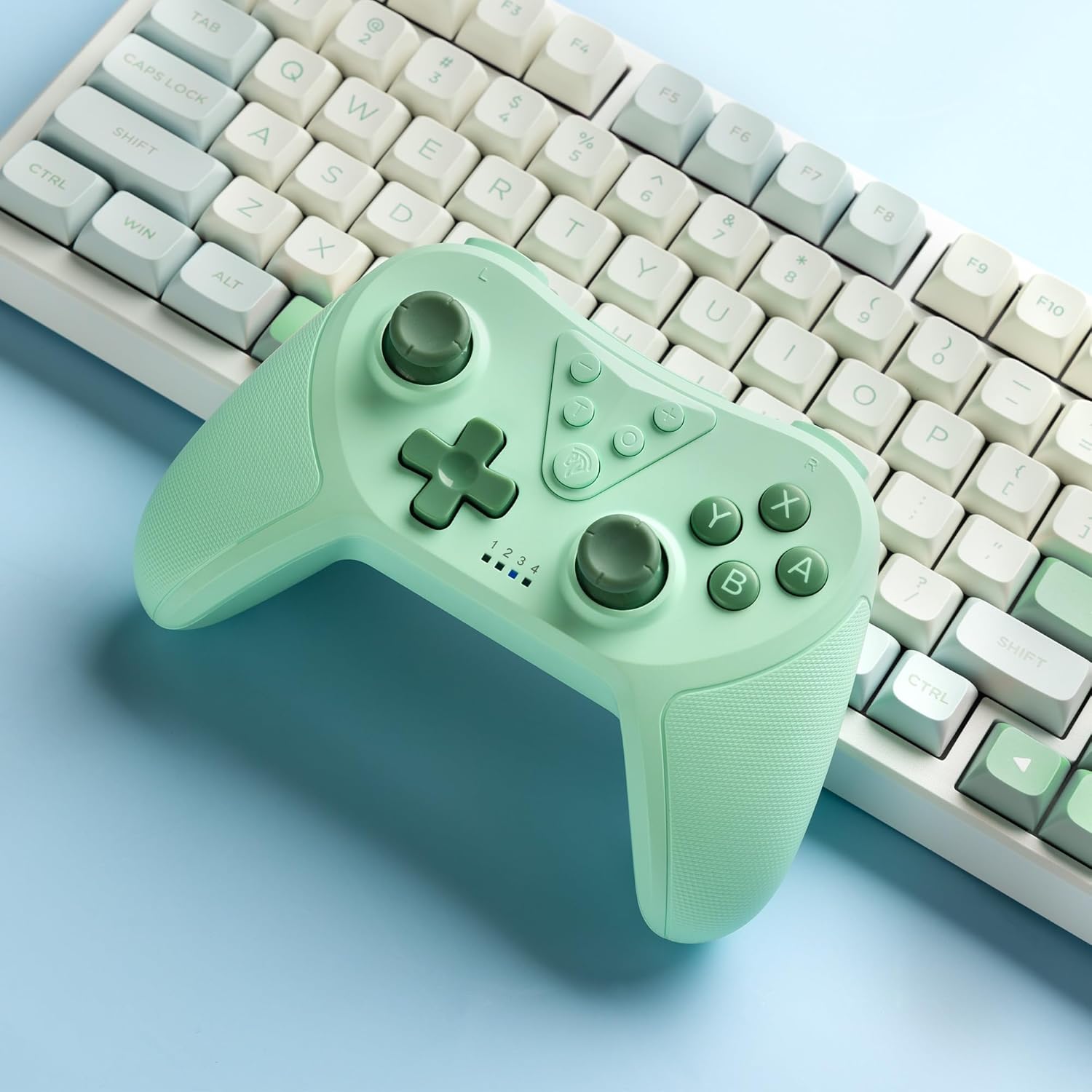
Image 4.2: Illustration of the Turbo function on the EasySMX T37 controller, showing the three adjustable speeds: 5, 12, and 20 shots per second.
4.3 د وایبریشن تنظیم کول
The controller features dual motors for adjustable vibration feedback, enhancing immersion in games.
- د کمپن شدت تنظیم کړئ: فشار ورکړئ او ونیسئ د ټربو ت buttonۍ، بیا حرکت وکړئ کیڼ انلاګ پورته یا ښکته چپک کړئ to cycle through four vibration levels: 0% (off), 30%, 70%, and 100%.

Image 4.3: Visual representation of the Dual Vibration feature on the EasySMX T37 controller, indicating four intensity levels from 0% to 100%.
4.4 6-Axis Gyro Motion Control
The built-in 6-axis gyroscope provides precise motion sensing, allowing for intuitive control in games that support motion input.

Image 4.4: Illustration depicting the 6-Axis Gyro Motion Control feature of the EasySMX T37 controller, showing how it interacts with a game on the Nintendo Switch screen.
5. ساتنه
- پاکول: د کنټرولر پاکولو لپاره نرم، وچ ټوکر وکاروئ. د سختو کیمیاوي موادو یا کثافاتو موادو کارولو څخه ډډه وکړئ.
- ذخیره کول: کنټرولر په یخ او وچ ځای کې د مستقیم لمر وړانګو او سختې تودوخې څخه لرې وساتئ.
- د بیټرۍ پاملرنه: د بیټرۍ د ژوند اوږدولو لپاره، د کنټرولر په مکرر ډول په بشپړه توګه چارج کولو څخه ډډه وکړئ. په منظم ډول یې چارج کړئ، حتی که د اوږدې مودې لپاره نه کارول کیږي.
- له څاڅکو ډډه وکړئ: کنټرولر د څاڅکو او اغیزو څخه خوندي کړئ، کوم چې کولی شي داخلي برخو ته زیان ورسوي.
6. ستونزه حل کول
۴.۳ کنټرولر نه نښلي
- ډاډ ترلاسه کړئ چې کنټرولر چارج شوی.
- Verify the Switch console is updated to the latest system version.
- Try re-pairing the controller by following the steps in Section 3.1.
- If issues persist, try resetting the controller by inserting a thin object into the small reset hole (if present, usually on the back) for a few seconds.
6.2 Buttons Unresponsive or Lagging
- ډاډ ترلاسه کړئ چې کنټرولر په بشپړ ډول چارج شوی دی.
- Move closer to the Switch console to ensure a strong wireless connection.
- د تڼیو شاوخوا هر ډول فزیکي خنډونه یا کثافات وګورئ.
- Re-pair the controller.
۹.۴ کنټرولر چارج نه کوي
- ډاډ ترلاسه کړئ چې د USB-C کیبل په خوندي ډول د کنټرولر او بریښنا سرچینې دواړو سره وصل دی.
- د یو بل USB-C کیبل یا بریښنا اډاپټر کارولو هڅه وکړئ.
- ډاډ ترلاسه کړئ چې د بریښنا سرچینه فعاله ده.
7. مشخصات
- ماډل: T37
- ارتباط: بې سیم (بلوتوث)
- مطابقت: Nintendo Switch, Switch Lite, Switch OLED
- ځانګړتیاوې: Dual Turbo Function, Adjustable Vibration, 6-Axis Gyro Motion Control, Ergonomic Design
- Product Identifier (ASIN): B0CTTWN84L
8. تضمین او ملاتړ
د تضمین معلوماتو، تخنیکي ملاتړ، یا نورو مرستو لپاره، مهرباني وکړئ رسمي EasySMX ته مراجعه وکړئ. webسایټ ته لاړ شئ یا مستقیم د دوی د پیرودونکي ملاتړ سره اړیکه ونیسئ. د تضمین ادعاوو لپاره خپل د پیرود رسید وساتئ.


