
پیژندنه
This manual provides detailed instructions for the setup, operation, and maintenance of your ADAM elements USB-C Hub Stand Pro. This device combines an ergonomic laptop stand with a 6-in-1 multiport USB-C hub, designed to enhance connectivity and comfort for M2/M1 Mac, iPad, and other USB-C compatible laptops.
محصول پای ته ورسیدview
The ADAM elements USB-C Hub Stand Pro is a versatile accessory that integrates a laptop stand with a powerful USB-C hub. It features a detachable design, allowing the hub to be used independently. The stand offers adjustable height and a 360-degree rotatable base for optimal viewزاویې
کلیدي ځانګړتیاوې:
- 6-in-1 Multiport Hub: Includes USB-C Host, 2x USB-A, USB-C PD, HDMI, and RJ45 Ethernet.
- Ergonomic Laptop Stand: Adjustable elevation up to 29 cm and 180-degree angle.
- د 360 درجې گردش: Swivel base for flexible viewing.
- 4K@60Hz HDMI محصول: Supports high-resolution video with HDCP 2.2.
- د 100W بریښنا تحویلي: USB-C PD port for fast charging.
- Detachable Hub: Use the hub integrated with the stand or as a portable device.
- Durable All-Aluminum Design: Robust construction with anti-slip silicone pads.
- Right-Angle USB-C Cable: Reduces strain and ensures a secure connection.
د بندر ترتیب:
| د پورټ ډول | مقدار | فعالیت |
|---|---|---|
| د USB-C کوربه | 1 | Connects to laptop/device (USB-C 3.1 Gen 2) |
| USB-A | 2 | د معلوماتو لیږد تر 5Gbps پورې |
| USB-C PD | 1 | Power Delivery Pass-Through charging up to 100W |
| HDMI | 1 | Video output up to 4K@60Hz |
| RJ45 ایترنیټ | 1 | Network connection (1000 Mbps Max) |

Image: The ADAM elements USB-C Hub Stand Pro, showcasing its ergonomic design and integrated hub.

انځور: تفصیلي view of the 6 multi-function ports for charging, video, and data transmission.
د تنظیم کولو لارښوونې
- وسیله خلاص کړئ: Carefully remove the USB-C Hub Stand Pro from its packaging.
- موقف ځای په ځای کړئ: سټینډ په مستحکم، فلیټ سطح کې ځای په ځای کړئ.
- موقف تنظیم کړئ:
- Gently adjust the stand's arms to your desired height and angle. The stand supports an elevation angle of up to 180 degrees and a height of up to 29 cm.
- The base can be rotated 360 degrees horizontally for optimal viewing.
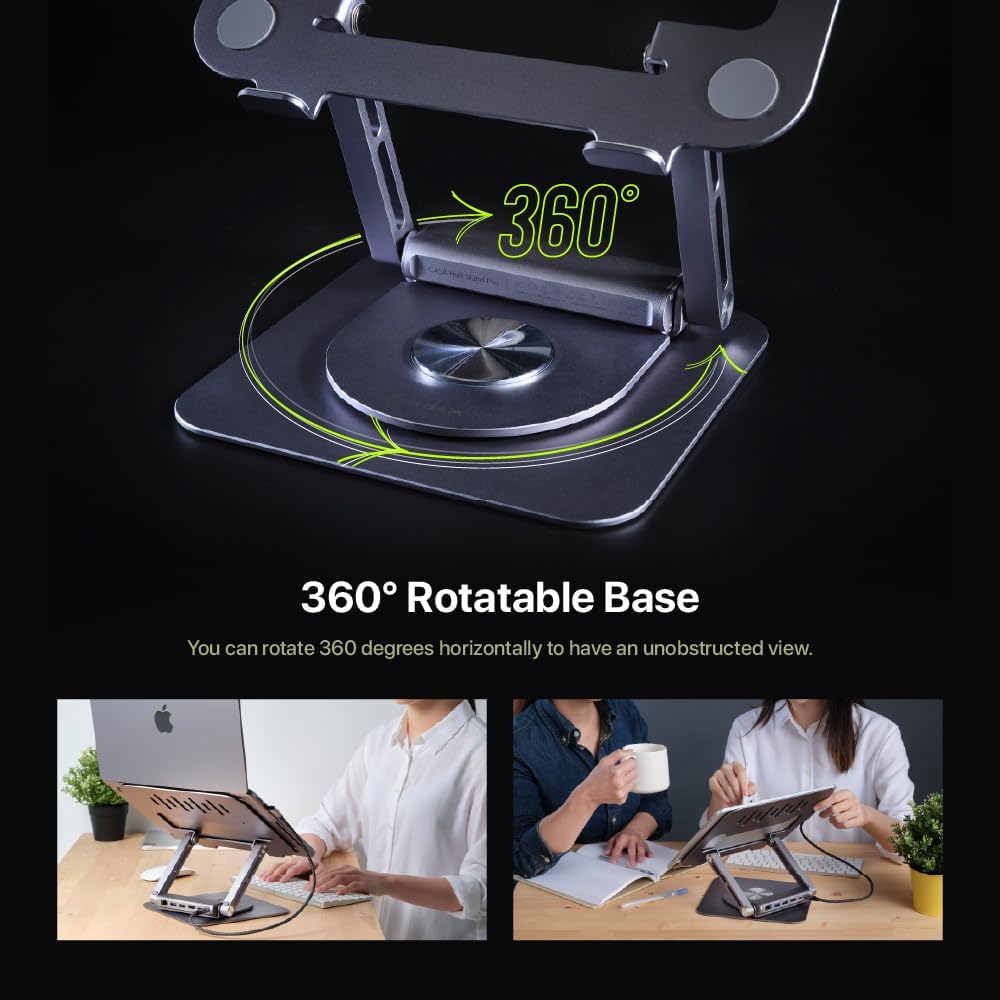
Image: Demonstrating the 360-degree rotatable base for flexible positioning.
- Attach/Detach the Hub:
- The hub is designed to be detachable. To attach, align the hub with the designated slot on the stand and slide it into place until it clicks securely.
- To detach, gently pull the hub away from the stand. This allows for independent use or portability.

Image: The detachable design of the hub, allowing it to be used separately.
- خپل وسیله سره وصل کړئ: Use the integrated right-angle USB-C cable to connect the hub to your laptop or iPad's USB-C port. Ensure the connection is firm.
- پرفیریلز وصل کړئ: Plug your desired peripherals (e.g., external monitor, USB drives, Ethernet cable, power adapter) into the corresponding ports on the hub.
عملیاتي لارښوونې
د USB-C مرکز کارول:
- د بریښنا تحویل (PD): Connect your laptop's USB-C power adapter to the USB-C PD port on the hub to charge your device while using the hub's other functions. The hub supports up to 100W pass-through charging.
- د USB-A بندرونه: Use the two USB-A ports for connecting USB devices such as keyboards, mice, external hard drives, or flash drives. These ports support data transfer speeds up to 5Gbps.
- د HDMI محصول: Connect an external monitor or projector to the HDMI port. The hub supports 4K resolution at 60Hz.
- To enjoy 4K@60Hz resolution, ensure your device supports DisplayPort (DP) 1.4 or higher.
- You can configure your display settings for Mirror Mode (duplicate your primary screen) or Extend Mode (expand your desktop across multiple screens) through your operating system's display settings.

Image: High-resolution 4K@60Hz video output capabilities.

Image: External display options: Mirror Mode and Extended Mode.
- RJ45 ایترنیټ پورټ: Connect an Ethernet cable to this port for a stable wired network connection, supporting speeds up to 1000 Mbps.
Using the Laptop Stand:
- ارګونومیک سمون: Adjust the height and angle of the stand to achieve an ergonomic viewing position, reducing strain on your neck and back.
- 360 درجې تیریدل: Rotate the base of the stand to easily share your screen with others or change your viewد ټول تنظیم حرکت کولو پرته زاویه کول.
- مطابقت: The stand is designed to securely hold M2/M1 MacBook series, iPad, and other USB-C laptops. The anti-slip silicone pads ensure stability.

Image: The stand is suitable for MacBook and iPad series.
ساتنه
- پاکول: Use a soft, dry cloth to wipe down the stand and hub. Avoid abrasive cleaners or solvents that may damage the finish.
- ذخیره کول: When not in use, store the device in a cool, dry place. The detachable hub can be stored separately for travel.
- د کیبل پاملرنه: Ensure the right-angle USB-C cable is not excessively bent or strained to prevent damage.
- د ډیر بار کولو څخه ډډه وکړئ: Do not connect devices that exceed the hub's power capabilities.
د ستونزو حل کول
| ستونزه | احتمالي لامل | د حل لاره |
|---|---|---|
| په بهرني مانیټر کې هیڅ ښودنه نشته. | Incorrect cable connection, incompatible resolution, device not supporting DP 1.4. |
|
| د USB وسایل نه پیژندل شوي. | Loose connection, insufficient power, driver issues. |
|
| لیپ ټاپ د PD پورټ له لارې نه چارج کیږي. | Power adapter not connected, adapter not powerful enough, faulty cable. |
|
| د ایترنیټ اتصال بې ثباته یا کار نه کوي. | Loose cable, network issues, driver issues. |
|
مشخصات
| فیچر | تفصیل |
|---|---|
| د ماډل شمیره | AAPADHUBSTDPGY |
| د محصول ابعاد | 1.8 x 10.2 x 8.8 انچه (4.57 x 25.91 x 22.35 سانتي متره) |
| د توکي وزن | ۶ پونډه (۳ کیلو ګرامه) |
| بندرونه | 1x USB-C Host (USB-C 3.1 Gen 2), 2x USB-A (5Gbps), 1x USB-C PD (up to 100W), 1x HDMI (4K@60Hz), 1x RJ45 Ethernet (1000 Mbps) |
| د HDMI ریزولوشن | Up to 4K@60Hz, HDCP 2.2 compatible |
| د بریښنا رسول | Up to 100W Pass-Through |
| Data Transfer Speed (USB-A) | تر 5Gbps پورې |
| د ایترنیټ سرعت | 10/100/1000 Mbps |
| مواد | ټول المونیم |
| مطابقت لرونکې وسیلې | M2/M1 MacBook Series, iPad, USB-C Laptops |
تضمین او ملاتړ
ADAM ELEMENTS products are designed for reliability and performance. For warranty information and technical support, please refer to the official ADAM ELEMENTS webسایټ ته مراجعه وکړئ یا مستقیم د دوی د پیرودونکو خدماتو سره اړیکه ونیسئ.
For additional support or to inquire about replacement parts, please visit: www.adamelements.com