
د ARRIS G34 کارونکي لارښود
د ARRIS سرفبورډ G34 کیبل موډیم روټر کامبو کارونکي لارښود
Model: G34 | Brand: ARRIS
1. پیژندنه او وروستهview
The ARRIS SURFboard G34 Wi-Fi Cable Modem is a high-performance, two-in-one device designed to provide ultra-fast internet speeds and reliable Wi-Fi connectivity throughout your home. This device combines a DOCSIS 3.1 cable modem with a Wi-Fi 6 (AX3000) router, offering advanced features for gaming, streaming, smart devices, and more. By owning your modem, you can eliminate monthly rental fees from your internet service provider.
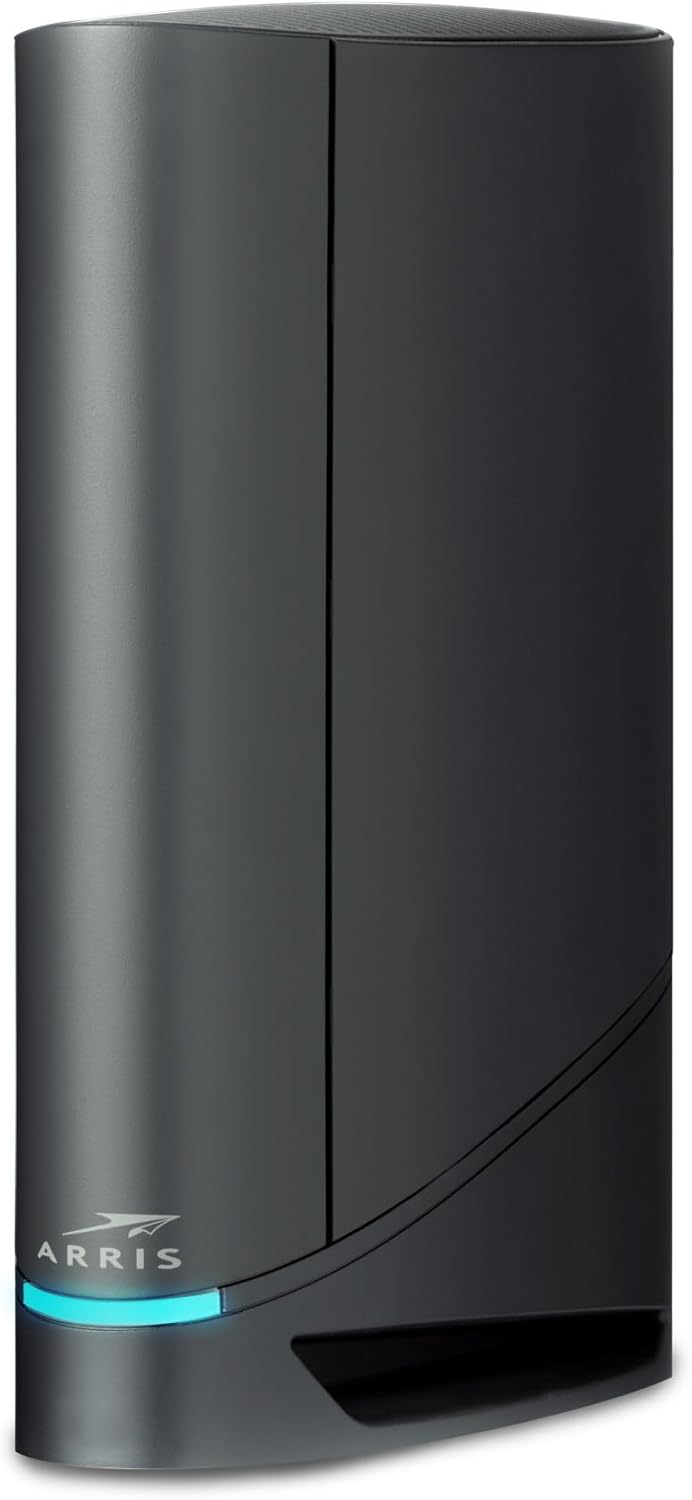
Figure 1: ARRIS SURFboard G34 Cable Modem Router Combo.
کلیدي ځانګړتیاوې:
- DOCSIS 3.1 ټیکنالوژي: Provides 10x faster speeds than DOCSIS 3.0, enhanced security, and reduced lag for gaming.
- وای فای ۶ (AX3000): Delivers speeds up to 3 Gbps (3,000 Mbps) for seamless streaming and downloading.
- Multi-Gig Wired and Wireless Networking: Features four 1-Gigabit Ethernet ports, including a 2.5 Gigabit Ethernet port for ultra-fast wired connections.
- د ISP مطابقت: Approved for major U.S. cable internet providers including Cox (Gigablast), Spectrum (Internet Gig), Xfinity (Gigabit/Gigabit x2), and others. Supports speed plans up to 1 Gbps.
- د سرف بورډ مرکزي اپلیکیشن: Simplifies setup, Wi-Fi network customization, device monitoring, and parental controls.

Figure 2: List of compatible internet service providers for the ARRIS SURFboard G34.

شکل 3: پایview of key features and compatibility for the G34 modem.
Video 1: Official ARRIS SURFboard G34 overview, highlighting features and benefits for home networking.
2. ترتیب کول
Setting up your ARRIS SURFboard G34 is a straightforward process designed for ease of use. Follow these steps to get your modem router combo up and running:
- کواکسیل کیبل سره وصل کړئ: Connect the coaxial cable from your wall outlet to the "Cable" port on the back of the SURFboard G34. Ensure the connection is finger-tight.
- بریښنا وصل کړئ: Plug the power supply into the "Power" port on the modem and then into a standard electrical outlet. The modem will begin its startup sequence.
- د ایترنیټ کیبل سره وصل کړئ (اختیاري): For a wired connection to a PC or Wi-Fi router, connect an Ethernet cable from one of the LAN ports on the SURFboard G34 to your device. For optimal performance, use the 2.5 Gigabit Ethernet port for high-speed devices.
- خپل موډیم فعال کړئ: Download the ARRIS SURFboard Central App on your smartphone or tablet. Follow the step-by-step instructions within the app to activate your modem, set up your Wi-Fi network, and customize settings. Most service providers allow self-activation through their website or app, eliminating the need to call customer support.

Figure 4: Visual guide to the three easy steps for setting up the ARRIS G34.
Once activated, the app provides real-time monitoring of devices on your network, enhanced parental controls (like setting time limits and pausing internet access), and much more.
3. د آلې چلول
The ARRIS SURFboard G34 operates as a combined modem and Wi-Fi router, providing internet access to all your connected devices. The device features dual-concurrent AX3000 Wi-Fi, supporting both 2.4 GHz and 5 GHz frequency bands for optimal performance across various devices.
د LED شاخصونه:
The front panel of the G34 features LED indicators that provide status information:
- د بریښنا LED: د آلې د بریښنا حالت په ګوته کوي.
- آنلاین LED: Shows the modem's connection status to the internet. A solid blue light typically indicates a successful connection.
- وای فای LED: د بېسیم شبکې حالت په ګوته کوي.
- LAN LEDs: د ایترنیټ بندرونو فعالیت په ګوته کړئ.
For detailed information on LED behavior and their meanings, refer to the full user manual available on the ARRIS support webسایټ
د شبکې مدیریت:
Manage your network settings, including Wi-Fi names (SSIDs), passwords, and security protocols, through the SURFboard Central App. This app also allows you to:
- View connected devices and their network activity.
- د میلمنو وای فای شبکې تنظیم کړئ.
- Implement parental controls to manage internet access for specific devices or users.
- Prioritize network traffic for gaming or streaming (QoS).
4. ساتنه
To ensure optimal performance and longevity of your ARRIS SURFboard G34, consider the following maintenance tips:
- ځای په ځای کول: Place the modem in an open, central location to maximize Wi-Fi coverage and ensure proper ventilation. Avoid enclosed spaces or areas with poor airflow.
- پاکول: د وسیلې بهرنۍ برخه په دوره یي ډول د نرم او وچ ټوکر سره پاکه کړئ. د مایع پاکوونکو یا ایروسولونو څخه کار مه اخلئ.
- د فرم ویئر تازه معلومات: Your internet service provider typically manages firmware updates for the modem. Ensure your device is connected and powered on to receive these updates, which can improve performance and security.
- بیا پیل کول: If you experience slow speeds or connectivity issues, a simple restart of the modem (unplugging it for 30 seconds and plugging it back in) can often resolve the problem.
5. ستونزه حل کول
If you encounter issues with your ARRIS SURFboard G34, refer to the following common troubleshooting steps:
- د انټرنیټ اتصال نشته:
- د کیبل ټولې اړیکې (کواکسیل، ایترنیټ، بریښنا) وګورئ ترڅو ډاډ ترلاسه کړئ چې دوی خوندي دي.
- Restart the modem by unplugging it from the power outlet for 30 seconds, then plugging it back in.
- Verify the Online LED on the modem is solid blue. If it's blinking or off, there might be an issue with your internet service.
- Contact your Internet Service Provider (ISP) to check for outages in your area or to re-provision your modem if necessary.
- د انټرنېټ ورو سرعت:
- ډاډ ترلاسه کړئ چې ستاسو وسایل د مناسب وای فای بینډ سره وصل دي (د ګړندي سرعت لپاره 5 GHz، د پراخه پوښښ لپاره 2.4 GHz).
- په خپل شبکه کې د فعالو وسیلو یا بینډ ویت-شدت فعالیتونو شمیر کم کړئ.
- Check for potential Wi-Fi interference from other electronic devices.
- Access the modem's diagnostic page (usually via a web browser, consult your ISP or ARRIS documentation for the specific address) to check signal levels. Poor line signal quality can significantly impact performance.
- د وای فای اتصال مسلې:
- Ensure your device is within the Wi-Fi range of the modem.
- ډاډ ترلاسه کړئ چې ستاسو د وای فای پټنوم سم دی.
- Try restarting the modem and the affected device.
- If experiencing frequent disconnections, consider changing your Wi-Fi channel in the SURFboard Central App to avoid interference.
6. مشخصات
| فیچر | تفصیل |
|---|---|
| د ماډل شمیره | G34 |
| د DOCSIS معیار | DOCSIS 3.1 |
| Wi-Fi معیاري | Wi-Fi 6 (802.11ax) |
| د وای فای سرعت | Up to AX3000 (3,000 Mbps) |
| د ډاونلوډ سرعت | Up to 4 Gbps (via DOCSIS 3.1) |
| ایترنیټ بندرونه | Four 1-Gigabit Ethernet ports (including one 2.5 Gigabit Ethernet port) |
| ابعاد | 10 x 3 x 8 انچه |
| د توکي وزن | ۲.۴۵ پونډه |
| شاملې برخې | ARRIS SURFboard G34 Cable Modem, Power Supply, Quick-Start guide, 2-year warranty card |
7. تضمین او ملاتړ
The ARRIS SURFboard G34 comes with a 2 کلن محدود تضمین provided by ARRIS. For any product-related inquiries or technical assistance, you can reach ARRIS customer support via Live Chat or Phone Support, available 8am - 1am EST.
For additional resources, including the full user manual and FAQs, please visit the official ARRIS SURFboard webسایټ ته مراجعه وکړئ یا ستاسو د محصول بسته بندۍ کې شامل اسنادو ته مراجعه وکړئ.
Ask a question about this manual
Ask about setup, troubleshooting, compatibility, parts, safety, or missing instructions. Manuals+ will review the question and use this page’s manual context to help answer it.