
1. پیژندنه
This manual provides essential information for setting up, operating, maintaining, and troubleshooting your Acer Predator Orion 3000 (PO3-600) desktop computer. Please read this guide thoroughly to ensure proper use and to maximize your system's performance and longevity.
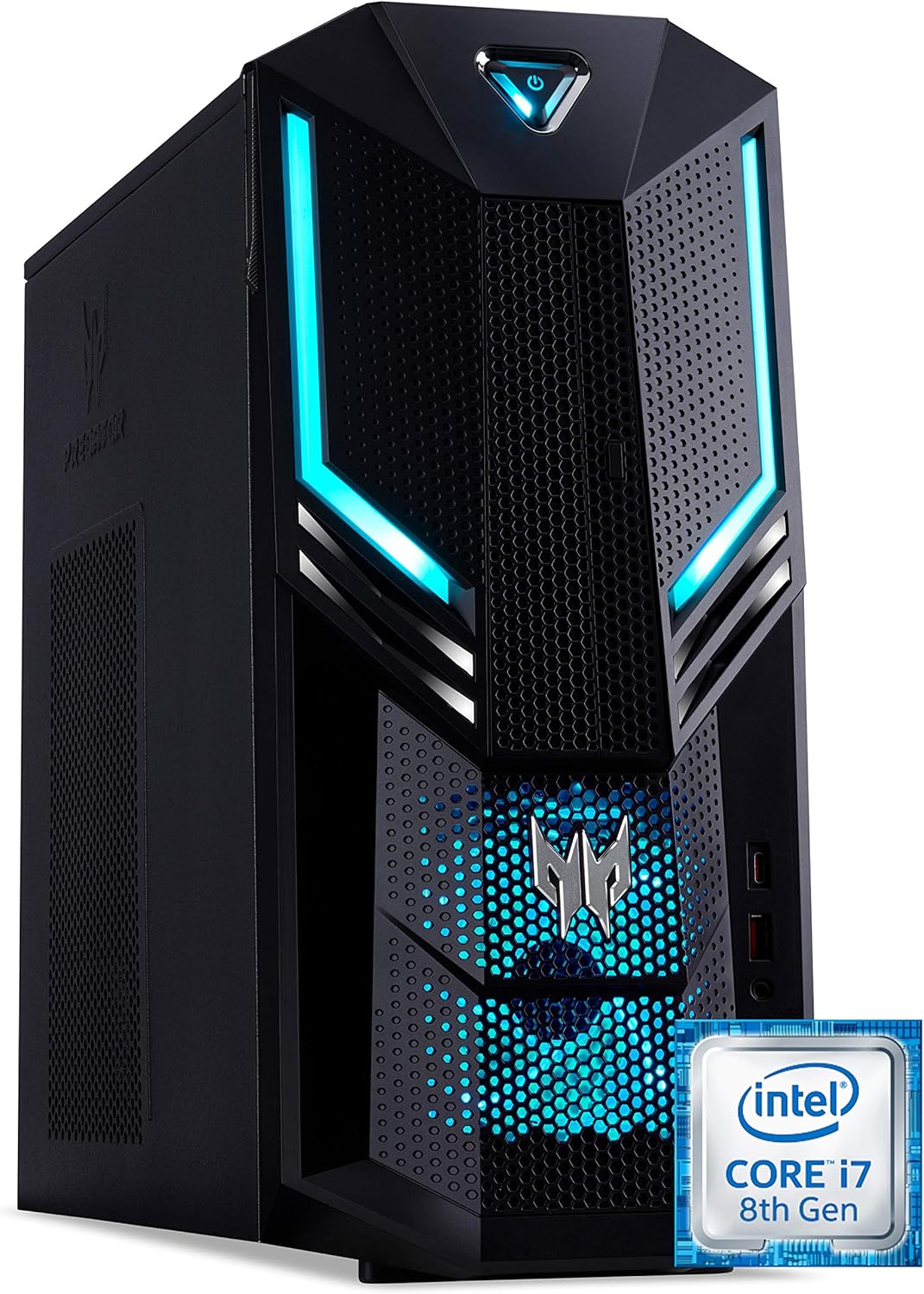
شکل 1.1: مخامخ ښي خوا ته view of the Acer Predator Orion 3000 desktop computer, showcasing its black chassis with blue LED accents and angular design.
2. ترتیب کول
2.1 پیک کول
Carefully remove all components from the packaging. Verify that all items listed in the 'Included Components' section of this manual are present. Retain the packaging for future transport or service needs.
2.2 د پردیو سره نښلول
- څارنه: Connect your monitor to one of the available video output ports (HDMI, DVI, or DisplayPort) on the graphics card at the rear of the computer.
- کیبورډ او موږک: Connect the included Predator USB keyboard and mouse to any available USB ports. The system features both USB 2.0, USB 3.1, and USB 3.1 Type-C ports.
- شبکه: For a wired connection, connect an Ethernet cable from your router or modem to the LAN port on the rear of the computer. For wireless, ensure your Wi-Fi antenna (if external) is connected.
- آډیو: Connect speakers or headphones to the audio output jacks. The system supports Sound BlasterX Pro Gaming Sound Engine for enhanced audio.
- ځواک: Connect the power cable to the power supply unit (PSU) at the rear of the computer, then plug the other end into a grounded electrical outlet.
2.3 ابتدايي پاور آن
Press the power button located on the top front of the computer. The system will boot up, and the blue LED accents will illuminate. Follow the on-screen instructions to complete the Windows 10 Home operating system setup, including language, region, and user account creation.
۴. ستاسو د کمپیوټر چلول
3.1 د بریښنا مدیریت
- پاور آن: یو ځل د بریښنا تڼۍ فشار ورکړئ.
- بندول: From Windows, click the Start button, then Power > Shut down.
- بیا پیل کول: From Windows, click the Start button, then Power > Restart.
- خوب: From Windows, click the Start button, then Power > Sleep.
۵.۲ وینډوز ۱۱ کور
Your Predator Orion 3000 comes pre-installed with Windows 10 Home. Familiarize yourself with the operating system's interface, settings, and features. Regular updates are recommended for security and performance.
۴.۳ د لوبو ځانګړتیاوې
The system is designed for gaming, featuring an Intel Core i7-8700 processor and NVIDIA GeForce GTX 1060 graphics. It is VR-ready, allowing for immersive virtual reality experiences. The integrated Sound BlasterX Pro Gaming Sound Engine provides high-quality audio for gaming and multimedia.

شکل 3.1: Acer Predator Orion 3000 desktop with gaming headphones, highlighting its gaming capabilities.
4. ساتنه
4.1 پاکول
- بهر: یو نرم استعمال کړئ، دamp د بهرنۍ سطحې د پاکولو لپاره ټوکر. د کثافاتو پاکوونکو څخه ډډه وکړئ.
- پلورونکي: Regularly check and clean the air intake vents on the front and left side of the chassis to ensure proper airflow and prevent dust buildup. Use compressed air to gently clear dust.
- داخلي برخې: For advanced cleaning of internal components, it is recommended to consult a professional or refer to detailed service guides.
4.2 د سافټویر تازه معلومات
Keep your operating system, drivers (especially graphics drivers), and applications updated to ensure optimal performance, security, and compatibility.

شکل 4.1: داخلي view of the Acer Predator Orion 3000 desktop computer with the side panel removed, revealing the motherboard, CPU cooler, RAM slots, and storage drive bays. Regular cleaning of these areas is important for system health.
5. ستونزه حل کول
دا برخه هغه عامې ستونزې په ګوته کوي چې تاسو ورسره مخ کیدی شئ. د ډیرو پیچلو ستونزو لپاره، د ایسر رسمي ملاتړ سرچینو ته مراجعه وکړئ.
۱ برېښنا نشته
- ډاډ ترلاسه کړئ چې د بریښنا کیبل په خوندي ډول د کمپیوټر او بریښنایی سایټ دواړو سره وصل دی.
- د بل وسیلې په لګولو سره د بریښنایی آوټ لیټ فعال دی تصدیق کړئ.
5.2 نه ښکاره کول
- وګورئ چې مانیټر فعال دی او د ویډیو کیبل په خوندي ډول د کمپیوټر او مانیټر دواړو سره وصل دی.
- ډاډ ترلاسه کړئ چې ستاسو په مانیټر کې د ننوتلو سمه سرچینه غوره شوې ده.
5.3 System is Slow or Unresponsive
- هغه غیر ضروري غوښتنلیکونه بند کړئ چې په شاليد کې روان دي.
- د معتبر انټي ویروس سافټویر په کارولو سره د مالویر یا ویروسونو لپاره وګورئ.
- په خپل لومړني ډرایو (SSD) کې کافي خالي ځای ډاډمن کړئ.
- کمپیوټر بیا پیل کړئ.
۵.۲ د فین ډیر شور
- Ensure the computer's air vents are not obstructed and are free of dust.
- Verify the computer is in a well-ventilated area.
- Monitor CPU and GPU temperatures using system utilities. High temperatures can cause fans to run faster.
6. مشخصات
Below are the key technical specifications for the Acer Predator Orion 3000 (PO3-600) desktop computer.
| اجزا | مشخصات |
|---|---|
| د ماډل نوم | Acer Predator Orion 3000 (PO3-600) |
| عملیاتي سیسټم | د وینډوز 10 کور |
| پروسیسر | Intel Core i7-8700 (6 Cores, 3.2 GHz base, up to 4.6 GHz burst) |
| ګرافیک کارت | NVIDIA GeForce GTX 1060 (6 GB GDDR5 VRAM) |
| RAM | 16 GB DDR4 (Max 16 GB) |
| ذخیره کول | ۲۵۶ جي بي ايس ايس ډي + ۱ ټي بي هارډ ډرايو |
| آپټیکل ډرایو | DVD+R |
| ارتباط | Ethernet RJ-45, Wi-Fi (802.11ac) |
| مخامخ بندرونه | 1x USB 3.1, 1x USB 3.1 Type-C, Audio Jacks |
| شا بندرونه | 2x USB 3.1, 4x USB 2.0, 1x HDMI, 1x DVI, 3x DisplayPort, 5x Audio Jacks, LAN |
| د توسعې سلاټونه | 1x PCIe x16, 1x PCIe x1, 2x M.2 (1x SSD, 1x Wi-Fi) |
| ابعاد (H x W x D) | 35 x 16.3 x 34 سانتي متره |
| وزن | 6 کیلو ګرامه |
| کولنګ | Passive, via air intake |
| شامل شوي وسایل | Predator USB Keyboard (blue), Predator USB Mouse (blue) |

شکل 6.1: Intel Core i7 8th Gen logo, indicating the processor type used in the system.
7. تضمین او ملاتړ
۸.۱ د جوړونکي تضمین
Your Acer Predator Orion 3000 (PO3-600) desktop computer is covered by a د جوړونکي دوه کلن تضمین. This warranty covers defects in materials and workmanship under normal use. Please refer to the warranty documentation included with your product for full terms and conditions. Your statutory warranty rights remain unaffected.
7.2 تخنیکي ملاتړ
For technical assistance, troubleshooting beyond this manual, or warranty claims, please contact Acer customer support. You can typically find contact information on the Acer official website or in the documentation provided with your computer.