
1. Wprowadzenie
The GEEVON-LINK GL-25TH08 is a smart WiFi and Bluetooth-enabled indoor hygrometer thermometer designed to monitor temperature and humidity levels in your environment. It features a large E-Ink display, smart app connectivity for remote monitoring and alerts, and data storage capabilities. This manual provides essential information for setting up, operating, and maintaining your device.
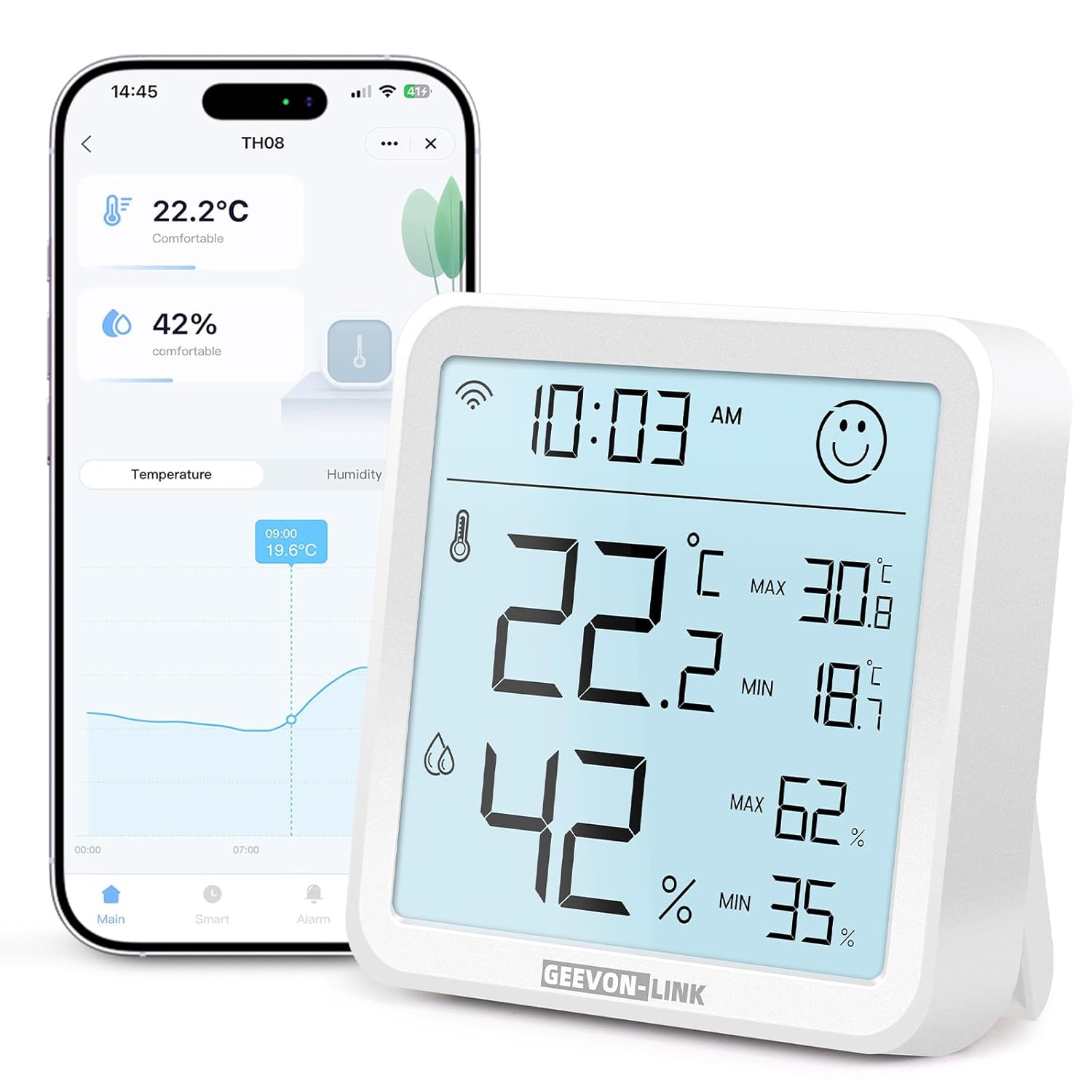
Image: GEEVON-LINK GL-25TH08 WiFi Indoor Hygrometer Thermometer, front view showing the large digital display.
2. Funkcje produktu
- Dual Wi-Fi & Bluetooth Connectivity: Connects to 2.4GHz Wi-Fi for remote monitoring and Bluetooth for local data access via the Smart Life app.
- Wysoka dokładność: Provides temperature accuracy of ±1°C (±1.8°F) and humidity accuracy of ±5% RH.
- Large Backlit E-Ink Display: A 3.2-inch screen with an ultra-wide viewing angle for clear readability. Backlight activates for 8 seconds with a top touch button press.
- Smart Alerts & Automated Control: Receive instant app alerts for high/low temperature, humidity, and low battery. Integrates with Alexa and Google Home for voice control and automated scene creation.
- Long-Term Data Storage & Export: View historical data trends (hour, day, month, year) and export records for up to one year via the app.
- Wskaźnik komfortu ikony twarzy: Displays a happy face for comfortable conditions (18°C-28°C / 64.4°F-82.4°F and 40%-65% RH) and an unhappy face when conditions are outside this range.
- Długotrwała bateria: Energy-efficient design powered by 3 AAA batteries (included), with in-app low battery alerts.

Image: Close-up of the GEEVON-LINK GL-25TH08 display showing temperature, humidity, time, comfort indicator, and max/min records.
3. Instrukcje konfiguracji
3.1. Instalacja baterii
- Open the rear battery cover of the device.
- Remove any battery insulation sheet if present.
- Insert 3 new AAA alkaline batteries into the battery compartment, ensuring correct polarity.
- Dokładnie zamknij pokrywę baterii.

Video: This video demonstrates the physical features of the GEEVON-LINK WiFi Thermometer Hygrometer, including how to open the battery compartment and insert batteries.
3.2. Instalacja aplikacji i parowanie urządzeń
- Pobierz Inteligentne życie app from your smartphone's app store (Google Play Store or Apple App Store). You can also scan the QR code provided in the product packaging.
- Zarejestruj nowe konto lub zaloguj się, jeśli już je posiadasz.
- Ensure the device's Wi-Fi icon is flashing. If not, press and hold the reset button (usually a small pinhole on the back or side) for 5 seconds until it flashes.
- In the Smart Life app, tap the "+" icon in the top-right corner or select "Add Device" to begin searching for devices.
- Enable phone Bluetooth as prompted by the app.
- Select your device from the list and follow the on-screen prompts to complete pairing.

Image: Step-by-step guide for installing the Smart Life app, inserting batteries, checking the Wi-Fi indicator, and pairing the device.
3.3. Połączenie WiFi
During the pairing process, you will be prompted to enter your Wi-Fi network details. The device supports 2.4GHz Wi-Fi networks only (5GHz is not supported). Ensure your smartphone is connected to a 2.4GHz network during setup.
4. Instrukcja obsługi
4.1. Wyświetlanieview
The large E-Ink display shows current temperature, humidity, time, and max/min records. A comfort icon (happy/unhappy face) indicates the environmental comfort level. Press the top touch button to activate the backlight for 8 seconds in low-light conditions.

Image: The GEEVON-LINK GL-25TH08 display with its backlight activated, showing clear visibility in a dim environment.
4.2. Wskaźnik komfortu
The device features a face icon to visually represent comfort levels:
- Szczęśliwa buźka: Temperature between 18°C-28°C (64.4°F-82.4°F) and humidity between 40%-65% RH.
- Unhappy Face: Conditions are outside the comfortable range.
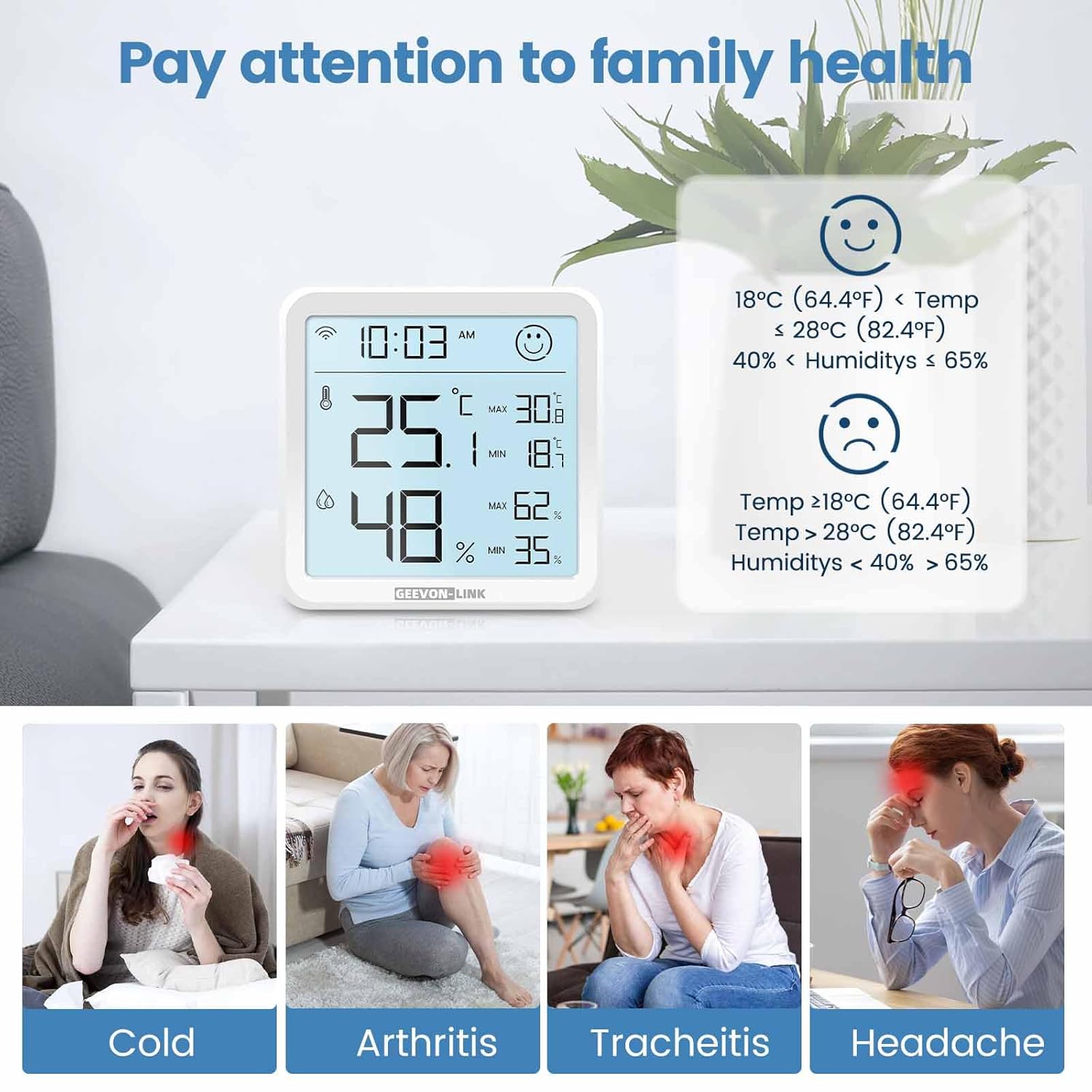
Image: The GEEVON-LINK GL-25TH08 display showing the comfort indicator face icon, with examples of temperature and humidity ranges for happy and unhappy faces.
4.3. App Monitoring & Data Export
Po połączeniu z aplikacją Smart Life możesz:
- View current temperature and humidity readings remotely.
- Access historical data graphs by hour, day, month, or year.
- Export up to one year of data records by tapping the share icon in the top-right corner of the data screen and entering your email address.
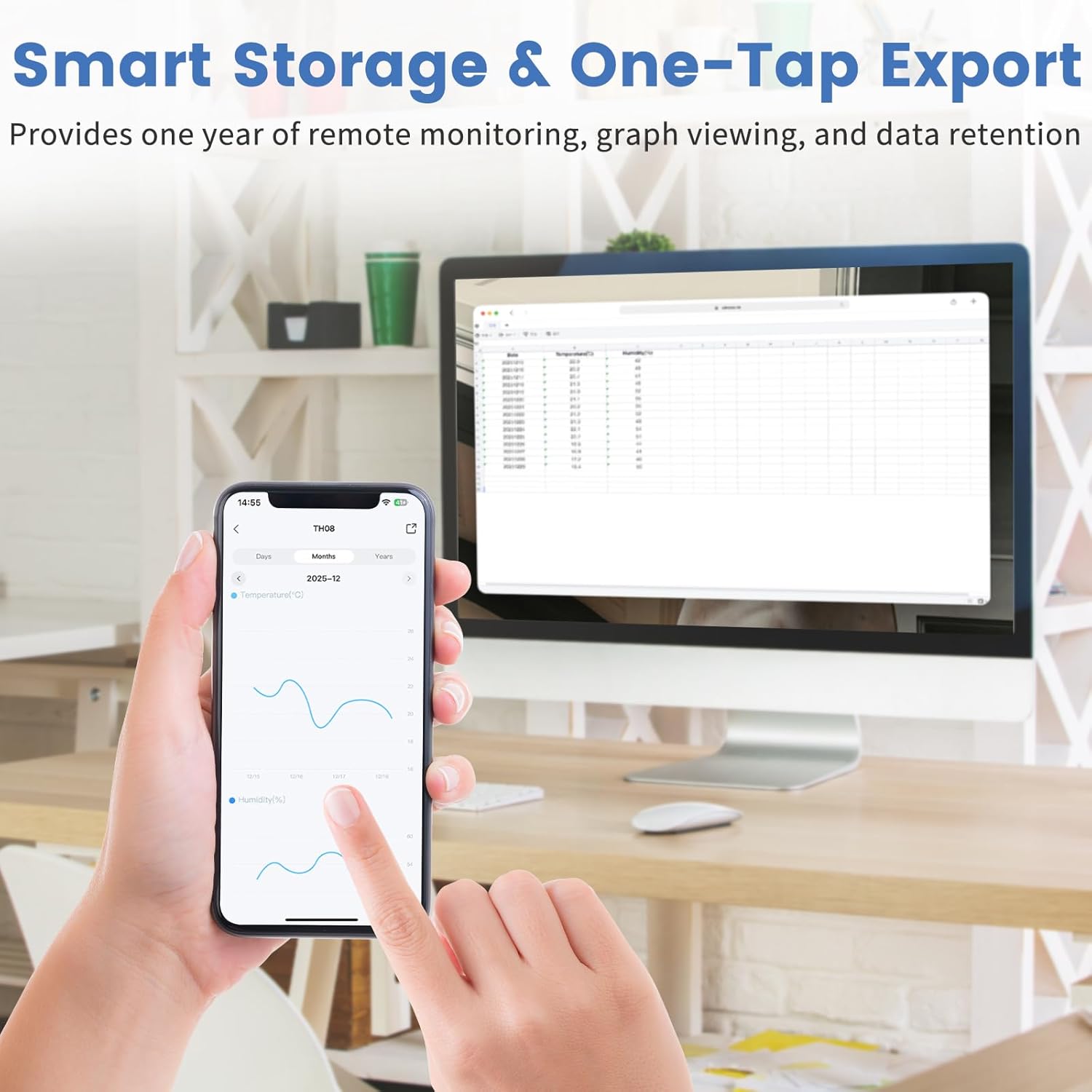
Image: A smartphone displaying the Smart Life app interface with temperature and humidity graphs, demonstrating the data storage and export function.
4.4. Smart Alerts & Automation
Configure custom alerts and smart scenes through the Smart Life app:
- Set upper and lower limits for temperature and humidity to receive instant app, phone, or SMS notifications.
- Integrate with Alexa or Google Home to create automated scenes, such as turning on an AC or dehumidifier when specific conditions are met.
- Use voice commands (e.g., "Alexa, what's the temperature in the living room?") to get current readings.

Image: Screenshots of the Smart Life app demonstrating real-time notifications for temperature and humidity, and options for smart device linkage.

Image: A person interacting with a smart speaker, illustrating the device's compatibility with Alexa and Google Home for voice control.
Video: A detailed "How to Use" guide demonstrating app setup, alarm functions, and settings for the GEEVON-LINK WiFi Thermometer Hygrometer.
4.5. Kalibracja
The Smart Life app allows for temperature and humidity calibration to ensure accuracy. Navigate to the device settings within the app to adjust calibration values if needed. These settings will take effect the next time the device wakes up.
4.6. Opcje rozmieszczenia
The device can be placed on a flat surface using its integrated bracket or mounted on a wall using the keyhole slot on the back. Ensure placement in a location that provides accurate readings for the desired area, away from direct sunlight, heat sources, or drafts.

Image: The GEEVON-LINK GL-25TH08 device shown with its adjustable stand extended and retracted, illustrating flexible placement options.
5. Specyfikacje
| Funkcja | Szczegół |
|---|---|
| Marka | GEEVON-LINK |
| Nazwa modelu | GL-25TH08-1-WH-WUS |
| Kolor | Biały |
| Materiał zewnętrzny | Plastikowy |
| Źródło zasilania | Zasilanie bateryjne (w zestawie 3 baterie AAA) |
| Długość elementu | 3.2 cali |
| Waga przedmiotu | 3.68 uncji |
| Zakres temperatur | -9.9°C do 60°C |
| Dokładność temperatury | ±1°C (±1.8°F) |
| Zakres wilgotności | Wilgotność względna 0%-99% |
| Dokładność wilgotności | ±5% wilgotności względnej |
| Częstotliwość Wi-Fi | 2.4 GHz (5 GHz nie jest obsługiwane) |
6. Konserwacja
- Czyszczenie: Przetrzyj urządzenie miękką, suchą ściereczką. Nie używaj płynnych środków czyszczących ani materiałów ściernych.
- Wymiana baterii: Replace all three AAA batteries when the low battery alert is received in the app or indicated on the device display.
- Składowanie: Jeśli urządzenie będzie przechowywane przez dłuższy czas, wyjmij baterie, aby zapobiec wyciekowi. Przechowuj w chłodnym i suchym miejscu.
7. Rozwiązywanie Problemów
- Urządzenie nie włącza się: Sprawdź instalację baterii i upewnij się, że są nowe i prawidłowo włożone.
- Nie można połączyć się z Wi-Fi:
- Upewnij się, że Twoja sieć Wi-Fi obsługuje częstotliwość 2.4 GHz. Urządzenie nie obsługuje sieci 5 GHz.
- Sprawdź, czy hasło Wi-Fi jest prawidłowe.
- Zbliż urządzenie do routera Wi-Fi.
- Reset the device by holding the reset button for 5 seconds and try pairing again.
- Niedokładne odczyty:
- Ensure the device is not placed near heat sources, direct sunlight, or strong drafts.
- Perform temperature and humidity calibration via the Smart Life app settings.
- Alerty aplikacji nie zostały odebrane:
- Check your phone's notification settings for the Smart Life app.
- Verify that alert thresholds are correctly set in the app.
- Upewnij się, że urządzenie ma stabilne połączenie Wi-Fi.
8. Gwarancja i wsparcie
GEEVON-LINK products are designed for reliability and performance. For warranty information, technical support, or service inquiries, please refer to the contact information provided in your product packaging or visit the official GEEVON-LINK webZachowaj paragon jako dowód zakupu na wypadek reklamacji.