
1. Wprowadzenie
This manual provides detailed instructions for the installation, configuration, and operation of the SOYO X99 BSF motherboard. It is designed to assist users in setting up their system correctly and efficiently. Please read this manual thoroughly before beginning the installation process.

Figure 1: SOYO X99 BSF Motherboard and included accessories, including the I/O shield, SATA cable, and CPU cooler mounting bracket.
2. Konfiguracja i instalacja
Follow these steps for proper installation of your SOYO X99 BSF motherboard and its components.
2.1 Układ płyty głównej

Figure 2: Detailed layout of the SOYO X99 BSF motherboard, highlighting key components and connectors such as the LGA2011-V3 CPU socket, DDR4 DIMM slots, M.2 NVMe slots, PCIe slots, and various headers.
2.2 Instalacja procesora
- Ensure the motherboard is placed on a non-conductive surface.
- Locate the LGA2011-V3 CPU socket. Open the CPU retention mechanism by releasing dwie dźwignie.
- Carefully align the CPU (Intel Xeon E5 LGA2011-V3 series) with the socket, ensuring the gold triangle on the CPU matches the triangle on the socket. Do not force the CPU into the socket.
- Close the retention mechanism by pressing down the levers until they lock into place.
- Nałóż pastę termoprzewodzącą na procesor i zamontuj chłodnicę procesora.
2.3 Instalacja pamięci (RAM)
- Znajdź cztery gniazda DDR4 DIMM.
- Otwórz zaciski na obu końcach gniazda DIMM.
- Dopasuj moduł pamięci do gniazda, upewniając się, że wycięcie na module pokrywa się z wypustką w gnieździe.
- Press down firmly on both ends of the memory module until the clips snap into place. For optimal performance, install memory modules in the gray primary channels first.
2.4 Instalacja urządzenia pamięci masowej
2.4.1 M.2 NVMe/SATA SSD Installation
- Locate the two M.2 slots on the motherboard. The upper slot supports NVMe (PCIe 3.0 x4) and SATA 3.0 protocols, while the lower slot supports NVMe (PCIe 3.0 x4) only.
- Włóż dysk SSD M.2 do gniazda pod kątem 30 stopni.
- Delikatnie dociśnij dysk SSD i zabezpiecz go za pomocą dołączonej śruby.
2.4.2 SATA 3.0 Device Installation
- Connect one end of the SATA data cable to one of the four SATA 3.0 interfaces on the motherboard.
- Podłącz drugi koniec kabla danych SATA do dysku twardego SATA lub SSD.
- Podłącz kabel zasilający SATA do zasilacza (PSU) i urządzenia pamięci masowej.
2.5 Połączenia zasilania
- Connect the 24-pin ATX power connector from your PSU to the 24-pin ATX power socket on the motherboard.
- Connect the 8-pin EPS power connector from your PSU to the 8-pin EPS power socket near the CPU.
2.6 Front Panel and Internal Headers
Refer to Figure 2 for the location of these headers.
- FPANEL (Front Panel Header): Connect the power switch, reset switch, power LED, and HDD activity LED from your PC case.
- USB 2.0 Header: Connects to front panel USB 2.0 ports (expandable to 2 ports).
- USB 3.0 Header: Connects to front panel USB 3.0 ports (expandable to 2 ports).
- Przedni nagłówek audio: Podłączany do gniazd audio na przednim panelu.
- CPU Fan Header (4-pin): Connect your CPU cooler fan.
- System Fan Header (3-pin): Connect a case fan.
- JBAT (CMOS Clear): Used to clear CMOS settings.
- JLPC (LPC Debug): Do celów debugowania.
- SPEAK (System Speaker): Connects to a system speaker for POST codes.
- TPM Header (14-pin): For connecting a compatible TPM 2.0 module.
2.7 Połączenia tylnego panelu I/O
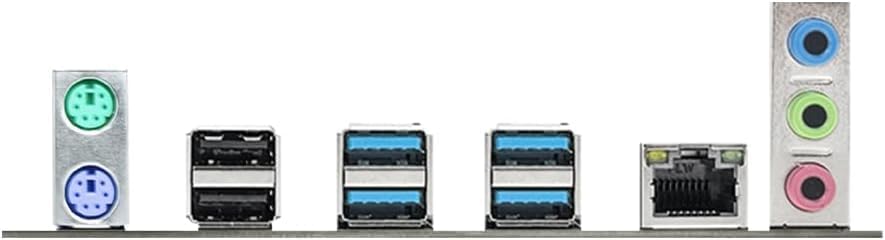
Rysunek 3: Zbliżenie view of the rear input/output panel, showing PS/2 ports, USB 2.0 ports, USB 3.0 ports, RJ45 LAN port, and audio jacks.
- Porty PS/2: 1 x PS/2 Keyboard port (green), 1 x PS/2 Mouse port (purple).
- 2.0 USB Porty: 2 x USB 2.0 ports (black).
- 3.0 USB Porty: 4 x USB 3.0 ports (blue).
- Port LAN RJ45: 1 x Gigabit Ethernet port for network connection.
- Gniazda audio: 1 x Line Out (green), 1 x MIC In (pink), 1 x Line In (blue) for audio devices.
2.8 Instalacja karty PCIe
- Locate the PCIe x16 3.0 slot (PCIe1, from CPU) for graphics cards and the PCIe x1 2.0 slot (PCIe2, from PCH) for other expansion cards.
- Zdejmij odpowiednią osłonę gniazda z obudowy komputera.
- Dopasuj kartę rozszerzeń do gniazda PCIe i dociśnij ją mocno, aż zostanie prawidłowo osadzona.
- Przymocuj kartę do obudowy komputera za pomocą śrubki.
3. Instrukcja obsługi
3.1 Pierwsze uruchomienie
- After all components are installed and connected, ensure the power supply is switched on.
- Naciśnij przycisk zasilania na obudowie komputera.
- The system should power on, and you should see the BIOS/UEFI splash screen.
3.2 Konfiguracja BIOS/UEFI
To enter the BIOS/UEFI setup utility, press the designated key (commonly USUNĄĆ or F2) during the initial boot-up sequence. Here you can configure system settings, boot order, and monitor hardware status.
3.3 Instalacja sterownika
After installing your operating system, install the necessary drivers for the motherboard components. These typically include chipset drivers, LAN drivers, and audio drivers. Drivers are usually provided on a support CD or can be downloaded from the SOYO official webstrona.
4. Konserwacja
- Zachowaj czystosc: Regularly clean dust from inside your PC case, especially around fans and heatsinks, to ensure optimal airflow and prevent overheating. Use compressed air for best results.
- Aktualizacje BIOS-u: Periodically check the SOYO website for BIOS/UEFI updates. Updates can improve system stability, compatibility, and performance. Follow the update instructions carefully to avoid system damage.
- Zarządzanie kablami: Ensure cables are neatly routed to prevent obstruction of airflow and to facilitate future maintenance.
5. Rozwiązywanie Problemów
Jeśli napotkasz problemy, zapoznaj się z poniższymi typowymi krokami rozwiązywania problemów:
- Brak zasilania: Check all power connections (24-pin ATX, 8-pin EPS) from the PSU to the motherboard. Ensure the PSU is switched on.
- Brak wyświetlacza: Verify that the graphics card is properly seated in the PCIe slot and that the monitor cable is securely connected to the graphics card. If using integrated graphics (not applicable for this motherboard as it requires a dedicated GPU), ensure the monitor is connected to the motherboard's video output.
- Niestabilność/awarie systemu: Check memory modules for proper seating. Test memory with diagnostic tools. Ensure CPU cooler is properly installed and making good contact. Check for overheating.
- Komponent nie został wykryty: Re-seat the component (e.g., RAM, M.2 SSD, SATA drive, PCIe card). Check power and data cables. Ensure drivers are installed.
- Wyczyść pamięć CMOS: If the system fails to boot after making BIOS changes, clear the CMOS by shorting the JBAT header pins or removing the CMOS battery for a few minutes.
6. Specyfikacje
| Funkcja | Specyfikacja |
|---|---|
| Producent | SOJOWY |
| Numer modelu | X99 BSF |
| Gniazdo procesora | LGA 2011-3 |
| Kompatybilne procesory | Intel Xeon E5 LGA2011-V3 series (e.g., E5-2603V3, 2666V3, 2673V3, 2680V3, 2678V3, 2696V3, 2684V4, 2696V4) |
| Typ chipsetu | Intel® X99 |
| Technologia pamięci | DDR4 |
| Gniazda pamięci | 4 x gniazda DDR4 DIMM |
| Maksymalna pojemność pamięci | Up to 128GB (32GB x 4) |
| Supported Memory Speed | 2133/2400MHz (Max) |
| Interfejsy pamięci masowej | 2 x M.2 slots (Upper: NVMe PCIe 3.0 x4/SATA3.0; Lower: NVMe PCIe 3.0 x4) 4 x SATA3.0 interfaces |
| Sloty PCIe | 1 x PCIe x16 3.0 slot (from CPU) 1 x PCIe x1 2.0 slot (from PCH) |
| Układ audio | Karta dźwiękowa Realtek ALC897 HD |
| LAN Chip | Realtek RTL8111H Gigabit Ethernet |
| Porty wejścia/wyjścia z tyłu | 2 x USB 2.0, 4 x USB 3.0, 1 x RJ45, 1 x Line Out, 1 x MIC In, 1 x Line In, 1 x PS/2 Keyboard, 1 x PS/2 Mouse |
| Nagłówki wewnętrzne | 1 x FPANEL, 1 x 4-pin CPU fan, 1 x 3-pin system fan, 1 x JBAT, 1 x JLPC, 1 x SPEAK, 1 x USB 2.0 (exp. 2 ports), 1 x USB 3.0 (exp. 2 ports), 1 x Front Audio, 1 x 14-pin TPM |
| Moc wejściowa | 24-pin ATX + 8-pin EPS connectors |
| Wymiary | 220 x 190mm (4-layer PCB) |
| Zgodność platformy | Windows 11 |
7. Gwarancja i wsparcie
For warranty information, please refer to the documentation included with your purchase or contact your retailer. For technical support, driver downloads, and further assistance, please visit the official SOYO website or contact SOYO customer service.
You can find more information about SOYO products at their official store: Sklep SOYO na Amazonie.