
xTool IF2 2.0
xTool SafetyPro IF2 2.0 Hyper Flow Inline Duct Fan User Manual
Model: MXA-K013-001
1. Informacje dotyczące bezpieczeństwa
Please read all safety instructions carefully before operating the xTool SafetyPro IF2 2.0. Failure to follow these instructions may result in electric shock, fire, or serious injury.
- Bezpieczeństwo elektryczne: Ensure the power supply matches the fan's requirements. Do not operate with damaged cords or plugs.
- Wentylacja: Always ensure proper ventilation when using the fan, especially when connected to a laser engraver. Exhaust fumes must be directed outdoors or into an appropriate filtration system.
- Narażenie na działanie wody: The main unit is not waterproof. While the fan components are washable, ensure the main electrical connections and motor housing remain dry.
- Dzieci i zwierzęta: Przechowywać urządzenie w miejscu niedostępnym dla dzieci i zwierząt domowych.
- Konserwacja: Przed przystąpieniem do czynności konserwacyjnych lub czyszczenia należy odłączyć zasilanie.
2. Koniec produktuview
The xTool SafetyPro IF2 2.0 is a high-performance inline duct fan designed for efficient smoke and fume extraction, particularly for laser cutting and engraving applications. It features dual high-speed fans and intelligent control for optimal performance.
2.1 Główne cechy
- Unmatched Smoke Extraction Efficiency: Two ultra-speed 14,000 RPM fans generate 135 CFM airflow with up to 1300 Pa pressure.
- Kompaktowa konstrukcja: Integrated smart EC motor design in a compact 5-inch body.
- Auto-Sync Control: Wirelessly connects with xTool laser engravers for hands-free operation and intelligent power/airflow adjustment.
- Łatwa konserwacja: IP55 rated for easy disassembly and cleaning of fan components.
- Cicha praca: Built-in sound-absorbing cotton reduces operating noise.
- Elastyczna instalacja: Retractable 2.3-meter durable PP tube.
2.2 Składniki
- SafetyPro IF2 2.0 Unit
- Klucz sprzętowy Bluetooth
- Klucz sześciokątny
- Złącze rurowe 1
- Złącze rurowe 2
- rura clamp
- Ribbed plastic anchors (8x)
- Śruby (8x)
- Oprawa ścienna
- Smoke exhaust pipe (2.3m)
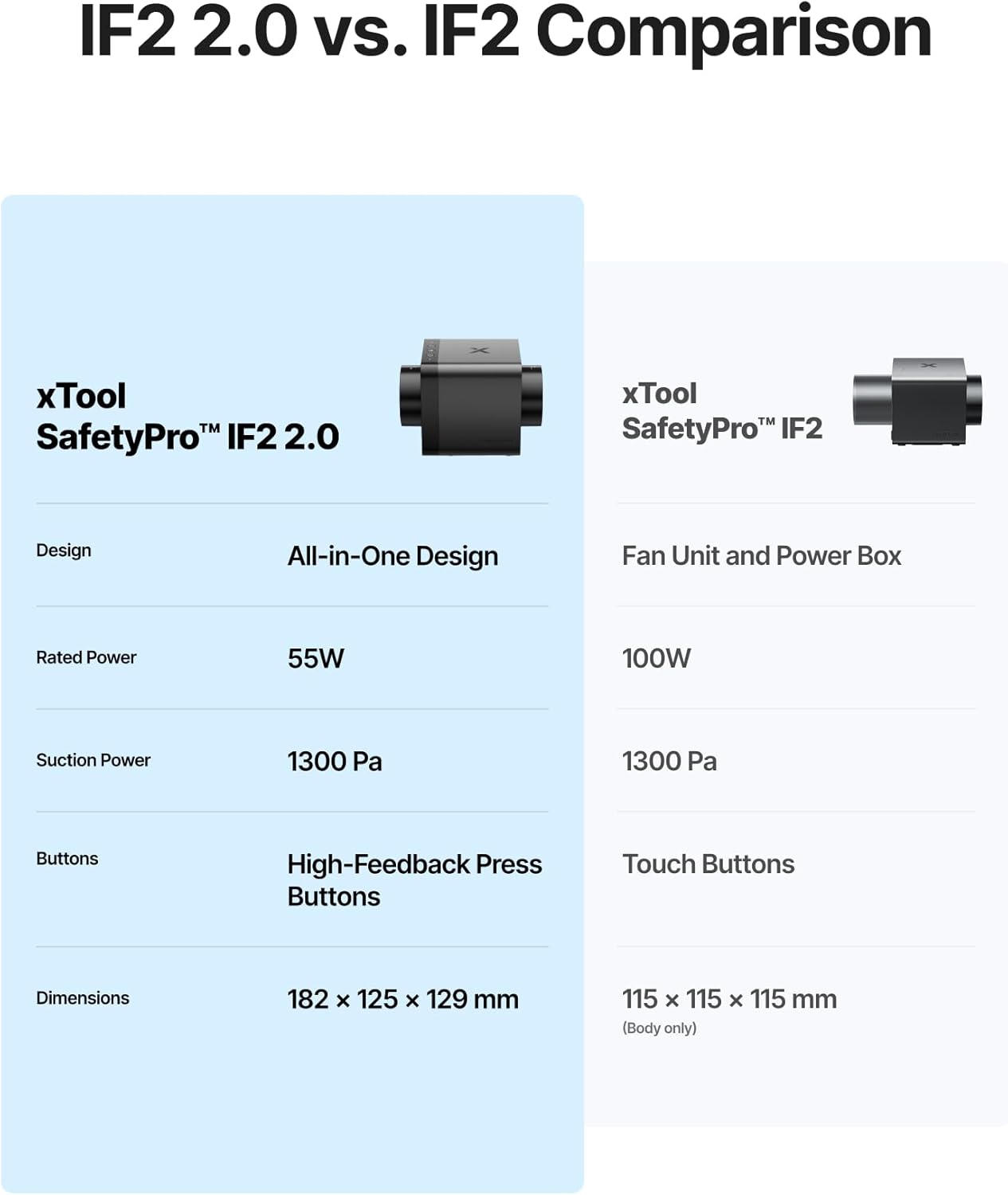
Image: The xTool SafetyPro IF2 2.0 main unit, showcasinze względu na kompaktową konstrukcję.

Image: The xTool SafetyPro IF2 2.0 connected to its flexible smoke exhaust pipe.
3. Konfiguracja i instalacja
Follow these steps to properly set up your xTool SafetyPro IF2 2.0.
3.1 Montaż wentylatora
- Choose a suitable location near your laser engraver, ensuring access to an exhaust point (window, vent, or filtration system).
- Use the provided wall-mounting fixture, screws, and ribbed plastic anchors to securely attach the fan to a wall. Alternatively, the compact design allows for placement on a stable surface.
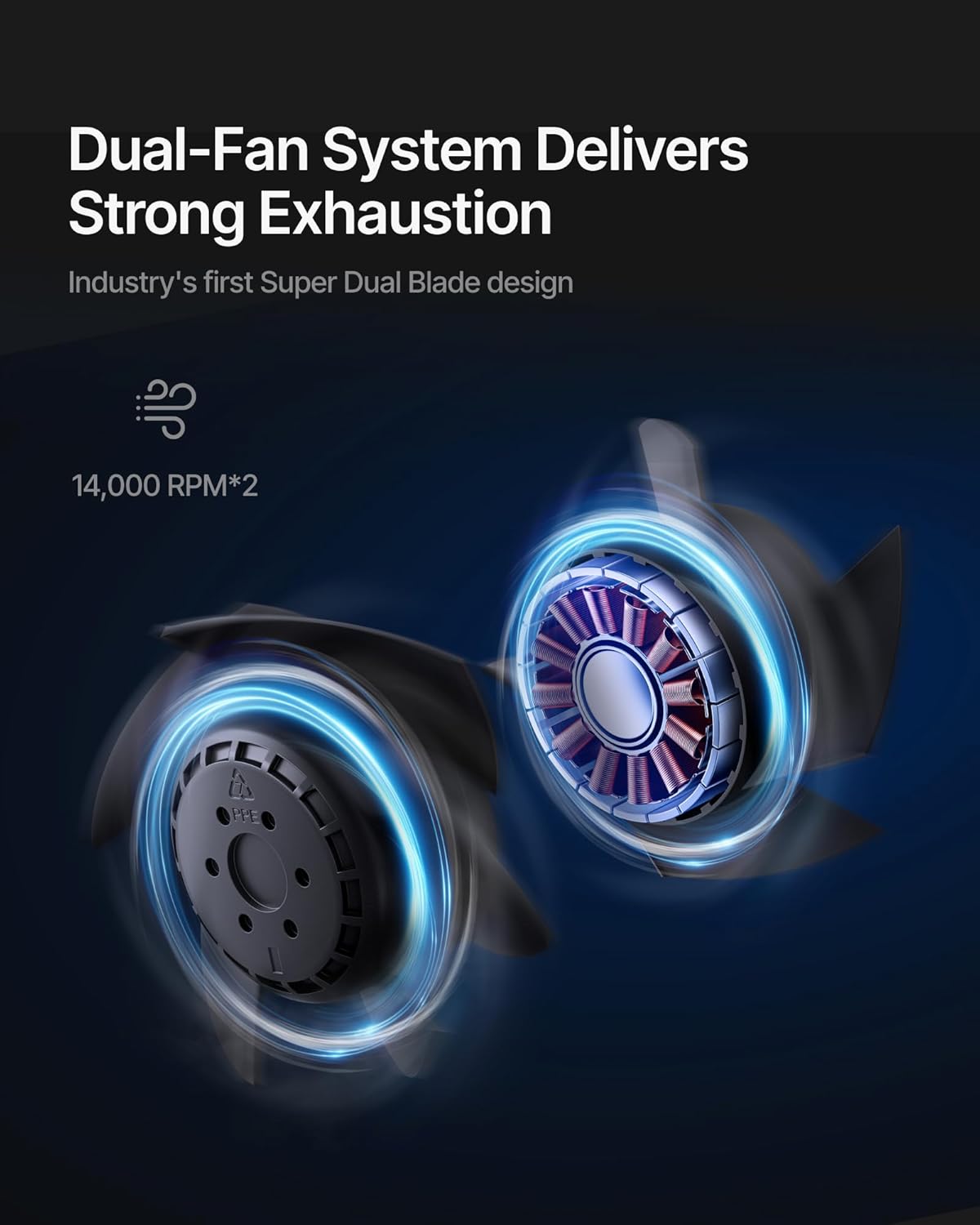
Image: The xTool SafetyPro IF2 2.0 installed using the wall-mounting fixture, with the exhaust pipe connected.
3.2 Connecting the Exhaust Pipe
- Attach one end of the smoke exhaust pipe to the fan unit using the appropriate pipe connector and pipe clamp.
- Connect the other end of the smoke exhaust pipe to your laser engraver's exhaust port or direct it to a safe outdoor venting location. Ensure all connections are secure to prevent smoke leakage.

Image: Illustration of the easy detachable pipe connection for simplified maintenance and the washable fan components.
3.3 Zasilanie i łączność
- Plug the power adapter into the fan unit and then into a suitable power outlet.
- Insert the Bluetooth dongle into your xTool laser engraver (if applicable) to enable auto-sync functionality.
4. Działanie
The xTool SafetyPro IF2 2.0 is designed for seamless integration and efficient operation.
4.1 Auto-Sync Control
- When connected to a compatible xTool laser engraver via Bluetooth, the IF2 2.0 will automatically turn on/off with the laser engraver.
- The fan intelligently adjusts its power and airflow based on the material being processed, optimizing smoke extraction.
4.2 Manual Control and Quiet Mode
- The fan features high-feedback press buttons for manual control of power and fan speed.
- Activate Quiet Mode for operations that produce less smoke or when a lower noise level is desired.
4.3 Smart Connect via xTool Creative Space
- For enhanced control and monitoring, connect the IF2 2.0 through the xTool Creative Space software. This allows for fine-tuning settings and provides a comprehensive user experience.

Image: The xTool SafetyPro IF2 2.0 demonstrating intelligent control, connected to an xTool laser engraver and a laptop running xTool Creative Space software.
5. Konserwacja
Regular maintenance ensures optimal performance and longevity of your SafetyPro IF2 2.0.
5.1 Cleaning the Fan Components
- The fan components are designed for easy disassembly and are washable.
- Before cleaning, always disconnect the power supply.
- Carefully disassemble the fan unit as per the instructions in the full manual (not provided here).
- Rinse the fan blades and housing components with water. Ensure they are completely dry before reassembly.
- Ważny: The exposed wires and main electrical unit are not waterproof. Do not submerge or expose these parts to water.
5.2 Exhaust Pipe Maintenance
- Periodically inspect the smoke exhaust pipe for any blockages, kinks, or damage.
- Clean the interior of the pipe if excessive residue builds up, which can reduce airflow efficiency.
6. Rozwiązywanie Problemów
If you encounter issues with your xTool SafetyPro IF2 2.0, refer to the following common solutions:
- Wentylator się nie włącza: Check power connection, ensure the power outlet is functional, and verify the fan is properly connected to the laser engraver if using auto-sync.
- Słabe ssanie: Inspect the exhaust pipe for blockages or kinks. Ensure all pipe connections are sealed. Clean fan components if they are dirty.
- Nadmierny hałas: Check for any foreign objects in the fan blades. Ensure the fan is securely mounted and not vibrating against other surfaces.
- Auto-Sync Not Working: Ensure the Bluetooth dongle is correctly inserted and your xTool laser engraver is compatible and properly configured in xTool Creative Space.
- Smoke Leakage: Verify all pipe connections are tight and sealed. Check the exhaust pipe for any tears or holes.
W przypadku powtarzających się problemów skontaktuj się z obsługą klienta xTool.
7. Specyfikacje
| Funkcja | Szczegół |
|---|---|
| Numer modelu | MXA-K013-001 |
| Marka | Narzędzie x |
| Producent | Makeblock Co., Ltd. |
| Waga przedmiotu | 6.29 funta |
| Wymiary produktu | 7.19 x 4.92 x 4.92 cala |
| Kolor | Czarny |
| Tworzywo | Acrylonitrile Butadiene Styrene, PC |
| Prędkość wentylatora | Up to 14,000 RPM (Dual Fans) |
| Przepływ powietrza | 135 stopy sześcienne na minutę |
| Ciśnienie statyczne | Do 1300 Pa |
| Długość rury wydechowej | 2.3 meters (retractable) |
| Ocena odporności na wodę | IP55 (for fan components, not main unit) |
| Wymagane baterie | NIE |
8. Gwarancja i wsparcie
8.1 Informacje o gwarancji
For detailed warranty information, please refer to the official xTool weblub kartę gwarancyjną dołączoną do produktu. Zachowaj dowód zakupu na wypadek roszczeń gwarancyjnych.
8.2 Obsługa klienta
If you require assistance, have questions, or need technical support, please contact xTool through the following channels:
- Wsparcie e-mailowe: For general inquiries and technical assistance.
- Czat na żywo: Dostępne na oficjalnym xTool website for real-time support.
- Wsparcie telefoniczne: Contact numbers may be available on the xTool webstrona.
- Grupa na Facebooku: Join the official xTool community for peer support and updates.

Obraz: Ponadview of xTool's multi-channel customer service options.
Ask a question about this manual
Ask about setup, troubleshooting, compatibility, parts, safety, or missing instructions. Manuals+ will review the question and use this page’s manual context to help answer it.