1. Wprowadzenie
Thank you for choosing the KTC 27 Inch 4K Gaming Monitor H27P6. This manual provides essential information for setting up, operating, and maintaining your monitor. Please read this manual thoroughly before use to ensure proper functionality and to prevent damage.
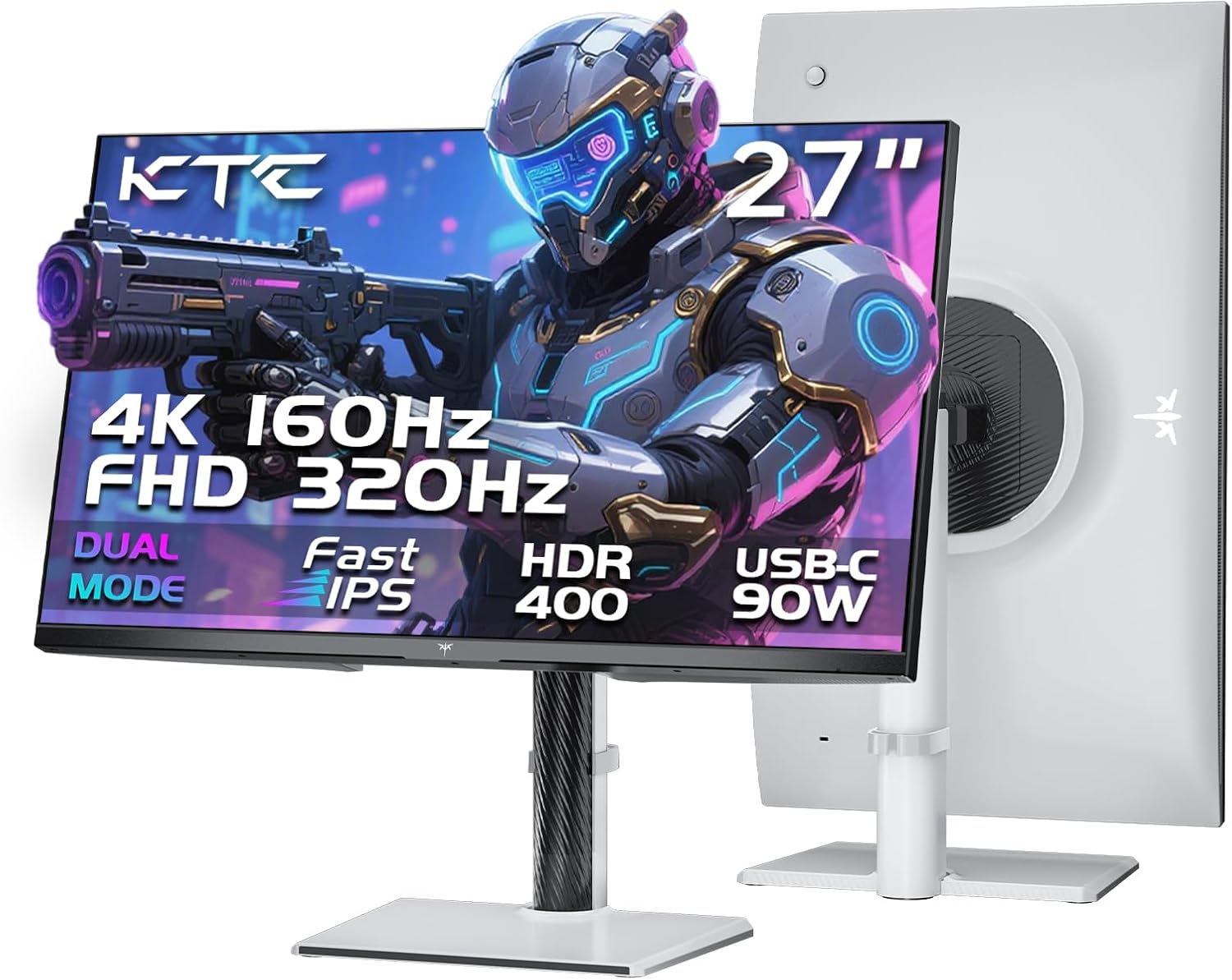
Ilustracja 1.1: Przód i tył view of the KTC 27 Inch 4K Gaming Monitor H27P6.
2. Informacje dotyczące bezpieczeństwa
- Nie wystawiaj monitora na działanie deszczu i wilgoci, aby uniknąć ryzyka pożaru lub porażenia prądem.
- Nie otwierać monitora casing. Wewnątrz nie ma żadnych części, które mogłyby być naprawiane przez użytkownika. Wszelkie prace serwisowe należy zlecać wykwalifikowanemu personelowi.
- Umieść monitor na stabilnej, płaskiej powierzchni.
- Zapewnij odpowiednią wentylację wokół monitora. Nie blokuj otworów wentylacyjnych.
- Należy używać wyłącznie zasilacza i kabli dostarczonych przez producenta.
- Odłączaj monitor od gniazdka elektrycznego podczas burzy z piorunami lub jeśli nie używasz go przez dłuższy czas.
3. Zawartość opakowania
Sprawdź, czy w opakowaniu znajdują się wszystkie elementy:
- 27" Dual Mode Monitor (1 unit)
- Podstawka pod monitor (1 szt.)
- Quick Start Guide (QSG) (1 unit)
- DP Cable (1 unit)
- Adapter (1 unit)
- Przewód zasilający (1 sztuka)
4. Montaż i konfiguracja
4.1. Monitor Stand Assembly
Follow the instructions in the Quick Start Guide to attach the monitor stand to the display panel. Ensure all screws are securely fastened.
4.2. Montaż VESA
The monitor supports 100x100mm VESA mounting for alternative mounting solutions (e.g., wall mounts, monitor arms). Remove the stand before attaching a VESA-compatible mount.
4.3. Regulacje ergonomiczne
The monitor stand allows for various adjustments to optimize viewkomfort:
- Regulacja wysokości: Możliwość regulacji wysokości monitora w zakresie do 130 mm.
- Sworzeń: Rotate the screen 90° (portrait mode).
- Obracać: Rotate the screen horizontally by ±45°.
- Przechylenie: Możliwość dostosowania kąta nachylenia ekranu w zakresie od -5° do 20°.

Image 4.1: Multi-angle adjustment capabilities and VESA mounting points.
4.4. Podłączanie kabli
Connect the necessary cables to the monitor and your computer or other devices. Ensure the monitor is powered off before connecting or disconnecting cables.
- Moc: Podłącz zasilacz do wejścia DC monitora, a następnie do gniazdka elektrycznego.
- DisplayPort (DP 1.4): For high refresh rate and resolution, connect the provided DP cable to the monitor's DP port and your graphics card's DP port.
- HDMI (HDMI 2.1): Connect an HDMI cable to one of the monitor's HDMI 2.1 ports and your device's HDMI port.
- USB Type-C (90W PD 3.1): Connect a USB-C cable for video, data transfer, and up to 90W power delivery to compatible laptops.
- Koncentrator USB 3.0: Connect the USB-B (upstream) cable from the monitor to your computer to enable the monitor's USB 3.0 (downstream) ports.
- Słuchawka: Connect headphones or external speakers to the earphone jack.

Obraz 4.2: Koniecview of the monitor's various input and output interfaces.
5. Instrukcja obsługi
5.1. Włączanie/wyłączanie zasilania i nawigacja OSD
The monitor features a single joystick control located on the back for power and On-Screen Display (OSD) navigation. Push the joystick in to power on/off the monitor. Move the joystick up, down, left, or right to navigate the OSD menu and adjust settings.
5.2. Przełączanie podwójnego trybu
The monitor supports dual display modes:
- 4K UHD (3840x2160) at 160Hz: Provides high resolution for detailed visuals.
- FHD (1920x1080) at 320Hz: Offers a higher refresh rate for competitive gaming.
Switch between these modes via the monitor's OSD settings or your graphics card control panel.

Image 5.1: Visual representation of the monitor's dual mode display capabilities.
5.3. Adaptive-Sync Technology
Adaptive-Sync technology synchronizes the monitor's refresh rate with your graphics card's frame rate, reducing screen tearing and stuttering for smoother gameplay. Enable this feature in the monitor's OSD and your graphics card settings.
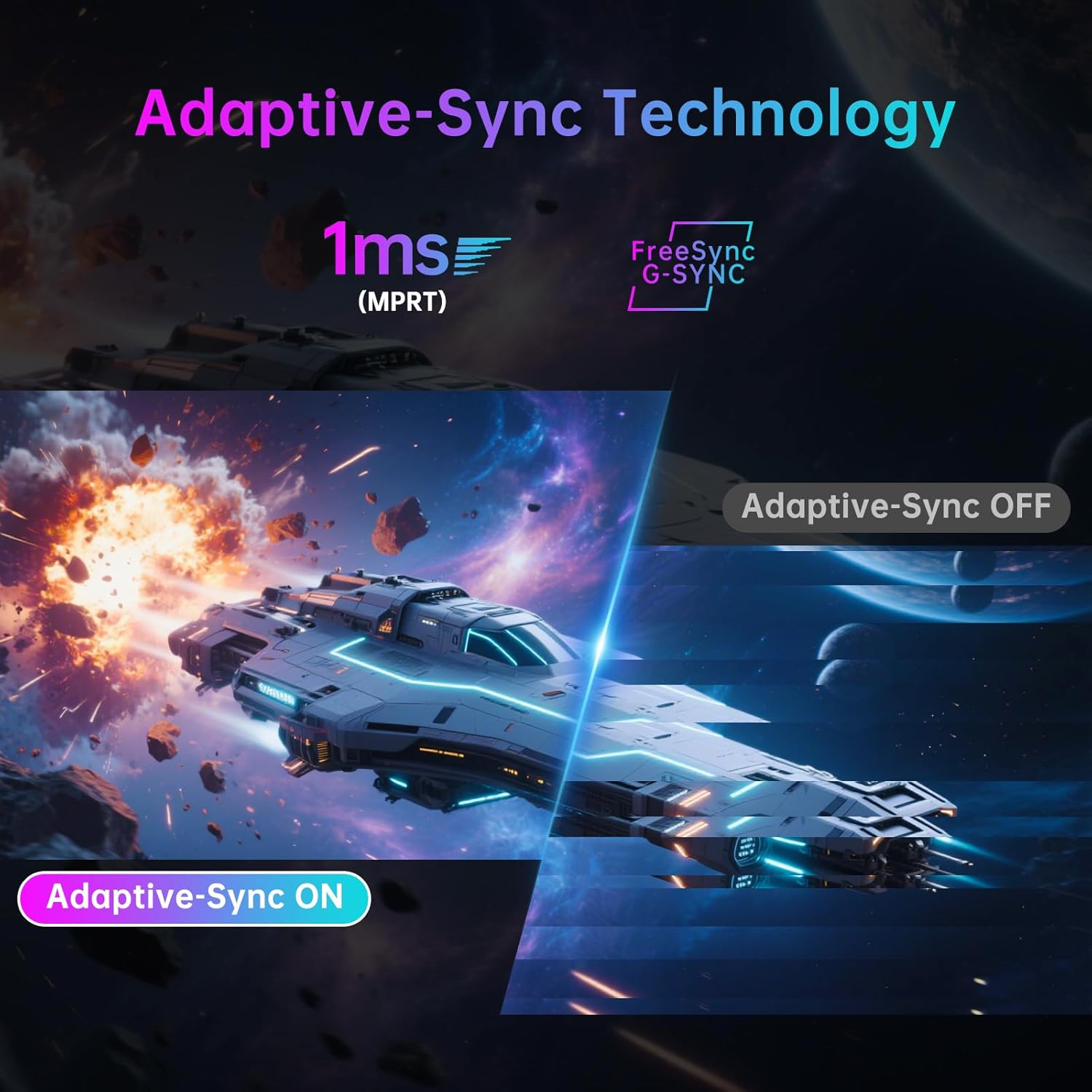
Image 5.2: Demonstration of Adaptive-Sync technology reducing screen tearing.
5.4. Display and Color Settings
The monitor features a Fast IPS panel and supports HDR400, providing accurate colors and contrast.
- Dokładność kolorów: Factory-calibrated with ΔE<2 for 97% DCI-P3 and 99% sRGB coverage.
- HDR400: Enhances contrast and color depth in compatible content.
- Jasność: 400 cd/m² (typowo).
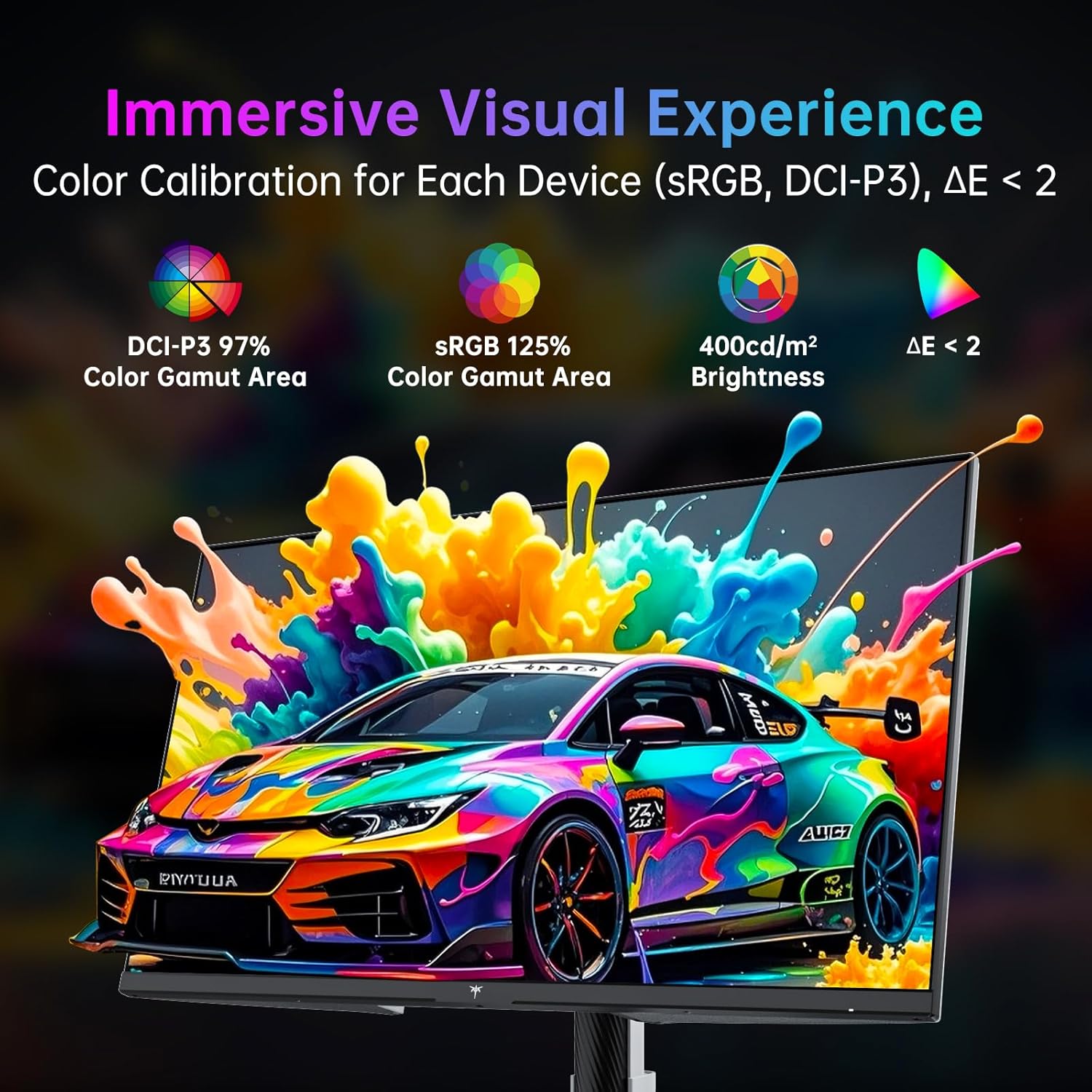
Image 5.3: Details on color calibration and display specifications.

Image 5.4: Visual difference with HDR400 enabled.
5.5. Game Plus Features
Access various gaming-specific features through the OSD:
- Regulator czasowy: Timer ekranowy umożliwiający śledzenie wydarzeń w grze.
- Celownik: Customizable on-screen crosshairs for improved aiming.
- Licznik FPS: Displays the current frames per second.

Image 5.5: Game Plus features for enhanced gaming experience.
5.6. KVM Support
The monitor includes KVM (Keyboard, Video, Mouse) switch functionality, allowing you to control multiple computers with a single set of keyboard and mouse connected to the monitor's USB ports. Switch between connected computers via the OSD.
5.7. Low Blue Light Mode
Activate the Low Blue Light mode in the OSD to reduce blue light emissions, which can help minimize eye strain during prolonged use.

Image 5.6: Visual explanation of hardware low blue light technology.
6. Konserwacja
6.1. Czyszczenie monitora
- Zawsze odłączaj monitor od zasilania przed czyszczeniem.
- Delikatnie użyj miękkiej, niestrzępiącej się szmatki dampspłukać wodą lub łagodnym, nieściernym środkiem do czyszczenia ekranów.
- Nie rozpylać środka czyszczącego bezpośrednio na ekran.
- Avoid using benzene, thinner, ammonia-based cleaners, or abrasive materials.
6.2. Przechowywanie
If storing the monitor for an extended period, disconnect all cables, pack it in its original packaging, and store it in a cool, dry place away from direct sunlight and extreme temperatures.
7. Rozwiązywanie Problemów
| Problem | Możliwa przyczyna | Rozwiązanie |
|---|---|---|
| Brak zasilania | Kabel zasilający nie jest podłączony; gniazdko elektryczne jest uszkodzone; monitor jest wyłączony. | Ensure power cable is securely connected. Test power outlet. Press joystick to power on. |
| Brak sygnału | Kabel wideo nie jest podłączony; wybrano nieprawidłowe źródło sygnału; komputer nie wysyła sygnału. | Check video cable connections. Select correct input source via OSD. Ensure computer is on and outputting video. |
| Migotanie lub zniekształcenie obrazu | Loose video cable; Graphics card driver issue; Interference. | Secure video cable. Update graphics drivers. Check for nearby electronic devices causing interference. |
| Kolory są nieprawidłowe | Color settings misconfigured; Cable issue. | Reset color settings in OSD. Check video cable. |
| Porty USB nie działają | Kabel USB nie jest podłączony. | Connect the USB-B (upstream) cable from the monitor to your computer. |
8. Specyfikacje
| Funkcja | Szczegół |
|---|---|
| Marka | KTC |
| Numer modelu | H27P6 |
| Rozmiar ekranu | 27 cali |
| Rezolucja | 4K UHD 2160p (3840 x 2160 Pixels) |
| Częstotliwość odświeżania | 160Hz (4K UHD), 320Hz (FHD) |
| Typ panelu | Prawie IPS |
| Obsługa HDR | HDR400 |
| Gama kolorów | 97% DCI-P3, 99% sRGB |
| Jasność | 400 kandeli (cd/m²) |
| Proporcje obrazu | 16:9 |
| Powierzchnia ekranu | Matowy |
| Łączność | 2x HDMI 2.1, 1x DP 1.4, 1x USB Type-C (90W PD 3.1), 1x USB 3.0 (upstream), 2x USB 3.0 (downstream), Earphone Jack |
| Zgodność ze standardem VESA | 100x100mm |
| Ergonomia | Height Adjustment (±130mm), Pivot (±90°), Swivel (±45°), Tilt (-5° to 20°) |
| Wymiary produktu | 8 x 24 x 21 cala |
| Waga przedmiotu | 19.56 funta |
9. Gwarancja i wsparcie
For warranty information and technical support, please refer to the warranty card included with your product or visit the official KTC webZachowaj paragon jako dowód zakupu na wypadek reklamacji.
Możesz również odwiedzić Sklep KTC na Amazonie Aby uzyskać dodatkowe informacje o produkcie i zasoby pomocy technicznej.
10. Filmy produktowe
No official seller videos in the specified m3u8 format were found for embedding in this manual.