1. Wprowadzenie
This manual provides detailed instructions for the Redragon K737 PRO Wireless 87 Keys Gasket Gaming Keyboard. Please read this manual thoroughly before using the product to ensure proper operation and to prevent damage.

Image: The Redragon K737 PRO Wireless Gaming Keyboard, showcasing its compact TKL design and RGB lighting.
2. Zawartość opakowania
- Redragon K737 PRO Wireless Gaming Keyboard
- Kabel USB-C do USB-A
- Odbiornik bezprzewodowy 2.4 GHz
- Ściągacz nasadek klawiszy
- Przełącznik ściągacza
- Instrukcja obsługi
3. Konfiguracja
3.1 Ładowanie klawiatury
Before first use, fully charge the keyboard using the provided USB-C cable. Connect the USB-C end to the keyboard and the USB-A end to a powered USB port (e.g., computer, wall adapter). The keyboard features a 4000mAh battery.

Image: The keyboard illustrating how to check the battery level using the FN+E key combination, showing different RGB patterns for 30%, 50%, and 100% charge.
3.2 Podłączanie klawiatury
The K737 PRO supports three connection modes: USB-C wired, 2.4GHz wireless, and Bluetooth 3.0/5.0.
3.2.1 Połączenie przewodowe
- Znajdź port USB-C na klawiaturze.
- Podłącz dołączony kabel USB-C do klawiatury, a wtyczkę USB-A do komputera.
- Klawiatura zostanie automatycznie rozpoznana i będzie gotowa do użycia.
3.2.2 Połączenie bezprzewodowe 2.4 GHz
- Znajdź odbiornik bezprzewodowy 2.4 GHz.
- Podłącz odbiornik do wolnego portu USB-A w komputerze.
- Turn on the keyboard using the switch located on the side or back of the keyboard.
- Klawiatura powinna automatycznie połączyć się z odbiornikiem.
3.2.3 Połączenie Bluetooth
- Turn on the keyboard and switch to Bluetooth mode (refer to keyboard markings for mode switch).
- Na komputerze lub urządzeniu otwórz ustawienia Bluetooth.
- Szukaj new devices and select "Redragon K737 PRO" from the list.
- Postępuj zgodnie z instrukcjami wyświetlanymi na ekranie, aby dokończyć parowanie.
4. Instrukcja obsługi
4.1 Podstawowe funkcje klawiszy
The K737 PRO features an 87-key Tenkeyless (TKL) layout. Standard alphanumeric and function keys operate as labeled. Many keys have secondary functions accessible via the Function (FN) key.
4.2 Klawisze multimedialne i funkcyjne
Use the FN key in combination with other keys (typically F1-F12 or other designated keys) to access multimedia controls, volume adjustments, and other system functions. Refer to the keycap legends for specific FN combinations.
4.3 Sterowanie oświetleniem RGB
The keyboard features customizable RGB backlighting with south-facing LEDs and side-printed PBT keycaps. Lighting effects can be adjusted directly on the keyboard using FN key combinations or through the dedicated software.

Obraz: szczegółowy view of the Contour Line side-printed PBT keycaps and the south-facing LED illumination on the Redragon K737 PRO keyboard.
4.4 Kontrola poziomu naładowania baterii
Aby sprawdzić aktualny poziom naładowania baterii, naciśnij przycisk FN + E keys simultaneously. The keyboard's RGB lighting will indicate the charge level as shown in the setup section.
4.5 Dostosowywanie oprogramowania
The Redragon K737 PRO is supported by professional software, allowing for advanced customization:
- Edycja makro: Create and assign custom macros to keys.
- RGB Backlights: Design and apply custom lighting modes and effects.
- Kluczowa redefinicja: Remap keys for personalized layouts.
Pobierz najnowsze oprogramowanie z oficjalnej strony Redragon webstrona.
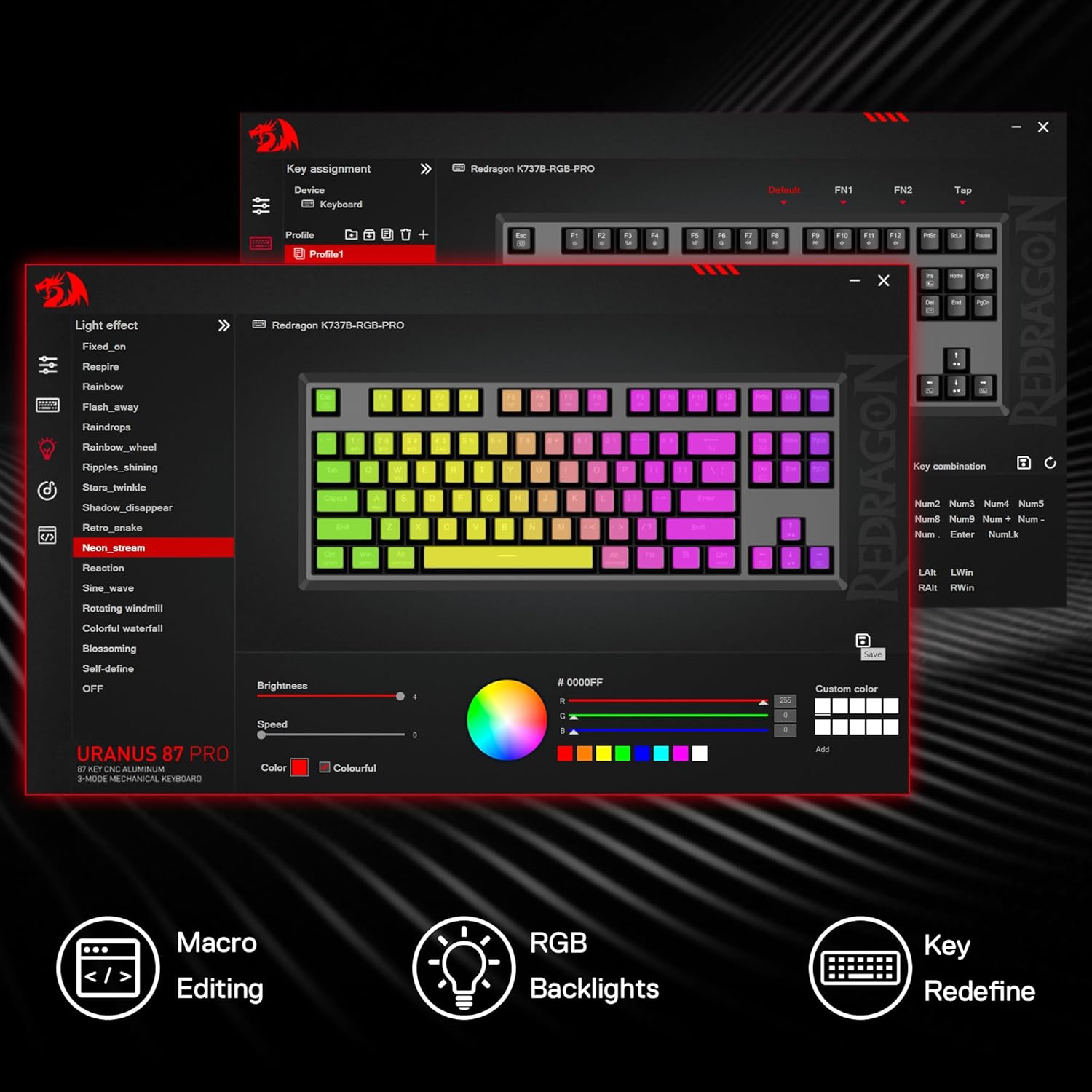
Image: A screenshot of the Redragon K737 PRO software, demonstrating options for macro editing, RGB backlight customization, and key redefinition.
4.6 Hot-Swap Switch Replacement
The K737 PRO features hot-swappable sockets, allowing you to change switches without soldering. It is compatible with both 3-pin and 5-pin mechanical switches.
- Use the provided switch puller to carefully remove the existing switch. Grip the switch firmly and pull straight up.
- Dopasuj piny nowego przełącznika do otworów na płytce PCB.
- Gently press the new switch into place until it clicks. Ensure it is seated properly and not bent.

Obraz: Wybuch view illustrating the hot-swap stand-alone slotting sockets and the process of replacing a switch, along with a force curve diagram for the Custom Silky Frost Switch.
5. Konserwacja
5.1 Czyszczenie klawiatury
Regularly clean your keyboard to maintain performance and appearance. Use a soft, dry cloth to wipe the surface. For deeper cleaning, use a can of compressed air to remove dust and debris from between keycaps. Avoid using harsh chemicals or abrasive materials.
5.2 Keycap Removal and Installation
Use the provided keycap puller to remove keycaps. Gently pull straight up to avoid damaging the switch stem. When reinstalling, align the keycap with the switch stem and press down firmly until it snaps into place.
6. Rozwiązywanie Problemów
6.1 Klawiatura nie odpowiada
- Sprawdź, czy klawiatura jest naładowana.
- Check the connection mode (wired, 2.4GHz, Bluetooth) and ensure it matches your setup.
- W przypadku połączenia przewodowego wypróbuj inny port USB lub kabel.
- W przypadku częstotliwości 2.4 GHz sprawdź, czy odbiornik jest prawidłowo podłączony i wypróbuj inny port USB.
- For Bluetooth, re-pair the device or try connecting to a different Bluetooth-enabled device.
- Uruchom ponownie komputer.
6.2 Problemy z oświetleniem RGB
- Ensure the lighting is not turned off via FN key combinations or software.
- Check software settings for any conflicting profiles or disabled lighting.
- Update keyboard firmware if available.
6.3 Klucze nie są rejestrowane
- Remove the keycap and visually inspect the switch for any debris.
- If the switch is damaged, consider replacing it using the hot-swap feature.
- Sprawdź, czy nakładka na klawisz jest prawidłowo osadzona na przełączniku.
7. Specyfikacje
| Model | K737 PRO |
| Układ | 87-key Tenkeyless (TKL) |
| Tryby połączenia | USB-C Wired, Bluetooth 3.0/5.0, 2.4GHz Wireless |
| Przełączniki | Custom Silky Frost (Hot-Swap, 3/5 pin compatible) |
| Klawisze | PBT, Contour Line, Side-Printed |
| Budowa | CNC Aluminum Frame, Gasket Mount |
| Hałas Dampkoniec | 5-Layer (PO foam, IXPE switch foam, PET sound pad, bottom socket foam, bottom PET pad, silicone gasket) |
| Pojemność baterii | 4000mAh |
| Wymiary | Wymiary 42.09 x 19.61 x 7.49 cm |
| Waga | Około 2.02 kg |
| Diody LED | RGB skierowane na południe |
| Wsparcie oprogramowania | Yes, for macros and lighting customization |

Obraz: Ponadview of the Redragon K737 PRO highlighting key features such as 87 keys, CNC premium metal, Contour Line PBT keycaps, Silky Frost switches, 5-layer sound dampening, Pro software, 3-mode tech, and 4000mAh battery.

Image: An exploded diagram detailing the fully loaded gasket structure of the Redragon K737 PRO, showing layers like Silky Frost Switch, TPR Gasket, PC Slotting Positioning Board, 3.5mm PO Foam, IXPE Switch Foam, PET Sound Pad, PCB Board, Bottom Socket Foam, Silicone Dampener, and CNC Bottom Case.
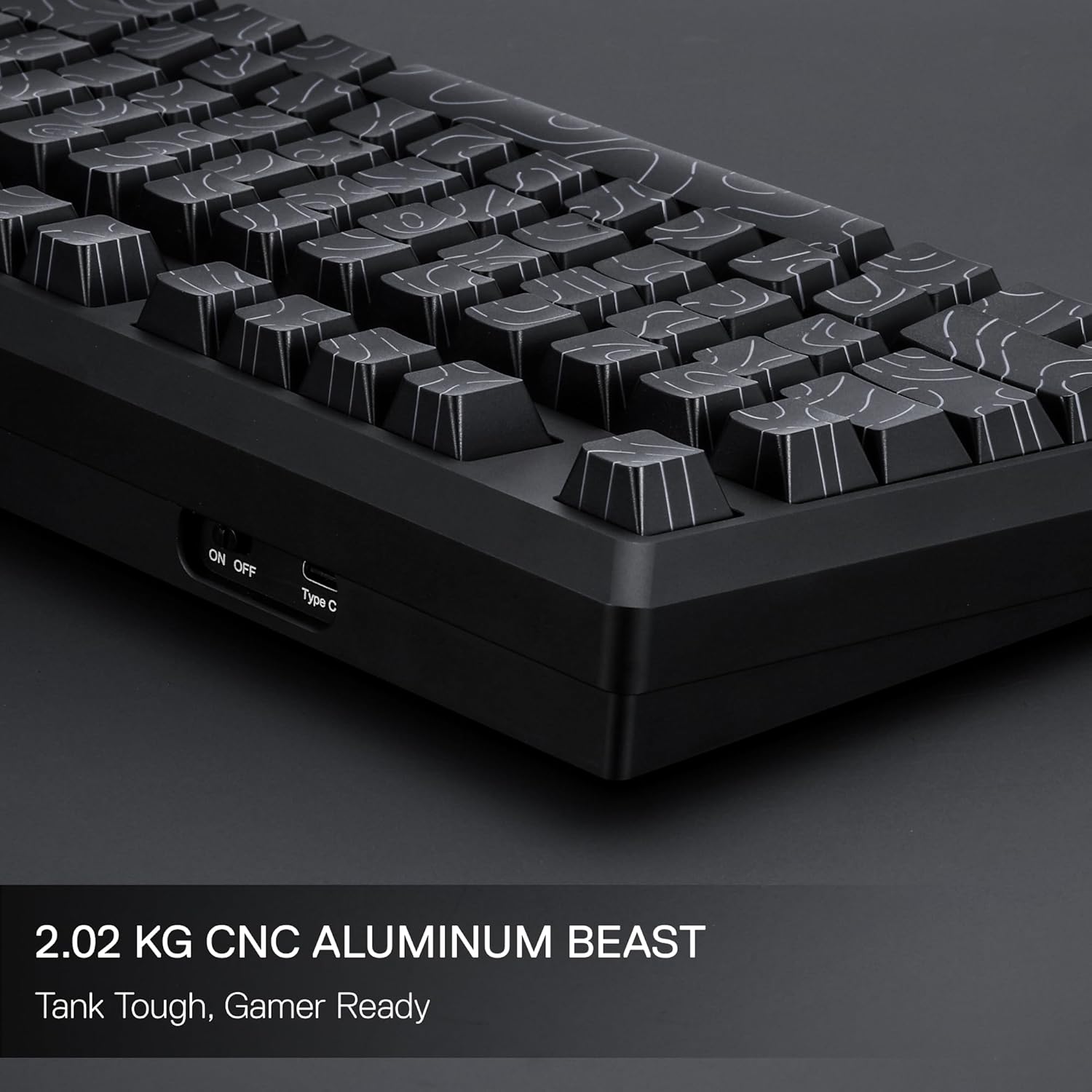
Obraz: Profesjonalna stronafile of the Redragon K737 PRO keyboard, emphasizing its 2.02 kg CNC aluminum construction and the power switch and USB-C port.
8. Gwarancja i wsparcie
Aby uzyskać informacje dotyczące gwarancji i pomocy technicznej, zapoznaj się z kartą gwarancyjną dołączoną do produktu lub odwiedź oficjalną stronę internetową Redragon website. Contact Redragon customer service for assistance with product issues or inquiries.