
Wstęp
Thank you for choosing the SHARE SUNSHINE Wireless Ergonomic Vertical Mouse. This device is designed to provide a comfortable and natural hand position, reducing wrist strain during extended use. It features adjustable angle, dual-mode connectivity (2.4G wireless and Bluetooth), a removable palm rest, and customizable RGB lighting. This manual provides detailed instructions for setup, operation, maintenance, and troubleshooting to ensure optimal performance and user experience.

Obraz 1: Koniecview of the SHARE SUNSHINE Wireless Ergonomic Vertical Mouse.
Zawartość opakowania
- 1 x SHARE SUNSHINE Wireless Ergonomic Vertical Mouse
- 1 x USB Receiver (stored in the mouse's battery compartment)
- Kabel ładujący 1 x USB-C
- 1 x Instrukcja obsługi
Cechy produktu
- Ergonomiczna konstrukcja pionowa: Promotes a natural handshake position to reduce wrist and forearm strain.
- Adjustable Angle Gradient: Customize the mouse angle for personalized comfort.
- Łączność w dwóch trybach: Seamlessly switch between 2.4G wireless and Bluetooth modes.
- Removable Palm Rest: Provides additional wrist support and can be detached for preference.
- 6 programowalnych przycisków: Includes left/right click, scroll wheel, DPI button, and two side buttons.
- Regulowane DPI: Do 3600 DPI dla precyzyjnej kontroli kursora.
- Akumulator: Built-in battery for convenient charging.
- Oświetlenie RGB: Customizable lighting effects for aesthetic appeal.

Image 2: The adjustable angle feature allows users to find their preferred hand position.
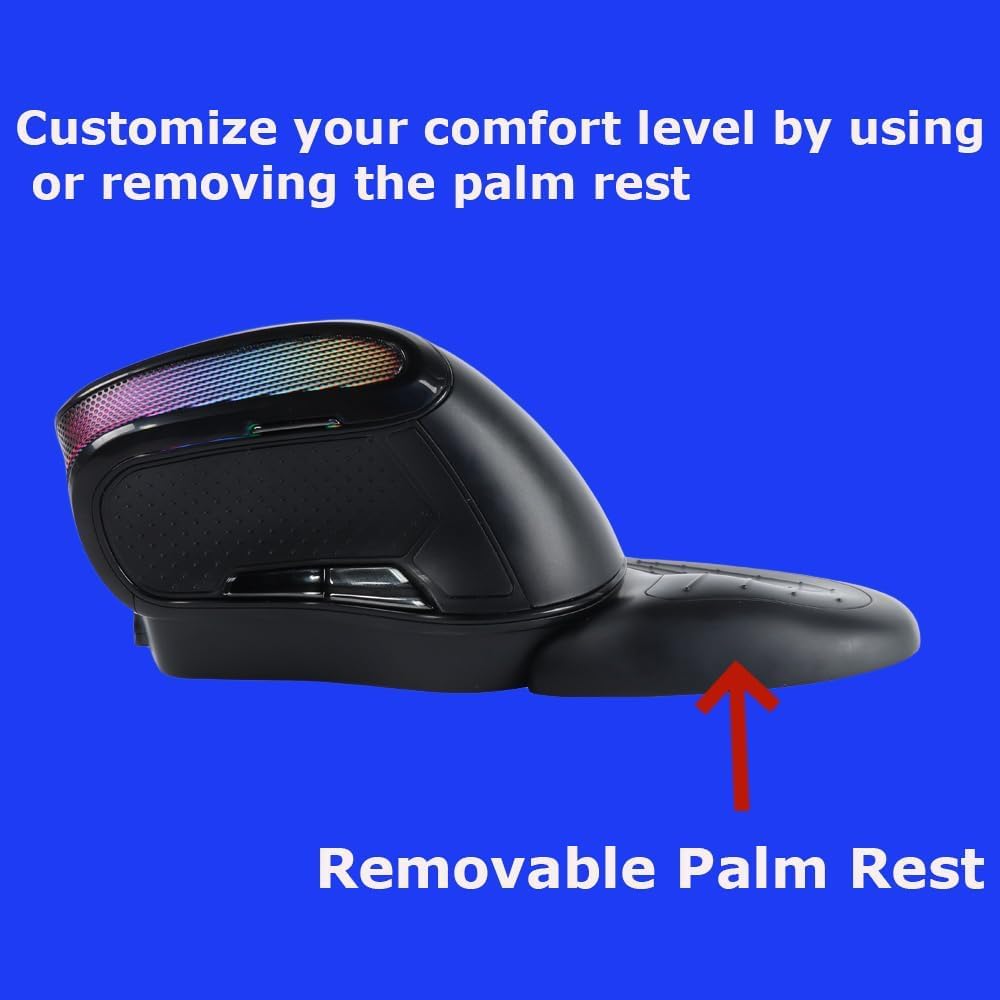
Image 3: The removable palm rest provides additional wrist support.
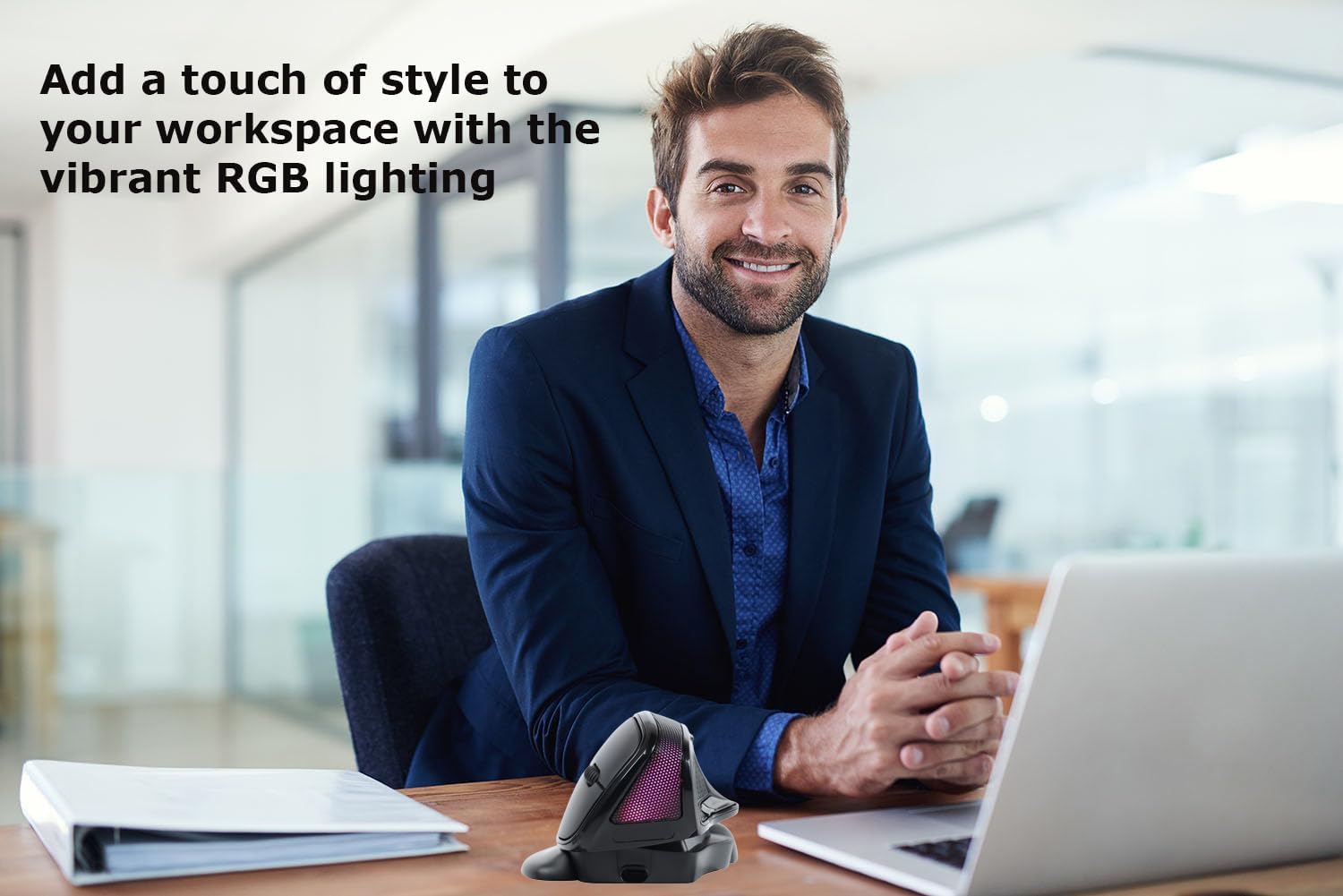
Image 4: The mouse features vibrant RGB lighting.
Organizować coś
1. Ładowanie myszy
Before first use, fully charge the mouse. Connect the provided USB-C charging cable to the charging port on the front of the mouse and the other end to a USB power source (e.g., computer USB port, USB wall adapter). The RGB lighting may indicate charging status.
2. Połączenie bezprzewodowe 2.4G
- Znajdź odbiornik USB znajdujący się w schowku na spodzie myszy.
- Podłącz odbiornik USB do dostępnego portu USB w komputerze.
- Turn on the mouse using the power switch located at the bottom.
- The mouse should automatically connect to your computer. If not, try moving the mouse closer to the receiver or restarting your computer.
3. Połączenie Bluetooth
- Włącz mysz za pomocą wyłącznika zasilania.
- Press the mode switch button (usually on the bottom or top of the mouse) to switch to Bluetooth mode. The indicator light will flash, indicating it's in pairing mode.
- Na komputerze lub urządzeniu przejdź do ustawień Bluetooth.
- Szukaj new devices and select "SHARE SUNSHINE Mouse" (or similar name) from the list.
- Postępuj zgodnie ze wskazówkami wyświetlanymi na ekranie, aby dokończyć proces parowania.
Video 1: A short guide on connecting the mouse to your device.
Instrukcja obsługi
1. Funkcje przycisków
- Lewy przycisk myszy: Standardowa funkcja kliknięcia podstawowego.
- Przycisk prawego przycisku myszy: Standardowa funkcja dodatkowego kliknięcia.
- Kółko przewijania: Przewijaj w górę/w dół i kliknij środkowym przyciskiem myszy.
- Przycisk DPI: Cycles through DPI settings (e.g., 800/1200/1600/2400/3600 DPI).
- Przycisk „Do przodu” (bok): Nawiguje do przodu w web przeglądarki lub file odkrywcy.
- Przycisk wstecz (bok): Porusza się wstecz web przeglądarki lub file odkrywcy.
2. Regulacja DPI
Press the DPI button (usually located near the scroll wheel) to cycle through available DPI settings. Each press will change the cursor speed, indicated by a brief change in the RGB lighting or a specific LED indicator. Adjust to your preferred sensitivity.
3. Regulacja kąta
The mouse features an adjustable angle mechanism. Gently rotate the top section of the mouse relative to its base to find the most comfortable angle for your hand and wrist. Ensure it clicks into place securely at your desired position.
4. Removable Palm Rest
The palm rest can be attached or detached based on your comfort preference. To attach, align the palm rest with the grooves on the mouse base and slide it into place until it locks. To remove, gently slide it off.
5. Sterowanie oświetleniem RGB
The RGB lighting typically cycles through various effects automatically. Some models may allow you to turn off the lighting or change modes by pressing a specific button combination (refer to specific product documentation if available, otherwise it's automatic).
Video 2: Demonstrating key operational features of the mouse.
Konserwacja
- Czyszczenie: Do przecierania powierzchni myszy użyj miękkiej, suchej ściereczki. W przypadku uporczywych zabrudzeń delikatnie przetrzyjampPrzetrzyj ściereczkę wodą lub delikatnym środkiem czyszczącym. Unikaj stosowania silnych środków chemicznych i materiałów ściernych.
- Składowanie: Jeśli mysz nie będzie używana przez dłuższy czas, należy przechowywać ją w chłodnym, suchym miejscu, z dala od bezpośredniego światła słonecznego i ekstremalnych temperatur.
- Pielęgnacja baterii: Aby przedłużyć żywotność baterii, unikaj częstego całkowitego rozładowywania myszy. Naładuj ją, gdy pojawi się wskaźnik niskiego poziomu naładowania baterii.
Rozwiązywanie problemów
| Problem | Rozwiązanie |
|---|---|
| Mysz nie reaguje |
|
| Cursor erratic or slow |
|
| Połączenie Bluetooth często się rozłącza |
|
| Nie działa oświetlenie RGB |
|
Specyfikacje
| Model | B0F7XJ9TPF |
| Łączność | Bezprzewodowa sieć 2.4G, Bluetooth |
| Ustawienia DPI | Regulowana, do 3600 DPI |
| Pikolak | 6 (lewo, prawo, kółko przewijania, DPI, do przodu, do tyłu) |
| Ergonomia | Vertical, Adjustable Angle, Removable Palm Rest |
| Oświetlenie | RGB |
| Źródło zasilania | Akumulator do ponownego ładowania |
| Zgodność | PC, Laptop, Computer, Macbook, Tablet (Windows, macOS, Android, iOS) |
Gwarancja i wsparcie
The SHARE SUNSHINE Wireless Ergonomic Vertical Mouse comes with a roczna gwarancja bez obaw od daty zakupu. Niniejsza gwarancja obejmuje wady produkcyjne i zapewnia niezawodną pracę urządzenia.
For technical support, warranty claims, or any questions regarding your product, please contact SHARE SUNSHINE customer service through the retailer's platform or visit the official SHARE SUNSHINE store page on Amazon.
Prosimy zachować dowód zakupu w celach gwarancyjnych.