
1. Wprowadzenie
This user manual provides essential information for the proper setup, operation, maintenance, and troubleshooting of your new acer Aspire Laptop. Please read this manual thoroughly before using your device to ensure optimal performance and longevity. Keep this manual for future reference.

Image 1.1: The acer Aspire Laptop, showcasindzięki eleganckiemu wyglądowi i wyświetlaczowi.
2. Zawartość opakowania
Verify that all items listed below are included in your product package. If any items are missing or damaged, please contact your retailer or acer support.
- acer Aspire Laptop
- Zasilacz USB typu C
- Przewód zasilający
- TWE Mouse Pad (bundled accessory)
3. Konfiguracja
3.1 Pierwsze włączenie i ładowanie
- Wypakuj laptopa i wszystkie akcesoria z pudełka.
- Connect the USB Type-C Power Adapter to the laptop's USB Type-C port (which supports Power Delivery) and then plug the power cord into an electrical outlet.
- Przed pierwszym użyciem należy ładować laptopa przez co najmniej 30 minut lub do momentu, aż wskaźnik poziomu naładowania baterii wskaże wystarczający poziom naładowania.
- Otwórz pokrywę laptopa. Laptop może włączyć się automatycznie lub konieczne może być naciśnięcie przycisku zasilania.
3.2 Początkowa konfiguracja systemu Windows 11
Follow the on-screen instructions to complete the Windows 11 Home setup process. This typically includes:
- Wybór regionu i układu klawiatury.
- Connecting to a Wi-Fi network (IEEE 802.11ax, Wi-Fi 6E supported).
- Akceptacja umowy licencyjnej.
- Tworzenie konta Microsoft lub logowanie się za jego pomocą.
- Setting up security features like Windows Hello (if applicable).
3.3 Podłączanie urządzeń peryferyjnych
Your acer Aspire Laptop offers various ports for connecting external devices:
- Porty USB 3.2 Gen 1: Do podłączania urządzeń USB, takich jak myszy, klawiatury lub zewnętrzne urządzenia pamięci masowej.
- USB Type-C Ports (USB4, Thunderbolt 4): Versatile ports for data transfer (up to 40 Gbps), video output, and power delivery.
- Port HDMI 2.1: Do podłączania zewnętrznych wyświetlaczy lub projektorów.
- 3.5 mm Headphone/Microphone Combo Jack: Do wejścia/wyjścia audio.
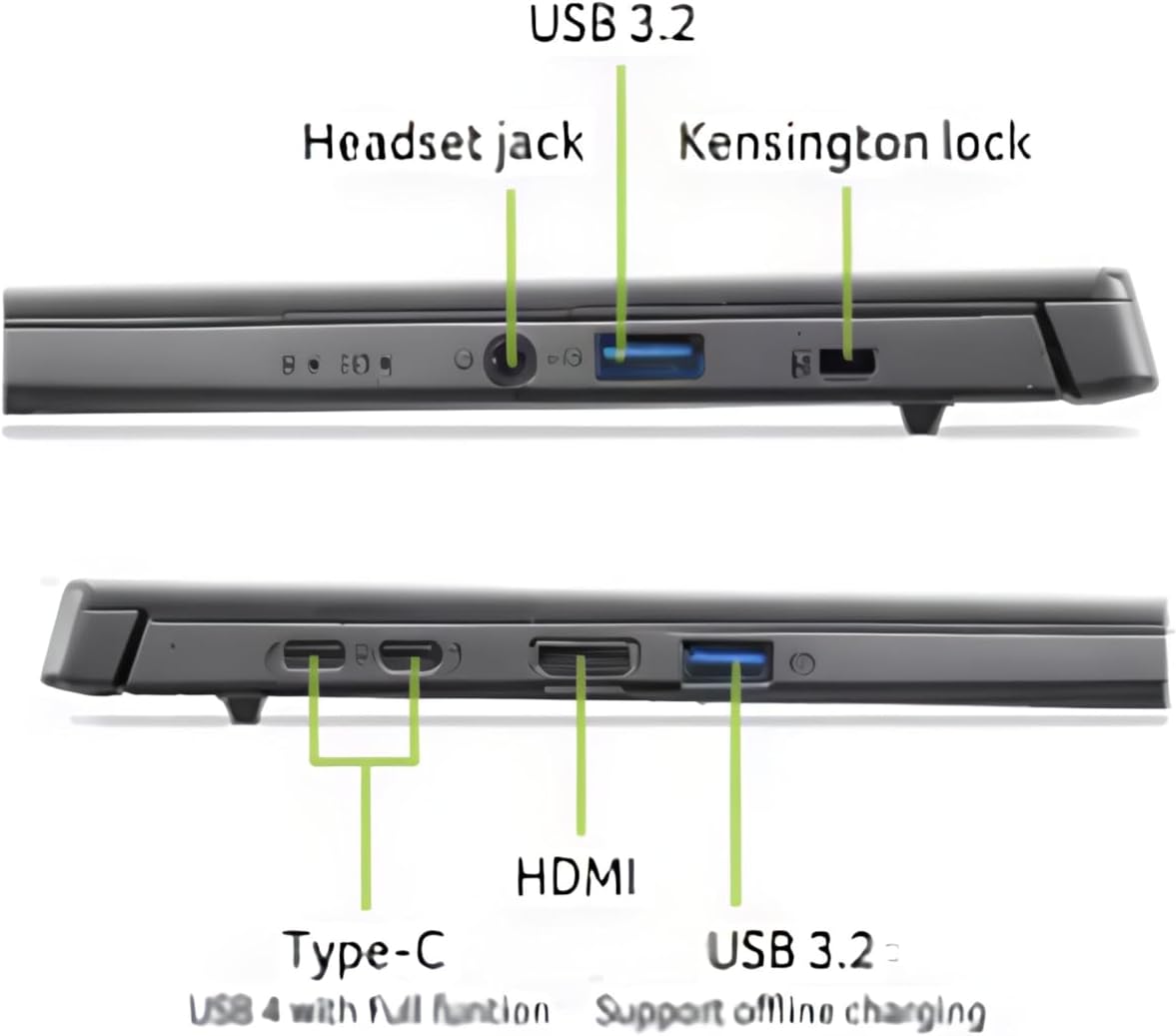
Obraz 3.1: Koniecview portów łączności laptopa.
4. Korzystanie z laptopa
4.1 Wyświetlacz i ekran dotykowy
The laptop features a 14-inch WUXGA (1920 x 1200) IPS LED Backlit TFT LCD Touchscreen display. This display supports touch input for intuitive interaction with Windows 11. Use gestures similar to a smartphone or tablet for navigation.
4.2 Klawiatura i touchpad
The integrated keyboard is backlit, allowing for comfortable typing in various lighting conditions. The touchpad supports multi-touch gestures for navigation and control. Refer to Windows settings for customizing touchpad gestures.

Obraz 4.1: Góra view klawiatury i touchpada.
4.3 Zarządzanie energią
Your laptop is equipped with a battery providing approximately 8 hours of usage. To optimize battery life, adjust power settings in Windows 11. Always use the provided USB Type-C Power Adapter for charging.
4.4 AI Copilot+PC Features
This laptop is an AI Copilot+PC, integrating advanced AI capabilities through its Intel Core Ultra 5 processor with CPU, GPU, and NPU. Key AI features include:
- Drugi pilot: An AI-powered assistant in Windows 11 for productivity, creativity, and information retrieval.
- AcerSense: Acer's experience zone for managing system performance and features.
- AcerLiveArt & Acer AlterView: Tools for creative applications.
- Acer Assist: Your smart AI assistant for system optimization and support.
- Oczyszczony AcerView™ 2.0 & Acer PurifiedVoice™: Enhanced video call and audio quality.

Image 4.2: The Copilot+PC branding on the laptop screen, indicating advanced AI capabilities.

Image 4.3: Users interacting with the laptop, demonstrating features like Acer PurifiedView and PurifiedVoice for enhanced communication.
5. Konserwacja
5.1 Czyszczenie laptopa
- Użyj miękkiej, niestrzępiącej się ściereczki, lekko wyczyśćampDo czyszczenia wyświetlacza należy używać wody lub środka do czyszczenia ekranów. Nie rozpylać płynu bezpośrednio na ekran.
- For the keyboard and chassis, use a soft, dry cloth. A can of compressed air can help remove dust from between keys.
- Przed czyszczeniem upewnij się, że laptop jest wyłączony i odłączony od zasilania.
5.2 Aktualizacje oprogramowania
Regularly check for and install Windows updates to ensure your system has the latest security patches and performance improvements. Acer may also provide driver and firmware updates through AcerSense or their official support webstrona.
5.3 Przechowywanie i obsługa
- Unikaj wystawiania laptopa na działanie ekstremalnych temperatur, bezpośredniego światła słonecznego i wysokiej wilgotności.
- Nie kładź ciężkich przedmiotów na laptopie.
- Transport the laptop in a protective sleeve or bag to prevent scratches and impacts.

Image 5.1: The laptop's 180-degree hinge design and durable aluminum chassis.
6. Rozwiązywanie Problemów
This section addresses common issues you might encounter with your acer Aspire Laptop.
6.1 Problemy z zasilaniem
- Laptop się nie włącza: Ensure the power adapter is securely connected to both the laptop and a working electrical outlet. Check if the battery is charged. Try holding the power button for 10-15 seconds to perform a hard reset.
- Bateria nie ładuje się: Verify the power adapter and cable are not damaged. Try a different outlet. Ensure the USB Type-C port used for charging is functional.
6.2 Problemy z wyświetlaniem
- Brak obrazu na ekranie: Connect an external monitor via the HDMI port to check if the issue is with the laptop's internal display. If the external monitor works, the internal display may require service.
- Migotanie lub zniekształcony obraz: Zaktualizuj sterowniki karty graficznej. Dostosuj rozdzielczość ekranu i częstotliwość odświeżania w ustawieniach systemu Windows.
6.3 Problemy z łącznością
- Brak połączenia Wi-Fi: Upewnij się, że Wi-Fi jest włączone w ustawieniach systemu Windows. Uruchom ponownie router i laptopa. Sprawdź dostępność zaktualizowanych sterowników sieci bezprzewodowej.
- Urządzenie Bluetooth nie łączy się: Upewnij się, że Bluetooth jest włączony zarówno na laptopie, jak i na urządzeniu. Umieść urządzenia blisko siebie. Usuń i ponownie dodaj urządzenie w ustawieniach Bluetooth.
6.4 Problemy z wydajnością
- Laptop jest wolny: Close unnecessary applications. Check Task Manager for processes consuming high CPU or RAM. Ensure sufficient free space on the 512GB PCIe Gen 4 SSD. Run a malware scan.
7. Specyfikacje
| Funkcja | Specyfikacja |
|---|---|
| Marka | klon |
| Nazwa modelu | Laptop Acer Aspire |
| Rozmiar ekranu | 14 cali |
| Rozdzielczość wyświetlacza | 1920 x 1200 (WUXGA) |
| Typ wyświetlacza | IPS LED Backlit TFT LCD, Touchscreen |
| Edytor | 2nd Gen Intel Ultra 5-226V (8 Cores, 2.1GHz ~ 4.5 GHz) |
| Grafika | Intel ARC 130V Integrated Graphics |
| BARAN | 16 GB pamięci RAM LPDDR5X |
| Składowanie | Dysk SSD PCIe Gen 4 o pojemności 512 GB |
| System operacyjny | Windows 11 Home |
| Łączność bezprzewodowa | IEEE 802.11ax (Wi-Fi 6E), Bluetooth 5.3 |
| Porty | 1x HDMI 2.1, 2x USB 3.2 Gen 1, 2x USB Type-C (USB4, Thunderbolt 4, Power Delivery), 1x 3.5mm Headphone/Mic Combo Jack |
| Webkrzywka | 1080p FHD |
| Klawiatura | Podświetlany |
| Żywotność baterii | Do 8 godzin |
| Wymiary (dł. x szer. x wys.) | 12.56" x 8.86" x 0.46"-0.67" |
| Waga | 3.04 funta (1.38 kg) |
8. Informacje o gwarancji
Your acer Aspire Laptop comes with a Ograniczona gwarancja. The specific terms and duration of the warranty may vary by region and retailer. Please refer to the warranty card included in your product packaging or visit the official acer support website for detailed warranty information, including coverage, limitations, and how to make a claim.
Zachowaj dowód zakupu (paragon lub fakturę), ponieważ będzie on wymagany w przypadku ewentualnych napraw gwarancyjnych.
9. Wsparcie
For further assistance, technical support, or to download updated drivers and manuals, please visit the official acer support webstrona:
You may also contact acer customer service directly through the contact information provided on their webwitryna dla Twojego regionu.