
1. Wprowadzenie
This manual provides detailed instructions for the setup, operation, and maintenance of your Transformers GK01 Wireless Mechanical Keyboard. The GK01 is a versatile keyboard featuring tri-mode connectivity (Bluetooth 5.0, 2.4GHz wireless, and USB-C wired), a 101-key layout, RGB backlighting, and hot-swappable switches for a customizable typing experience.

Figure 1.1: Transformers GK01 Wireless Mechanical Keyboard.
2. Zawartość opakowania
Sprawdź, czy w przesyłce znajdują się wszystkie elementy wymienione poniżej:
- Transformers GK01 Wireless Mechanical Keyboard
- Kabel USB-C do USB-A
- Bezprzewodowy klucz sprzętowy USB 2.4 GHz
- Ściągacz klawiszy i przełączników 2 w 1
- Instrukcja obsługi (ten dokument)
- Zapasowe przełączniki (2 sztuki)
- Osłona klawiatury
3. Konfiguracja i połączenie
3.1. Połączenie trójmodoweview
The GK01 keyboard supports three connection modes: USB-C wired, 2.4GHz wireless, and Bluetooth 5.0. You can connect to up to five devices simultaneously and switch between them seamlessly.

Figure 3.1: Tri-Mode Connection Capabilities.
3.2. Połączenie przewodowe USB-C
- Znajdź port USB-C na klawiaturze.
- Podłącz jeden koniec dołączonego kabla USB-C do klawiatury.
- Connect the other end of the USB-C cable to an available USB-A port on your computer.
- Klawiatura zostanie automatycznie rozpoznana i będzie gotowa do użycia.
3.3. Połączenie bezprzewodowe 2.4 GHz
- Locate the 2.4GHz wireless USB dongle.
- Plug the dongle into an available USB-A port on your computer.
- On the keyboard, ensure the mode switch (usually on the side or back) is set to 2.4GHz mode.
- Klawiatura powinna połączyć się automatycznie. Jeśli nie, naciśnij Fn + R aby rozpocząć parowanie.

Figure 3.2: USB-C Port and 2.4GHz Dongle Location.
3.4. Połączenie Bluetooth 5.0
The keyboard supports connecting to up to three Bluetooth devices (BT1, BT2, BT3).
- On the keyboard, set the mode switch to Bluetooth mode.
- Aby przejść do trybu parowania dla określonego kanału Bluetooth, naciśnij i przytrzymaj Fn + Q (dla BT1), Fn + W (dla BT2) lub Fn + E (for BT3) for 3-5 seconds until the indicator light flashes rapidly.
- On your device (PC, tablet, smartphone), open Bluetooth settings and search for new devices.
- Select "Transformers GK01" from the list of available devices.
- Po nawiązaniu połączenia kontrolka na klawiaturze przestanie migać.
- Aby przełączać się między sparowanymi urządzeniami Bluetooth, wystarczy nacisnąć Fn + Q, Fn + W, Lub Fn + E.
4. Podstawowa obsługa
4.1. Keyboard Layout and Anti-Ghosting
The GK01 features a 101-key layout, providing a full set of keys including a numeric keypad. All keys are equipped with anti-ghosting technology, ensuring that every keystroke is registered accurately, even when multiple keys are pressed simultaneously.
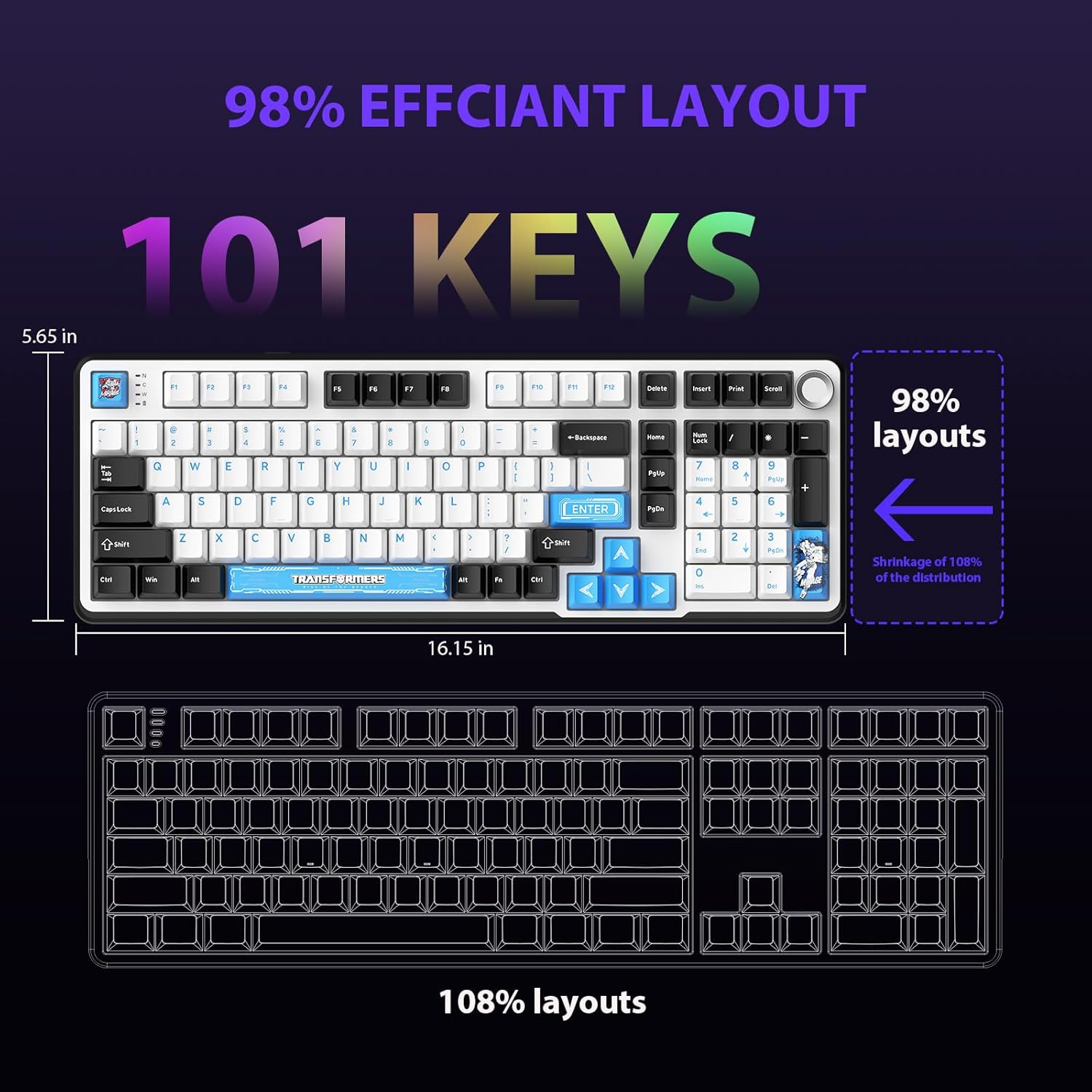
Figure 4.1: 101-Key Layout.
4.2. Pokrętło sterowania multimediami
The dedicated knob located on the top right of the keyboard provides convenient multimedia control:
- Obróć zgodnie z ruchem wskazówek zegara: Zwiększ głośność.
- Obrót w kierunku przeciwnym do ruchu wskazówek zegara: Zmniejsz głośność.
- Naciśnij w dół: Wycisz/Włącz dźwięk.
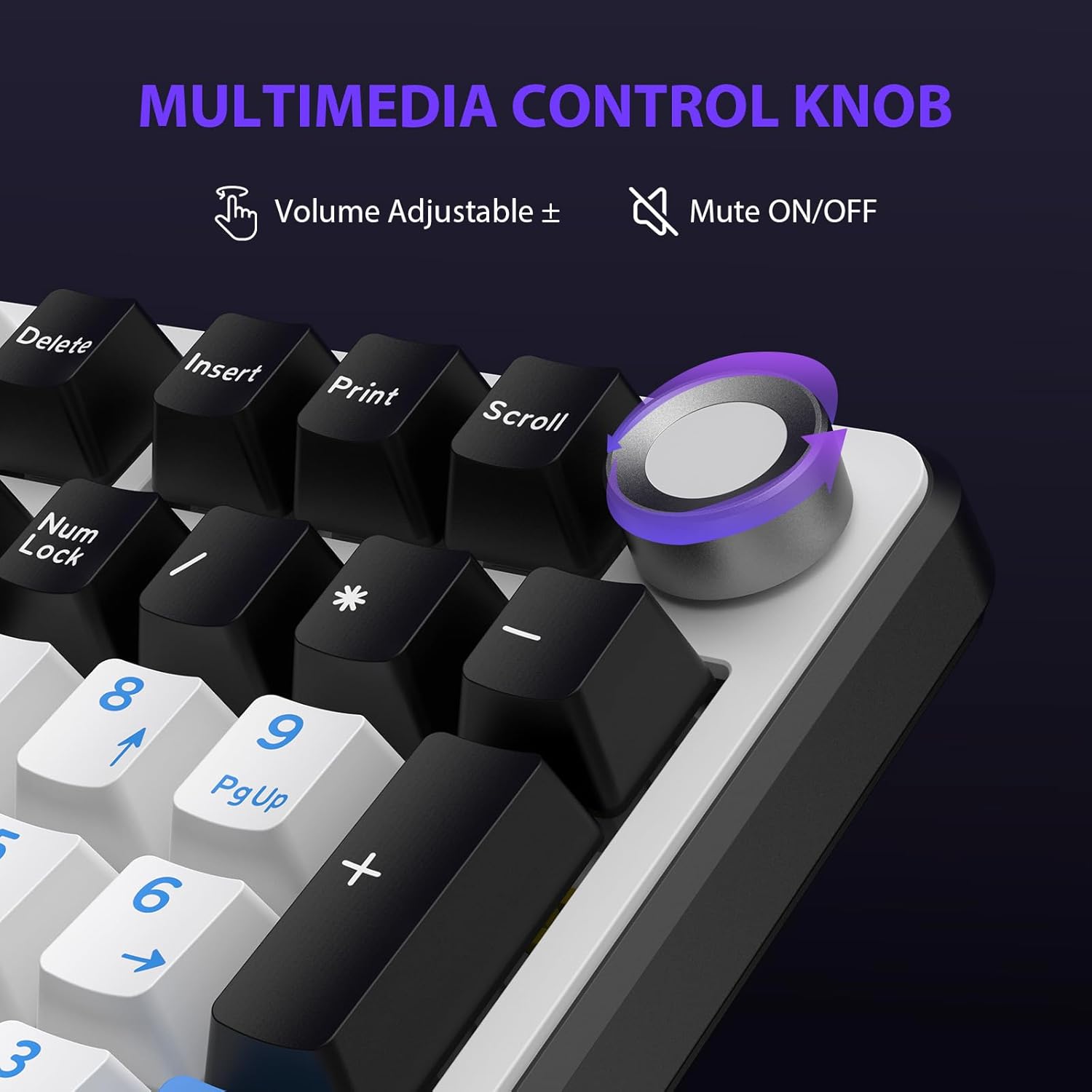
Figure 4.2: Multimedia Control Knob.
4.3. Sterowanie podświetleniem RGB
The GK01 keyboard features 16.8 million color RGB backlighting with various effects.
- Klawisz + [Right Arrow]: Adjust 5 brightness levels.
- Klawisz + [Left Arrow]: Adjust 5 speed levels for dynamic effects.
- Klawisz + [Wstawić]: Switch between 20 different backlight modes.
- Klawisz + [Wchodzić]: Switch color order within certain modes.
- Klawisz + [X]: Turn off light / activate power-saving mode.
- Klawisz + [Cofnij]: Switch color order within certain modes.

Figure 4.3: RGB Backlight Controls.
5. Zaawansowane funkcje
5.1. Przełączniki z możliwością wymiany na gorąco
The GK01 keyboard is equipped with pre-lubricated Cybertron linear switches and supports solder-free hot-swapping. This allows you to easily replace switches with compatible 3-pin or 5-pin mechanical switches without soldering.
Aby wymienić przełącznik:
- Using the provided 2-in-1 keycap and switch puller, gently remove the keycap from the desired switch.
- Insert the switch puller onto the switch, ensuring it grips the top and bottom clips of the switch.
- Delikatnie pociągnij przełącznik prosto do góry, aby wyjąć go z płytki PCB.
- Dopasuj piny nowego przełącznika do otworów w płytce PCB. Upewnij się, że piny są proste, aby uniknąć ich wygięcia.
- Wciśnij nowy przełącznik mocno, aż usłyszysz kliknięcie.
- Załóż ponownie nakładkę klawisza.

Figure 5.1: Hot-Swappable Switch Replacement.
5.2. Oprogramowanie programowalne
The GK01 supports custom software for advanced customization, including key remapping, macro creation, and detailed RGB lighting effects.
- Oprogramowanie jest kompatybilne wyłącznie z systemem operacyjnym Windows.
- The keyboard must be connected via USB-C wired mode to use the software.
- For driver download, please visit the official Transformers Keyboard website or refer to the link provided in the product packaging.
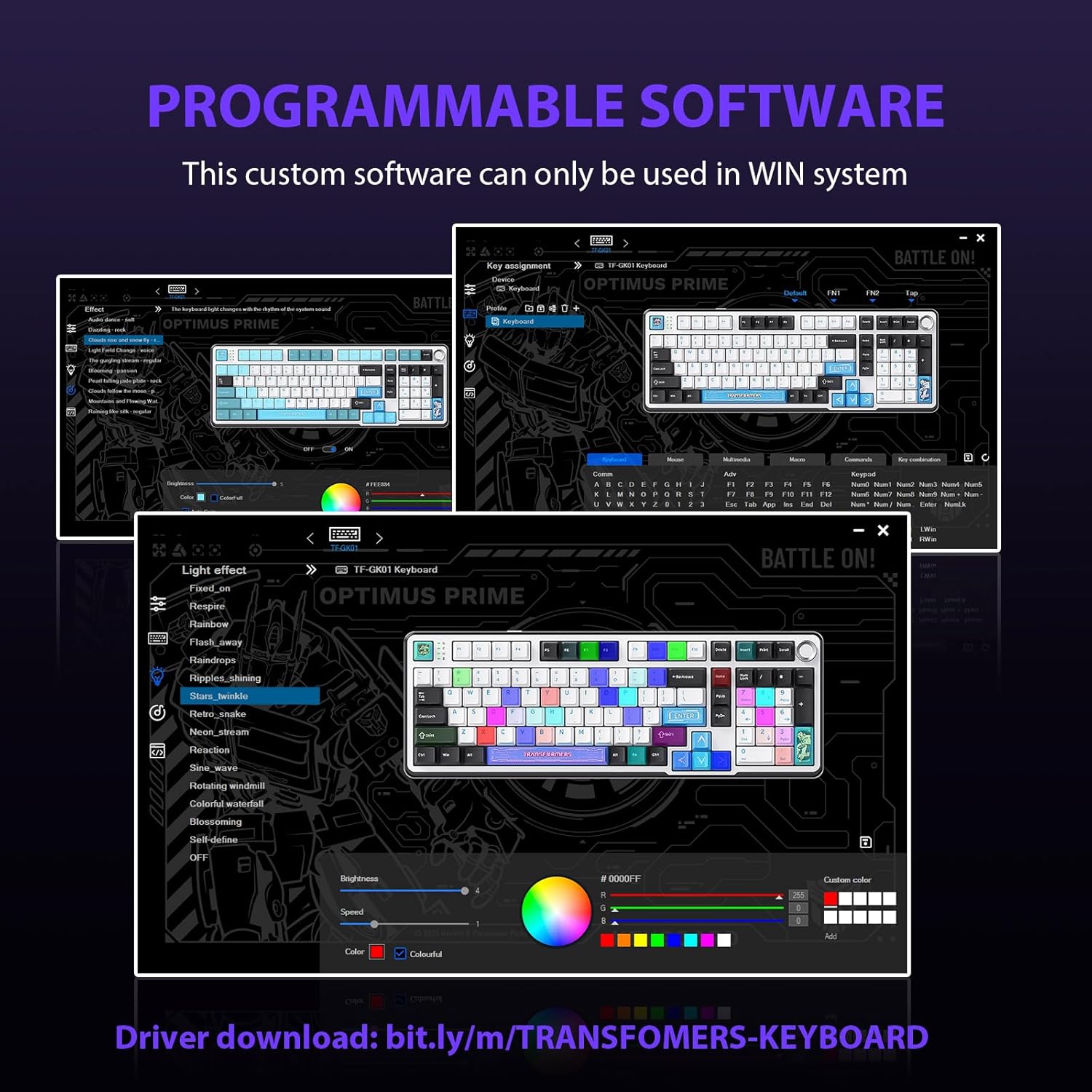
Figure 5.2: Programmable Software Interface.
5.3. Gasket Mounted Structure
The keyboard features a five-layer sound-absorbing and shock-absorbing gasket mounted structure. This design effectively reduces hollow noise and provides a softer, more consistent typing feel by isolating the plate from the case.
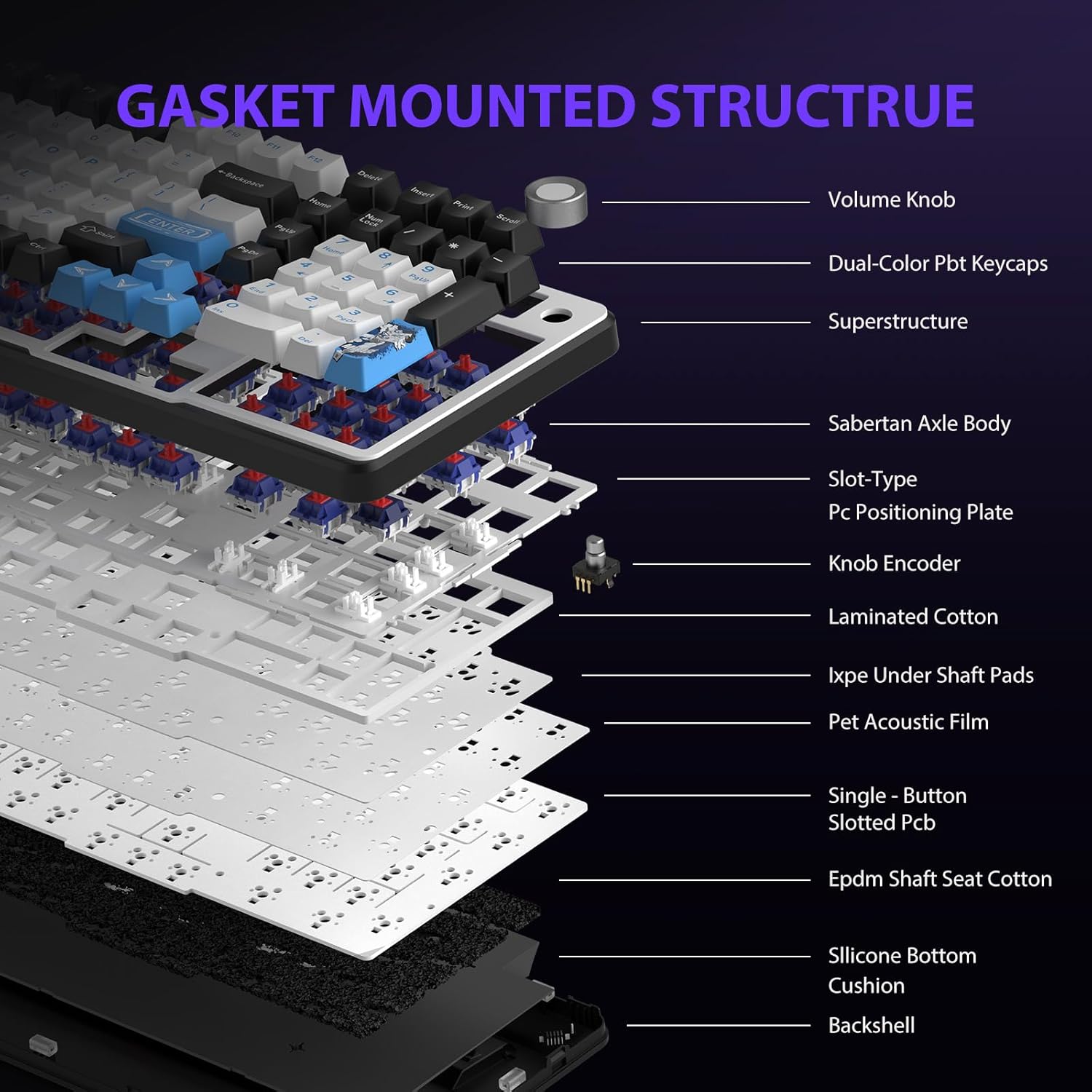
Figure 5.3: Gasket Mounted Structure Components.
6. Zarządzanie baterią
The GK01 keyboard is equipped with a 4000mAh rechargeable battery.
- Ładowanie: Connect the keyboard to a USB power source using the provided USB-C cable. The indicator light will show charging status.
- Czas pracy baterii: A fully charged battery provides extended usage time. Actual battery life may vary based on usage patterns and RGB lighting intensity.
- Oszczędzanie energii: The keyboard will enter a power-saving sleep mode after a period of inactivity to conserve battery. Press any key to wake it up.
7. Konserwacja
7.1. Czyszczenie klawiatury
- Przed czyszczeniem odłącz klawiaturę od wszystkich źródeł zasilania.
- Użyj miękkiej, niestrzępiącej się ściereczki, lekko wyczyśćampPrzetrzyj klawisze i obudowę wodą lub łagodnym środkiem czyszczącym.
- Do usuwania kurzu i zanieczyszczeń spomiędzy klawiszy należy użyć sprężonego powietrza lub małej szczotki.
- Unikaj stosowania silnych środków chemicznych i materiałów ściernych.
7.2. Keycap and Switch Care
- The PBT keycaps are designed for durability and fade resistance.
- Refer to Section 5.1 for instructions on safely removing and replacing keycaps and switches.
- Ensure the keyboard feet are clean and free of debris for stable placement.

Figure 7.1: Adjustable Keyboard Feet.
8. Rozwiązywanie Problemów
| Problem | Możliwa przyczyna | Rozwiązanie |
|---|---|---|
| Klawiatura nie reaguje w trybie bezprzewodowym. | Low battery, incorrect mode selected, dongle not connected, Bluetooth not paired. | Charge the keyboard. Ensure the mode switch is set correctly (2.4GHz or BT). Re-insert the 2.4GHz dongle. Re-pair Bluetooth connection. Try wired mode to confirm keyboard functionality. |
| Klawisze nie reagują na polecenia lub są wpisywane podwójnie. | Loose switch, software issue, debris under keycap. | Ensure switches are fully seated. Clean under keycaps. If using programmable software, ensure it's updated or try resetting keyboard settings. |
| Podświetlenie RGB nie działa lub jest zablokowane. | Backlight turned off, software conflict. | Naciskać Fn + X to toggle backlight. Check programmable software settings. |
| Nie można nawiązać połączenia przez Bluetooth. | Klawiatura nie jest w trybie parowania, Bluetooth w urządzeniu jest wyłączony, występują zakłócenia. | Ensure keyboard is in Bluetooth pairing mode (Fn + Q/W/E long press). Ensure device Bluetooth is on and discoverable. Move closer to the device. |
9. Specyfikacje
| Funkcja | Szczegół |
|---|---|
| Numer modelu | TF-GK01 |
| Łączność | Bluetooth 5.0, bezprzewodowy 2.4 GHz, przewodowy USB-C |
| Typ klawiatury | Mechaniczny |
| Układ | 101 klawisze (pełnowymiarowe) |
| Przełączniki | Pre-lubed Cybertron Linear Switches, Hot-Swappable (3-pin/5-pin compatible) |
| Klawisze | Heat-sublimated PBT |
| Podświetlenie | RGB (16.8 Million Colors, 20 modes, music rhythm effects via driver) |
| Pojemność baterii | 4000mAh |
| Wymiary produktu | 16.15 x 5.65 x 1.63 cala (41.02 x 14.35 x 4.14 cm) |
| Waga przedmiotu | 2.24 funtów (1.02 kg) |
| Kompatybilne urządzenia | Laptop, PC, smartfon, tablet |
| Cechy specjalne | Anti-Ghosting (all keys), Multimedia Control Knob, Programmable Keys (via software), Rechargeable |
10. Gwarancja i wsparcie
For information regarding warranty coverage, technical support, or service inquiries, please refer to the warranty card included with your product or visit the official Transformers Keyboard webstrona.
Producent: Transformatory