
1. Koniec produktuview
The Attoe AK680 is a wired mechanical gaming keyboard designed for performance and customization. It features a compact 60% layout, RGB backlighting, hot-swappable switches, and durable double-shot PBT keycaps. This manual provides essential information for setting up, operating, and maintaining your keyboard.

Figure 1: Attoe AK680 Mechanical Gaming Keyboard.
2. Zawartość opakowania
Sprawdź, czy w opakowaniu znajdują się wszystkie elementy:
- Attoe AK680 Mechanical Gaming Keyboard
- Kabel USB-C
- Ściągacz nasadek klawiszy
- Switch Puller (often integrated with keycap puller or separate)
- Instrukcja obsługi (ten dokument)
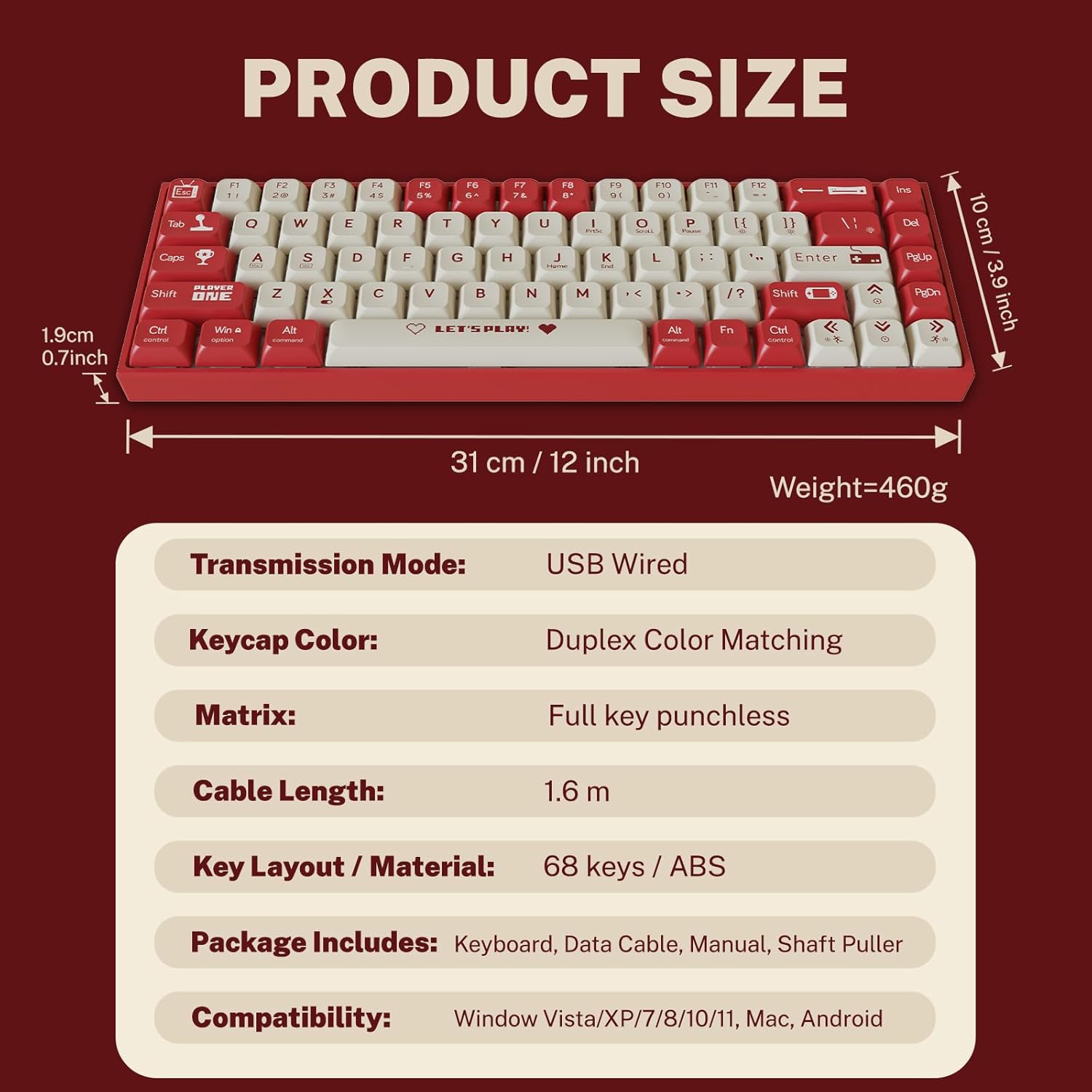
Rysunek 2: Zawartość opakowania i wymiary produktu.
3. Instrukcje konfiguracji
3.1 Podłączanie klawiatury
- Znajdź port USB-C z tyłu lub z boku klawiatury.
- Podłącz jeden koniec dołączonego kabla USB-C do portu USB-C klawiatury.
- Connect the other end of the USB-A connector to an available USB port on your computer.
- Klawiatura zostanie automatycznie rozpoznana przez system operacyjny. Do podstawowej funkcjonalności zazwyczaj nie są wymagane żadne dodatkowe sterowniki.
3.2 Zgodność systemu
The Attoe AK680 keyboard is compatible with the following operating systems:
- Windows Vista / XP / 7 / 8 / 10 / 11
- macOS
- Android

Figure 3: Multi-system compatibility of the keyboard.
4. Instrukcja obsługi
4.1 Podstawowe funkcje klawiatury
The AK680 features a 68-key layout, providing essential keys while maintaining a compact form factor. All keys support anti-ghosting, ensuring accurate input even during rapid key presses.

Figure 4: The 68-key layout for efficient use.
4.2 Podświetlenie RGB
The keyboard features 16.8 million color RGB backlighting with various effects. Specific key combinations (often involving the Fn key) are used to cycle through lighting modes, adjust brightness, and change colors. Refer to the quick start guide or product page for detailed key combinations for lighting control.

Figure 5: RGB Backlighting in operation.
4.3 Przełączniki z możliwością wymiany na gorąco
The AK680 supports hot-swappable 3-pin and 5-pin mechanical switches. This allows you to easily change switches without soldering, customizing the typing feel to your preference. Use the included switch puller for safe removal and installation.
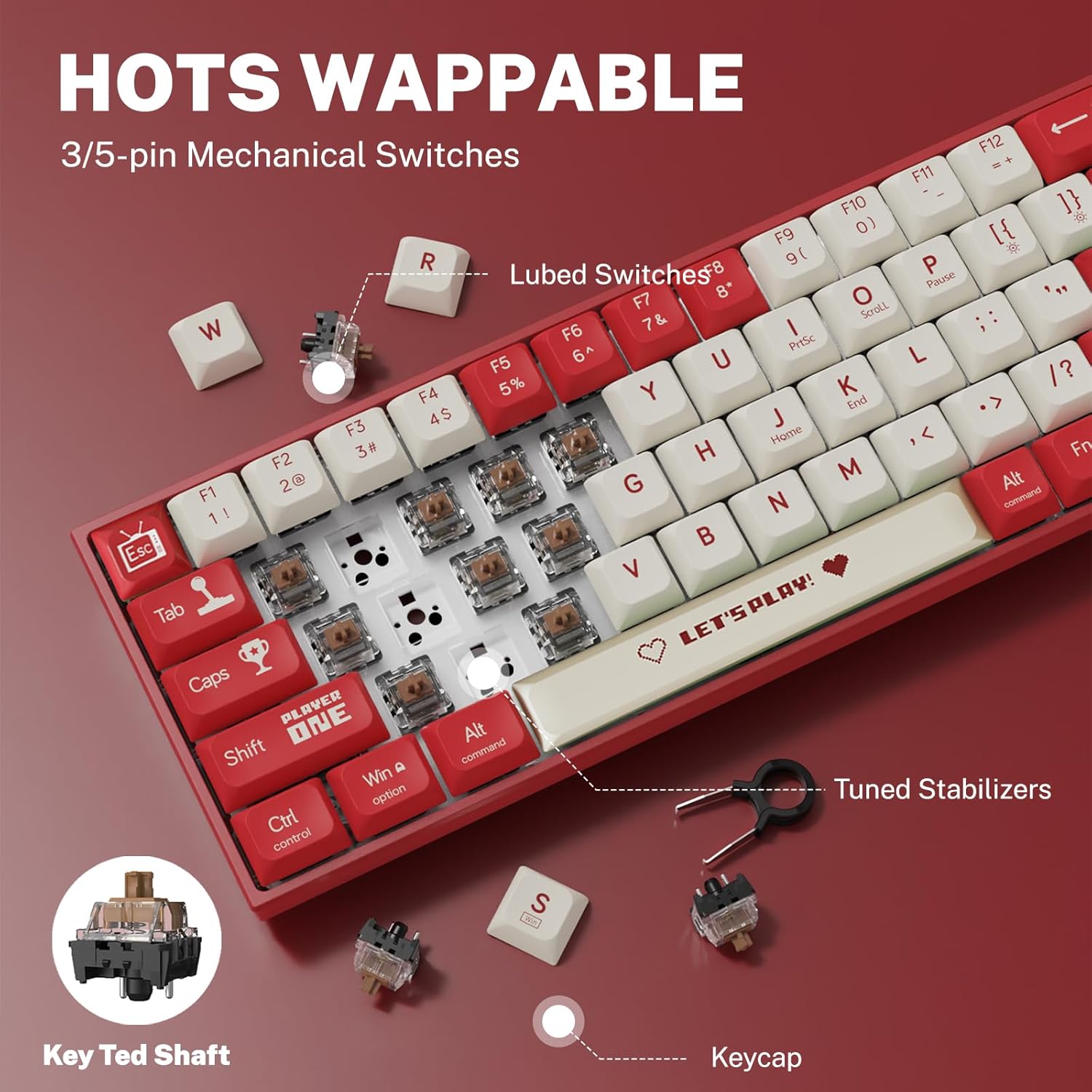
Rysunek 6: Mechanizm przełącznika z możliwością wymiany na gorąco.
5. Konserwacja
5.1 Czyszczenie klawiatury
- Ogólne sprzątanie: Do czyszczenia powierzchni klawiatury użyj miękkiej, suchej ściereczki. W przypadku uporczywych zabrudzeń delikatnie przetrzyjamppl szmatkę wodą lub łagodnym, nieściernym środkiem czyszczącym.
- Between Keycaps: Usuń kurz i zanieczyszczenia spomiędzy klawiszy za pomocą sprężonego powietrza.
- Czyszczenie nakładek klawiszy: For thorough cleaning, remove keycaps using the provided keycap puller. Wash keycaps with mild soap and water, rinse thoroughly, and ensure they are completely dry before reattaching.
5.2 Wymiana nakładek klawiszy i przełączników
The AK680's hot-swappable design allows for easy replacement of keycaps and switches.
- Zdejmowanie nakładek klawiszy: Use the keycap puller to gently grip and lift keycaps straight up.
- Demontaż przełączników: After removing the keycap, use the switch puller to carefully grip the top and bottom clips of the switch and pull it straight out.
- Instalowanie przełączników: Dopasuj piny nowego przełącznika do otworów w płytce drukowanej. Dociśnij mocno, aż przełącznik zatrzaśnie się na miejscu. Upewnij się, że piny nie są wygięte.
- Montaż nakładek na klawisze: Align the keycap with the switch stem and press down gently until it is seated securely.

Figure 7: Components of a mechanical switch and tools for maintenance.
6. Rozwiązywanie Problemów
- Klawiatura nie odpowiada:
- Sprawdź, czy kabel USB-C jest prawidłowo podłączony do klawiatury i komputera.
- Spróbuj podłączyć klawiaturę do innego portu USB w komputerze.
- Przetestuj klawiaturę na innym komputerze, aby wykluczyć problemy specyficzne dla systemu.
- Klucze nie są rejestrowane:
- Remove the keycap and switch for the affected key. Reinstall the switch, ensuring it is properly seated and its pins are not bent.
- Usuń wszelkie zanieczyszczenia, które mogą blokować mechanizm przełącznika.
- Podświetlenie RGB nie działa:
- Check if the backlighting is turned off or set to minimum brightness using the keyboard's function keys.
- Upewnij się, że klawiatura otrzymuje wystarczającą moc z portu USB.
7. Specyfikacje
| Funkcja | Szczegół |
|---|---|
| Numer modelu | AK680 |
| Marka | Attoe |
| Typ połączenia | Przewodowy (USB-C) |
| Liczba kluczy | 68 kluczy |
| Kluczowa technologia | Mechanical Shaft (Red/Teal Shaft), Hot-Swappable (3-pin/5-pin) |
| Materiał nasadek klawiszy | Podwójny PBT |
| Podświetlenie | RGB (16.8 milionów kolorów) |
| Anty-ghosting | Full Keys Anti-Ghosting |
| Długość kabla | 1.6 metrów |
| Wymiary produktu | 12 x 3.9 x 0.7 cala (31 x 10 x 1.9 cm) |
| Waga przedmiotu | 1.01 funta (460 g) |
| Zgodność | Windows Vista/XP/7/8/10/11, macOS, Android |
| Funkcja wodoodporności | IPX4 rated protection (splash resistant) |
8. Gwarancja i wsparcie
Attoe provides a 12-miesięczna gwarancja for the AK680 Mechanical Gaming Keyboard from the date of purchase.
If you encounter any problems or have questions regarding your product, please contact Attoe customer service. We are committed to providing the best service and will respond within 24 hours to assist you.
For support, please refer to the contact information provided with your purchase or visit the official Attoe webstrona.