
1. Wprowadzenie
This manual provides detailed instructions for the installation, operation, and maintenance of your LINHAMCOLN Android Car Stereo Multimedia Player. Designed for Toyota RAV4 XA50 models from 2018 to 2023, this system offers advanced features including wireless CarPlay and Android Auto, GPS navigation, Bluetooth 5.0, and a high-resolution touch screen. Please read this manual thoroughly before installation and use to ensure optimal performance and safety.
2. Co znajduje się w pudełku
Your LINHAMCOLN Android Car Stereo Multimedia Player package includes the following components:
- Android Head Unit (10-inch touch screen)
- Dash Kit / OEM Panel
- Power Wire Cable (Plug & Play)
- Kabel RCA
- Tył View Camera Cable (10-pin reversing video input interface)
- Kable USB (6-pinowe i 4-pinowe)
- Antena GPS
- Antena 4G
- Adapter anteny radiowej
- Wiązka przewodów Canbus
- Mikrofon
- AUX Harness
- OEM USB Adapter
- SIM Card Slot Adapter
- Narzędzie do przycinania
- Zipties
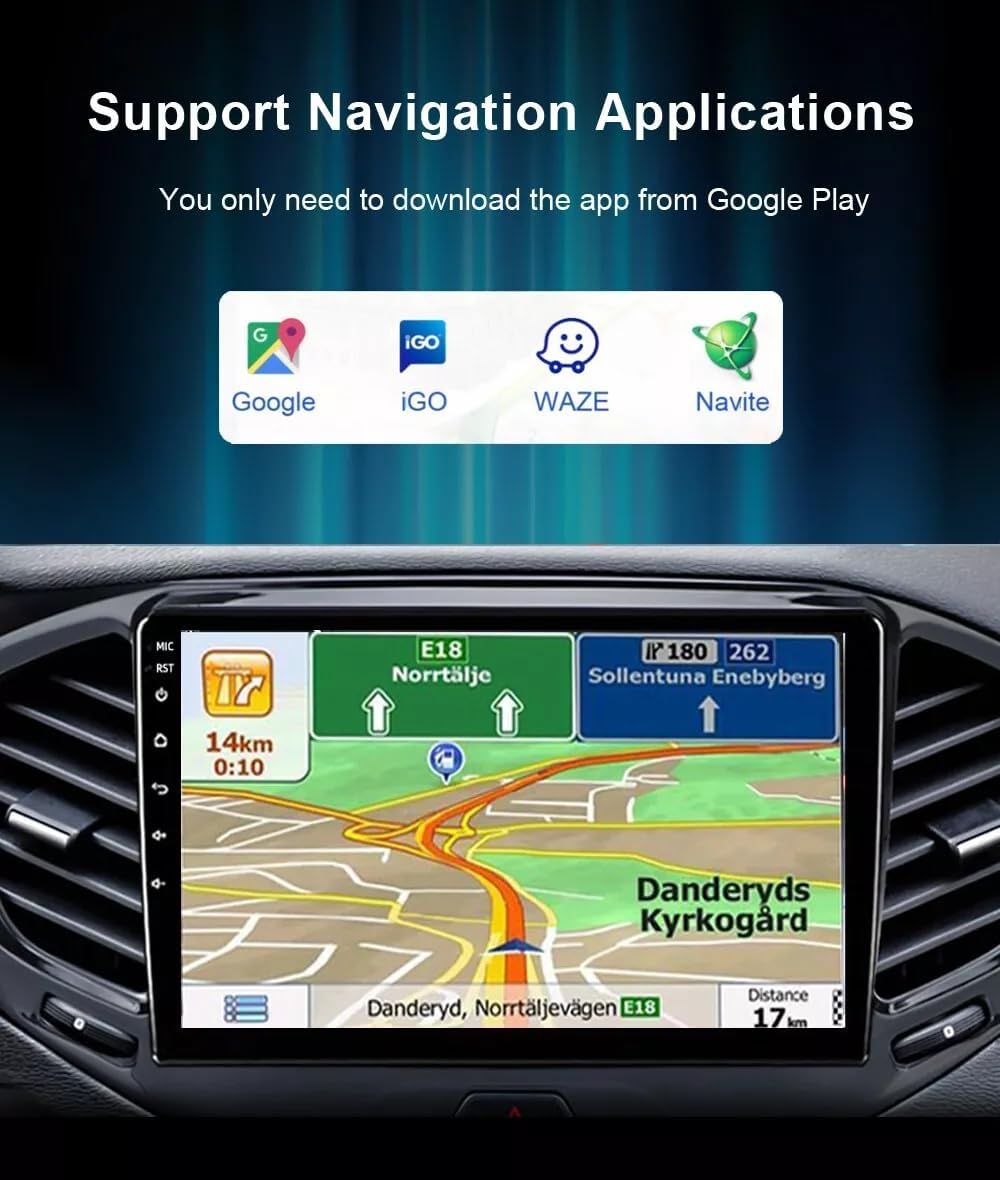
Image: All included cables and accessories for the LINHAMCOLN Android Car Stereo.
3. Specyfikacje
- System operacyjny: Android
- Rozmiar wyświetlacza: 10 cali
- Rezolucja: 1024*600 (supports 1080P video playback)
- Edytor: Czterordzeniowy
- BARAN: 2 GB
- ROM: 32 GB
- Łączność: Wi-Fi, Bluetooth 5.0
- Cechy szczególne: Built-In Bluetooth (hands-free calls, music), GPS Navigation, Wireless/Wired CarPlay & Android Auto, FM Radio (RDS tuner), Steering Wheel Control, RCA input/output, Double Rear USB Port Input, Rear View Wejście kamery.
- Typ montażu: Montaż na desce rozdzielczej
- Tryb wyjścia audio: Stereofoniczny
- Waga przedmiotu: 2.64 funta
- Wymiary opakowania: 12.5 x 8.6 x 5 cala
4. Konfiguracja i instalacja
Follow these steps for proper installation of your Android Car Stereo. It is recommended to consult a professional if you are unsure about any part of the installation process.
4.1. Kontrola przed instalacją
- Verify compatibility: Ensure your Toyota RAV4 is a XA50 model (2018-2023).
- Inspect the original head unit: If the back of your original head unit has a specific configuration (as shown in the image below), installation may not be supported.
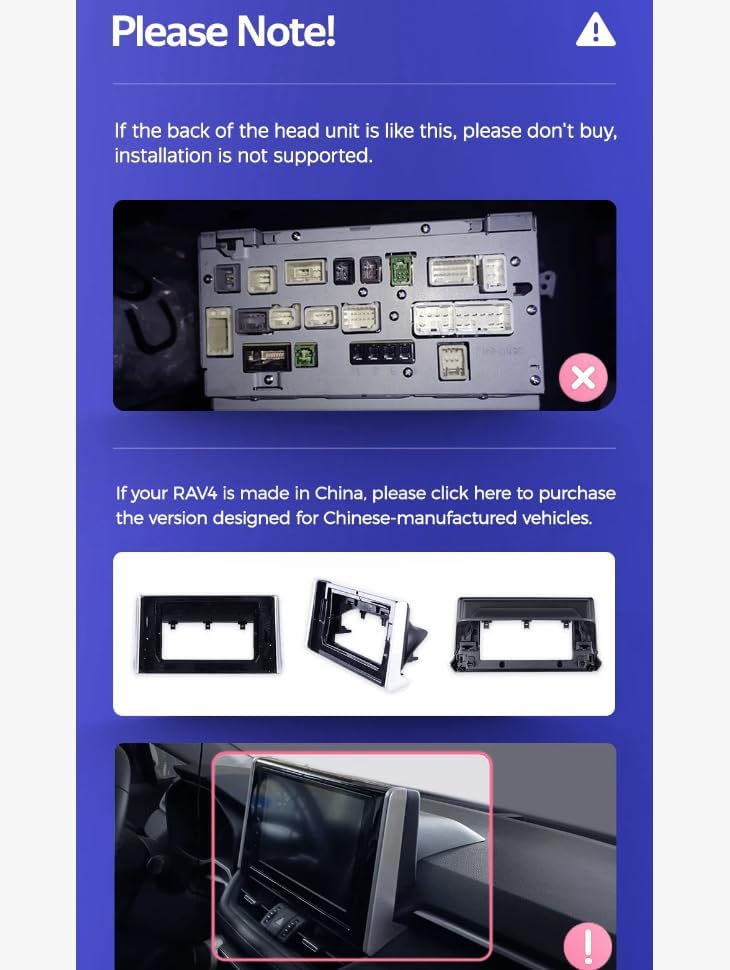
Obraz: Byłyample of an original head unit's rear connections. Ensure compatibility before proceeding.
4.2. Radio Removal Steps
- Carefully pry and pull out the trim surrounding the original radio using the provided trim tool.
- Unscrew the bolts securing the original radio.
- Gently pull out the original radio unit.
- Disconnect all cables from the back of the original radio.
4.3. Połączenia okablowania
Connect the provided cables to the new Android head unit. All connectors are uniquely shaped to prevent incorrect connections. Refer to the wiring diagram for detailed guidance.
- Connect the 6-pin and 4-pin USB cables to their respective ports on the head unit.
- Connect the 10-pin reversing video input interface (rear camera signal wire).
- Attach the 4G antenna and GPS antenna to their designated ports.
- Connect the factory radio antenna to the ANT port.
- Connect the main power cable (plug and play) to the 16-pin port.
Video: Step-by-step guide on connecting the various cables to the Android head unit.
Video: Detailed installation process for the Android Car Stereo in a Toyota RAV4.
Video: Comprehensive installation and wiring guide for the Roadanvi 12.3" Head Unit in a Toyota RAV4 (2019-2022).
4.4. Instalacja końcowa
- Carefully place the new head unit into the dashboard opening.
- Secure the head unit with the appropriate bolts.
- Reattach the trim pieces, ensuring all clips are properly engaged.
- Test all functions of the new stereo system.

Image: Comparison of the dashboard before and after installing the new Android Car Stereo.
5. Instrukcja obsługi
5.1. Włączanie/wyłączanie zasilania
The unit will power on automatically when the vehicle ignition is turned on. To power off, turn off the vehicle ignition.
5.2. Bezprzewodowy CarPlay i Android Auto
The system supports both wireless and wired CarPlay/Android Auto. Connect your smartphone via Bluetooth or USB to activate these features and access navigation, music, messages, and more directly on the stereo screen.

Image: Display showing CarPlay and Android Auto interfaces for iOS and Android systems.
5.3. Nawigacja GPS
Utilize the built-in GPS navigation system. You can download navigation applications like Google Maps, iGO, Waze, and Navitel from Google Play Store for real-time directions and traffic updates.
Image: Stereo display showing various navigation applications available for download.
5.4.Bluetooth 5.0
Connect your phone via Bluetooth 5.0 for hands-free calls, Bluetooth music streaming, and phonebook access. Ensure your phone's Bluetooth is enabled and pair it with the stereo.
5.5.Radio FM
The unit features a built-in FM RDS tuner radio. Scan for available stations or manually tune to your preferred frequencies. The RDS function provides station information and other relevant data.
5.6. Funkcjonalność podzielonego ekranu
Enjoy multitasking with the split-screen feature. You can listen to the radio or music while simultaneously using navigation or browsing the web.
5.7. Sterowanie z kierownicy
The system retains all original steering wheel control functions, allowing you to easily switch songs, channels, and adjust volume without taking your hands off the steering wheel.
6. Konserwacja
- Czyszczenie ekranu: Do czyszczenia ekranu dotykowego używaj miękkiej, niepozostawiającej włókien ściereczki. Unikaj środków czyszczących o właściwościach ściernych i rozpuszczalników.
- Aktualizacje oprogramowania: Regularnie sprawdzaj dostępność aktualizacji oprogramowania, aby zapewnić optymalną wydajność i dostęp do nowych funkcji. Aktualizacje zazwyczaj można znaleźć na stronie producenta. webstronie lub poprzez ustawienia urządzenia.
- Opieka ogólna: Unikaj wystawiania urządzenia na działanie ekstremalnych temperatur, długotrwałego bezpośredniego światła słonecznego i nadmiernej wilgoci.
7. Rozwiązywanie Problemów
- Brak zasilania: Check all power connections and ensure the vehicle's ignition is on. Verify the fuse is intact.
- Brak dźwięku: Check speaker connections and volume settings. Ensure the correct audio source is selected.
- Ekran dotykowy nie reaguje: Try restarting the unit. If the issue persists, perform a factory reset (refer to settings for password if required).
- Brak połączenia CarPlay/Android Auto: Ensure Bluetooth is enabled on your phone and the stereo. For wired connections, check the USB cable and port.
- Kamera tylna nie jest wyświetlana: Verify the rear camera cable (CAM VIN) is correctly connected and the reverse gear is engaged.
8. Gwarancja i pomoc techniczna
This LINHAMCOLN Android Car Stereo Multimedia Player comes with a 1-letnia gwarancja from the date of purchase. For technical support, troubleshooting assistance, or warranty claims, please contact LINHAMCOLN customer service through the platform where you purchased the product.