
1. Wprowadzenie
The S25HH0 303DH US KVM Switch allows you to control up to three computers using a single set of keyboard, mouse, and three monitors. This device supports high-resolution video output and USB 3.0 peripheral sharing, enhancing productivity in multi-computer environments.
Please read this manual thoroughly before installation and operation to ensure proper use and to maximize the performance of your KVM switch.
2. Informacje dotyczące bezpieczeństwa
- Ensure the KVM switch is placed on a stable, flat surface.
- Nie wystawiaj urządzenia na działanie wody, wilgoci ani ekstremalnych temperatur.
- Używaj wyłącznie dołączonego zasilacza. Użycie niewłaściwego zasilacza może uszkodzić urządzenie i unieważnić gwarancję.
- Unikaj blokowania otworów wentylacyjnych, aby zapobiec przegrzaniu.
- Nie próbuj samodzielnie otwierać ani naprawiać urządzenia. Wszelkie prace serwisowe zleć wykwalifikowanemu personelowi.
- Disconnect power before cleaning. Clean the device with a soft, dry cloth.
3. Zawartość opakowania
Prosimy o sprawdzenie zawartości przesyłki po jej otrzymaniu. Jeśli brakuje któregokolwiek z elementów lub jest on uszkodzony, prosimy o kontakt ze sprzedawcą.
- S25HH0 303DH US Triple Monitor KVM Switch
- Zasilacz
- Przewodowy przełącznik zdalny
- USB 3.0 Cables (Quantity may vary based on package)
- HDMI Cables (Quantity may vary based on package)
- Instrukcja obsługi (ten dokument)
4. Koniec produktuview
The KVM switch features multiple ports for connecting your computers, monitors, and USB peripherals. Familiarize yourself with the port layout before proceeding with installation.

Obraz: Przód i tył view of the S25HH0 303DH US KVM Switch. This image illustrates the various input and output ports, including HDMI, USB 3.0, and the power input, along with the physical switch buttons for PC selection.
Panel przedni
- PC Selection Buttons: Used to manually switch between connected computers.
- 3.0 USB Porty: For connecting keyboard, mouse, and other USB 3.0 peripherals.
- Wskaźniki LED: Show which computer is currently selected.
Panel tylny
- HDMI Input Ports (PC1, PC2, PC3): Connect to the HDMI output of your computers.
- USB 3.0 Input Ports (PC1, PC2, PC3): Connect to the USB 3.0 ports of your computers.
- HDMI Output Ports (Monitor 1, Monitor 2, Monitor 3): Connect to your monitors.
- Wejście zasilania 12 V DC: Podłącz dołączony zasilacz.
- Port przełącznika zdalnego: Connect the wired remote control for switching.
5. Instrukcje konfiguracji
Follow these steps to connect your KVM switch:
- Wyłącz urządzenia: Przed przystąpieniem do podłączania jakichkolwiek urządzeń należy upewnić się, że wszystkie komputery i monitory są wyłączone.
- Podłącz monitory: Connect your three monitors to the HDMI Output ports (Monitor 1, Monitor 2, Monitor 3) on the KVM switch using HDMI cables.
- Connect Computers (PC1):
- Connect the HDMI output from your first computer to the HDMI Input (PC1) on the KVM switch.
- Connect a USB 3.0 cable from your first computer's USB 3.0 port to the USB 3.0 Input (PC1) on the KVM switch.
- Połącz komputery (PC2 i PC3): Repeat step 3 for your second and third computers, connecting them to the respective HDMI Input (PC2/PC3) and USB 3.0 Input (PC2/PC3) ports.
- Podłącz urządzenia peryferyjne: Connect your keyboard, mouse, and any other USB 3.0 peripherals to the USB 3.0 ports on the front panel of the KVM switch.
- Podłącz przewodowy pilot (opcjonalnie): If desired, connect the wired remote switch to the dedicated port on the KVM switch.
- Włączanie: Connect the provided 12V power adapter to the DC 12V input on the KVM switch, then plug it into a power outlet.
- Włącz urządzenia: Power on your monitors, then power on your computers.

Obraz: Connection diagram illustrating how two PCs share four USB 3.0 devices and multiple monitors through the KVM switch. This highlights the USB 3.0 ports for peripherals like keyboards, mice, and printers.
6. Instrukcja obsługi
6.1 Przełączanie się między komputerami
You can switch between connected computers using two methods:
- Physical Button Switch: Press the corresponding PC selection button (PC1, PC2, or PC3) on the front panel of the KVM switch. The LED indicator will light up for the selected computer.
- Przewodowy przełącznik zdalny: Use the wired remote control to switch between computers. Press the button on the remote to cycle through the connected PCs.
Obraz: Two switching methods for the KVM switch: the physical buttons on the device and the external wired remote control. This illustrates the flexibility in controlling which computer is active.
6.2 Display Modes (Extend Mode / Copy Mode)
After connecting correctly, you can choose your desired display mode:
- Naciskać "Windows + P" na klawiaturze.
- A pop-up window will appear, allowing you to select between display modes such as Rozszerzyć or Duplicate (Copy).

Obraz: Comparison of Extend Mode and Copy Mode. In Extend Mode, each monitor displays unique content, expanding the desktop. In Copy Mode, all three monitors display the same content, duplicating the desktop.
6.3 USB 3.0 Device Sharing
The KVM switch allows up to four USB 3.0 devices to be shared between the connected computers. When you switch to a different computer, the connected USB peripherals (keyboard, mouse, USB drives, etc.) will automatically switch to that computer.
USB 3.0 offers a faster transfer rate of 5Gbps compared to USB 2.0's 480Mbps, ensuring efficient data transfer for your peripherals.
7. Display Resolution and Refresh Rate
The KVM switch supports high-resolution video outputs, ensuring a clear and smooth visual experience.
- DisplayPort (DP1.4) Support: Up to 8K@30Hz, 4K@144Hz, 4K@120Hz. Backward compatible with lower resolutions and refresh rates.
- HDMI (HDMI2.1) Support: Up to 8K@60Hz, 4K@120Hz. Backward compatible with lower resolutions and refresh rates.
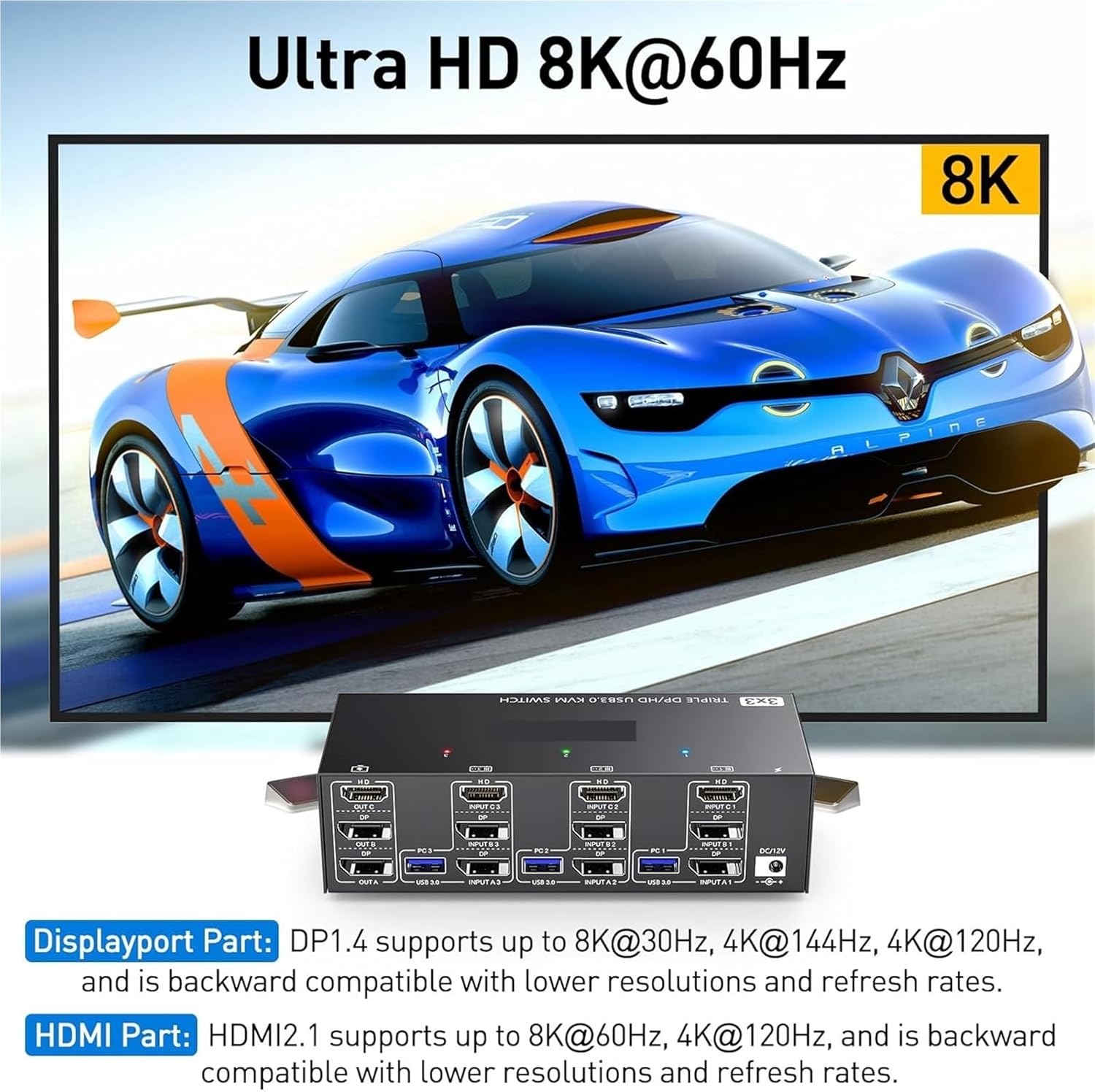
Obraz: Visual representation of Ultra HD 8K@60Hz capability. This image details the supported resolutions and refresh rates for both DisplayPort 1.4 and HDMI 2.1 connections, emphasizing high-quality video output.
8. Konserwacja
- Keep the KVM switch in a cool, dry place away from direct sunlight.
- Regularly clean the exterior of the device with a soft, dry, lint-free cloth.
- Do not use liquid or aerosol cleaners, as they may contain flammable substances or chemicals that can damage the device.
- Sprawdź, czy wszystkie kable są solidnie podłączone i nie są zagięte ani uszkodzone.
9. Rozwiązywanie Problemów
Jeśli napotkasz problemy z przełącznikiem KVM, zapoznaj się z poniższymi typowymi problemami i ich rozwiązaniami:
| Problem | Możliwa przyczyna / rozwiązanie |
|---|---|
| No display on monitors. |
|
| Keyboard or mouse not working. |
|
| Cannot switch between computers. |
|
| Słaba jakość obrazu lub migotanie. |
|
10. Specyfikacje
| Funkcja | Specyfikacja |
|---|---|
| Marka | S25HH0 |
| Model | 303DH US |
| Porty wejściowe | 3 x HDMI, 3 x USB 3.0 |
| Porty wyjściowe | 3 x HDMI, 4 x USB 3.0 |
| Standard wideo | HDMI 2.1, DisplayPort 1.4 (backward compatible) |
| Maksymalna rozdzielczość (HDMI) | 8K@60Hz, 4K@120Hz |
| Max Resolution (DisplayPort) | 8K@30Hz, 4K@144Hz, 4K@120Hz |
| Standardowy port USB | USB 3.0 (5 Gb/s) |
| Metoda kontroli | Physical Button, Wired Remote |
| Objętość operacyjnatage | 12 wolty |
| Waga przedmiotu | 50 gram |
| Certyfikaty | CE, RoHS |
11. Gwarancja i wsparcie
Ten produkt jest objęty standardową gwarancją producenta. Szczegółowe warunki gwarancji można znaleźć w karcie gwarancyjnej dołączonej do opakowania lub u sprzedawcy.
For technical support or further assistance, please contact your vendor or the manufacturer's customer service. Contact information can typically be found on the product packaging or the manufacturer's official webstrona.