
SuperRC L500 Pro
SuperRC L500 Pro 4K GPS Drone User Manual
Model: L500 Pro
1. Introduction
This manual provides essential instructions for the safe operation and maintenance of your SuperRC L500 Pro 4K GPS Drone. Please read this manual thoroughly before operating the drone to ensure proper usage and to prevent damage or injury. Keep this manual for future reference.
2. Safety Guidelines
Operating a drone requires responsibility. Adhere to all local regulations and guidelines for drone usage. Failure to do so may result in legal penalties or property damage.
- Pre-Flight Check: Always inspect the drone, remote controller, and batteries for any damage before each flight. Ensure propellers are securely attached.
- Flight Environment: Fly in open areas, away from people, animals, buildings, and power lines. Avoid flying in strong winds, rain, or fog. Maintain a clear line of sight with the drone.
- Battery Safety: Use only approved batteries and chargers. Do not overcharge or puncture batteries. Discontinue use if batteries show signs of swelling or damage.
- Obstacle Avoidance: While the drone features 360° laser obstacle avoidance, it is not foolproof. Always exercise caution and maintain awareness of your surroundings.
- Age Recommendation: This product is intended for adults.
3. Package Contents
Verify that all items are present in your package:
- SuperRC L500 Pro Drone
- Remote Controller
- Carrying Case
- Propellers (Spare set included)
- Screws
- Screwdriver
- USB Type-C Cable
- Lithium Ion Batteries (2 included)
- User Manual (This document)

4. Drone Components
Familiarize yourself with the key parts of your SuperRC L500 Pro drone:
- Foldable Arms: For compact storage and transport.
- Brushless Motors: Provide stable and quiet flight.
- Propellers: Generate lift for flight.
- 4K HD Dual Cameras: Front-facing and downward-facing cameras for aerial photography and video. Electrically adjustable shooting angles.
- 360° Laser Obstacle Avoidance Sensor: Detects obstacles in all directions.
- GPS Module: Enables precise outdoor positioning and intelligent flight modes.
- Optical Flow Sensor: Provides stable hovering for indoor flight.
- Modular Battery: Easy to install and replace.


5. Remote Controller
The remote controller allows you to operate the drone and access its features. It features a smartphone holder for live video feed and app control.
Refer to the included quick start guide for a detailed diagram of the remote controller buttons and their functions.

6. Battery Installation and Charging
6.1 Drone Battery
- Insert the modular battery into the drone's battery compartment until it clicks into place.
- To remove, press the release button (if present) and slide the battery out.
- Charge the battery using the provided USB Type-C cable and a compatible USB power adapter (not included). The charging indicator will show the charging status.
6.2 Remote Controller Battery
The remote controller typically uses internal rechargeable batteries or standard AA batteries. Refer to the remote controller's specific instructions for battery type and charging/installation procedures.
7. Initial Setup
- Charge Batteries: Ensure both drone and remote controller batteries are fully charged.
- Unfold Drone: Carefully unfold the drone arms until they lock into position.
- Install Propellers: If not pre-installed, attach propellers according to the markings (A/B) on the propellers and motor arms. Ensure they are secure.
- Power On: Place the drone on a flat, level surface. Power on the drone, then power on the remote controller.
- Pairing: The drone and remote controller should automatically pair. If not, follow the pairing instructions in the quick start guide.
- App Connection: Download the SuperRC drone app to your smartphone. Connect your phone to the drone's Wi-Fi network (usually named "SuperRC-XXXX"). Open the app to view the live feed and access advanced features.
- GPS Calibration: For outdoor flights, ensure the drone acquires sufficient GPS satellites before takeoff. Perform compass calibration as instructed by the app or quick start guide.
8. Operating Instructions
8.1 Basic Flight
- One-Key Takeoff/Landing: Press the dedicated button on the remote or in the app for automatic takeoff and landing.
- Manual Control: Use the joysticks on the remote controller to control altitude, direction, and rotation.
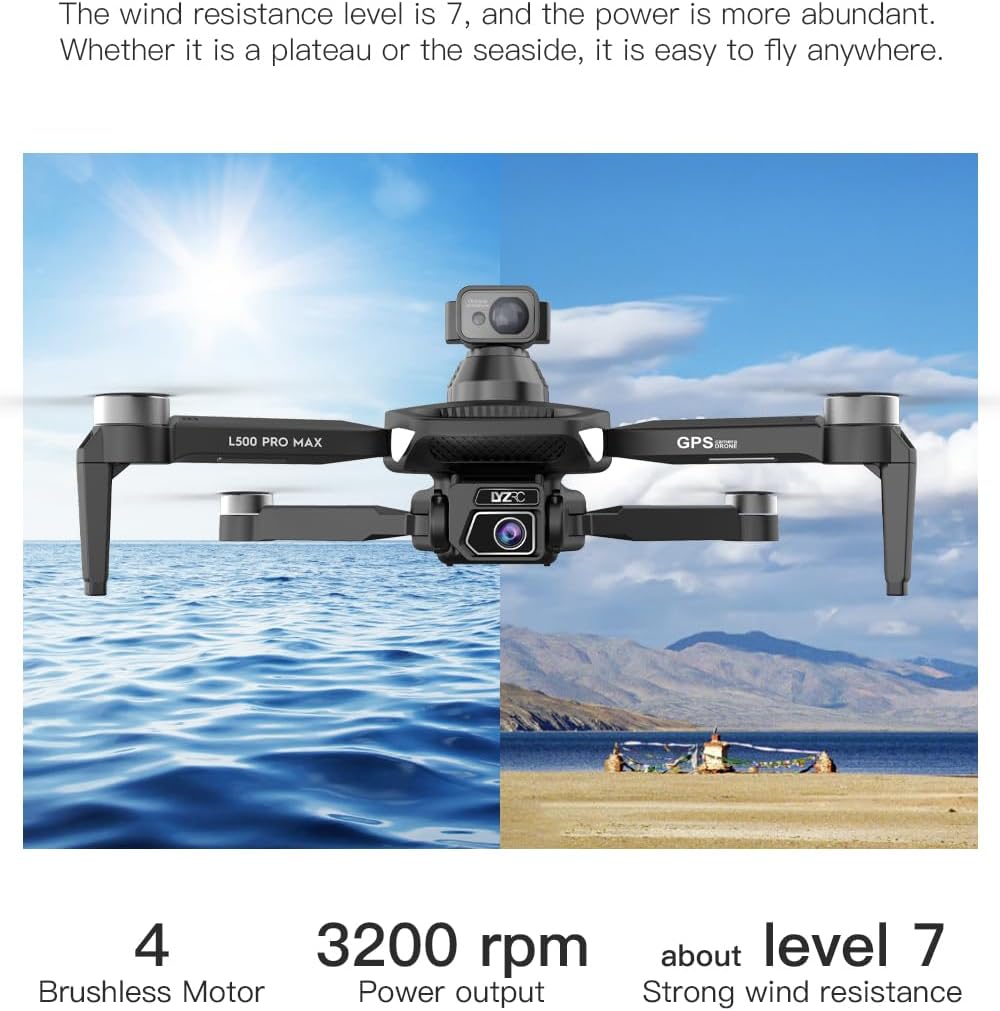
- GPS Mode (Outdoor): Provides stable flight and precise positioning, resisting wind.
- Optical Flow Mode (Indoor): Uses a downward-facing camera for stable hovering in environments without GPS signal.
8.2 Obstacle Avoidance
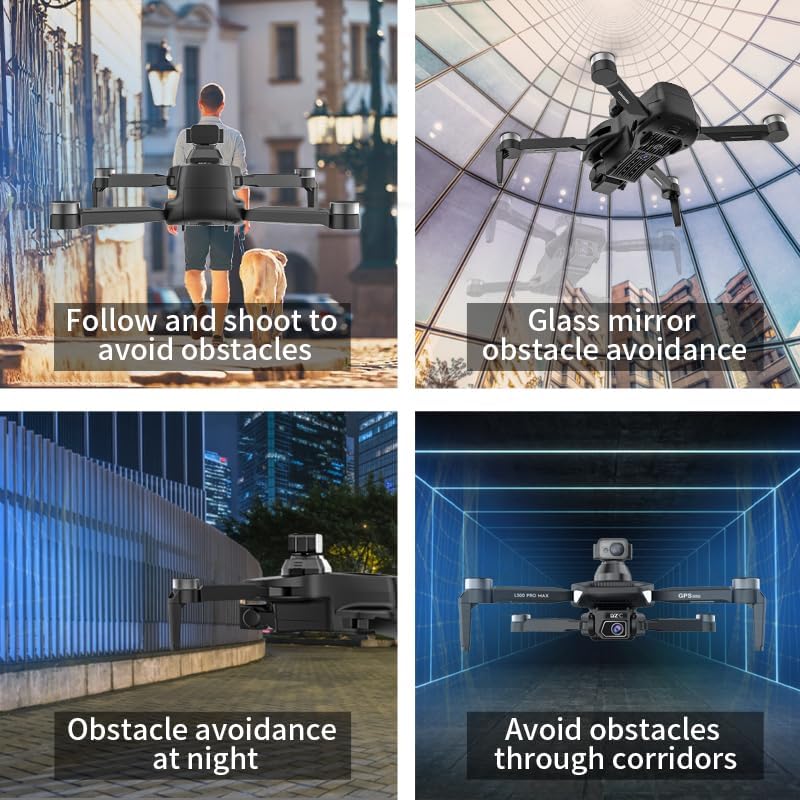
The 360° laser obstacle avoidance system helps prevent collisions by detecting objects in front, rear, left, and right directions. The drone will automatically adjust its flight path to avoid detected obstacles.
8.3 Camera Operation
- 4K HD Dual Cameras: Switch between the front and bottom cameras via the remote controller or app.
- Electrically Adjustable Angles: Adjust the camera's tilt angle remotely for optimal shots.
- Photo/Video Capture: Use the dedicated buttons on the remote or in the app to take photos or start/stop video recording.
8.4 Intelligent Flight Modes
- Waypoint Navigation: Plan a custom flight path by tapping points on the map in the app. The drone will follow the designated route.
- GPS Follow/Smart Follow: The drone can automatically follow a moving subject (e.g., a person or vehicle) using GPS and visual tracking.
- Orbit Flight: The drone will circle a designated point or subject, capturing 360° footage.
- Image Track: Similar to follow mode, but focuses on tracking a specific image or object.
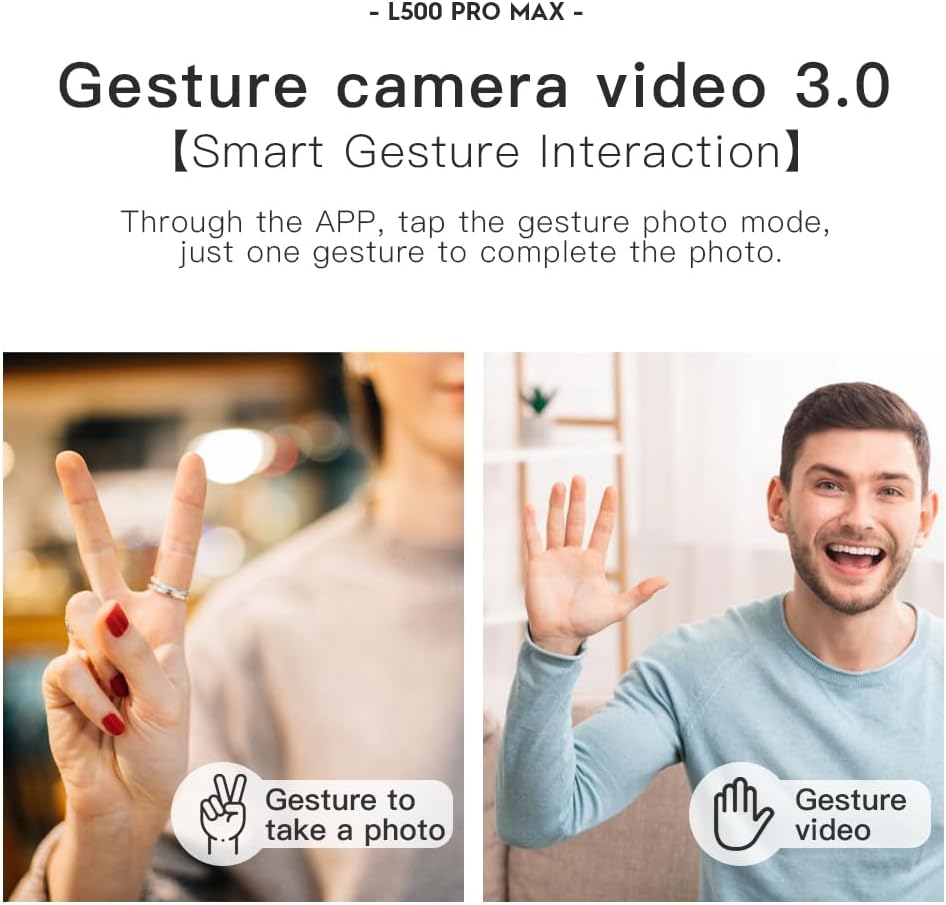
- Gesture Control: Use specific hand gestures to trigger photo or video capture.
- 4 Intelligent Return Modes:
- Lost Signal Return: Drone returns to takeoff point if signal is lost.
- Low Battery Return: Drone returns automatically when battery is low.
- Over-Distance Return: Drone returns if it flies beyond the set range.
- One-Tap Return: Manually initiate return to home with a single button press.
9. Maintenance
- Cleaning: Use a soft, dry cloth to clean the drone and remote controller. Avoid water or harsh chemicals.
- Propeller Inspection: Regularly check propellers for cracks, bends, or damage. Replace damaged propellers immediately using the provided screwdriver and spare parts.
- Storage: Store the drone and accessories in the carrying case in a cool, dry place, away from direct sunlight. Remove batteries if storing for extended periods.
- Battery Care: Do not store batteries fully charged or completely depleted. Charge them to about 50-60% for long-term storage.
10. Troubleshooting
| Problem | Possible Cause | Solution |
|---|---|---|
| Drone does not power on. | Battery not charged or incorrectly installed. | Ensure battery is fully charged and properly inserted. |
| Drone does not respond to remote. | Not paired, low remote battery, or interference. | Re-pair drone and remote. Charge remote battery. Move to an area with less interference. |
| Unstable flight/Drifting. | Improper calibration, strong wind, or damaged propellers. | Perform compass calibration. Fly in calm conditions. Check and replace damaged propellers. |
| No live video feed. | Phone not connected to drone Wi-Fi, or app issue. | Connect phone to drone's Wi-Fi. Restart app and drone. |
| Obstacle avoidance not working. | Sensor blocked or system malfunction. | Ensure sensors are clean and unobstructed. Contact support if issue persists. |
11. Specifications
| Feature | Detail |
|---|---|
| Brand | SuperRC |
| Model Name | L500 Pro |
| Video Capture Resolution | 1080p (Output), 4K HD (Camera) |
| Connectivity Technology | Wi-Fi (5G Intelligent System) |
| Control Type | Remote Control, App Control |
| Special Features | 360° Laser Obstacle Avoidance, Dual Camera, Brushless Motor, GPS Auto Return, Optical Flow Positioning |
| Item Weight | 211.6 Grams (7.5 ounces) |
| Battery Capacity | 2200 Milliamp Hours (Lithium Ion) |
| Flight Time | Up to 25 minutes (approx.) |
| Product Dimensions | 12.5"L x 11.4"W x 3.9"H |
| Material | Plastic |
12. Warranty and Support
For warranty information, technical support, or service inquiries, please refer to the contact information provided with your purchase or visit the official SuperRC website. Keep your proof of purchase for warranty claims.
You can also visit the SuperRC Store on Amazon for additional product information and support resources.
Ask a question about this manual
Ask about setup, troubleshooting, compatibility, parts, safety, or missing instructions. Manuals+ will review the question and use this page’s manual context to help answer it.