1. Wprowadzenie
This manual provides essential information for the installation, operation, and maintenance of your Zyxel 5G NR Outdoor Router. The NR7301, NR7302, and NR7303 series routers are designed to deliver high-speed, low-latency 5G connectivity for both residential and service provider applications, offering robust outdoor performance and reliable coverage.
For optimal performance and safety, please read this manual thoroughly before beginning installation or operation.
2. Informacje dotyczące bezpieczeństwa
Always observe the following safety precautions to reduce the risk of injury, electric shock, fire, or damage to the device:
- Ensure the power source meets the device's requirements (802.3af/at PoE).
- Nie otwierać urządzenia casing. Wszelkie prace serwisowe powierzaj wykwalifikowanemu personelowi.
- Install the device in a location that complies with local regulations and provides adequate ventilation.
- Avoid installing during a lightning storm.
- Use only accessories and cables specified by the manufacturer.
- The device is IP67 certified for outdoor use, but avoid submerging it in water.
3. Zawartość opakowania
Sprawdź, czy w przesyłce znajdują się wszystkie elementy:
- Zyxel 5G NR Outdoor Router (NR7301, NR7302, or NR7303 model)
- Installation Kit (mounting brackets, screws, etc.)
- Szybki przewodnik / Dokumentacja
- Access to Zyxel Mobile Application (for setup)
4. Koniec produktuview
The Zyxel 5G NR Outdoor Router is a compact, weather-resistant unit designed for external deployment. It features integrated 4x4 MIMO 4G/5G antennas for optimal signal reception.

Rysunek 4.1: Przód view of the Zyxel 5G NR Outdoor Router, showing its sleek white casing and Zyxel branding.

Rysunek 4.2: Przód view of the router, highlighting the Zyxel logo.
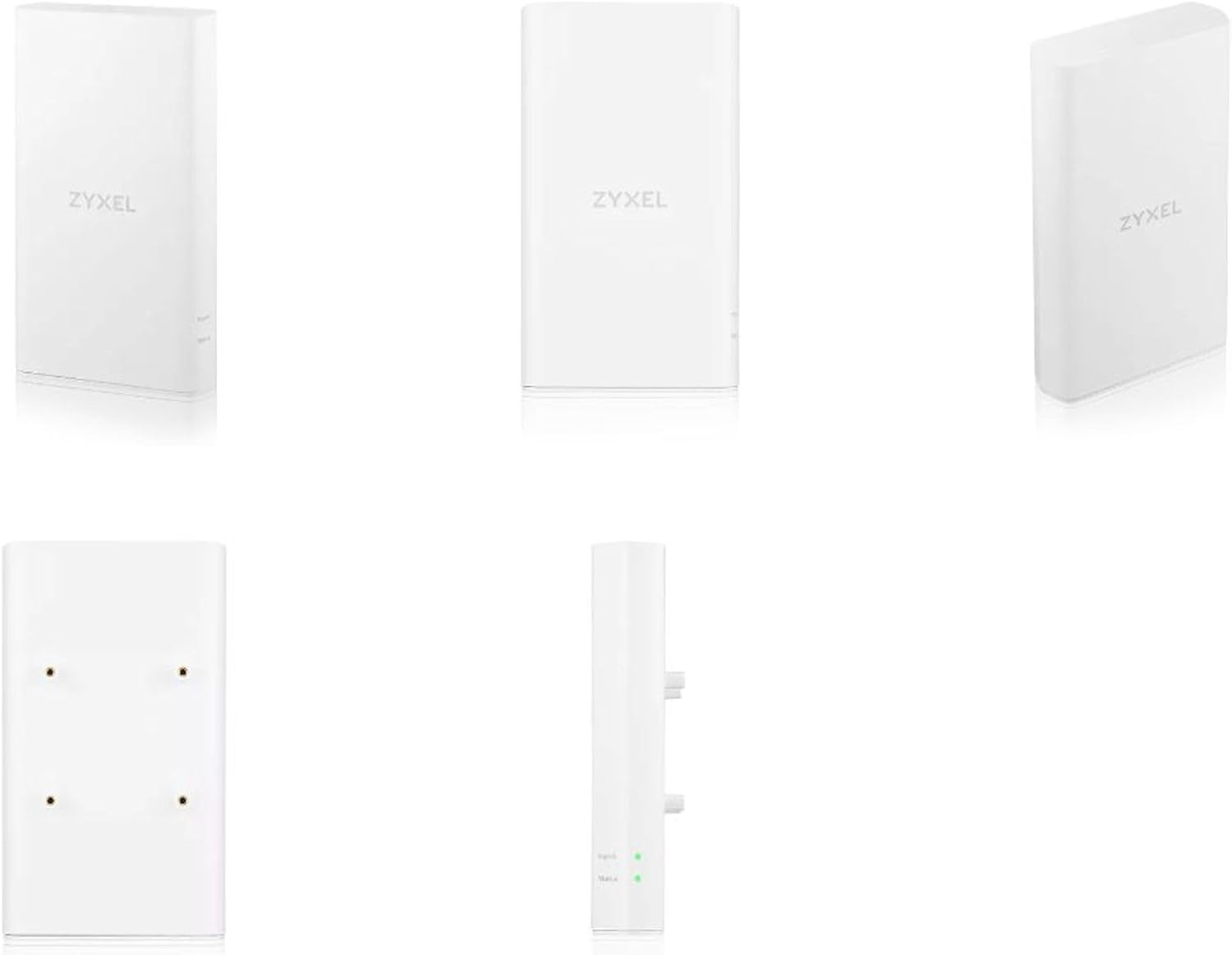
Rysunek 4.3: Strona view of the router, showing its slim profile.

Rysunek 4.4: Tył view of the router, displaying the mounting points for wall or pole installation.

Rysunek 4.5: Spód view of the router, showing the LAN (PoE) port, SIM card slot, and Reset (RST) button.
4.1. Porty i wskaźniki
- LAN (PoE) Port: Connects to your indoor network and receives power via Power over Ethernet (PoE).
- Gniazdo karty SIM: Włóż tutaj kartę SIM 5G/4G.
- Przycisk RST: Reset button for factory defaults or reboot.
- Wskaźniki LED: Typically for Power, Signal Strength, and Network Status. (Note: Specific LED behavior details can be found in the Quick Start Guide.)
5. Konfiguracja i instalacja
The Zyxel 5G NR Outdoor Router is designed for easy self-installation using the Zyxel mobile application.

Rysunek 5.1: Typical deployment scenario, illustrating the outdoor router connecting to a 5G/4G base station and providing internet to a residential gateway and connected devices.
5.1. Lista kontrolna przed instalacją
- Ensure you have a valid 5G/4G SIM card with an active data plan.
- Identify a suitable outdoor location for installation, preferably with clear line-of-sight to the nearest cellular tower.
- Have necessary tools for mounting (e.g., drill, screwdriver) and an Ethernet cable for PoE connection.
- Download the Zyxel mobile application on your smartphone.
5.2. Wkładanie karty SIM
- Znajdź pokrywę gniazda karty SIM na spodzie routera (patrz rysunek 4.5).
- Ostrożnie otwórz pokrywę.
- Insert your Nano-SIM card into the slot until it clicks into place. Ensure correct orientation.
- Close the SIM card slot cover securely to maintain IP67 weather resistance.
5.3. Montaż routera
- Attach the mounting bracket from the installation kit to the rear of the router (refer to Figure 4.4).
- Mount the router to a pole or wall using the provided hardware. Ensure it is securely fastened and stable.
- Orient the router for optimal signal reception. The Zyxel mobile application can assist in finding the best signal strength.
5.4. Zasilanie i połączenie sieciowe (PoE)
- Connect one end of an Ethernet cable to the LAN (PoE) port on the router (refer to Figure 4.5).
- Connect the other end of the Ethernet cable to a PoE injector or a PoE-enabled switch indoors.
- Ensure the PoE source is powered on. The router will power up automatically.
5.5. Initial Configuration with Zyxel App
- Open the Zyxel mobile application on your smartphone.
- Follow the on-screen instructions to detect and configure your router. This typically involves scanning a QR code on the device or entering its serial number.
- The app will guide you through network settings, including APN configuration (if required by your carrier) and initial Wi-Fi setup for your indoor gateway.
6. Obsługa routera
Once installed and configured, the Zyxel 5G NR Outdoor Router operates as your primary internet gateway, converting 5G/4G cellular signals into a usable network connection for your home or office.
6.1. Łączność sieciowa
- The router provides internet access via its LAN (PoE) port, which should be connected to your indoor network (e.g., a residential gateway, switch, or Wi-Fi router).
- It supports Wi-Fi standards 802.11a, 802.11g, and 802.11n, operating on a 5 GHz frequency band for wireless communication with your indoor network components if configured as such.
6.2. Zarządzanie zdalne
The router supports remote management, allowing service providers or advanced users to monitor and configure the device from a centralized location. Refer to the Zyxel documentation or your service provider for details on remote management access.
7. Konserwacja
Regular maintenance ensures the longevity and optimal performance of your Zyxel 5G NR Outdoor Router.
- Czyszczenie: Periodically wipe the exterior of the router with a soft, damp płótno. Nie używaj ostrych środków chemicznych ani ściernych środków czyszczących.
- Firmware Updates (FOTA): The router supports Firmware Over-The-Air (FOTA) updates. Ensure your device is connected to the internet to receive critical updates that improve performance, security, and add new features. Check the Zyxel mobile app or web interface for available updates.
- Kontrola środowiskowa: Periodically inspect the mounting and cabling for any signs of wear or damage, especially after severe weather conditions.
8. Rozwiązywanie Problemów
This section addresses common issues you might encounter with your Zyxel 5G NR Outdoor Router.
8.1. Brak połączenia internetowego
- Sprawdź kartę SIM: Sprawdź, czy karta SIM jest prawidłowo włożona i czy ma aktywny pakiet danych.
- Sprawdź połączenie PoE: Verify that the Ethernet cable is securely connected to the LAN (PoE) port on the router and to a powered PoE source indoors.
- Siła sygnału: Use the Zyxel mobile app to check the 5G/4G signal strength. If the signal is weak, consider adjusting the router's orientation or location.
- Ustawienia APN: Confirm that the Access Point Name (APN) settings are correctly configured for your mobile carrier. This can usually be done via the Zyxel app or web interfejs.
8.2. Niskie prędkości
- Siła sygnału: Weak cellular signal is a common cause of slow speeds. Optimize router placement.
- Przeciążenie sieci: Cellular network performance can vary based on time of day and local network traffic.
- Oprogramowanie sprzętowe: Sprawdź, czy oprogramowanie sprzętowe routera jest aktualne.
8.3. Router się nie włącza
- PoE Source: Verify that your PoE injector or switch is powered on and functioning correctly.
- Integralność kabla: Sprawdź, czy kabel Ethernet nie jest uszkodzony.
8.4. Resetowanie routera
If you encounter persistent issues, you may need to reset the router. Locate the RST button (refer to Figure 4.5). Use a paperclip to press and hold the button for approximately 10 seconds until the LED indicators change, then release. This will restore the router to factory default settings.
9. Specyfikacje
| Funkcja | Opis |
|---|---|
| Marka | Zyxel |
| Nazwa modelu | NR7302 (Series: NR7301/NR7302/NR7303) |
| Technologia łączności | 5G, Wi-Fi |
| Standard komunikacji bezprzewodowej | 802.11a, 802.11g, 802.11n |
| Klasa pasma częstotliwości | Dual Band (5 GHz mentioned for Wi-Fi) |
| Funkcja specjalna | Wodoodporny (certyfikat IP67) |
| System operacyjny | ZyNOS |
| Kompatybilne urządzenia | Uniwersalny |
| Zawarte komponenty | Application, Installation Kit, Router |
| Moc wejściowa | 802.3af/at 2.5G PoE |
| Anteny | 4x4 MIMO 4G/5G antennas |
10. Gwarancja i wsparcie
Aby uzyskać szczegółowe informacje dotyczące gwarancji, zapoznaj się z kartą gwarancyjną dołączoną do produktu lub odwiedź oficjalną stronę internetową firmy Zyxel webWarunki gwarancji mogą się różnić w zależności od regionu i sprzedawcy.
For technical support, firmware updates, and additional resources, please visit the Zyxel support portal or contact your local Zyxel representative. The Zyxel mobile application also provides support features and access to documentation.
Note: Information regarding spare parts availability and guaranteed software updates is not available in the provided product data. Please consult Zyxel's official support channels for the most current information.