
1. Wprowadzenie
This manual provides detailed instructions for the installation, operation, and maintenance of your LINHAMCOLN Android Car Screen Radio Stereo. This head unit is specifically designed as a direct plug-and-play replacement and upgrade for Chevrolet Camaro models manufactured between 2008 and 2015. It integrates advanced features such as wireless CarPlay, Android Auto, GPS navigation, Bluetooth connectivity, and a high-resolution touch screen display.
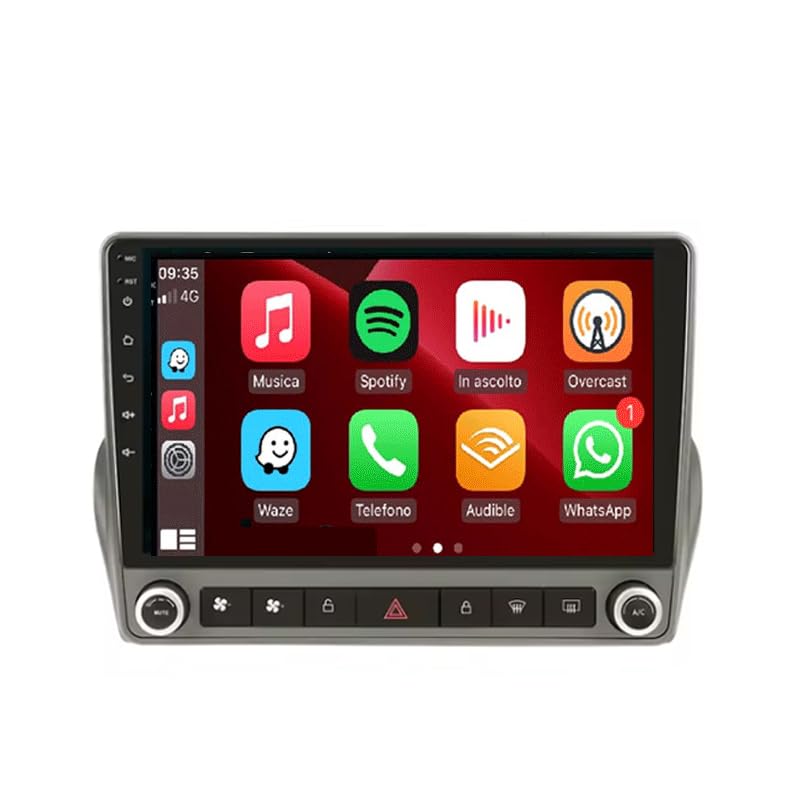
Figure 1.1: The LINHAMCOLN Android Car Screen Radio Stereo displaying its main user interface with various application icons.
2. Konfiguracja i instalacja
The LINHAMCOLN Android Car Screen Radio Stereo is designed for a plug-and-play installation in compatible Chevrolet Camaro models (2008-2015). All necessary accessories for installation, including the dash kit, power wire cable, RCA cable, reversing camera cable, and USB cables, are included.
2.1 Lista kontrolna przed instalacją
- Przed rozpoczęciem instalacji należy upewnić się, że zapłon pojazdu jest wyłączony, a akumulator odłączony.
- Verify all included components against the packing list.
- Zapoznaj się z układem deski rozdzielczej i okablowaniem pojazdu.
2.2 Kroki instalacji
- Wyjmij oryginalne radio: Ostrożnie zdejmij fabryczne radio i panel ozdobny deski rozdzielczej. Szczegółowe instrukcje dotyczące demontażu paneli ozdobnych znajdziesz w instrukcji serwisowej pojazdu.
- Podłącz wiązkę przewodów: Connect the provided power wire cable, RCA cable, and other necessary cables to the new head unit. Ensure all connections are secure.
- Integrate Vehicle-Specific Components: Connect the reversing camera cable and USB cables as required. The unit supports original steering wheel control functions; connect the appropriate wiring to retain this functionality.
- Mount the New Head Unit: Secure the LINHAMCOLN Android Car Screen Radio Stereo into the dashboard opening using the provided dash kit.
- Podłącz ponownie akumulator i przetestuj: Reconnect the vehicle's battery. Turn on the ignition and test all functions of the new head unit, including audio, touch screen response, Bluetooth, GPS, CarPlay/Android Auto, and reverse camera input.
- Montaż końcowy: Po sprawdzeniu wszystkich funkcji należy ponownie złożyć panele deski rozdzielczej.
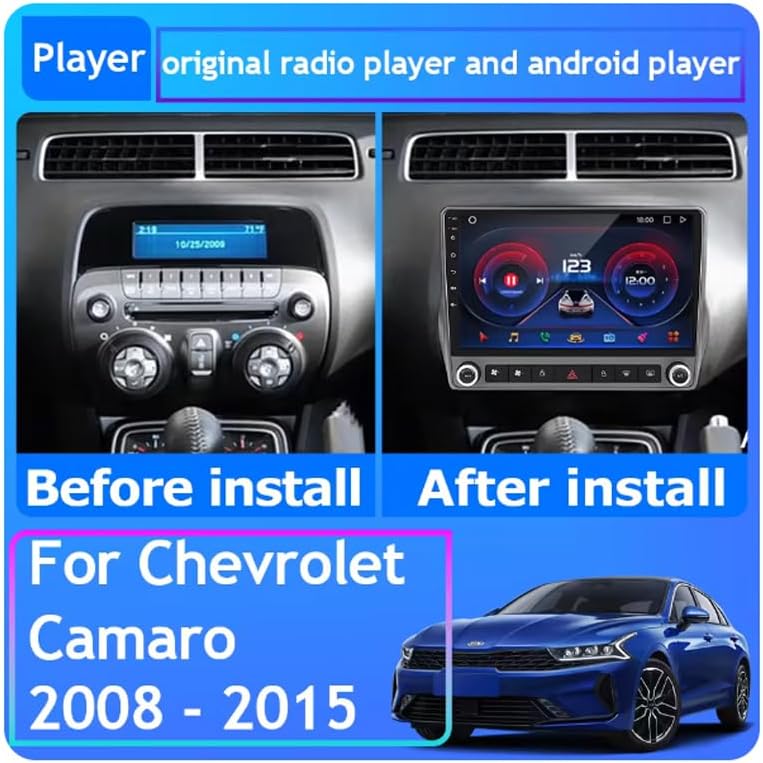
Figure 2.1: Visual comparison showing the original Chevrolet Camaro radio setup and the new LINHAMCOLN Android head unit installed in the dashboard.

Figure 2.2: Detailed back diagram illustrating the various ports and wiring connections for the LINHAMCOLN head unit, including power, audio, USB, and camera inputs.
3. Działanie
The LINHAMCOLN Android Car Screen Radio Stereo features a 9-inch 1024*600 high-resolution capacitive touch screen, providing an intuitive user experience. The system runs on an Android operating system, offering access to various applications and functionalities.
3.1 Główny interfejs i nawigacja
Upon startup, the main interface displays icons for key functions such as Music, Video, Application launcher, Radio, and Settings. Tap on an icon to access the corresponding feature.

Figure 3.1: The main application screen of the Android head unit, featuring icons for various functions like music, video, and radio.
3.2 Bezprzewodowy CarPlay i Android Auto
The unit supports both wireless and wired CarPlay for iOS devices and Android Auto for Android devices. This allows seamless integration of your smartphone for navigation, music, calls, and messaging.
- To connect CarPlay (iOS): Ensure Bluetooth and Wi-Fi are enabled on your iPhone. Follow the on-screen prompts on the head unit to pair your device wirelessly.
- To connect Android Auto (Android): Ensure Bluetooth and Wi-Fi are enabled on your Android phone. For wired connection, use a USB cable. Follow the on-screen prompts to establish the connection.

Figure 3.2: The head unit displaying both CarPlay (for iOS) and Android Auto (for Android) interfaces, showcasing smartphone integration.
3.3 Nawigacja GPS
The system includes a built-in GPS navigation system. You can download and use various navigation applications from the Google Play Store, such as Google Maps, iGO, Waze, or Navitel. The unit supports North America map types.
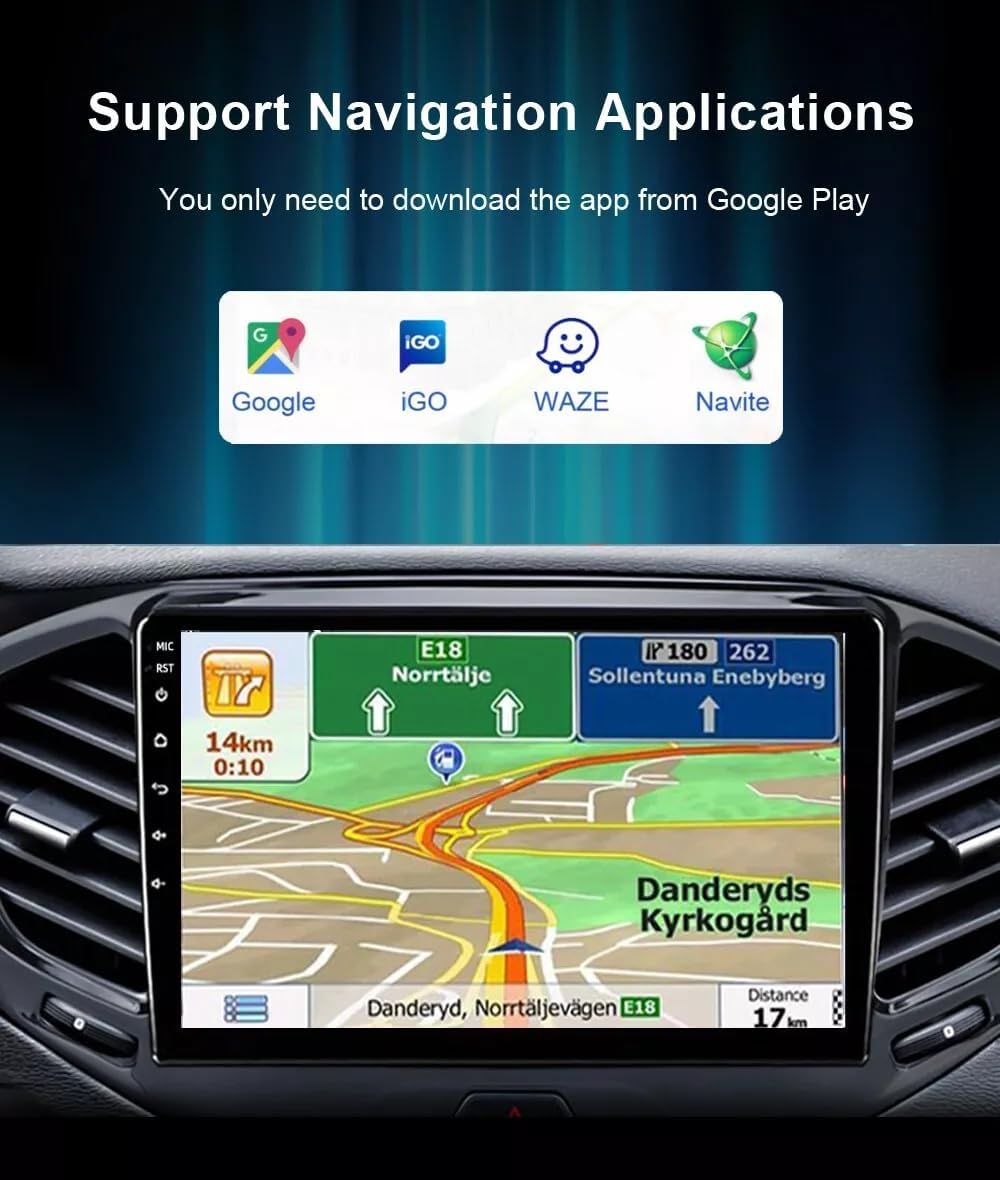
Figure 3.3: The car stereo screen showing a navigation map, with icons for popular navigation applications like Google Maps, iGO, Waze, and Navitel.
3.4 Łączność Bluetooth
The integrated Bluetooth module allows for hands-free calling and Bluetooth music streaming. Pair your smartphone with the head unit via Bluetooth settings to utilize these features.
- Łączenie w pary: Przejdź do ustawień Bluetooth w urządzeniu głównym i telefonie. Szukaj available devices on your phone and select the head unit's name. Confirm the pairing code if prompted.
- Rozmowy w trybie głośnomówiącym: Once paired, you can make and receive calls directly through the head unit's interface.
- Strumieniowe przesyłanie muzyki: Play audio from your phone through the car's speakers via Bluetooth.
3.5 Tył View Wsparcie kamery
Jednostka obsługuje tylną view camera input. When the vehicle is shifted into reverse, the display automatically switches to the camera feed, providing improved visibility and parking assistance. The display offers significantly improved clarity for clear visibility of images.
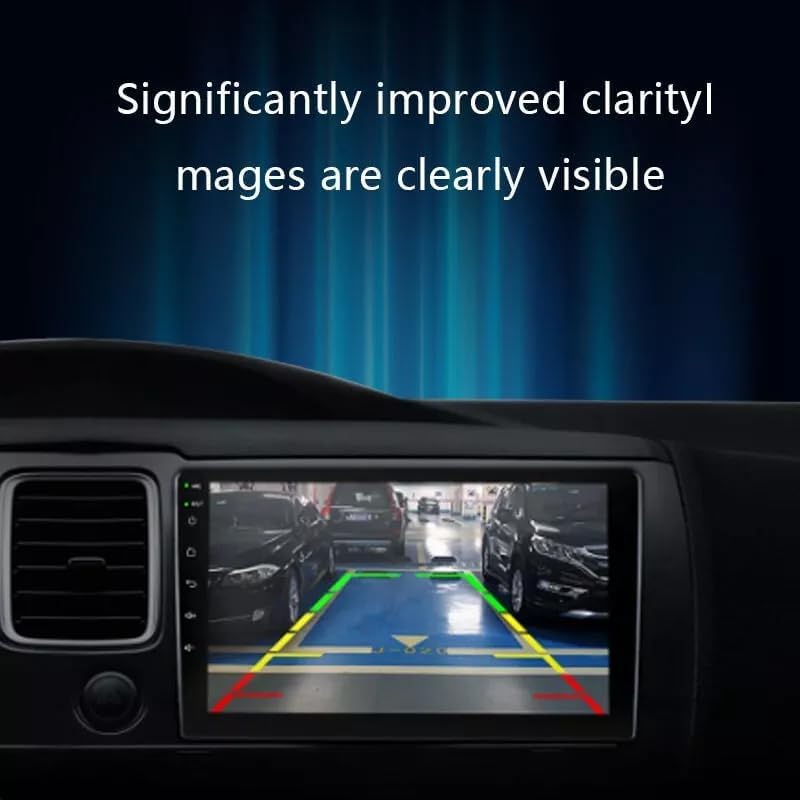
Figure 3.4: The car stereo screen showing a clear image from a rear view camera, complete with parking guidelines for assistance.
3.6 Inne funkcje
- Radio FM: Uzyskaj dostęp i dostrój się do stacji radiowych FM.
- Odtwarzanie multimediów: Supports 1080P video playback and various audio formats via USB inputs.
- Sterowanie z kierownicy: Retains original steering wheel control functions for easy access to volume, track changes, and other features without taking hands off the wheel.
4. Konserwacja
Proper maintenance ensures the longevity and optimal performance of your LINHAMCOLN Android Car Screen Radio Stereo.
4.1 Czyszczenie ekranu
- Delikatnie przetrzyj ekran miękką, niepozostawiającą włókien ściereczką (np. z mikrofibry).
- W przypadku uporczywych plam delikatnieampPrzetrzyj ściereczkę wodą lub środkiem czyszczącym do ekranów. Unikaj silnych środków chemicznych, materiałów ściernych i nadmiernej wilgoci.
- Nie rozpylaj środków czyszczących bezpośrednio na ekran.
4.2 Aktualizacje oprogramowania
Periodically check for software updates to ensure your system has the latest features and security enhancements. Updates can typically be found in the system settings menu or on the manufacturer's support webstrona.
4.3 Ogólna opieka
- Unikaj wystawiania urządzenia na działanie ekstremalnych temperatur lub bezpośredniego światła słonecznego przez dłuższy czas.
- Sprawdź, czy wszystkie kable są solidnie podłączone i nie są ściśnięte ani uszkodzone.
- Do not attempt to open the unit or perform repairs yourself, as this may void the warranty.
5. Rozwiązywanie Problemów
This section addresses common issues you might encounter with your LINHAMCOLN Android Car Screen Radio Stereo.
| Problem | Możliwa przyczyna | Rozwiązanie |
|---|---|---|
| Urządzenie nie włącza się. | Luźne połączenie zasilania, przepalony bezpiecznik, problem z akumulatorem pojazdu. | Sprawdź połączenia kabli zasilających. Sprawdź bezpieczniki pojazdu. Upewnij się, że akumulator pojazdu jest naładowany. |
| Brak wyjścia audio. | Zbyt niska głośność, wyciszenie włączone, problem z okablowaniem głośników, nieprawidłowe źródło dźwięku. | Zwiększ głośność. Sprawdź, czy wyciszenie jest aktywne. Sprawdź połączenia głośników. Wybierz prawidłowe źródło dźwięku. |
| Ekran dotykowy nie reaguje. | Tymczasowa usterka oprogramowania, konieczna kalibracja ekranu. | Restart the unit. If issue persists, perform a system reset (refer to settings menu). |
| CarPlay/Android Auto nie łączy się. | Bluetooth/Wi-Fi off, incorrect pairing, incompatible phone, faulty USB cable. | Ensure Bluetooth and Wi-Fi are on. Re-pair device. Try a different USB cable for wired connection. Check phone compatibility. |
| Sygnał GPS jest słaby lub niedokładny. | Poor satellite reception, antenna obstruction, outdated map data. | Upewnij się, że jasne view of the sky. Check GPS antenna connection. Update navigation app maps. |
| Tył view kamera nie wyświetla obrazu. | Loose camera connection, faulty camera, incorrect wiring for reverse trigger. | Check camera cable connections. Verify reverse trigger wire is correctly connected. Test camera functionality. |
Jeśli po wypróbowaniu tych rozwiązań problem nadal występuje, skontaktuj się z obsługą klienta.
6. Specyfikacje
Key technical specifications for the LINHAMCOLN Android Car Screen Radio Stereo.
| Numer modelu | B0DH78RL2V |
| Kompatybilny pojazd | Chevrolet Camaro (2008-2015) |
| Rozmiar ekranu | 9 cali |
| Typ wyświetlacza | Ekran dotykowy pojemnościowy |
| Rezolucja | 1024*600 |
| Edytor | Procesor czterordzeniowy |
| BARAN | 2 GB |
| Pamięć wewnętrzna (ROM) | 32 GB |
| System operacyjny | Android |
| Łączność | Wi-Fi, Bluetooth (Built-In) |
| System nawigacyjny | Built-in GPS (Supports North America maps) |
| Integracja ze smartfonem | Bezprzewodowy CarPlay, przewodowy/bezprzewodowy Android Auto |
| Tryb wyjścia audio | Stereofoniczny |
| Odtwarzanie wideo | Wsparcie 1080P |
| Zawarte komponenty | Dash kit, Power wire cable, RCA cable, Reversing camera cable, USB cables |
| Waga przedmiotu | 1.2 kilogramów |
7. Gwarancja i wsparcie
For warranty information, technical support, or service inquiries regarding your LINHAMCOLN Android Car Screen Radio Stereo, please refer to the documentation included with your purchase or contact the manufacturer directly.
Producent: LINHAMCOLN
Please have your model number (B0DH78RL2V) and purchase date ready when contacting support.