
XunFox K30 Pro
XunFox K30 Pro Transparent Mechanical Keyboard User Manual
Model: K30 Pro
Brand: XunFox
Wstęp
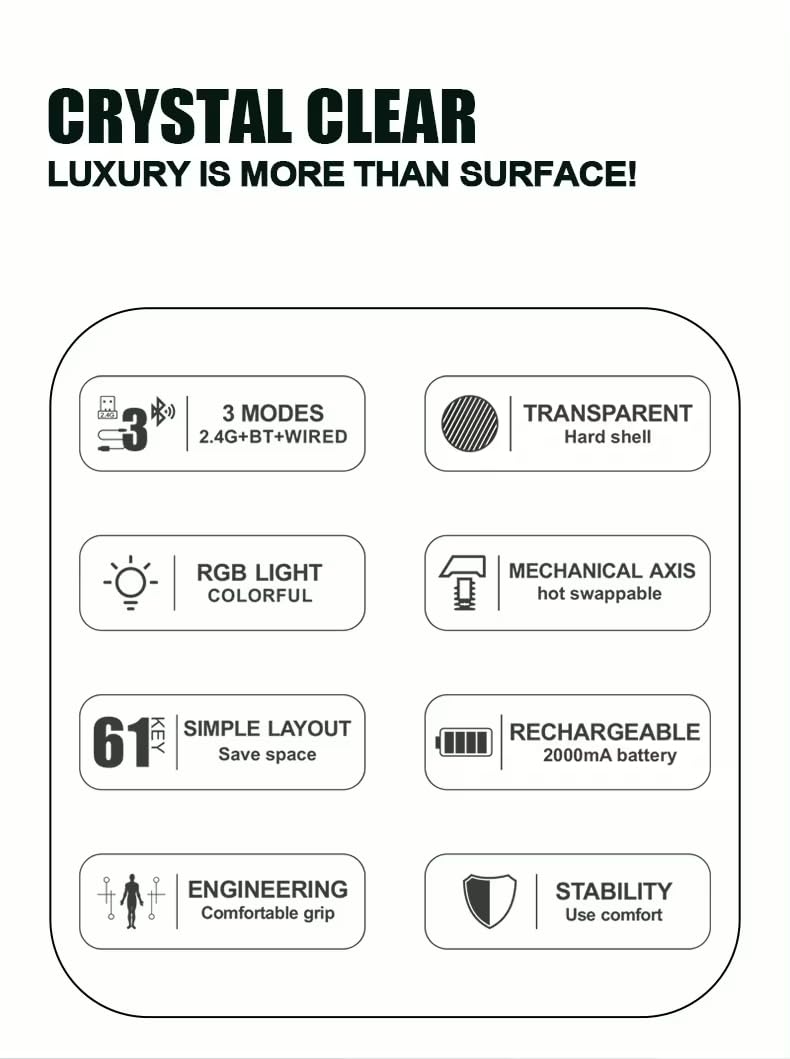
Welcome to the XunFox K30 Pro Transparent Mechanical Keyboard user manual. This guide provides detailed instructions for setting up, operating, and maintaining your new keyboard. The K30 Pro features a unique transparent design, 61-key layout, RGB backlighting, and versatile 3-mode connectivity (2.4GHz wireless, Bluetooth 5.1, and wired USB).
Zawartość opakowania
- XunFox K30 Pro Mechanical Keyboard
- Kabel USB-C do USB-A (do przewodowego połączenia i ładowania)
- Odbiornik bezprzewodowy 2.4 GHz
- Instrukcja obsługi (ten dokument)
Produkt ponadview
The XunFox K30 Pro keyboard features a compact 61-key layout with transparent keycaps and a translucent bottom shell, showcasing its internal mechanical components.
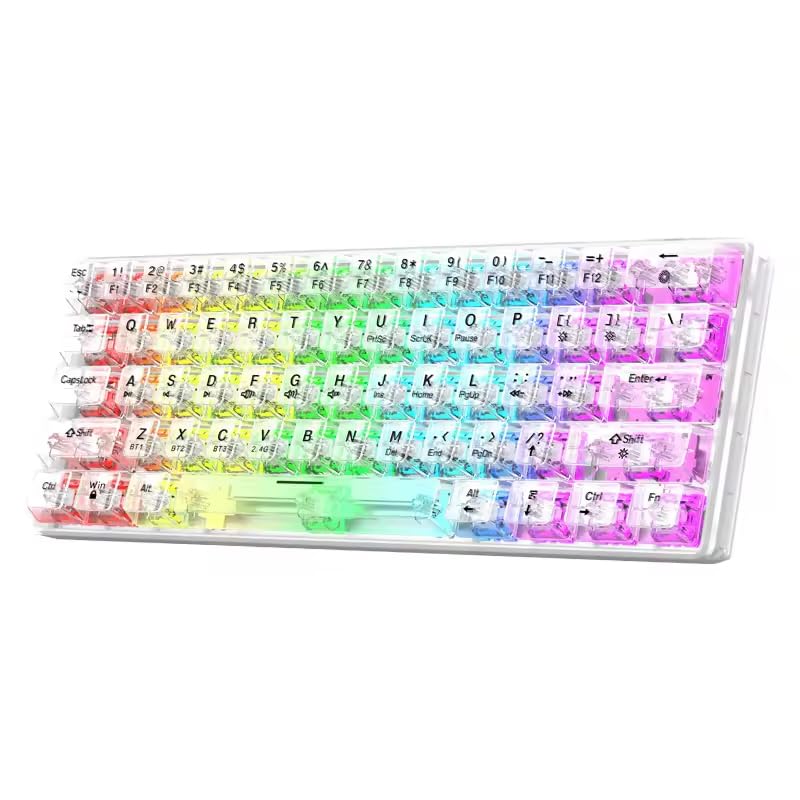
Obraz: Przód view of the XunFox K30 Pro Transparent Mechanical Keyboard, showcasing its compact 61-key layout and vibrant RGB backlighting through transparent keycaps.

Image: Diagram highlighting the 61-key minimalist layout of the XunFox K30 Pro keyboard, emphasizing space-saving design compared to traditional 104-key keyboards.

Image: Exploded diagram illustrating the internal layers of the keyboard, including transparent keycaps, customized mechanical shafts, positioning plate, PCB board, and translucent bottom shell.
Główne cechy:
- 61-Key Minimalist Layout: Konstrukcja oszczędzająca miejsce.
- Przejrzysty projekt: Crystal clear hard shell and keycaps.
- Łączność 3-trybowa: 2.4GHz Wireless, Bluetooth 5.1, and Wired USB.
- Podświetlenie RGB: Customizable colorful lighting effects.
- Hot-Swappable Mechanical Axis: Umożliwia łatwą wymianę przełącznika.
- Akumulator 2000mAh: For extended wireless use.
- Ergonomiczna konstrukcja: Comfortable grip for prolonged use.
Organizować coś
1. Ładowanie akumulatora
Before first use, or when the battery is low, connect the keyboard to a USB power source (e.g., computer USB port, USB wall adapter) using the provided USB-C cable. The charging port is typically located on the back or side of the keyboard.
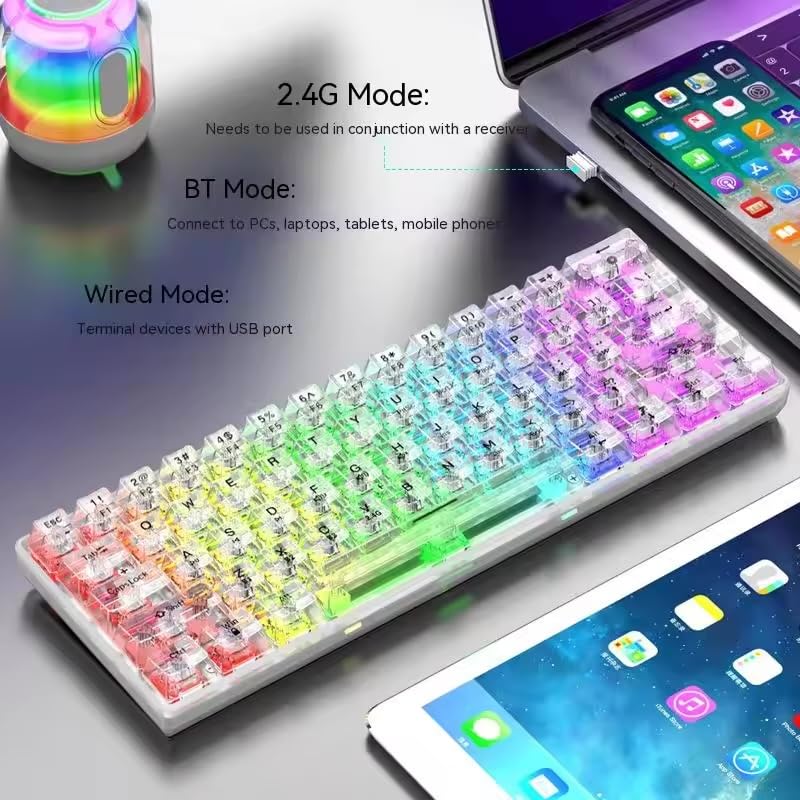
Image: The XunFox K30 Pro keyboard connected via a USB-C cable to a laptop, illustrating the charging process and highlighting the 2000mAh battery capacity.
A full charge provides approximately 2000mAh of battery life.
2. Connecting via 2.4GHz Wireless Mode
- Locate the 2.4GHz wireless receiver, usually stored in a compartment on the keyboard or included separately.
- Podłącz odbiornik 2.4 GHz do wolnego portu USB w komputerze.
- Switch the keyboard's connection mode to 2.4GHz. This is typically done using a switch on the keyboard or an FN key combination (e.g., FN + W).
- Klawiatura powinna automatycznie połączyć się z urządzeniem.
3. Łączenie przez tryb Bluetooth
- Switch the keyboard's connection mode to Bluetooth. This is typically done using a switch on the keyboard or an FN key combination (e.g., FN + Z dla BT1, FN + X dla BT2, FN + C for BT3).
- For first-time pairing, long-press the corresponding FN key combination (e.g., FN + Z for 3 seconds) to enter pairing mode. The keyboard's indicator light will flash.
- On your device (computer, laptop, tablet, phone), open Bluetooth settings and search for new devices.
- Select "XunFox K30 Pro" (or similar name) from the list of available devices to pair.
- Po sparowaniu kontrolka przestanie migać.
4. Connecting via Wired USB Mode
- Podłącz jeden koniec dołączonego kabla USB-C do portu USB-C klawiatury.
- Podłącz drugi koniec kabla USB-A do wolnego portu USB w komputerze.
- Switch the keyboard's connection mode to Wired. This is typically done using a switch on the keyboard or an FN key combination.
- Klawiatura zostanie rozpoznana jako standardowa klawiatura USB i będzie gotowa do użycia.

Image: Diagram illustrating the three connection modes: Bluetooth (BT), 2.4GHz Wireless (with receiver), and Wired (USB-C cable). Shows the keyboard connected to various devices.
Instrukcja obsługi
Przełączanie trybów połączenia
The keyboard supports three connection modes. Use the dedicated switch or FN key combinations to switch between them:
- Łączność bezprzewodowa 2.4 GHz: Naciskać FN + W (short press to switch, long press for 3 seconds to enter pairing mode). Requires the 2.4GHz receiver.
- Bluetooth 1 (BT1): Naciskać FN + Z (short press to switch, long press for 3 seconds to enter pairing mode).
- Bluetooth 2 (BT2): Naciskać FN + X (short press to switch, long press for 3 seconds to enter pairing mode).
- Bluetooth 3 (BT3): Naciskać FN + C (short press to switch, long press for 3 seconds to enter pairing mode).
- Tryb przewodowy: Connect the USB-C cable. The keyboard will automatically switch to wired mode or may require a specific FN key combination (refer to specific product documentation if FN key is needed).
Sterowanie podświetleniem RGB
The XunFox K30 Pro features customizable RGB backlighting. Specific FN key combinations are used to control lighting effects, brightness, and speed. Please refer to the quick start guide or product packaging for exact FN key combinations for RGB control, as these can vary.
Special Function Keys (FN Combinations)
The 61-key layout utilizes the FN key to access secondary functions printed on the keycaps.
- FN + [Number Keys]: Dostęp do funkcji klawiszy F1-F12.
- FN + [Other Keys]: Access multimedia controls, volume, and other system functions.
A detailed list of FN key combinations can usually be found in the quick start guide or on the product's official support page.
Konserwacja
Czyszczenie
Aby wyczyścić klawiaturę:
- Odłącz klawiaturę od wszystkich źródeł zasilania i urządzeń.
- Użyj miękkiej, niestrzępiącej się ściereczki, lekko wyczyśćampPrzetrzyj klawisze i obudowę wodą lub łagodnym środkiem czyszczącym.
- Do usuwania kurzu i zanieczyszczeń spomiędzy klawiszy należy użyć sprężonego powietrza.
- Unikaj stosowania silnych środków chemicznych i materiałów ściernych.
Przełączniki z możliwością wymiany na gorąco
The K30 Pro features hot-swappable mechanical switches, allowing you to change switches without soldering. Use a switch puller tool (not included unless specified) to carefully remove and insert compatible 3-pin or 5-pin mechanical switches.
Rozwiązywanie problemów
Klawiatura nie odpowiada
- Sprawdź, czy klawiatura jest naładowana.
- Check the connection mode (2.4GHz, Bluetooth, Wired) and ensure it matches your device's connection.
- For 2.4GHz, ensure the receiver is properly plugged in.
- For Bluetooth, ensure it's paired correctly and within range. Try re-pairing.
- For wired, ensure the USB cable is securely connected to both the keyboard and the computer.
- Spróbuj podłączyć się do innego portu USB lub urządzenia.
Problemy z połączeniem Bluetooth
- Upewnij się, że klawiatura jest w trybie parowania Bluetooth (kontrolka miga).
- Usuń klawiaturę z listy Bluetooth swojego urządzenia i spróbuj sparować ją ponownie.
- Sprawdź, czy Bluetooth w Twoim urządzeniu jest włączony.
- Reduce distance between keyboard and device.
Światła RGB nie działają
- Sprawdź, czy klawiatura jest włączona i naładowana.
- Check if the backlight has been turned off via an FN key combination.
- Adjust brightness settings using FN key combinations.
Specyfikacje
| Funkcja | Specyfikacja |
|---|---|
| Marka | XunFox |
| Model | K30 Pro |
| Typ klawiatury | Mechaniczny |
| Układ | 61 klucze |
| Łączność | 2.4GHz Wireless, Bluetooth 5.1, Wired (USB-C) |
| Pojemność baterii | 2000mAh |
| Podświetlenie | RGB |
| Cechy specjalne | Backlit, Ergonomic, Rechargeable, Hot-swappable mechanical axis |
| Wymiary produktu | Wymiary 40 x 8 x 4 cm |
| Waga przedmiotu | 900 gramów |
| Kompatybilne urządzenia | Laptop, PC, Tablet, Phone |
Obraz: widok z góry view of the XunFox K30 Pro keyboard with key dimensions (292mm length, 102mm width, 40mm height) indicated.
Gwarancja i wsparcie
This XunFox K30 Pro keyboard comes with a 2 rok gwarancji.
For technical support, warranty claims, or further assistance, please contact:
- Obsługa klienta: +91 9906910066
- Importer/Pakowacz: NJ Infotech
Prosimy zachować dowód zakupu w celach gwarancyjnych.