
1. Koniec produktuview
The TECKNET TK309 is a versatile wireless mouse designed for multi-device connectivity, offering both Bluetooth (BT 5.0/3.0) and 2.4GHz USB receiver options. It features adjustable DPI settings, an ergonomic design, and smart power-saving functions, making it suitable for various computing environments.

Obraz: Góra view of the green TECKNET Bluetooth Wireless Mouse.
Zawartość opakowania:
- TECKNET Bluetooth Wireless Mouse
- Odbiornik USB-A
- Instrukcja obsługi
2. Układ produktu
Familiarize yourself with the various buttons and indicators on your TECKNET wireless mouse.

Image: Diagram illustrating the numbered components of the TECKNET mouse, including the Bluetooth Pair button, Power/BT/2.4G Switch, Battery Compartment, USB Receiver slot, LED Indicator, and DPI Switch.
- Przycisk parowania Bluetooth
- Power/BT/2.4G Switch
- Komora baterii
- Gniazdo odbiornika USB
- Wskaźnik LED
- Przycisk przełączania DPI
- Lewy przycisk myszy
- Prawy przycisk myszy
- Kółko przewijania
- Forward Button (Windows/Android only)
- Backward Button (Windows/Android only)
3. Instrukcje konfiguracji
3.1 Instalacja baterii
The mouse requires one AA battery (not included). To install:
- Otwórz pokrywę komory baterii znajdującą się na spodzie myszy.
- Włóż jedną baterię AA, zwracając uwagę na prawidłową biegunowość (+/-).
- Zamknij pokrywę komory baterii.
3.2 2.4G Mode Connection
To connect the mouse using the 2.4G USB receiver:
- Włóż baterię AA do myszy.
- Toggle the Power/BT/2.4G switch on the bottom of the mouse to the "2.4G" position. The LED indicator will flash green.
- Remove the Nano USB receiver from its storage slot in the mouse and plug it into an available USB-A port on your computer.
- The mouse should connect automatically. Press any button to activate if it's in sleep mode.

Image: Visual guide for connecting the mouse in 2.4G mode, showing battery insertion, switch position, and USB receiver connection.
3.3 Bluetooth Mode Connection
Aby podłączyć mysz przez Bluetooth:
- Włóż baterię AA do myszy.
- Toggle the Power/BT/2.4G switch on the bottom of the mouse to the "BT" position. The LED indicator will flash blue.
- Press and hold the Bluetooth Pair button (located on the bottom of the mouse) for 3 seconds until the blue LED indicator flashes rapidly. This indicates pairing mode.
- On your device (laptop, tablet, etc.), enable Bluetooth and search for new devices.
- Select either "BM20X-3.0" or "BM20X-5.0" from the list of available devices to connect.

Image: Visual guide for connecting the mouse in Bluetooth mode, showing battery insertion, switch position, and Bluetooth pairing steps on a device.
4. Instrukcja obsługi
4.1 Switching Between Devices (Multi-Mode)
The mouse supports connecting to two devices simultaneously: one via 2.4G USB receiver and one via Bluetooth. To switch between connected devices:
- Simply toggle the Power/BT/2.4G switch on the bottom of the mouse to the desired connection mode (2.4G or BT).
- The mouse will automatically connect to the last paired device in that mode.
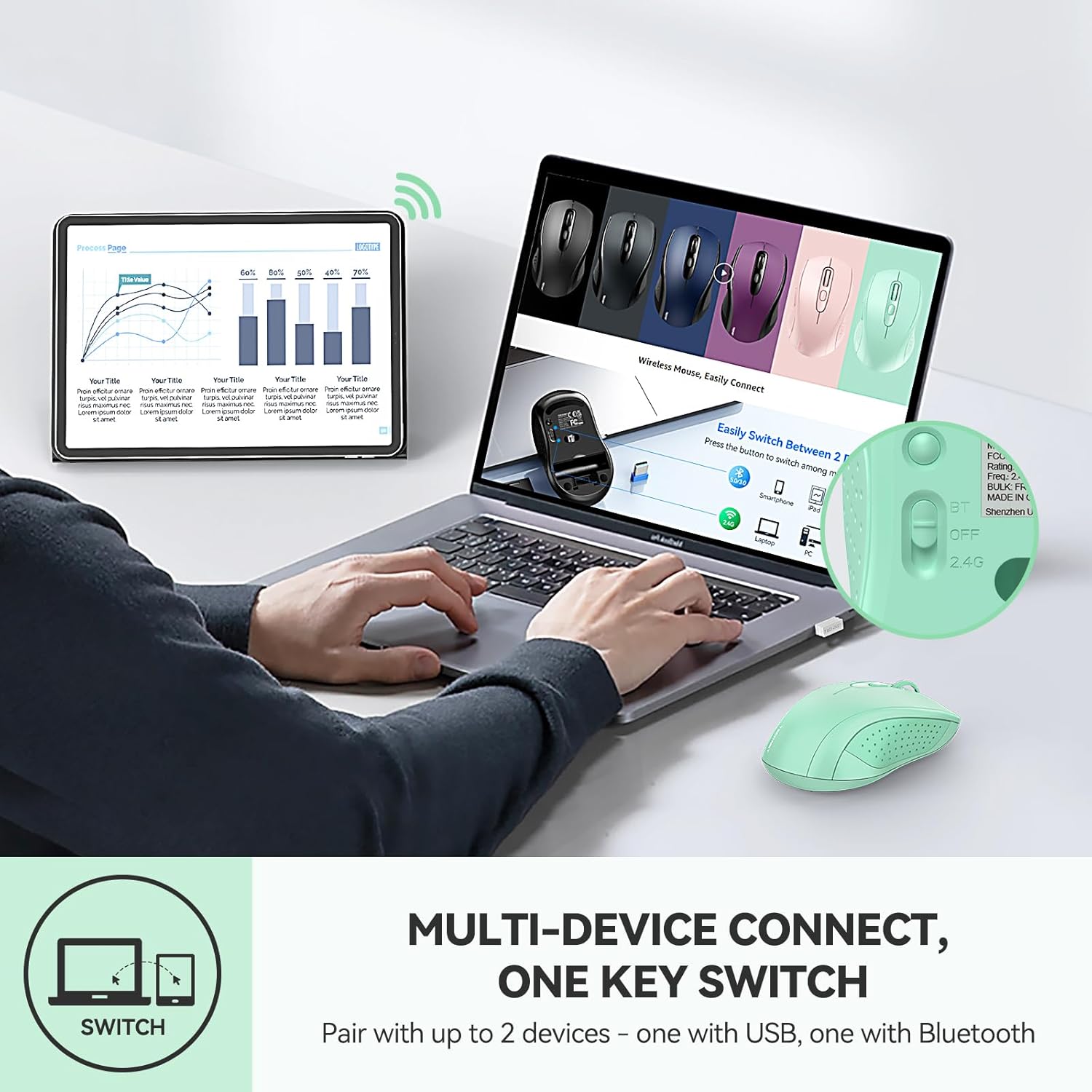
Image: A laptop and tablet connected to the TECKNET mouse, illustrating the multi-device, one-key switch functionality.
4.2 Regulacja DPI
The mouse offers 6 adjustable DPI levels (800/1200/1600/2400/3200/4000) to suit different tasks and preferences. To change the DPI:
- Press the DPI Switch button located behind the scroll wheel.
- Each press cycles through the available DPI settings. The cursor speed will change accordingly.
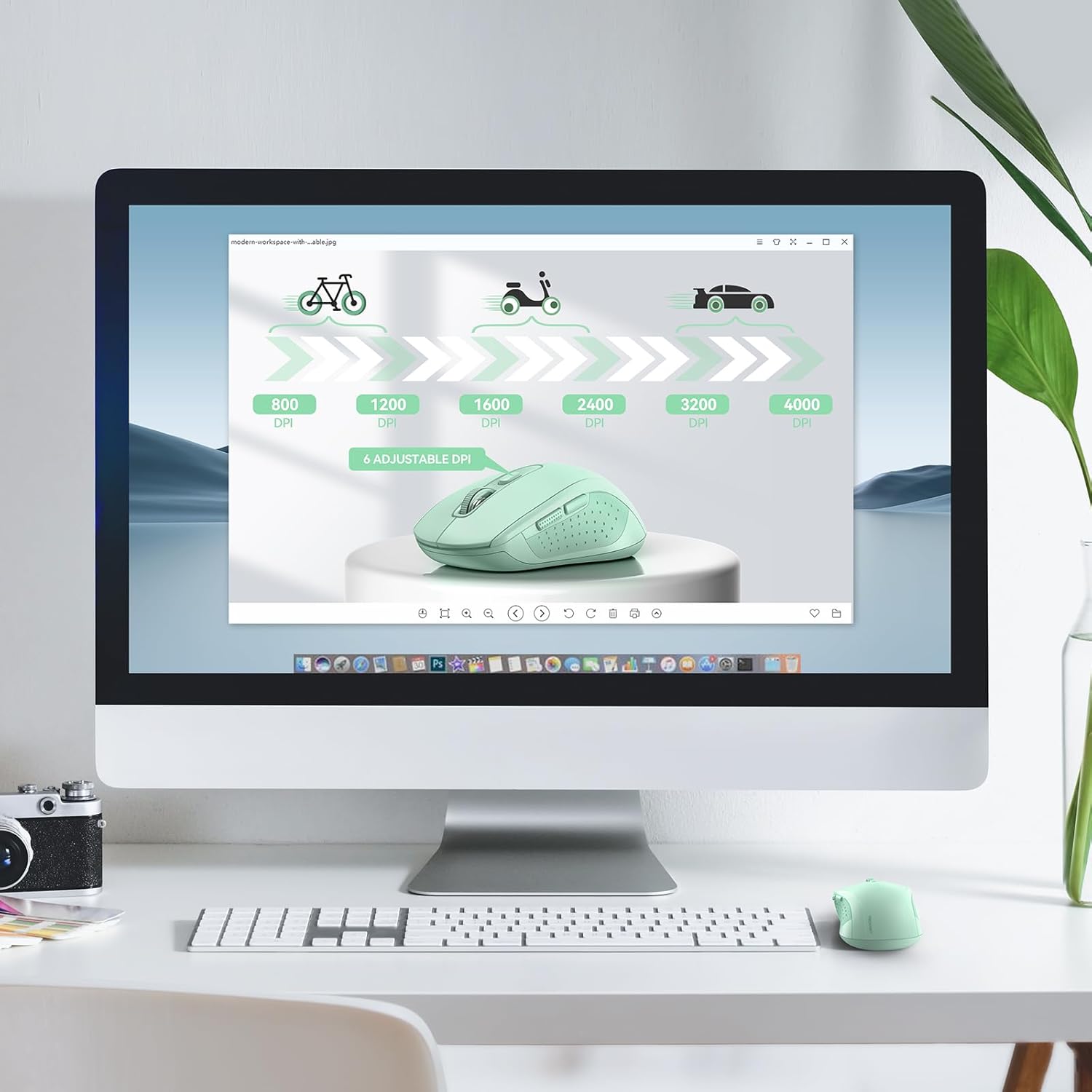
Image: A computer screen displaying different DPI settings (800, 1200, 1600, 2400, 3200, 4000) and their corresponding uses, with the mouse shown below.
4.3 Przyciski „do przodu” i „do tyłu”
The side buttons allow for quick navigation:
- Naciśnij Przycisk do przodu to move to the next page in web browsers or documents.
- Naciśnij Przycisk wstecz to return to the previous page in web browsers or documents.
- Notatka: These side buttons are not supported on Mac operating systems.

Image: The TECKNET mouse with its forward and backward side buttons labeled, indicating their function and a note about Mac system incompatibility.
4.4 Inteligentny tryb uśpienia
To conserve battery life, the mouse features an automatic sleep mode:
- The mouse will enter standby mode after 10 seconds of inactivity.
- After 10 minutes of inactivity, it will enter a deeper auto-sleep mode.
- To wake the mouse, simply double-click any button.

Image: A visual representation of the mouse's smart sleep feature, showing states from working to standby, auto-sleep, and click to activate.
5. Zgodność
The TECKNET TK309 mouse is compatible with a wide range of operating systems and devices:
- Systemy operacyjne: Windows, macOS, Linux, iOS, Android, Chrome OS
- Typy urządzeń: Laptops, Tablets, PCs, Smartphones

Image: Icons representing compatibility with Windows, Chrome, Linux, Apple (macOS/iOS), and Android operating systems.
6. Konserwacja
To ensure optimal performance and longevity of your TECKNET mouse:
- Czyszczenie: Do czyszczenia myszy używaj miękkiej, suchej ściereczki. Unikaj stosowania silnych środków chemicznych i materiałów ściernych.
- Wymiana baterii: Wymień baterię AA, gdy wydajność myszy spadnie lub gdy wskaźnik LED zacznie sygnalizować niski poziom naładowania baterii.
- Składowanie: When not in use for extended periods, store the USB receiver in its designated slot within the mouse.
7. Rozwiązywanie Problemów
If you encounter issues with your TECKNET mouse, refer to the following common solutions:
- Mysz nie odpowiada:
- Upewnij się, że akumulator jest prawidłowo zainstalowany i wystarczająco naładowany. W razie potrzeby wymień.
- Check the Power/BT/2.4G switch is in the correct position for your desired connection mode.
- For 2.4G mode, ensure the USB receiver is securely plugged into a working USB-A port. Try a different port.
- For Bluetooth mode, ensure Bluetooth is enabled on your device and the mouse is paired. Re-pair if connection is lost.
- Wake the mouse from sleep mode by double-clicking any button.
- Przerywane połączenie:
- Reduce the distance between the mouse and your device.
- Usuń wszelkie potencjalne źródła zakłóceń (np. inne urządzenia bezprzewodowe, duże przedmioty metalowe).
- Ruch kursora jest nieregularny lub powolny:
- Adjust the DPI setting using the DPI Switch button.
- Ensure the mouse is used on a suitable surface. Tru-Wave tracking works on most surfaces, but highly reflective or transparent surfaces may cause issues.
- LED Indicator meanings:
- Zielona dioda LED: Oznacza tryb 2.4G.
- Niebieska dioda LED: Indicates Bluetooth mode.
- Migająca dioda LED: Indicates pairing mode (rapid flash) or low battery (slow flash).
- Windows 7/XP Note: For 2.4G USB adapter usage on Windows 7/XP, a manual driver installation may be required.
8. Specyfikacje
| Funkcja | Specyfikacja |
|---|---|
| Numer modelu | TK309 |
| Technologia łączności | 2.4G Hz USB Wireless, Bluetooth (BT 5.0/3.0) |
| Poziomy DPI | 800/1200/1600/2400/3200/4000 |
| Wykrywanie ruchu | Optyczny |
| Źródło zasilania | 1 baterie AA (brak w zestawie) |
| Czas pracy baterii (w przybliżeniu) | 18 months (depending on usage) |
| Wymiary produktu | 4.25 x 2.48 x 0.1 cala |
| Waga przedmiotu | 2.26 uncji |
| Trwałość | 10 miliony kliknięć |
9. Gwarancja i wsparcie
TECKNET provides a 36-month warranty for this product upon registration. For warranty claims, technical support, or inquiries regarding damaged/missing parts, please contact TECKNET customer service. Refer to the product packaging or the official TECKNET webstrona dla danych kontaktowych.