
1. Wprowadzenie
The VEGER Snap CAM is a multi-functional accessory designed to enhance smartphone photography. It combines a comfortable handheld grip with a Bluetooth shutter button, a MagSafe-compatible magnetic attachment system, and an integrated 2200mAh wireless power bank. This device also functions as a smartphone stand, supporting both vertical and horizontal orientations.
2. Informacje dotyczące bezpieczeństwa
- Nie wystawiaj urządzenia na działanie ekstremalnych temperatur, bezpośredniego światła słonecznego i wysokiej wilgotności.
- Unikaj upuszczania i narażania urządzenia na silne uderzenia.
- Przechowywać w miejscu niedostępnym dla dzieci.
- Nie należy podejmować prób rozmontowywania, naprawiania ani modyfikowania urządzenia.
- Do ładowania należy używać wyłącznie dołączonego kabla ładującego lub certyfikowanego kabla USB typu C.
- Ensure proper ventilation when charging or using the wireless charging function.
- Urządzenie i baterię należy utylizować zgodnie z lokalnymi przepisami.
3. Zawartość opakowania
Sprawdź, czy w opakowaniu znajdują się wszystkie elementy:
- VEGER Snap CAM (UQ-W0569-SC)
- Charging cable (USB Type-C to Type-A)
- Magnetic ring sticker
- Pasek
- Instrukcja obsługi
4. Schemat produktu
Familiarize yourself with the components of your VEGER Snap CAM.
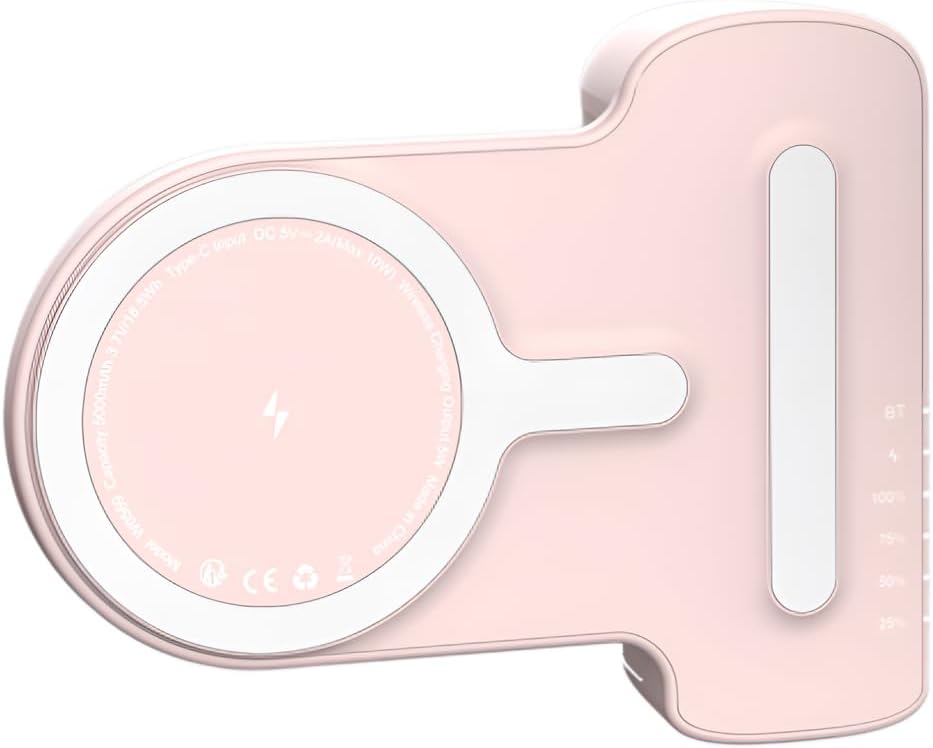
Rysunek 4.1: Widok z góry na dół view of the VEGER Snap CAM, highlighting the wireless charging coil, Type-C input port, and LED indicators for battery and Bluetooth status.

Rysunek 4.2: Zbliżenie views of the VEGER Snap CAM, detailing the reset button, power button, Type-C charging port, and the multi-color LED indicator system.
- Spust migawki: Located on the grip for capturing photos.
- Powierzchnia magnetyczna: MagSafe-compatible area for attaching to smartphones.
- Port wejściowy typu C: For charging the Snap CAM.
- Przycisk zasilania: Activates wireless charging and checks battery status.
- Wskaźniki LED: Displays Bluetooth connection status, charging mode, and battery level.
- Otwór na pasek: For attaching the included strap.
5. Konfiguracja
5.1 Charging the Snap CAM
Before first use, fully charge your VEGER Snap CAM.
- Connect the provided USB Type-C to Type-A charging cable to the Type-C input port on the Snap CAM.
- Podłącz drugi koniec kabla do zasilacza USB (nie ma go w zestawie) lub do portu USB komputera.
- The LED indicators will show the charging status. A full charge is indicated when all battery LEDs are solid.
5.2 Podłączanie do smartfona
The Snap CAM is designed for MagSafe-compatible smartphones (e.g., iPhone 12 series and newer) or smartphones using a MagSafe-compatible case.

Figure 5.1: The Snap CAM magnetically attaching to the back of a smartphone, demonstrating the MagSafe compatibility.
- Align the magnetic surface of the Snap CAM with the MagSafe area on the back of your smartphone or MagSafe-compatible case.
- The strong magnets will securely attach the Snap CAM to your phone.
- You can attach it vertically or horizontally and rotate it as needed.
Using the Magnetic Ring Sticker (for non-MagSafe phones)
If your smartphone is not MagSafe-compatible and you do not use a MagSafe-compatible case, you can use the included magnetic ring sticker.
- Clean the back surface of your smartphone or phone case thoroughly.
- Peel off the adhesive backing from the magnetic ring sticker.
- Carefully center and apply the sticker to the back of your phone or case. Ensure it is flat and secure.
- Once the sticker is applied, the Snap CAM can be magnetically attached to this ring.
5.3 parowanie Bluetooth
To use the shutter button, the Snap CAM must be paired with your smartphone via Bluetooth.
- Ensure the Snap CAM is charged.
- Turn on the Snap CAM by pressing the power button. The Bluetooth LED indicator will start blinking, indicating it's in pairing mode.
- Na swoim smartfonie przejdź do ustawień Bluetooth.
- Szukaj available devices and select "VEGER Snap CAM" (or similar name) from the list.
- Once paired, the Bluetooth LED indicator on the Snap CAM will become solid.
- The Snap CAM will automatically reconnect to the last paired device when turned on and within range.
6. Instrukcja obsługi
6.1 Using as a Shutter Grip
After successful Bluetooth pairing, you can use the Snap CAM's shutter button to control your smartphone's camera.

Figure 6.1: A smartphone attached to the Snap CAM, displaying the camera interface, with a hand comfortably holding the grip, ready to press the shutter button.

Figure 6.2: A hand demonstrating the ergonomic grip of the VEGER Snap CAM, with a finger positioned on the integrated shutter button for easy photo capture.
- Attach your smartphone to the Snap CAM.
- Ensure the Snap CAM is powered on and Bluetooth is connected.
- Otwórz aplikację aparatu w smartfonie.
- Press the shutter button on the Snap CAM grip to take a photo or start/stop video recording (functionality may vary slightly depending on your phone's camera app).
6.2 Using as a Wireless Power Bank
The Snap CAM has a built-in 2200mAh battery for wireless charging Qi-compatible smartphones.
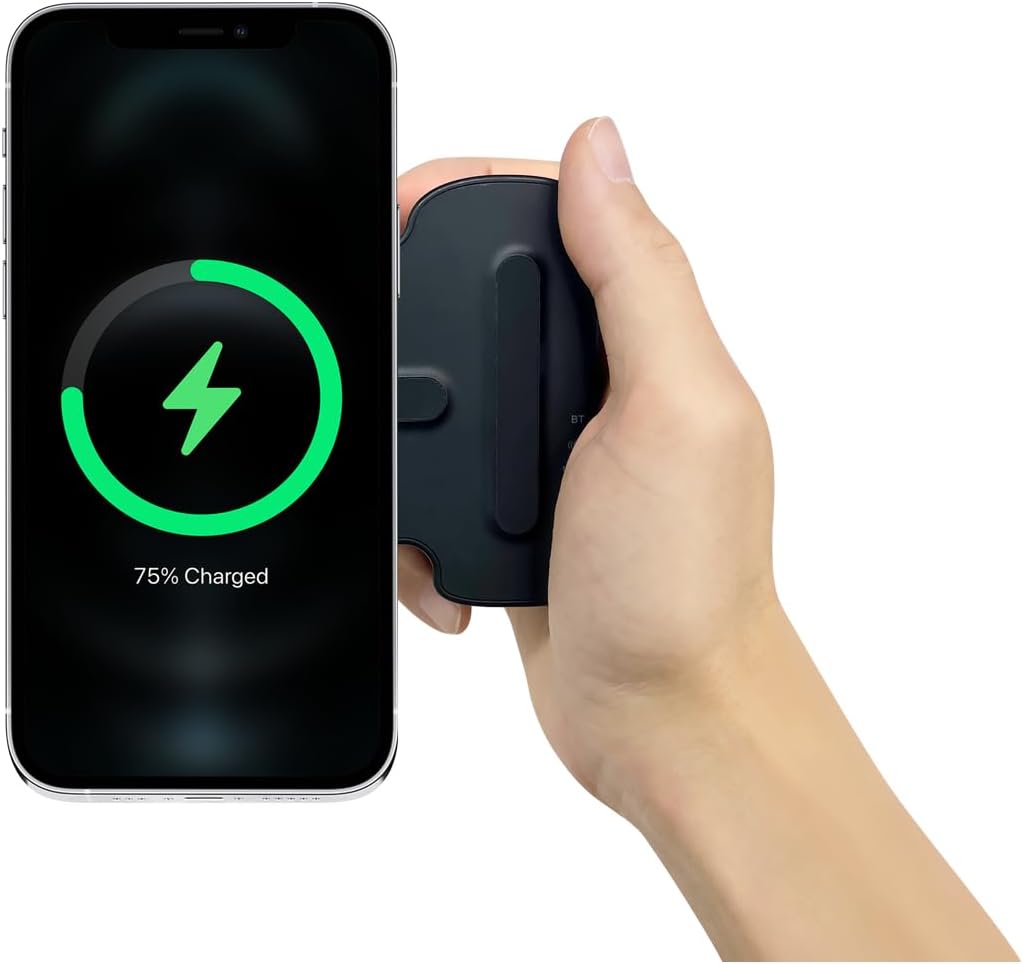
Figure 6.3: A smartphone attached to the VEGER Snap CAM, displaying a charging icon on its screen, indicating active wireless charging.
- Attach your Qi-compatible smartphone to the Snap CAM's magnetic surface.
- Press the power button on the Snap CAM to activate wireless charging.
- The charging indicator on the Snap CAM will illuminate, and your smartphone should display a charging status.
- Note: Wireless charging is only compatible with Qi-standard devices.
6.3 Using as a Smartphone Stand
The ergonomic design of the Snap CAM allows it to function as a stable stand for your smartphone.

Figure 6.4: Two VEGER Snap CAM units, one supporting a smartphone in horizontal orientation and another in vertical orientation, demonstrating its versatility as a stand.
- Attach your smartphone to the Snap CAM.
- Place the Snap CAM on a flat surface. The grip part acts as a stable base.
- Adjust your phone's orientation (vertical or horizontal) as desired for viewtreść.
6.4 Przewodnik po wskaźnikach LED
The Snap CAM features multi-color LED indicators to provide status information:
- Dioda LED Bluetooth:
- Migający: Tryb parowania.
- Solidny: Połączenie Bluetooth.
- Battery Level LEDs: Indicate the remaining battery capacity (e.g., 25%, 50%, 75%, 100%).
- Dioda LED ładowania: Illuminates when the Snap CAM is being charged or is wirelessly charging a device.
7. Konserwacja
- Czyszczenie: Przetrzyj urządzenie miękką, suchą ściereczką. Nie używaj silnych środków chemicznych ani ściernych środków czyszczących.
- Składowanie: Store the Snap CAM in a cool, dry place away from direct sunlight and extreme temperatures.
- Pielęgnacja baterii: Aby zapewnić optymalną żywotność baterii, unikaj częstego całkowitego rozładowywania urządzenia. Ładuj je regularnie, nawet jeśli nie jest używane przez dłuższy czas.
8. Rozwiązywanie Problemów
- Urządzenie nie włącza się: Upewnij się, że urządzenie jest naładowane. Podłącz je do źródła zasilania za pomocą kabla typu C.
- Brak połączenia Bluetooth:
- Ensure the Snap CAM is in pairing mode (Bluetooth LED blinking).
- Check your smartphone's Bluetooth settings and ensure Bluetooth is enabled.
- Usuń urządzenie z ustawień Bluetooth w telefonie i spróbuj sparować je ponownie.
- Ensure the Snap CAM is within range of your smartphone.
- Shutter button not working:
- Verify Bluetooth is connected (solid Bluetooth LED).
- Upewnij się, że aplikacja aparatu w Twoim smartfonie jest otwarta i aktywna.
- Some camera apps may require specific settings for external shutter control.
- Ładowanie bezprzewodowe nie działa:
- Upewnij się, że Twój smartfon jest zgodny ze standardem Qi.
- Press the power button on the Snap CAM to activate wireless charging.
- Ensure the phone is correctly aligned on the magnetic charging surface.
- Zdejmij wszelkie grube etui na telefon, które mogą przeszkadzać w ładowaniu bezprzewodowym.
- Słabe przywiązanie magnetyczne:
- Ensure your phone or case is MagSafe-compatible.
- If using the magnetic ring sticker, ensure it is properly applied and centered.
9. Specyfikacje
| Nazwa produktu | VEGER SNAPCAM |
| Numer modelu | UQ-W0569-SC |
| Pojemność baterii | 2,200 mAh (3.7 V/18.5 Wh) |
| Wyjście ładowania bezprzewodowego | 5W |
| Wejście typu C | 5V/2A |
| Tworzywo | Plastikowy |
| Wymiary | 110.6 × 86.8 × 39.3 mm (4.3 × 3.4 × 1.5 cala) |
| Waga | 152 g (5.3 uncji) |
| Kompatybilne urządzenia | MagSafe-compatible iPhones (12 series and newer), Android phones with magnetic ring sticker or MagSafe-compatible case. |
| Producent | VEGER |
| Radio Law Certification | Certified (210-231596) |
10. Gwarancja i wsparcie
The VEGER Snap CAM comes with a 1-letnia gwarancja od daty zakupu. Niniejsza gwarancja obejmuje wady produkcyjne powstałe w wyniku normalnego użytkowania.
For warranty claims or technical support, please contact the seller, Unique Co., Ltd, or your point of purchase with your proof of purchase.
Prosimy zachować paragon zakupu w celach gwarancyjnych.