
BOXPUT MT10
BOXPUT MT10 Backlit Mini Wireless Keyboard Remote Control User Manual
Model: MT10
Wstęp
This manual provides detailed instructions for the BOXPUT MT10 2.4G Mini Wireless Keyboard Remote Control with Touchpad Mouse Combo. This device combines the functionality of a keyboard, mouse, and remote control, designed for use with various systems including PC, Pad, Xbox, PS3, TV Box, HTPC, IPTV, and Raspberry Pi.
The MT10 features a 2.4GHz wireless connection, a sensitive touchpad, and multi-color backlighting for enhanced usability in different environments.
Zawartość opakowania
- 1x BOXPUT MT10 Wireless Backlit Keyboard
- 1x bezprzewodowy odbiornik USB
- 1x Instrukcja obsługi
Przewodnik po konfiguracji
1. Instalacja baterii
The BOXPUT MT10 requires batteries (not included) for operation. Open the battery compartment located on the back of the device and insert the required batteries, ensuring correct polarity.
2. Podłączanie odbiornika USB
- Locate the wireless USB receiver included in the package.
- Plug the USB receiver into an available USB port on your device (PC, Smart TV, TV Box, etc.).
- System powinien automatycznie wykryć i zainstalować niezbędne sterowniki. Zazwyczaj nie jest wymagana instalacja dodatkowego oprogramowania.

Image: The BOXPUT MT10 keyboard shown with its USB receiver and various compatible devices like Smart TV, Projector, Desktop Computer, Android TV Box, and Notebook. Only one USB receiver is required for connection.
3. Włączanie
Once the batteries are installed and the USB receiver is connected, turn on the keyboard using the power switch (if available) or by pressing any key. The keyboard is designed for plug-and-play functionality.
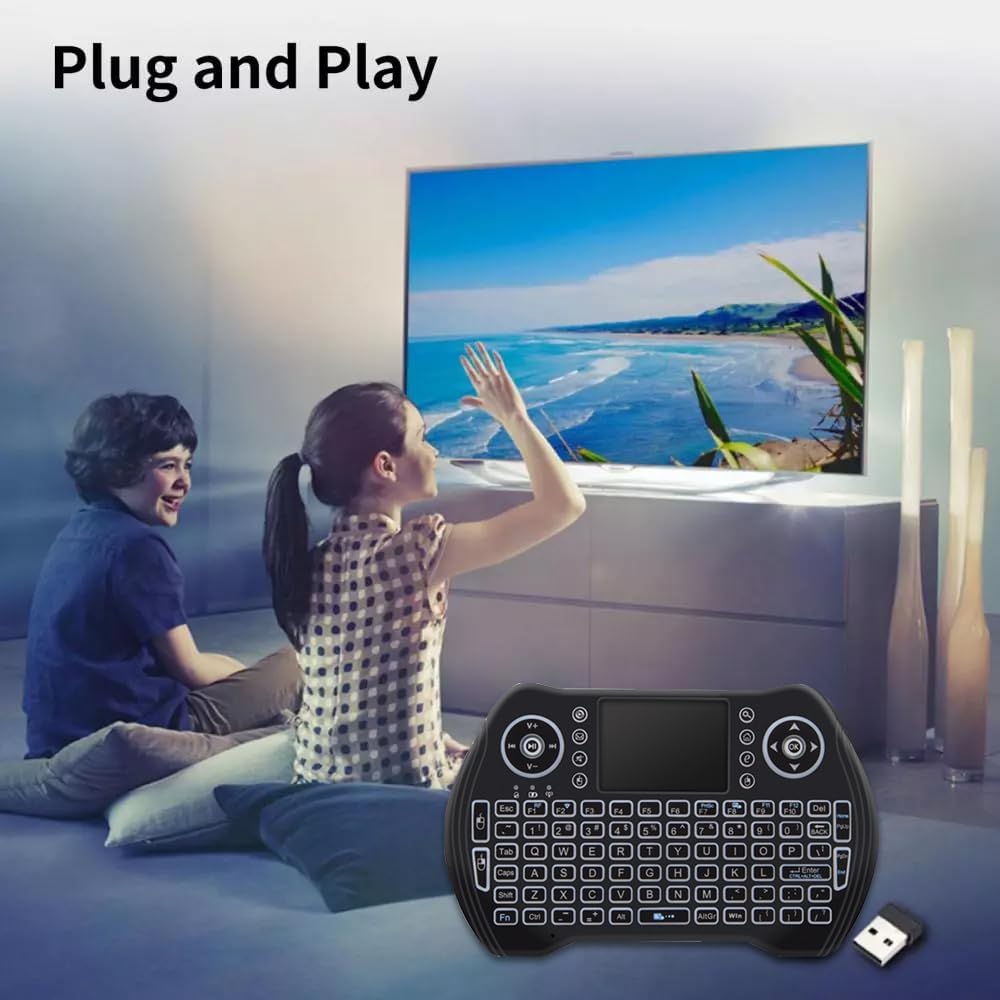
Image: Two individuals are shown comfortably using the BOXPUT MT10 mini wireless keyboard with a large screen TV, demonstrating its simple plug-and-play setup.
Instrukcja obsługi
Podstawowe funkcje
- Wejście klawiatury: Use the QWERTY layout for typing.
- Touchpad Mouse: The integrated touchpad functions as a mouse.
- Single finger tap: Left mouse click
- Two finger tap: Right mouse click
- Two finger drag: Scroll
- Zdalne sterowanie: The device can function as a remote, and some keys may be programmable or learnable from your TV remote. Refer to your device's manual for specific programming instructions if applicable.
Special Functions and Shortcuts
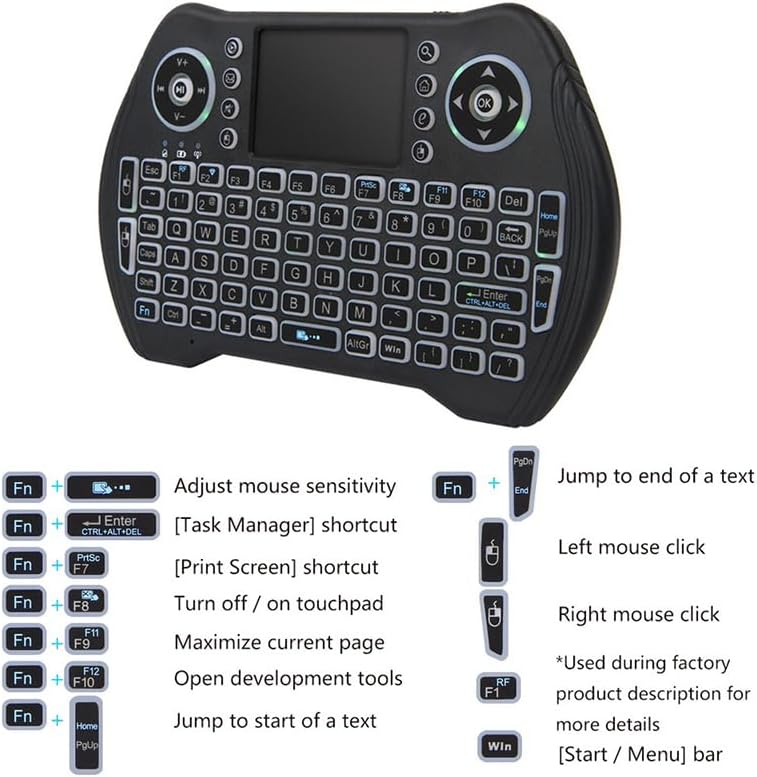
Obraz: szczegółowy view of the BOXPUT MT10 mini wireless keyboard, illustrating its full QWERTY layout, touchpad, and dedicated function keys for various shortcuts and controls.
| Kombinacja klawiszy | Funkcjonować |
|---|---|
| Fn + Spacja | Dostosuj czułość myszy |
| Fn + Enter | Task Manager shortcut |
| Fn + PrtSc | Print Screen shortcut |
| Fn+F8 | Turn touchpad on/off |
| Fn+F9 | Zmaksymalizuj bieżącą stronę |
| Fn+F10 | Otwarte narzędzia programistyczne |
| Fn + Dom | Przejdź do początku tekstu |
| Fn + PgDn | Przejdź do końca tekstu |
| Wygraj klucz | Pasek [Start / Menu] |
Kontrola podświetlenia
The MT10 features multi-color backlighting. You can switch between different backlight colors at will. Refer to the keyboard layout for the specific key combination to change backlight colors (often Fn + F2 or a dedicated backlight key).

Image: Three BOXPUT MT10 mini wireless keyboards are displayed, each showing a different backlight color (blue, green, and red), illustrating the multi-color backlight feature.
Zgodność
The keyboard is compatible with a wide range of operating systems and devices, including Windows, Linux, Android, Xbox 360/PS3, and Mac OS.

Image: The BOXPUT MT10 mini wireless keyboard is centrally placed, surrounded by circular icons representing various compatible operating systems and devices: Windows, Linux, Android, Xbox 360/PS3, and Mac OS, highlighting its broad compatibility.
Konserwacja
Czyszczenie
Do czyszczenia klawiatury należy używać miękkiej, suchej ściereczki. W przypadku uporczywych zabrudzeń należy użyć lekkoamp cloth can be used, but ensure no liquid enters the device. Avoid using harsh chemicals or abrasive cleaners.
Wymiana baterii
When the keyboard's performance degrades or it stops responding, it may be time to replace the batteries. Open the battery compartment, remove the old batteries, and insert new ones, observing correct polarity.
Rozwiązywanie problemów
- Urządzenie nie odpowiada:
- Sprawdź, czy odbiornik USB jest prawidłowo podłączony do działającego portu USB.
- Check if the keyboard batteries are installed correctly and have sufficient charge. Replace if necessary.
- Sprawdź, czy klawiatura jest włączona.
- Spróbuj podłączyć odbiornik USB do innego portu USB w urządzeniu.
- Poor wireless connection or lag:
- Ensure there are no obstructions between the keyboard and the USB receiver. The optimal operating distance is up to 10 meters.
- Unikaj umieszczania odbiornika w pobliżu innych urządzeń bezprzewodowych lub źródeł zakłóceń elektromagnetycznych.

Image: The BOXPUT MT10 mini wireless keyboard is shown alongside a "Wireless 2.4G" signal icon, illustrating its stable transmission technology. It is advised to avoid placing obstructions between the keyboard and the receiver for optimal performance.
- Klawiatura zbyt szybko przechodzi w tryb uśpienia:
The keyboard automatically enters sleep state when not in use for a short period to conserve battery. To wake it up, press any key. If it takes 30 seconds to restart, this is normal behavior after a longer period of inactivity.
- Touchpad nie działa:
- Ensure the touchpad has not been accidentally turned off using the Fn+F8 skrót.
- Clean the touchpad surface to ensure smooth operation.
Specyfikacje
| Funkcja | Szczegół |
|---|---|
| Numer modelu | MT10 |
| Czujniki | Panel dotykowy |
| Metoda transmisji | Bezprzewodowa sieć 2.4G |
| Odległość robocza | Do 10 metrów |
| Liczba kluczy | 92 kluczy |
| Tworzywo | Tworzywo ABS i silikon |
| Wymiary (dł.*szer.*wys.) | Wymiary 15.9 x 10 x 2.2 cm |
| Waga | 126g |
| Podświetlenie | Yes (Multi-color) |
| Wielodotykowy | Tak |
| Certyfikaty | FCC, CE, RoHS |
| Źródło zasilania | Zasilany bateryjnie |
| Funkcja Bluetooth | NIE |
Wsparcie
For any operational or usage issues that cannot be resolved using this manual, please contact BOXPUT Official Support. Our technical team is available to assist you.
You can find contact information and further support resources on the official BOXPUT webstronie lub za pośrednictwem platformy, na której dokonałeś zakupu produktu.

Image: An individual is shown at a desk, looking at a computer screen displaying the BOXPUT website, symbolizing the availability of online support for users.
Ask a question about this manual
Ask about setup, troubleshooting, compatibility, parts, safety, or missing instructions. Manuals+ will review the question and use this page’s manual context to help answer it.