
MAGICRAVEN MRDM-156-1080-60
MAGICRAVEN A1-Dual-15.6" Portable Dual Monitor User Manual
Model: A1-Dual-15.6"-1080P-60Hz-Wins Only (MRDM-156-1080-60)
1. Wprowadzenie
This manual provides instructions for the setup, operation, maintenance, and troubleshooting of your MAGICRAVEN A1-Dual-15.6" Portable Dual Monitor. Please read this manual thoroughly before using the product to ensure proper functionality and longevity.
2. Koniec produktuview
2.1 Główne cechy
- Windows Only, True Plug And Play: No driver or application installation is required. Features two full-function USB Type-C ports. Operates with most Windows system laptops using a single USB-C to USB-C cable. Note: For phones and tablets, only mirror mode is supported.
- Dual 15.6" Screens: Provides a three-screen workstation setup, enhancing work efficiency. Supports extended, mirror, split, and portrait display modes.
- 1080P High Definition Display: Equipped with two IPS LCD matte panels, offering 300 nits brightness, 100% sRGB color gamut, 1000:1 contrast ratio, and a 178° viewing angle. Includes flicker-free low blue light technology to reduce eye fatigue. Each screen has independent buttons for brightness and RGB adjustments.
- 360° Foldable Monitor: The upper screen can rotate 360 degrees for easy content sharing. A dedicated screen rotation button allows for a 180-degree flip for face-to-face discussions. Features a 3.7 lbs metal frame, designed for portability.
- Stabilna podpórka: Integrated 90° adjustable kickstand allows for flexible positioning in both landscape and portrait modes.

Figure 1: Triple screen setup for Windows laptops.
2.2 Zawartość opakowania
- 1 x MAGICRAVEN A1-Dual-15.6" Portable Dual Monitor
- 1 x kabel USB-C do USB-C
- 1 x Instrukcja obsługi (ten dokument)
- Other necessary cables (e.g., HDMI, USB-A to USB-C) may be included depending on the package.
3. Instrukcje konfiguracji
3.1 Connecting to a Laptop (Windows Only)
The MAGICRAVEN A1-Dual-15.6" Portable Dual Monitor is designed for Windows systems and offers true plug-and-play functionality via USB-C.
- Ensure your laptop has a full-function USB Type-C port that supports video output.
- Connect one end of the provided USB-C to USB-C cable to a full-function USB Type-C port on your laptop.
- Connect the other end of the USB-C to USB-C cable to one of the full-function USB Type-C ports on the portable monitor.
- The monitor should automatically detect the connection and display the extended screen.
- If the display does not appear automatically, check your laptop's display settings (e.g., Windows Display Settings) to ensure the external monitors are detected and configured correctly.
Notatka: For phones and tablets, this monitor only supports mirror mode.
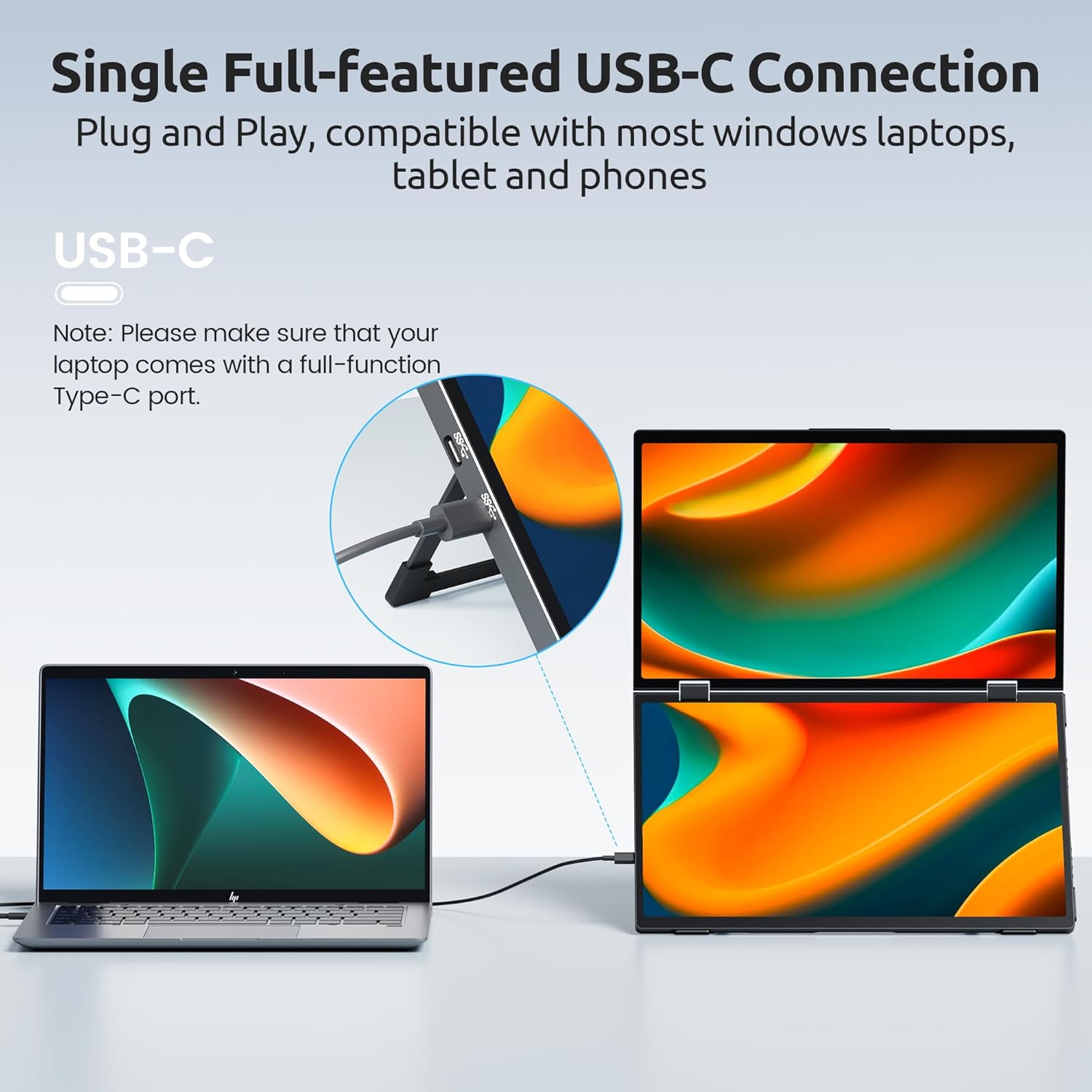
Figure 2: Single USB-C connection for plug-and-play setup.
3.2 Korzystanie ze zintegrowanej podpórki
The monitor features a built-in 90° adjustable kickstand for stable positioning on various surfaces.
- Gently pull out the kickstand from the back of the monitor unit.
- Adjust the kickstand to your desired angle, up to 90 degrees, to achieve a comfortable viewpozycja.
3.3 Montaż VESA (opcjonalnie)
The monitor is VESA mountable, supporting a 75x75mm pattern with M4*6mm screws.
- Ensure the monitor is powered off and disconnected from all devices.
- Znajdź otwory montażowe VESA z tyłu monitora.
- Attach the monitor to a compatible VESA mount using M4*6mm screws.

Figure 3: Built-in stand and VESA mounting details.
4. Instrukcja obsługi
4.1 Włączanie/wyłączanie zasilania
The monitor powers on automatically when connected to a compatible laptop via USB-C. To power off, simply disconnect the USB-C cable from your laptop or the monitor.
4.2 Dostosowywanie ustawień wyświetlania
Each screen has separate control buttons for independent adjustments.
- Locate the control buttons (typically a volume rocker and a power button) on the side of each monitor panel.
- Press the volume rocker button inward to access the On-Screen Display (OSD) menu.
- Use the rocker button to navigate through menu options such as Brightness, Contrast, and RGB settings.
- Press the power button to go back or exit the menu.
These adjustments allow you to personalize your viewing experience for each screen.
4.3 Tryby wyświetlania
The monitor supports various display modes to optimize your workflow and viewzaspokojenia potrzeb.
Tryb rozszerzony
Extends your laptop's desktop across the two portable screens, providing a larger, continuous workspace for multitasking.
Tryb lustra
Duplicates your laptop's display onto the portable screens, which is useful for presentations or sharing content with others.
Tryb portretowy
Rotates the display to a vertical orientation, ideal for viewing documents, code, or long web stron.
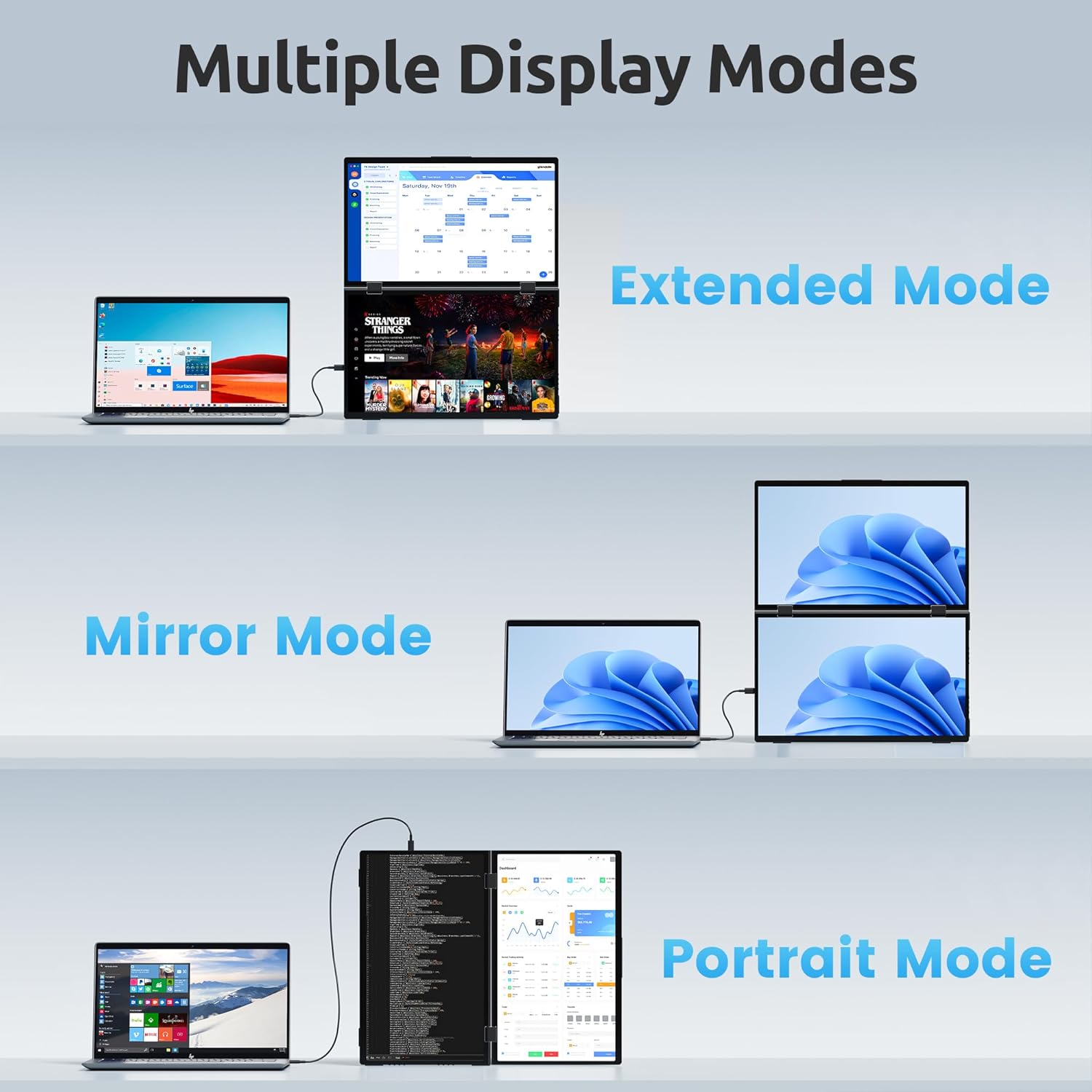
Figure 4: Multiple display modes (Extended, Mirror, Portrait).
4.4 360° Rotation and Sharing
The upper screen of the monitor can rotate 360 degrees, facilitating easy screen sharing with colleagues or friends.
A dedicated screen rotation button allows you to quickly flip the laptop screen 180 degrees, which is convenient for face-to-face discussions.

Figure 5: 360° rotatable screen for collaboration.
5. Konserwacja
5.1 Cleaning the Screens
Use a soft, lint-free cloth to gently wipe the screen surfaces. For stubborn marks, slightly dampen the cloth with water or a screen-cleaning solution specifically designed for electronic displays. Avoid harsh chemicals, abrasive materials, or spraying liquids directly onto the screen.
5.2 Przechowywanie
When not in use, fold the monitor to protect the screens from dust and damage. Store it in a cool, dry place, away from direct sunlight and extreme temperatures. The monitor's durable metal frame and foldable design make it suitable for transport in a backpack or carrying case.
6. Rozwiązywanie Problemów
6.1 No Display / One Monitor Not Turning On
Wydanie: The monitor does not display an image, or only one of the two screens turns on.
Rozwiązanie:
- Ensure the USB-C cable is securely connected to both the laptop and the monitor.
- Verify that your laptop's USB-C port is a full-function port that supports video output.
- Restart your laptop. A system restart can resolve connection issues, especially if the monitor was recently unplugged and reconnected.
- Check your laptop's display settings (e.g., Windows Display Settings) to ensure the external monitors are detected and configured correctly (e.g., "Extend these displays" or "Duplicate these displays").
- Try a different USB-C cable if available, as a faulty cable can prevent display.
- Ensure your laptop has sufficient power. Some laptops may require external power to drive multiple external displays reliably.
6.2 Migotanie lub niestabilny wyświetlacz
Wydanie: The screen flickers or the image is unstable.
Rozwiązanie:
- Sprawdź, czy kabel USB-C nie jest uszkodzony i jest prawidłowo podłączony.
- Reduce the display resolution or refresh rate in your laptop's display settings to see if it stabilizes the image.
- Update your laptop's graphics drivers to the latest version.
- Ensure no strong electromagnetic interference sources are nearby that could affect the display signal.
6.3 Screen Brightness or Color Issues
Wydanie: The screen brightness or color appears incorrect or inconsistent.
Rozwiązanie:
- Use the independent control buttons on each monitor panel to adjust brightness, contrast, and RGB settings to your preference.
- Check your laptop's display calibration settings, as these can affect the color output to external monitors.
7. Specyfikacje
| Funkcja | Szczegół |
|---|---|
| Numer modelu | MRDM-156-1080-60 |
| Rozmiar ekranu | Podwójny 15.6 cala |
| Rezolucja | 1920 x 1080 pikseli (FHD 1080p) |
| Proporcje obrazu | 16:9 |
| Jasność obrazu | 300 kandeli (gnid) |
| Gama kolorów | 100% sRGB |
| Współczynnik kontrastu | 1000:1 |
| Viewing kąt | 178° |
| Powierzchnia ekranu | Matte IPS LCD |
| Łączność | 2 x Full-function USB Type-C Ports |
| Wymiary produktu | 0.47 x 9.9 x 16.65 cala |
| Waga przedmiotu | 3.7 funta (tylko monitor) |
| Mocowanie VESA | 75x75mm (M4*6mm screws) |
| Zgodność | Windows OS Only (Laptop), Mirror Mode for Phone/Tablet |
8. Gwarancja i wsparcie
MAGICRAVEN provides the following support for this product:
- 30-dniowa polityka zwrotów: Możliwość zwrotu w ciągu 30 dni od daty zakupu.
- Wymiana w ciągu 90 dni: Product replacements are offered within 90 days of purchase for qualifying issues.
- 2-letnia gwarancja: Obejmuje wady produkcyjne przez okres dwóch lat od daty zakupu.
- Wsparcie dożywotnie: Ongoing technical assistance is available for the product's lifespan.
- Obsługa klienta: 24/7 customer service is available, with replies typically provided within 8 hours.
For support inquiries, please contact MAGICRAVEN customer service through the platform where you purchased the product or visit the official MAGICRAVEN webwitryna do informacji kontaktowych.
Ask a question about this manual
Ask about setup, troubleshooting, compatibility, parts, safety, or missing instructions. Manuals+ will review the question and use this page’s manual context to help answer it.