
1. Wprowadzenie
This manual provides essential information for the installation, operation, and maintenance of your Fortdows 10.4-inch Android 12 Car Stereo Radio. Please read this manual thoroughly before installation and use to ensure proper functionality and safety. Keep this manual for future reference.
2. Informacje dotyczące bezpieczeństwa
- Zalecana profesjonalna instalacja: Due to the complexity of car electrical systems, professional installation is highly recommended. Incorrect installation can damage the vehicle's electrical system or the stereo unit.
- Odłącz akumulator: Always disconnect the vehicle's negative battery terminal before beginning any electrical work to prevent short circuits and damage.
- Okablowanie: Aby zapobiec zagrożeniom elektrycznym, należy upewnić się, że wszystkie połączenia przewodów są solidne i właściwie zaizolowane.
- Bezpieczeństwo jazdy: Do not operate the stereo's advanced features or watch videos while driving. Distracted driving can lead to accidents.
- Wentylacja: Ensure the unit has adequate ventilation and is not obstructed by other components.
3. Zawartość opakowania
Sprawdź, czy w opakowaniu znajdują się wszystkie elementy:
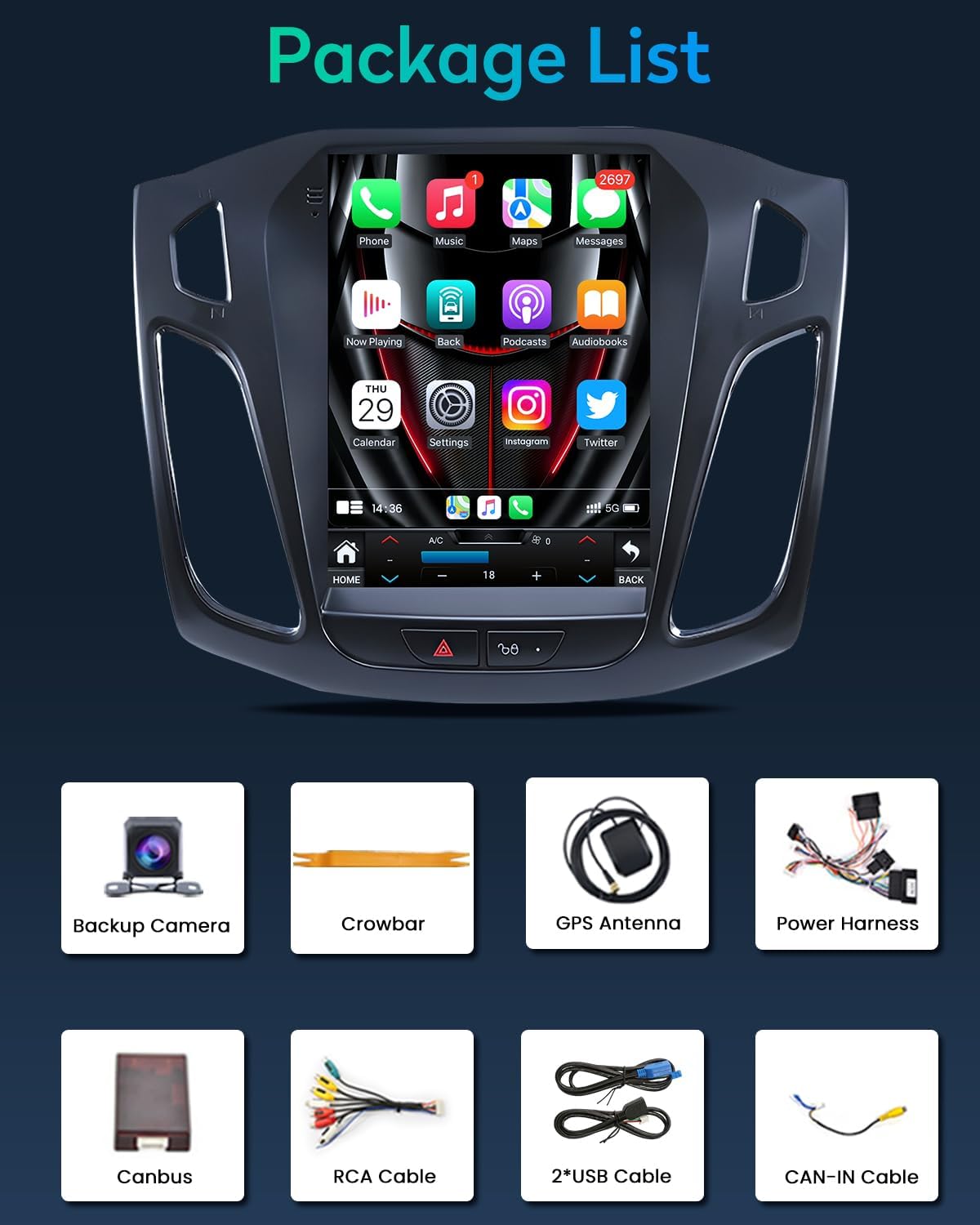
Rysunek 3.1: Zawartość opakowania - The image shows the main unit, backup camera, crowbar tool, GPS antenna, power harness, CANBUS module, RCA cables, two USB cables, and a CAN-IN cable.
- 1x Fortdows 10.4-inch Android 12 Car Stereo Unit
- 1x wiązka mocy
- 1x CAM-IN Cable (for rear camera)
- 1x Crowbar Tool (for panel removal)
- 1x antena GPS
- 1x CANBUS Module
- 1x zestaw kabli RCA
- 2x kable USB
- 1x 1080P Backup Camera (if included in package)
4. Instrukcja instalacji
This section outlines the general installation process. Specific vehicle configurations may vary. Refer to your vehicle's service manual for detailed dashboard disassembly instructions.

Figure 4.1: Compatibility Diagram and Installed Unit - This image shows various Ford Focus dashboard configurations and indicates which ones are compatible with the stereo unit. The top image displays the new stereo successfully installed in a compatible dashboard.
4.1. Instrukcja instalacji wideo
Video 4.1: Car Radio for Ford Focus Installation - This video provides a step-by-step visual guide for installing the car stereo in a Ford Focus. It covers removal of the original unit, wiring connections, and final assembly.
4.2. Instalacja krok po kroku
- Przygotowanie: Disconnect the vehicle's negative battery terminal. Use the provided crowbar tool to carefully pry open the dashboard trim around the original radio unit.
- Usuń oryginalną jednostkę: Unscrew the bottom two screws holding the dash kit. Gently pull out the dash kit and disconnect the emergency light cable. Unscrew the top four screws securing the original head unit. Carefully remove the original head unit and disconnect all wires from its back. Then, remove the original small screen and disconnect its display cable.
- Podłącz wiązkę zasilania: Connect the supplied power harness of the new car radio to the factory harness of your car.
- Connect CANBUS: Connect the CANBUS cable to the related CANBUS port of the head unit.
- Amplifier Control Wire: Locate the blue AMP drut od amplifier control wires. Remove the protective cap from this wire. Then, locate the second red accessory wire of the power harness, burn off its surface insulation. Connect and swap the red accessory wire and the blue AMP wire. Use insulating tape to protect the connection of these two wires.
- Emergency Light Cable: Connect the emergency light cable of your car to the related port on the new radio's frame.
- Montaż końcowy: Carefully place the new car stereo unit into the dashboard opening. Secure it with screws. Reconnect the vehicle's negative battery terminal.
5. Podstawowa obsługa
- Włączanie/wyłączanie: Aby włączyć lub wyłączyć urządzenie, naciśnij i przytrzymaj przycisk zasilania (zazwyczaj znajdujący się na panelu przednim).
- Regulacja głośności: Adjust the volume using the physical buttons or on-screen controls.
- Nawigacja na ekranie dotykowym: The unit features a responsive touchscreen. Tap icons to open applications, swipe to navigate menus, and use pinch-to-zoom gestures where applicable.
- Przycisk Home: Press the Home button to return to the main interface.
- Przycisk Wstecz: Press the Back button to return to the previous screen or menu.
6. Główne cechy
6.1. Wyświetlacz o wysokiej rozdzielczości

Figure 6.1: QLED IPS 1024*768 Screen - This image illustrates the clarity and wide viewing angles of the 10.4-inch QLED IPS display, comparing its 1024x768 resolution to lower resolution screens.
The 10.4-inch QLED IPS display offers a resolution of 1024 * 768 HD, providing crisp, clear visuals for all multimedia content and navigation. The upgraded screen ensures a more colorful and high-definition picture with excellent detail and 178° viewkąty.
6.2. Bezprzewodowy CarPlay i Android Auto

Rysunek 6.2: Bezprzewodowy interfejs CarPlay i Android Auto - This image shows the seamless integration of Apple CarPlay and Android Auto, displaying smartphone apps and functions directly on the car stereo screen.
Seamlessly integrate your smartphone with the car stereo using Wireless CarPlay and Android Auto. Access navigation, make calls, send messages, and enjoy your favorite music apps directly from the stereo display, enhancing convenience and safety.
6.3. Przetwarzanie dźwięku DSP
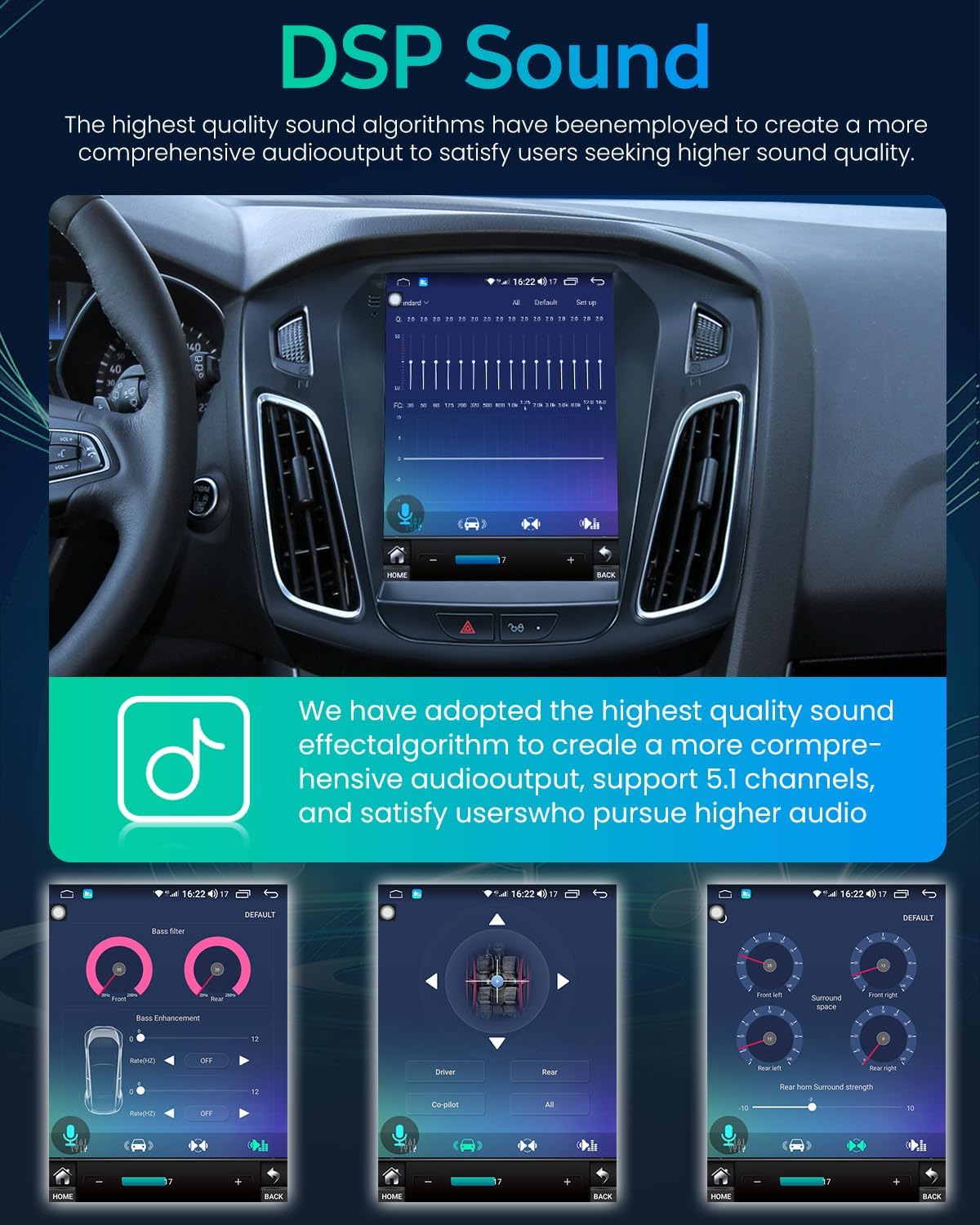
Rysunek 6.3: Ustawienia dźwięku DSP - This image illustrates the Digital Signal Processing (DSP) interface, allowing users to customize audio output with 32-band equalization and sound field adjustments for optimal sound quality.
Experience enhanced audio performance with 32-band EQ support and Digital Signal Processing (DSP) technology. Customize sound output to your preferences, whether you prefer deep bass, clear highs, or balanced mids, making every drive enjoyable.
6.4.Radio FM

Figure 6.4: Bluetooth and FM Radio - This image shows the car stereo's interface for Bluetooth music playback and the FM radio tuner, indicating frequency display and station selection.
The built-in FM radio tuner allows you to enjoy your favorite radio broadcasts. With automatic scanning and digital tuning, finding and saving stations is simple.
6.5. Bluetooth & GPS Navigation

Figure 6.5: Bluetooth and GPS Navigation - This image displays the car stereo's capabilities for Bluetooth voice control, music playback, phone calls, and integrated GPS navigation with map display.
Connect your phone via Bluetooth for hands-free calling, music streaming, and voice control. The integrated GPS navigation system provides accurate directions and real-time traffic updates to help you reach your destination efficiently.
6.6. Sterowanie z kierownicy (SWC)

Rysunek 6.6: Interfejs sterowania z kierownicy - This image shows how the car stereo integrates with existing steering wheel controls, allowing drivers to manage calls, music, and navigation without taking their hands off the wheel.
The unit supports Steering Wheel Control (SWC), allowing you to adjust audio settings, change tracks, and make voice commands directly from your steering wheel, enhancing convenience and driving safety.
6.7. Obsługa tylnej kamery

Figure 6.7: Backup Camera Display - This image shows the car stereo screen displaying a 1080P backup camera feed with reversing reference lines, night vision, and a 170° viewkąt.
Enhance safety with support for a 1080P rear camera. The stereo automatically displays the rearview image when you engage reverse gear, providing a clear view of your surroundings with reference lines, night vision, and a 170° viewkąt.
6.8. WiFi Function and Mirror Link

Rysunek 6.8: Łączność Wi-Fi - This image illustrates the car stereo's WiFi capabilities, allowing users to download apps from the app store, stream music, and browse news.

Rysunek 6.9: Funkcjonalność łącza lustrzanego - This image shows the Mirror Link feature, enabling users to cast their smartphone screen onto the car stereo for easier viewi interakcji.
Connect to WiFi to access online content, download applications from the app store, stream music, and browse the internet. The Mirror Link feature allows you to display your smartphone screen directly on the car stereo, enhancing functionality and content sharing.
7. Rozwiązywanie Problemów
Jeśli masz problemy z radiem samochodowym, zapoznaj się z poniższymi typowymi procedurami rozwiązywania problemów:
- Brak zasilania: Check all power connections, ensuring they are secure. Verify the vehicle's fuse for the stereo is intact. Ensure the battery is properly connected.
- Brak dźwięku: Check speaker connections. Verify volume levels are not muted or set too low. Ensure the amplifier control wire is correctly connected if an external ampużywany jest lifier.
- Rozłączenie Bluetooth: Ensure your phone's Bluetooth is on and discoverable. Try unpairing and re-pairing the device. Restart both the stereo and your phone.
- Brak połączenia CarPlay/Android Auto: Ensure your phone is compatible and the feature is enabled on both the phone and the stereo. Try restarting both devices. Check USB cable connection if using wired connection.
- Ekran nie reaguje: Try restarting the unit. If the issue persists, a factory reset might be necessary (refer to the settings menu).
- Problemy z sygnałem GPS: Upewnij się, że antena GPS jest prawidłowo zainstalowana i ma zapewnioną przejrzystość. view nieba.
W przypadku powtarzających się problemów skontaktuj się z obsługą klienta.
8. Specyfikacje
| Funkcja | Specyfikacja |
|---|---|
| System operacyjny | Android 12 |
| Rozmiar wyświetlacza | 10.4 cali |
| Rozdzielczość wyświetlacza | 1024 x 768 HD (QLED IPS) |
| BARAN | 2 GB |
| ROM (pamięć wewnętrzna) | 64 GB |
| Łączność bezprzewodowa | 5G Wi-Fi, Bluetooth |
| Cechy specjalne | Wireless Apple CarPlay, Android Auto, DSP (32EQ), FM Radio, Mirror Link, GPS Navigation, Steering Wheel Control (SWC), Rear 1080P Camera Support |
| Tryb wyjścia audio | Stereofoniczny |
| Konfiguracja kanału dźwięku przestrzennego | 4.0 |
| Kompatybilne urządzenia | Smartfon |
| Waga przedmiotu | 4.66 funta |
| Wymiary opakowania | 15.24 x 13.66 x 5 cala |
9. Gwarancja i wsparcie

Figure 9.1: Warranty and Customer Support Information - This image outlines the product's warranty, return policy, and contact details for customer assistance.
- Gwarancja: Na ten produkt udzielana jest 1-letnia gwarancja.
- Zasady zwrotu: A 7-Day Return Policy is applicable. Returns on defects are accepted.
- Obsługa klienta: For technical assistance, warranty claims, or any inquiries, please contact us via:
- E-mail: fortdows.cam@gmail.com
- Webstrona: www.fancygod.com