1. Wprowadzenie
This manual provides essential information for setting up, operating, maintaining, and troubleshooting your ASUS TUF Gaming A15 (2023) laptop. Please read this guide thoroughly to ensure proper use and to maximize the performance and longevity of your device.
The ASUS TUF Gaming A15 is a high-performance gaming laptop featuring a 15.6-inch FHD 144Hz display, NVIDIA GeForce RTX 4060 graphics, an AMD Ryzen 7 7735HS processor, 16GB DDR5 RAM, and a 1TB PCIe SSD. It runs on Windows 11 and is designed for demanding gaming and multitasking.
2. Zawartość opakowania
Sprawdź, czy w opakowaniu Twojego produktu znajdują się wszystkie elementy wymienione poniżej:
- ASUS TUF Gaming A15 Laptop (Model: FA507NV-EH74)
- Przewód zasilający i adapter
- Podręcznik użytkownika (ten dokument)
Jeśli brakuje któregokolwiek z elementów lub jest on uszkodzony, prosimy o kontakt ze sprzedawcą lub działem obsługi klienta ASUS.
3. Koniec produktuview
3.1 Główne cechy
- System operacyjny: Windows 11 Home
- Edytor: Procesor AMD Ryzen 7 7735HS
- Grafika: NVIDIA GeForce RTX 4060 Laptop GPU (140W Max TGP)
- Pamięć: 16 GB pamięci RAM DDR5-4800 MHz
- Składowanie: 1TB PCIe 4x4 SSD
- Wyświetlacz: 15.6-calowy FHD (1920x1080) 144 Hz, 100% sRGB, adaptacyjna synchronizacja
- Chłodzenie: Dual 84-blade Arc Flow Fans™
- Graphics Switching: MUX Switch with NVIDIA Advanced Optimus
- Trwałość: MIL-STD-810H military-grade standard
- Audio: Dolby Atmos, Hi-Res Audio, Two-way AI Noise Cancellation
- Klawiatura: Backlit Keyboard with 4 Hotkeys and 1.7mm travel distance
3.2 Komponenty zewnętrzne i porty
Familiarize yourself with the various ports and indicators on your laptop.

Obraz: Strona view of the ASUS TUF Gaming A15 laptop, highlighting the various input/output ports. These include the power input, RJ45 Ethernet port, HDMI 2.1 port, USB4 port, USB 3.2 Gen2 Type-C with Power Delivery, USB 3.2 Gen1 Type-A ports, and an Audio Combo Jack. A Kensington Lock slot is also visible.
- Port zasilania: Connects to the AC adapter for charging and power.
- Port RJ45: Do przewodowego połączenia sieciowego.
- Port HDMI 2.1: Connects to external displays.
- Port USB4: Szybki przesył danych i wyświetlanie obrazu.
- USB 3.2 Gen2 Type-C with Power Delivery: Versatile port for data, display, and charging compatible devices.
- Porty USB 3.2 Gen1 typu A: Do podłączania urządzeń USB.
- Gniazdo audio Combo: Do słuchawek lub zestawów słuchawkowych z mikrofonem.
- Gniazdo blokady Kensington: Do zabezpieczenia laptopa za pomocą kompatybilnej blokady.
4. Konfiguracja
4.1 Pierwsze włączenie zasilania
- Podłącz zasilanie: Plug the AC adapter into the laptop's power port and then into a power outlet.
- Otwórz wyświetlacz: Gently lift the display panel to open the laptop.
- Włączanie: Press the power button, usually located above the keyboard, to turn on the laptop.
- Instalacja systemu Windows: Postępuj zgodnie z instrukcjami wyświetlanymi na ekranie, aby ukończyć początkową konfigurację systemu Windows 11, obejmującą wybór języka, regionu, połączenia sieciowego i utworzenie konta użytkownika.
4.2 Podłączanie urządzeń peryferyjnych
You can connect various external devices to your laptop:
- Monitor zewnętrzny: Use the HDMI 2.1 or USB4 port to connect an external display.
- Urządzenia USB: Connect mice, keyboards, external hard drives, or other USB accessories to the USB Type-A or Type-C ports.
- Sieć: For a stable internet connection, plug an Ethernet cable into the RJ45 port. Alternatively, connect to a Wi-Fi network during Windows setup or via the Windows settings.
- Urządzenia audio: Plug headphones or a headset into the Audio Combo Jack.
5. Instrukcja obsługi
5.1 Zarządzanie energią
- Włączanie: Naciśnij przycisk zasilania.
- Zamknięcie: Kliknij przycisk Start, następnie Zasilanie > Wyłącz.
- Uruchom ponownie: Kliknij przycisk Start, następnie Zasilanie > Uruchom ponownie.
- Spać: Kliknij przycisk Start, następnie Zasilanie > Uśpienie lub zamknij pokrywę laptopa.
5.2 Ustawienia wyświetlania
Your laptop features a 15.6-inch FHD 144Hz display with 100% sRGB color and Adaptive Sync technology for smooth visuals.

Obraz: The ASUS TUF Gaming A15 laptop screen displaying a high-action racing game, emphasizing the smooth visual experience provided by its FHD 144Hz refresh rate, 100% sRGB color accuracy, and NVIDIA G-SYNC technology. This combination ensures reduced lag, minimized stuttering, and eliminated visual tearing during gameplay.
- Częstotliwość odświeżania: The 144Hz refresh rate provides fluid motion. You can adjust display settings in Windows (Settings > System > Display > Advanced display) or through the NVIDIA Control Panel.
- Adaptive Sync / G-SYNC: This technology synchronizes the display's refresh rate with the GPU's output to prevent screen tearing and minimize stuttering. Ensure it is enabled in NVIDIA Control Panel for optimal gaming.
Przełącznik MUX 5.3 z zaawansowanym Optimusem
The MUX Switch allows you to route frames directly from the dedicated GPU (dGPU) to the display, bypassing the integrated GPU (iGPU) for increased gaming performance. With Advanced Optimus, this switching is automatic based on the task, optimizing both performance and battery life.

Obraz: A technical diagram explaining the MUX Switch with NVIDIA Advanced Optimus. It illustrates how a GPU MUX switch can directly route frames from the dedicated GPU to the display for higher performance, or allow the system to automatically switch between the integrated GPU and dedicated GPU to optimize for battery life or performance depending on the current task.
You can typically manage MUX Switch settings through the ASUS Armoury Crate software or NVIDIA Control Panel.
5.4 Funkcje klawiatury
Your laptop features a backlit keyboard with dedicated hotkeys for quick access to functions.

Obraz: Zbliżenie view of the ASUS TUF Gaming A15 laptop keyboard, showcasing its RGB backlighting. The image highlights features such as 4 dedicated hotkeys, one-zone RGB lighting, Mini-LED RGB backlight technology, and a comfortable 1.7mm key travel distance for an enhanced typing and gaming experience.
- Skróty klawiszowe: Use the dedicated hotkeys (e.g., volume, microphone mute, Armoury Crate launch) for quick adjustments.
- Podświetlenie: Adjust keyboard backlight brightness and effects using function keys or Armoury Crate software.
5.5 Ustawienia audio
Experience immersive audio with Dolby Atmos and Hi-Res Audio certification. Two-way AI Noise Cancellation enhances communication.

Obraz: The ASUS TUF Gaming A15 laptop with a visual representation of sound waves, emphasizing its advanced audio features. These include Dolby Atmos for immersive sound, Hi-Res Audio certification for superior sound quality, and Two-way AI Noise Cancellation Technology to ensure clear communication by filtering out background noise.
- Dolby Atmos: Konfiguruj dźwięk profiles through the Dolby Access application for optimized audio.
- Redukcja szumów AI: Manage microphone and speaker noise cancellation settings through the Armoury Crate software or Windows sound settings.
6. Konserwacja
6.1 Czyszczenie laptopa
- Ekran: Delikatnie użyj miękkiej, niestrzępiącej się szmatki dampPrzemyj wodą lub płynem do czyszczenia ekranów. Unikaj silnych środków chemicznych.
- Klawiatura i obudowa: Użyj miękkiej, suchej ściereczki. W przypadku uporczywych zabrudzeń, delikatnie przetrzyj.amp cloth with mild soap solution can be used, ensuring no liquid enters openings. Use compressed air to clear dust from between keys.
- Wentylatory: Regularnie czyść otwory wentylacyjne sprężonym powietrzem, aby zapobiec gromadzeniu się kurzu, który może utrudniać przepływ powietrza i powodować przegrzanie.
6.2 Aktualizacje oprogramowania
Keep your operating system, drivers, and ASUS utilities updated for optimal performance and security.
- Aktualizacje systemu Windows: Przejdź do Ustawienia > Windows Update i regularnie sprawdzaj dostępność aktualizacji.
- Aktualizacje sterowników: Use the ASUS Armoury Crate software or visit the ASUS support website for the latest drivers for your specific model (FA507NV-EH74).
6.3 Pielęgnacja baterii
Aby przedłużyć żywotność baterii:
- Unikaj częstego całkowitego rozładowywania akumulatora.
- Jeśli przechowujesz laptopa przez dłuższy czas, naładuj go do poziomu 50–60% i przechowuj w chłodnym, suchym miejscu.
- Use the provided ASUS AC adapter for charging.

Obraz: The ASUS TUF Gaming A15 laptop screen showing "Take Charge" with details about its 90Wh battery and Fast Charging Technology, which allows it to reach 50% charge in 30 minutes. This highlights the laptop's power efficiency and quick recharge capabilities.
6.4 Układ chłodzenia
The laptop features dual 84-blade Arc Flow Fans™ for efficient cooling. Proper airflow is crucial for performance.

Obraz: An internal diagram of the ASUS TUF Gaming A15, showcasing its advanced cooling system. The image highlights the dual 84-blade Arc Flow Fans, designed to improve cooling performance and reduce noise by increasing pressure and reducing turbulence within the system.
- Ensure the laptop's vents are not obstructed when in use.
- Używaj laptopa na twardej, płaskiej powierzchni, aby zapewnić odpowiedni przepływ powietrza.
- Regularly clean dust from the vents as described in section 6.1.
7. Rozwiązywanie Problemów
This section addresses common issues you might encounter with your ASUS TUF Gaming A15 laptop.
7.1 Problemy z zasilaniem
- Laptop się nie włącza:
- Upewnij się, że zasilacz sieciowy jest prawidłowo podłączony do laptopa i do sprawnego gniazdka elektrycznego.
- Sprawdź, czy gniazdko elektryczne działa prawidłowo, podłączając do niego inne urządzenie.
- Jeśli akumulator jest całkowicie rozładowany, należy go ładować przez kilka minut przed próbą włączenia urządzenia.
- Bateria nie ładuje się:
- Verify the AC adapter and power cord are not damaged.
- Sprawdź, czy port zasilania laptopa jest czysty i wolny od zanieczyszczeń.
- Spróbuj ponownie uruchomić laptopa.
7.2 Problemy z wyświetlaniem
- Brak obrazu na ekranie:
- Sprawdź, czy laptop jest włączony.
- Podłącz zewnętrzny monitor, aby sprawdzić, czy problem dotyczy wewnętrznego wyświetlacza laptopa.
- Spróbuj dostosować jasność wyświetlacza za pomocą klawiszy funkcyjnych.
- Screen flickering or distorted image:
- Update your graphics drivers (refer to section 6.2).
- Check display cable connections if using an external monitor.
- Ensure the display refresh rate is set correctly in Windows settings.
7.3 Problemy z wydajnością
- Laptop is slow or freezing:
- Zamknij niepotrzebne aplikacje działające w tle.
- Sprawdź, czy nie ma złośliwego oprogramowania lub wirusów i usuń je.
- Ensure the cooling vents are clear and the laptop is not overheating.
- Update all drivers and Windows (refer to section 6.2).
- Games are stuttering or low FPS:
- Ensure the laptop is running in a high-performance power mode.
- Verify that games are utilizing the NVIDIA GeForce RTX 4060 GPU (check NVIDIA Control Panel).
- Zaktualizuj sterowniki graficzne.
- Monitor CPU/GPU temperatures to prevent thermal throttling.
W przypadku bardziej złożonych problemów należy skontaktować się z pomocą techniczną ASUS webodwiedź witrynę lub skontaktuj się z obsługą klienta.
8. Specyfikacje
Below are the detailed technical specifications for the ASUS TUF Gaming A15 (Model: FA507NV-EH74).
| Funkcja | Specyfikacja |
|---|---|
| Marka | ASUS |
| Szereg | TUF Gaming A15 |
| Numer modelu | FA507NV-EH74 |
| System operacyjny | Windows 11 Home |
| Rozmiar ekranu | 15.6 cali |
| Rozdzielczość ekranu | 1920x1080 pikseli (FHD) |
| Edytor | AMD Ryzen 7 7735HS (4.7 GHz) |
| BARAN | 16 GB DDR5 (4800 MHz) |
| Dysk twardy | Dysk SSD 1 TB (PCIe 4x4) |
| Koprocesor graficzny | NVIDIA GeForce RTX 4060 |
| Rozmiar pamięci RAM karty graficznej | 8 GB |
| Typ bezprzewodowy | 802.11ax (WiFi 6) |
| Porty USB 3.0 | 2 |
| Waga przedmiotu | 8.64 funta |
| Wymiary produktu (dł. x szer. x wys.) | 13.94 x 0.88 x 9.88 cala |
| Kolor | Mecha Szary |
| Bateria | 1 bateria litowo-jonowa (w zestawie) |
| Funkcja specjalna | Podświetlana klawiatura |
9. Gwarancja i wsparcie
9.1 Gwarancja na produkt
Every ASUS TUF Gaming A15 laptop includes a standard 12-month warranty. This warranty covers expert support, thorough diagnostics, and genuine parts if a repair is needed. Additionally, a 90-day warranty is provided on all warranty replacement parts.
9.2 Ochrona przed przypadkowym uszkodzeniem (ADP)
ASUS provides one year of free Accidental Damage Protection (ADP) for new laptops registered within 60 days of purchase. This protection covers liquid spills, drops, and electrical surges, offering peace of mind against common accidents.
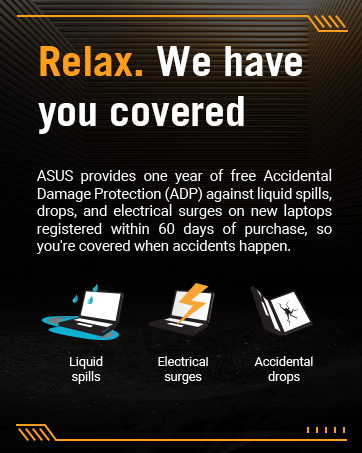
Obraz: Icons representing common accidental damages covered by ASUS Accidental Damage Protection (ADP): liquid spills, electrical surges, and accidental drops. This visual reinforces the scope of the ADP service.
9.3 Obsługa klienta
Aby uzyskać pomoc techniczną, złożyć reklamację lub uzyskać więcej informacji, odwiedź oficjalną stronę pomocy technicznej ASUS website or contact their customer service department. Have your laptop's model number (FA507NV-EH74) and serial number ready when contacting support.


