
FCNT A101FC
FCNT arrows We A101FC Softbank Edition Smartphone User Manual
Kompleksowy przewodnik dotyczący konfiguracji, obsługi i konserwacji.
1. Wprowadzenie
This manual provides essential instructions for using your FCNT arrows We A101FC Softbank Edition smartphone. It covers initial setup, daily operation, maintenance tips, and troubleshooting common issues. The arrows We A101FC features a durable design with waterproof and dustproof capabilities, a long-lasting 4000mAh battery, and convenient functions like cashless payment support, a privacy mode, and a user-friendly simple mode.

This image displays the FCNT arrows We A101FC smartphone in white, showing both its front screen with a typical Android interface and its rear panel featuring the camera module and fingerprint sensor.
2. Konfiguracja
2.1. Zawartość opakowania
Verify that your package contains the FCNT arrows We A101FC smartphone. Other accessories such as a charger, USB cable, or SIM ejector tool may be sold separately or included depending on your region and retailer.
2.2. Wkładanie karty SIM
- Znajdź tackę na kartę SIM znajdującą się z boku urządzenia.
- Use a SIM ejector tool (if provided) to open the tray.
- Place your nano-SIM card into the tray with the gold contacts facing down. Ensure it is correctly oriented.
- Delikatnie wsuń tackę z powrotem do urządzenia, aż zatrzaśnie się na swoim miejscu.
2.3. Ładowanie urządzenia
Before first use, fully charge your smartphone. Connect a compatible USB Type-C cable to the charging port at the bottom of the device and plug the other end into a power adapter. The device will indicate charging status on the screen.
2.4. Włączanie/wyłączanie zasilania
- Włączanie: Press and hold the Power button (located on the side) until the FCNT logo appears.
- Aby wyłączyć: Naciśnij i przytrzymaj przycisk zasilania, a następnie wybierz na ekranie opcję „Wyłącz”.
2.5. Kreator konfiguracji początkowej
Upon first power-on, follow the on-screen instructions to complete the initial setup. This typically includes selecting your language, connecting to a Wi-Fi network, setting up your Google account, and configuring security features.
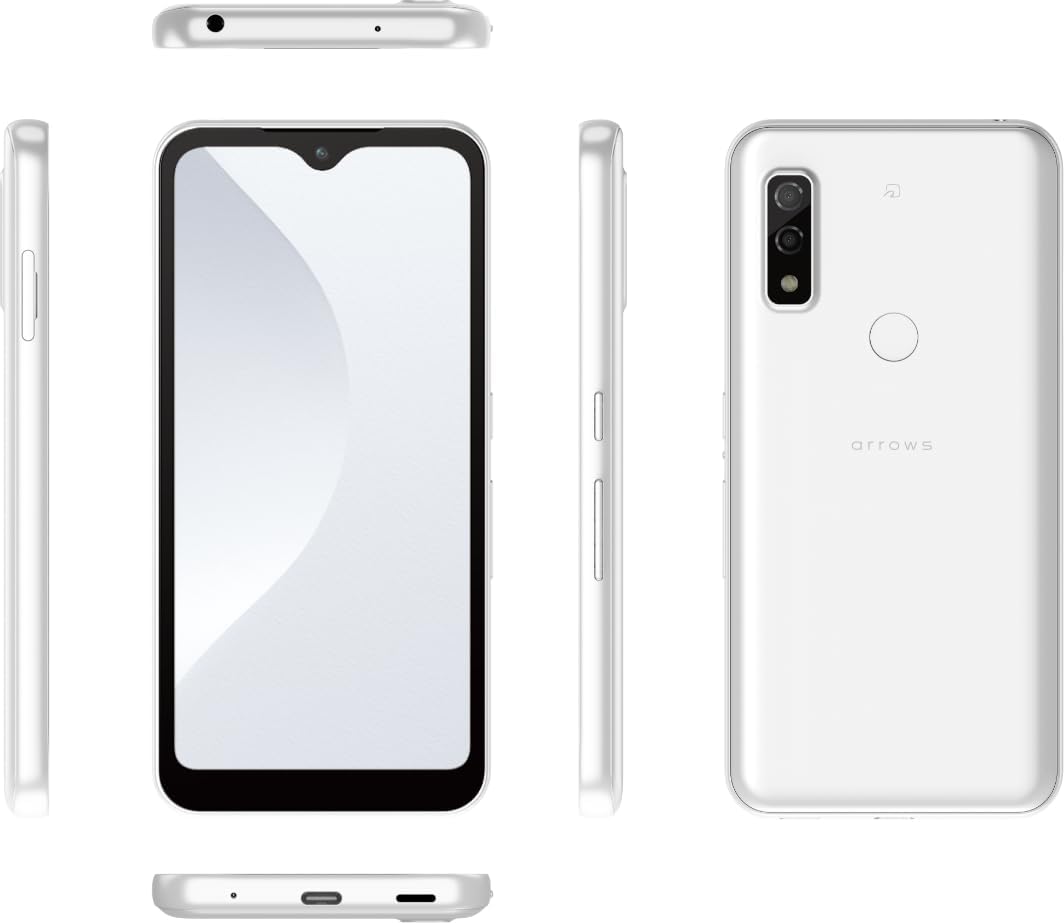
Kompleksowy view of the FCNT arrows We A101FC smartphone from various angles (front, back, sides, top, and bottom), illustrating the placement of buttons, ports, and the camera.
3. Instrukcja obsługi
3.1. Podstawowa nawigacja
- Gesty na ekranie dotykowym: Dotknij, aby wybrać, przesuń, aby przewijać, uszczypnij, aby powiększyć.
- Ekran główny: Uzyskaj dostęp do aplikacji, widżetów i powiadomień.
- Panel powiadomień: Przesuń palcem w dół od góry ekranu do view powiadomienia i szybkie ustawienia.
3.2. Wykonywanie połączeń i wysyłanie wiadomości
- Połączenia: Otwórz aplikację Telefon, wprowadź numer i dotknij ikony połączenia.
- Wiadomości: Open the Messages app, tap to compose a new message, enter the recipient and text, then send.
3.3. Korzystanie z aparatu
The FCNT arrows We A101FC is equipped with a 13.1-megapixel wide-angle lens, allowing you to capture clear and expansive photos. Open the Camera app, select your desired mode (e.g., Photo, Video), and tap the shutter button to take a picture or start recording.

The FCNT arrows We A101FC smartphone is shown being used to capture a wide-angle landscape photo, with a detailed inset highlighting the device's 13.1-megapixel wide-angle camera lens.
3.4. Cashless Payment (Osaifu-Keitai)
The device supports cashless payment functionalities, allowing for smooth transactions. Ensure your payment apps are set up and your card information is registered. Hold the phone near compatible payment terminals to complete purchases.

This image shows a user making a cashless payment with the FCNT arrows We A101FC smartphone at a point-of-sale terminal, highlighting the device's mobile payment capabilities.
3.5. Tryb prywatności
The FCNT arrows We A101FC includes a 'Privacy Mode' feature. This mode allows you to selectively blur or hide portions of your screen content, protecting sensitive information from being viewed by others, especially in public settings. Activate it through quick settings or the settings menu.

This image illustrates the 'Privacy Mode' feature of the FCNT arrows We A101FC, where a portion of the screen content is blurred or hidden to protect sensitive information from onlookers.
3.6. Simple Mode
For users who prefer a streamlined interface, the FCNT arrows We A101FC offers a 'Simple Mode'. This mode simplifies the home screen layout with larger icons and easier navigation, making the device more accessible and user-friendly.

This composite image showcases several user interface features of the FCNT arrows We A101FC, including the 'News Suite' for easy news access, a 'Simple Home' screen with large, accessible icons, the 'App Addition' process, and the 'Shortcut Dial' for quick contacts.
4. Konserwacja
4.1. Czyszczenie urządzenia
To clean your smartphone, gently wipe it with a soft, lint-free cloth. For stubborn smudges, slightly dampen the cloth with water. Avoid using harsh chemicals, abrasive materials, or excessive moisture, especially near ports.
4.2. Aktualizacje oprogramowania
Regularly check for and install software updates to ensure optimal performance, security, and access to new features. You can usually find this option in the device's 'Settings' menu under 'System' or 'Software Update'.
4.3. Pielęgnacja baterii
The FCNT arrows We A101FC is equipped with a 4000mAh battery. To prolong battery life, avoid extreme temperatures, do not overcharge for extended periods, and consider enabling battery-saving modes when needed.
4.4. Waterproof and Dustproof Features
The device is designed with waterproof and dustproof capabilities. However, these features are not permanent and may decrease over time with normal wear. Avoid submerging the device in water for prolonged periods or exposing it to high-pressure water jets. Ensure all ports and covers are securely closed before exposure to liquids or dust.
5. Rozwiązywanie Problemów
- Urządzenie się nie włącza: Upewnij się, że bateria jest naładowana. Podłącz ładowarkę i odczekaj kilka minut przed ponownym włączeniem.
- Ekran nie reaguje: Try restarting the device by holding the Power button for about 10 seconds.
- Problemy z siecią: Check if your SIM card is properly inserted. Verify mobile data settings and ensure airplane mode is off. Try restarting the device.
- Szybkie rozładowywanie baterii: Close unused apps running in the background. Reduce screen brightness. Check battery usage in settings to identify power-hungry apps.
- Awarie aplikacji: Clear the cache of the problematic app in 'Settings > Apps'. If the issue persists, try reinstalling the app.
- Przywrócenie ustawień fabrycznych: W ostateczności, jeśli problemy z oprogramowaniem nadal występują, możesz przywrócić ustawienia fabryczne. Ostrzeżenie: Spowoduje to usunięcie wszystkich danych z urządzenia. Przed kontynuacją wykonaj kopię zapasową ważnych danych. This option is usually found in 'Settings > System > Reset options'.
6. Specyfikacje
| Funkcja | Szczegół |
|---|---|
| Marka | FCNT (arrows) |
| Numer modelu | A101FC |
| System operacyjny | Android 11 |
| Model procesora | Snapdragon 480 Octa-core |
| Prędkość procesora | 2 GHz |
| Zainstalowana pamięć RAM | 4 GB |
| Składowanie | 64 GB |
| Rozmiar ekranu | 5.7 cali |
| Typ wyświetlacza | LCD |
| Główna kamera | 13.1 Megapixels (Wide-angle lens) |
| Pojemność baterii | 4000 mAh |
| Kolor | Biały |
| Wymiary produktu | Wymiary 7.1 x 0.94 x 14.7 cm |
| Waga | 270 gramów |
| Cechy | Waterproof, Dustproof, Cashless Payment (Osaifu-Keitai), Privacy Mode, Simple Mode |
7. Informacje o gwarancji
Specific warranty terms and conditions for the FCNT arrows We A101FC may vary depending on your region and the retailer from whom you purchased the device. Please refer to the warranty card included with your product or contact your point of purchase for detailed information regarding warranty coverage, duration, and claims procedures.
8. Obsługa klienta
For further assistance, technical support, or inquiries not covered in this manual, please contact the FCNT customer support or your service provider (Softbank in this edition's case). You can typically find contact information on the manufacturer's official website or through your service provider's support channels.
Ask a question about this manual
Ask about setup, troubleshooting, compatibility, parts, safety, or missing instructions. Manuals+ will review the question and use this page’s manual context to help answer it.