
BOXPUT X98H PRO
X98H PRO Android 12 Smart TV Box User Manual
Model: X98H PRO
Wstęp
This manual provides comprehensive instructions for setting up, operating, and maintaining your BOXPUT X98H PRO Android 12 Smart TV Box. Please read this manual thoroughly before using the device to ensure proper functionality and to maximize your user experience.

Image: The X98H PRO Android 12 Smart TV Box, a black rectangular device with a hexagonal pattern on top and a digital display on the front showing time and Wi-Fi status.
Zawartość opakowania
Sprawdź, czy w przesyłce znajdują się wszystkie elementy wymienione poniżej:
- X98H PRO Smart TV Box
- Zdalne sterowanie
- HDMI External Cable
- Zasilacz
- Instrukcja obsługi (ten dokument)

Image: A visual representation of the X98H PRO TV Box package contents, including the TV box, remote control, HDMI cable, power adapter, and user manual.
Produkt ponadview
The X98H PRO is a high-performance smart TV box designed for home entertainment. It features the Android 12.0 operating system and is powered by the Allwinner H618 Quad-Core Cortex-A53 CPU and Mali G31 MP2 GPU, ensuring smooth operation and excellent multimedia capabilities.
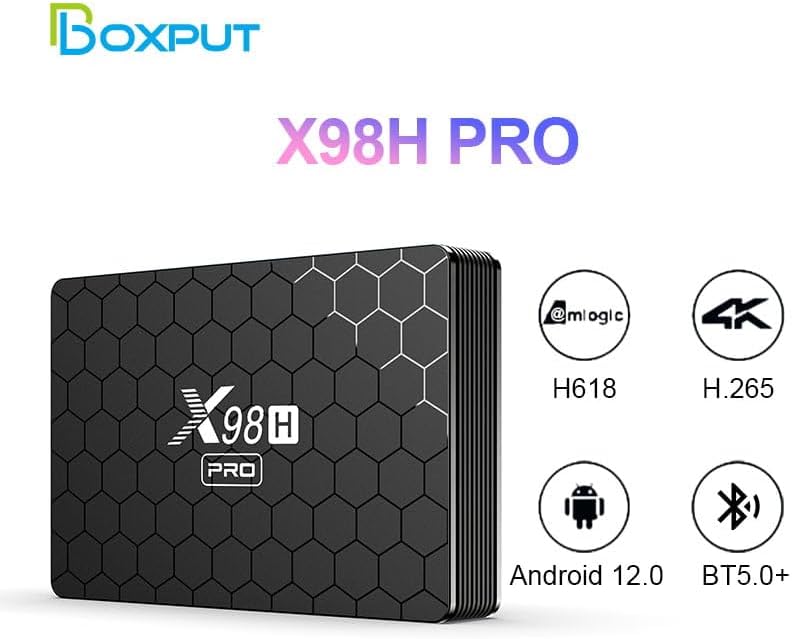
Image: The X98H PRO TV Box alongside icons highlighting its key features: Allwinner H618 chipset, H.265 decoding, Android 12.0 OS, and Bluetooth 5.0+ connectivity.
Porty i interfejsy
Familiarize yourself with the various ports on your X98H PRO device:

Obraz: Szczegółowy views of the X98H PRO TV Box showing its various ports. The rear panel includes DC power input, Optical audio output, HDMI In, HDMI Out, Ethernet, AV, and USB. The side panel shows two additional USB ports and a TF/MicroSD card slot.
- DC Connector (5V 2A): Do wejścia zasilania.
- HDMI Out (2.0a): Connects to your TV or display for video and audio output (up to 4K@60fps).
- HDMI In (2.0): Allows input from another HDMI source (supports 4K@60fps).
- Ethernet (LAN): For wired network connection (1000Mbps).
- Porty USB 2.0 (x3): Do podłączania zewnętrznych urządzeń pamięci masowej, klawiatur, myszy i innych urządzeń peryferyjnych USB.
- Gniazdo na kartę TF/MicroSD: For expandable storage (up to 128GB).
- Port AV: For older analog video and audio connections (supports PAL/NTSC).
- Optyczne wyjście audio: Do cyfrowego wyjścia audio.
Przewodnik po konfiguracji
1. Podłączenie Urządzenia
- Podłącz jeden koniec kabla HDMI do Wyjście HDMI port on the X98H PRO and the other end to an HDMI input port on your television or display.
- Podłącz zasilacz do Prąd stały 5 V port on the X98H PRO and then plug the adapter into a power outlet.
- Włącz telewizor i wybierz odpowiednie źródło sygnału HDMI.
2. Połączenie sieciowe
The X98H PRO supports both Wi-Fi and wired Ethernet connections.
Połączenie Wi-Fi:
- Z ekranu głównego przejdź do Ustawienia.
- Wybierać Sieć i Internet.
- Włączyć coś Wi-Fi i wybierz interesującą Cię sieć z listy.
- Enter the Wi-Fi password if prompted and select Łączyć.
Połączenie Ethernet:
- Connect an Ethernet cable from your router or modem to the Sieć Ethernet (LAN) port on the X98H PRO.
- Urządzenie automatycznie wykryje sieć przewodową i nawiąże z nią połączenie.
3. Podłączanie urządzeń peryferyjnych
You can connect various peripherals to your TV box:
- Urządzenia USB: Plug USB flash drives, external hard drives, keyboards, or mice into the USB 2.0 ports.
- Urządzenia Bluetooth:
- Idź do Ustawienia > Podłączone urządzenia > Sparuj nowe urządzenie.
- Przełącz urządzenie Bluetooth w tryb parowania.
- Wybierz urządzenie z listy, aby je sparować.
Instrukcja obsługi
Navigating the Android 12 OS
The X98H PRO runs on Android 12, providing a user-friendly interface. Use the included remote control to navigate through menus and applications.
- Klawisze strzałek: Navigate up, down, left, and right.
- Przycisk OK: Wybierz element lub potwierdź czynność.
- Przycisk Wstecz: Powrót do poprzedniego ekranu.
- Przycisk Home: Powrót do głównego ekranu głównego.
- Przycisk menu: Access context-sensitive options (if available).
Odtwarzanie multimediów
The device supports various multimedia formats:
- Wideo: H265 Main10@L5.1 (up to 4K@60fps or 6K@30fps), VP9 Profile 2 (up to 4K@60fps), AVS2 Jizhun 10bit (up to 4K@60fps), H.264 BP/MP/HP@L4.2 (up to 4K@30fps).
- Audio: MP3, AAC, WMA, FLAC, Ogg.
- Obraz: HD JPEG, BMP, GIF, PNG, TIF.
You can play media from connected USB storage devices or through installed streaming applications.
Zarządzanie aplikacjami
Install new applications from the Google Play Store or other trusted sources. You can manage installed apps through the Android settings.
HDMI Input Switching
The X98H PRO features an HDMI input port, allowing you to connect another HDMI source (e.g., a game console or Blu-ray player) and switch between the TV box's output and the external HDMI input.

Image: A diagram illustrating the HDMI input and output functionality. The X98H PRO can display its own content or switch to an external HDMI source connected to its HDMI In port, controlled by a switch button on the device.
Konserwacja
- Czyszczenie: Do czyszczenia urządzenia należy używać miękkiej, suchej ściereczki. Nie należy używać płynów czyszczących ani aerozoli.
- Wentylacja: Upewnij się, że urządzenie znajduje się w dobrze wentylowanym miejscu, aby zapobiec przegrzaniu. Nie blokuj otworów wentylacyjnych.
- Wyłączone: Jeśli urządzenie nie będzie używane przez dłuższy czas, zaleca się odłączenie zasilacza od źródła zasilania.
- Aktualizacje oprogramowania: Aby zapewnić optymalną wydajność i bezpieczeństwo, okresowo sprawdzaj dostępność aktualizacji systemu w ustawieniach urządzenia.
Rozwiązywanie problemów
| Problem | Możliwe rozwiązanie |
|---|---|
| Brak zasilania |
|
| Brak obrazu na telewizorze |
|
| Problemy z połączeniem Wi-Fi |
|
| Pilot nie odpowiada |
|
| Aplikacje zawieszają się lub ulegają awarii |
|
Specyfikacje
| Funkcja | Szczegół |
|---|---|
| Model | X98H PRO |
| System operacyjny | Android 12.0 |
| Procesor | Allwinner H618 Quad-core ARM Cortex A53 |
| Procesor graficzny | Mali G31 MP2 |
| Pojemność pamięci RAM | 2 GB / 4 GB (opcjonalnie) |
| ROM Capacity | 16GB / 32GB / 64GB (Optional) |
| Pamięć zewnętrzna | USB Storage Devices, MicroSD (up to 128GB) |
| Wi-Fi | IEEE 802.11 a/b/g/n/ac (2.4G & 5G Dual Band) |
| Bluetooth | BT5.0+ |
| Wyjście wideo | HDMI 2.0a (up to 4K@60fps), CVBS (PAL/NTSC) |
| Wejście wideo | HDMI 2.0 (supports 4K@60fps) |
| Porty USB | 3x USB 2.0 |
| Wymiary | 135 × 90 × 23 mm (5.31 × 3.54 × 0.91 cala) |
| Waga | 0.15 kg (0.33 funta) |
| Kolor | Czarny |
Gwarancja i wsparcie
Informacje o gwarancji
Ten produkt jest objęty standardową gwarancją producenta. Prosimy o zapoznanie się z kartą gwarancyjną dołączoną do opakowania lub kontakt ze sprzedawcą w celu uzyskania szczegółowych warunków gwarancji.
Obsługa klienta
For technical assistance, troubleshooting, or any inquiries regarding your X98H PRO Smart TV Box, please contact BOXPUT customer support or visit the official BOXPUT store on Amazon:
Visit the BOXPUT Store on Amazon

Image: A person using a computer, symbolizing customer support and online resources available for BOXPUT products.
Ask a question about this manual
Ask about setup, troubleshooting, compatibility, parts, safety, or missing instructions. Manuals+ will review the question and use this page’s manual context to help answer it.