
1. Wprowadzenie
This manual provides detailed instructions for the installation, configuration, and operation of the Grandstream GWN7003 11-Port Wired Gigabit VPN Router. The GWN7003 is designed to establish robust wired, wireless, and VPN networks for various environments, offering advanced features for network management and security.
2. Koniec produktuview
2.1 Główne cechy
- 1x GbE RJ45 port with IEEE 802.3af/at PoE Input.
- 2x GbE RJ45 ports with 48V Passive PoE output or IEEE802.3af.
- Multiple Gigabit RJ45 ports and Gigabit SFP ports for flexible connectivity.
- Integrated VPN support for secure remote access to corporate networks.
- Built-in firewall for enhanced network security.
- Multi-WAN capabilities for load balancing and failover.
2.2 Układ panelu przedniego
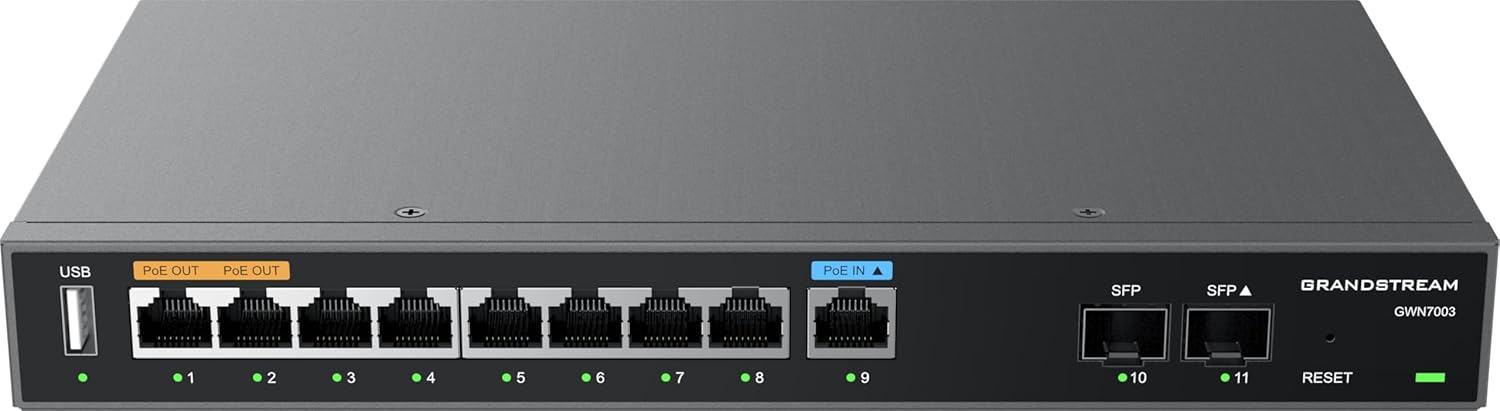
Rysunek 1: Przód view of the Grandstream GWN7003 router, showing the USB port, PoE OUT ports, PoE IN port, standard Ethernet ports, SFP ports, and reset button.
- Port USB: For future use or external storage.
- PoE OUT Ports (Orange): Provide Power over Ethernet to compatible devices.
- PoE IN Port (Blue): Receives Power over Ethernet to power the router itself.
- Porty Ethernet (1-9): Standard Gigabit Ethernet ports for network connections.
- Porty SFP (10-11): Gigabit SFP ports for fiber optic connections.
- Przycisk resetowania: Służy do przywracania ustawień fabrycznych urządzenia.
- Wskaźniki LED: Indicate port status (link/activity) and device power.
2.3 na górze View

Rysunek 2: Szczyt view of the Grandstream GWN7003 router, showcasing jego kompaktowa i trwała metalowa obudowaasing.
3. Przewodnik konfiguracji
3.1 Zawartość opakowania
Przed przystąpieniem do dalszych czynności należy upewnić się, że wszystkie elementy są obecne:
- Grandstream GWN7003 Router
- Power Adapter (if not using PoE IN)
- Kabel Ethernet
- Szybki przewodnik instalacji
3.2 Fizyczna instalacja
- Podłączenie zasilania: Connect the provided power adapter to the router's power input port, or connect an 802.3af/at compliant PoE source to the PoE IN port (blue).
- Połączenie WAN: Connect your internet service provider's modem or main network cable to one of the WAN-configured Gigabit Ethernet ports. The GWN7003 supports multiple WAN ports for redundancy or load balancing.
- Połączenie LAN: Connect your local network devices (computers, switches, access points) to the available LAN Gigabit Ethernet ports. Use the PoE OUT ports (orange) for devices requiring Power over Ethernet.
- SFP Connections (Optional): If using fiber optic connections, insert compatible SFP modules into the SFP ports and connect fiber cables.
3.3 Początkowy dostęp do Web Interfejs
- Upewnij się, że komputer jest podłączony do jednego z portów LAN routera.
- Otwórz web przeglądarka (np. Chrome, Firefox).
- Enter the default IP address of the router in the address bar. The default IP address is typically
192.168.1.1. Refer to the Quick Installation Guide for the exact default IP. - Wprowadź domyślną nazwę użytkownika i hasło (zwykle
admindla obu lub zgodnie ze specyfikacją podaną w przewodniku). - Follow the on-screen wizard for initial configuration, including changing the default password for security.
4. Instrukcja obsługi
4.1 Konfiguracja sieci
Ten web interface allows for comprehensive network configuration:
- Ustawienia WAN: Configure internet connection type (DHCP, Static IP, PPPoE).
- Ustawienia sieci LAN: Manage IP address range, DHCP server, and VLANs.
- Multi-WAN: Set up load balancing or failover policies for multiple internet connections.
4.2 Konfiguracja VPN
The GWN7003 supports various VPN protocols for secure remote access:
- Navigate to the VPN section in the web interfejs.
- Configure VPN server or client settings based on your network requirements (e.g., OpenVPN, IPsec).
- Upewnij się, że wprowadzono odpowiednie reguły zapory sieciowej, aby umożliwić ruch VPN.
4.3 PoE Output Management
The router's PoE OUT ports can power compatible devices:
- Connect PoE-powered devices (e.g., IP cameras, VoIP phones, Wi-Fi access points) to the orange PoE OUT ports.
- Monitor PoE status and power consumption through the web interfejs.
5. Konserwacja
5.1 aktualizacji oprogramowania sprzętowego
Regularly update the router's firmware to ensure optimal performance, security, and access to new features:
- Visit the Grandstream website for the latest firmware for the GWN7003.
- Pobierz oprogramowanie układowe file do twojego komputera.
- Uzyskaj dostęp do routera web interface and navigate to the System Maintenance or Firmware Upgrade section.
- Prześlij pobrane oprogramowanie sprzętowe file and follow the on-screen instructions. Do not power off the device during the update process.
5.2 Przywracanie ustawień fabrycznych
Aby przywrócić router do ustawień fabrycznych:
- With the router powered on, press and hold the Reset button (located on the front panel) for approximately 10 seconds.
- Release the button when the LED indicators flash. The router will reboot with factory default settings.
- Alternatively, a factory reset option is available within the web interface under System Maintenance.
6. Rozwiązywanie Problemów
6.1 Brak połączenia internetowego
- Verify that the WAN cable is securely connected to the correct port and that your modem is operational.
- Check WAN settings in the web interface to ensure they match your ISP's requirements.
- Uruchom ponownie modem i router.
6.2 Brak dostępu Web Interfejs
- Ensure your computer is connected to a LAN port and has obtained an IP address from the router (or has a static IP in the same subnet).
- Verify the router's IP address. Try
192.168.1.1. - Wyczyść pamięć podręczną przeglądarki lub spróbuj użyć innej przeglądarki.
- Jeżeli wszystkie inne metody zawiodą, należy przywrócić ustawienia fabryczne (patrz rozdział 5.2).
6.3 PoE Devices Not Powering On
- Ensure the device connected to the PoE OUT port is PoE-compatible.
- Sprawdź połączenie kablowe.
- Verify PoE settings in the router's web interfejs.
7. Specyfikacje
| Funkcja | Szczegół |
|---|---|
| Model | GWN7003 |
| Wymiary produktu | 10.24 x 11.81 x 2.17 cala |
| Waga przedmiotu | 3.12 funta |
| Technologia łączności | Wired (Gigabit Ethernet, SFP) |
| Wejście PoE | 1x GbE RJ45 port with IEEE 802.3af/at |
| Wyjście PoE | 2x GbE RJ45 ports with 48V Passive PoE or IEEE802.3af |
| Funkcja specjalna | QoS, VPN Support, Multi-WAN |
| System operacyjny | Grandstream GWN OS |
| Producent | Wielki strumień |
8. Informacje dotyczące bezpieczeństwa
Please read and follow these safety guidelines to prevent damage to the device or injury:
- Nie narażaj urządzenia na działanie wody i wilgoci.
- Nie umieszczaj urządzenia w pobliżu źródeł ciepła lub w bezpośrednim świetle słonecznym.
- Należy używać wyłącznie zasilacza dostarczonego przez producenta.
- Zapewnij odpowiednią wentylację wokół urządzenia.
- Nie próbuj samodzielnie otwierać ani naprawiać urządzenia. Wszelkie prace serwisowe zleć wykwalifikowanemu personelowi.
9. Gwarancja i wsparcie
The Grandstream GWN7003 router comes with a manufacturer's warranty. For detailed warranty information, technical support, or service inquiries, please visit the official Grandstream website or contact their customer support. Keep your purchase receipt for warranty validation.